Note
Access to this page requires authorization. You can try signing in or changing directories.
Access to this page requires authorization. You can try changing directories.
This article shows you how to add an Azure Cosmos DB (Azure Cosmos DB for NoSQL) Change Data Capture source to an eventstream.
The Azure Cosmos DB Change Data Capture (CDC) source connector for Microsoft Fabric eventstreams lets you capture a snapshot of the current data in an Azure Cosmos DB database. The connector then monitors and records any future row-level changes to this data. Once the changes are captured in the eventstream, you can process this CDC data in real-time and send it to different destinations within Fabric for further processing or analysis.
Prerequisites
- Access to a workspace with the Fabric capacity or Fabric Trial workspace type with Contributor or higher permissions.
- Access to an Azure Cosmos DB for NoSQL account and database.
- Your Azure Cosmos DB for NoSQL database should be publicly accessible and not be behind a firewall or secured in a virtual network. If it resides in a protected network, connect to it by using Eventstream connector virtual network injection.
- If you don't have an eventstream, create an eventstream.
Get connection details from the Azure portal
The labels for the items you need to collect from the Azure portal are shown in the following steps. You always need the endpoint URI, in a format like https://<account>.<api>.azure.com:<port>/, the Primary Key, and the Database name and item identifiers (IDs) you want to collect data for.
Note
Azure Cosmos DB for NoSQL CDC is using the Latest Version Mode of Azure Cosmos DB Change Feed. It captures the changes to records in the latest version. Deletions are't captured with this mode.
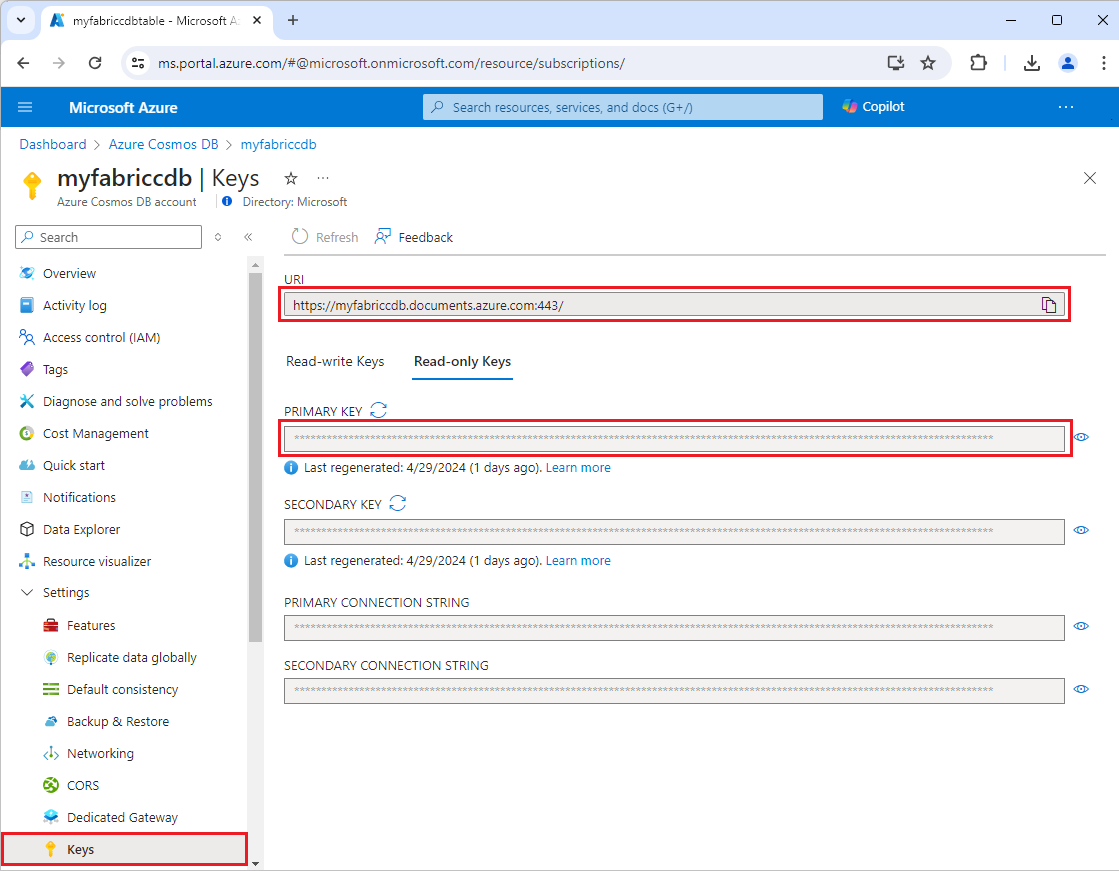
On the Azure portal page for your Azure Cosmos DB account, select Keys under Settings in the left navigation.
On the Keys page, copy the URI and Primary key values to use for setting up the eventstream connection.
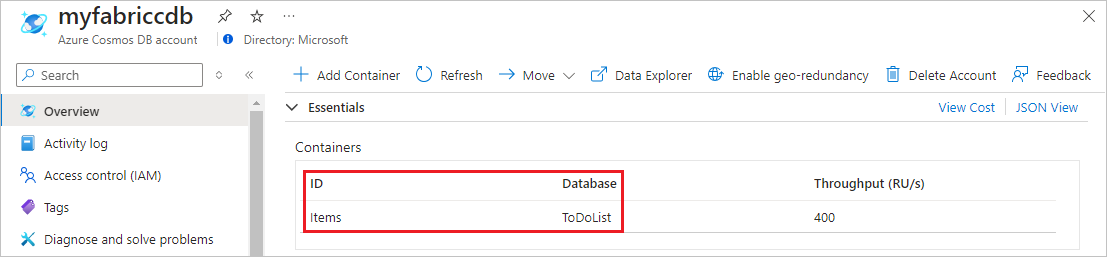
On the Azure portal Overview page for your Azure Cosmos DB account, note the Database and item ID you want to collect data for.
Add Azure Cosmos DB (CDC) as a source
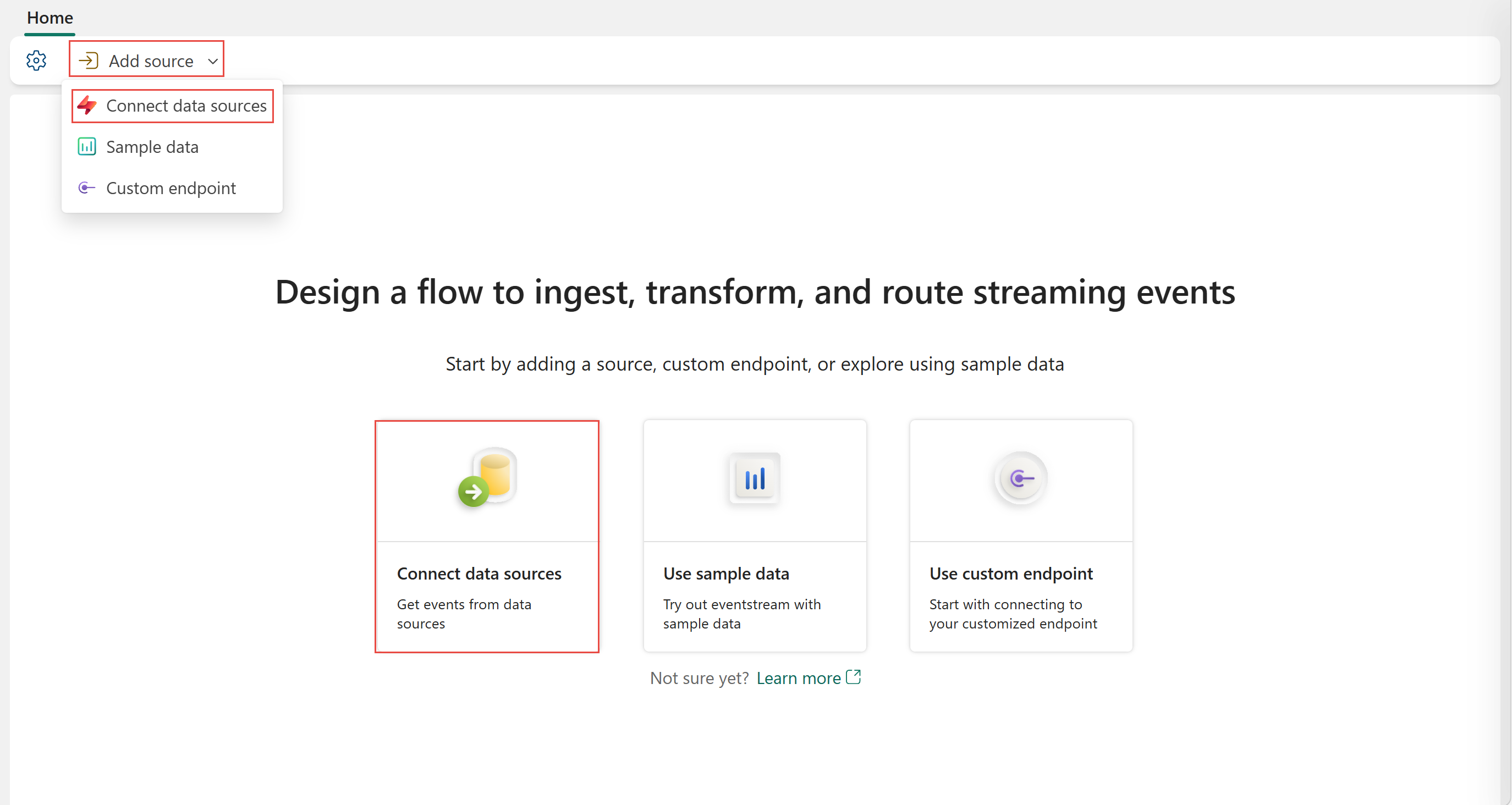
If you haven't added any source to your eventstream yet, select the Connect data sources tile. You can also select Add source > Connect data sources on the ribbon.
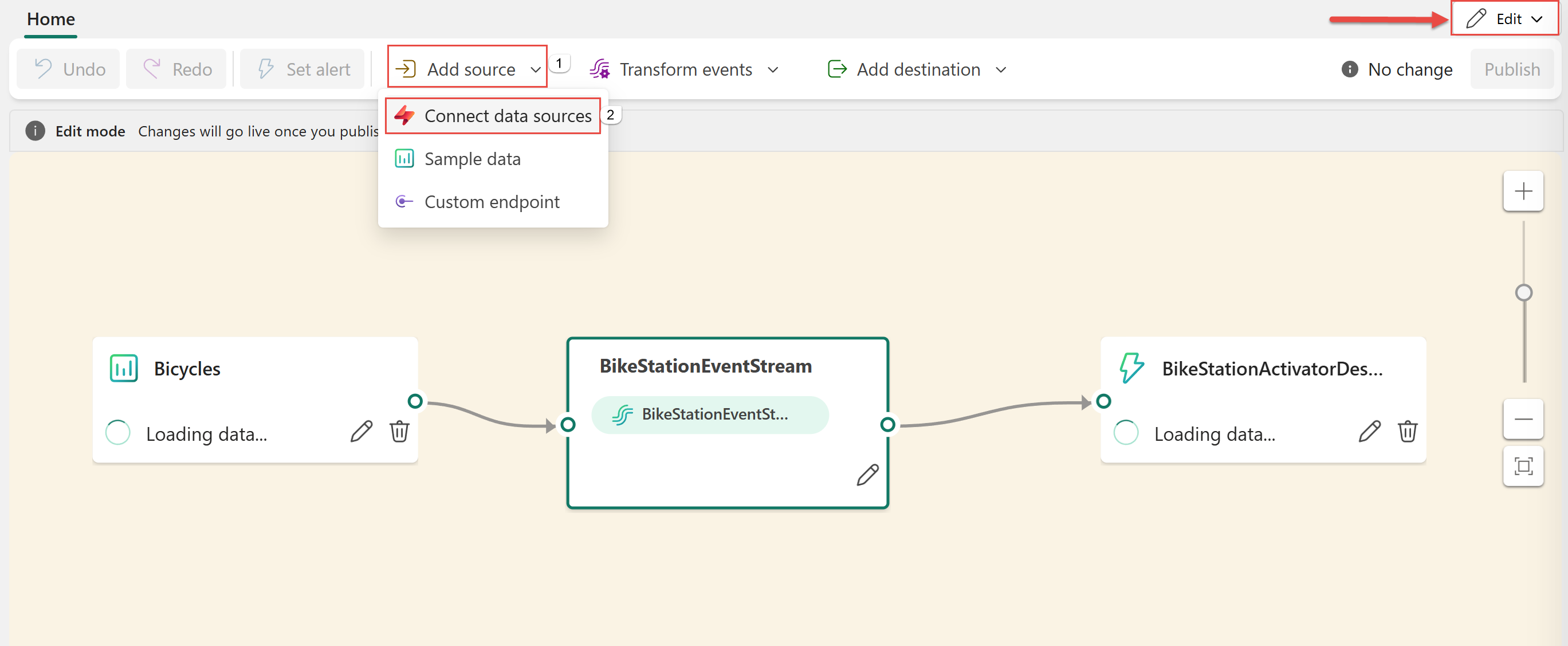
If you're adding the source to an already published eventstream, switch to Edit mode. On the ribbon, select Add source > Connect data sources.
On the Select a data source page, search for and select Connect on the Azure Cosmos DB (CDC) tile.

Configure and connect to Azure Cosmos DB (CDC)
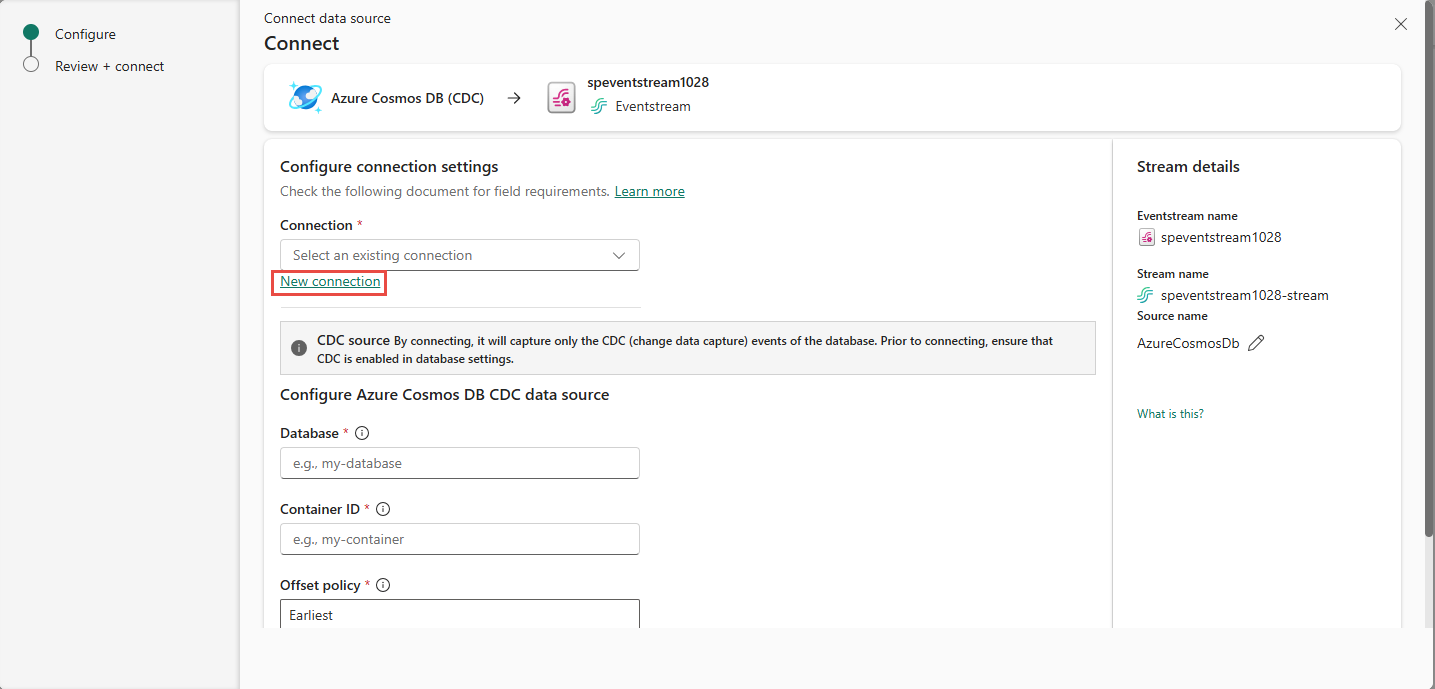
On the Connect screen, under Connection, select New connection to create a cloud connection linking to your Azure Cosmos DB database.
On the Connection settings screen, enter the following information:
- Cosmos DB Endpoint: Enter the URI or Endpoint for your Cosmos DB account that you copied from the Azure portal.
- Connection name: Automatically generated, or you can enter a new name for this connection.
- Account key: Enter the Primary Key for your Azure Cosmos DB account that you copied from the Azure portal.

Select Connect.
Provide the following information for your Azure Cosmos DB resources.
- Container ID: Enter the name of the Azure Cosmos DB container or table you want to connect to.
- Database: Enter the name of your Azure Cosmos DB database.
- Offset policy: Select whether to start reading Earliest or Latest offsets if there's no commit.
Stream or source details
On the Connect page, follow one of these steps based on whether you're using Eventstream or Real-Time hub.
Eventstream:
In the Source details pane to the right, follow these steps:
For Source name, select the Pencil button to change the name.
Notice that Eventstream name and Stream name are read-only.
Real-Time hub:
In the Stream details section to the right, follow these steps:
Select the Fabric workspace where you want to create the eventstream.
For Eventstream name, select the Pencil button, and enter a name for the eventstream.
The Stream name value is automatically generated for you by appending -stream to the name of the eventstream. This stream appears on the real-time hub's All data streams page when the wizard finishes.
Select Next at the bottom of the Configure page.
Review and connect
On the Review + connect screen, review the summary, and select Add (Eventstream) or Connect (Real-Time hub).
View updated eventstream
You see the Azure Cosmos DB (CDC) source added to your eventstream in Edit mode. Select Publish to publish the changes and begin streaming Azure Cosmos DB CDC data to the eventstream.

You see the eventstream in Live mode. Select Edit on the ribbon to get back to the Edit mode to update the eventstream.

Related content
Other connectors: