Note
Access to this page requires authorization. You can try signing in or changing directories.
Access to this page requires authorization. You can try changing directories.
This article describes how to create a Fabric eventstream. The enhanced capabilities are enabled by default now, so use the content in the Enhanced Capabilities tab to create an eventstream.
If you have eventstreams that you created by using standard capabilities, those eventstreams continue to work. You can still edit and publish them as usual. To take advantage of the additional capabilities and benefits of enhanced eventstreams, create a new eventstream to replace standard eventstreams.
Prerequisites
Before you start, complete the following prerequisite:
- Get access to a workspace in the Microsoft Fabric capacity license mode or the trial license mode with Contributor or higher permissions.
Create an eventstream
Navigate to the Fabric portal.
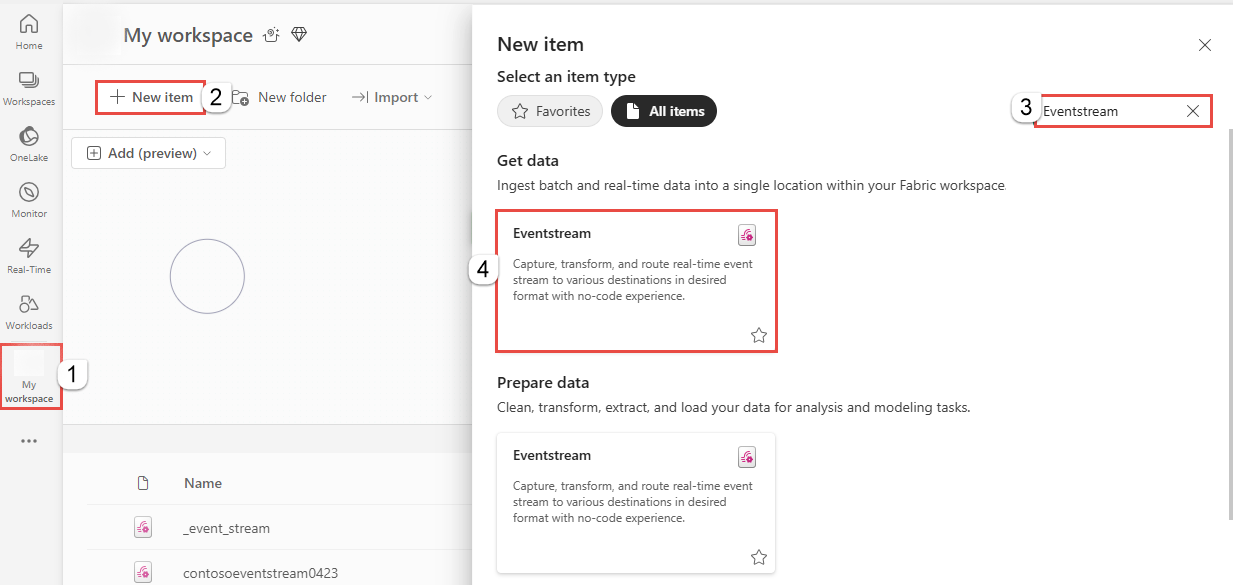
Select My workspace on the left navigation bar.
On the My workspace page, select + New item on the command bar.
On the New item page, search for Eventstream, and then select Eventstream.
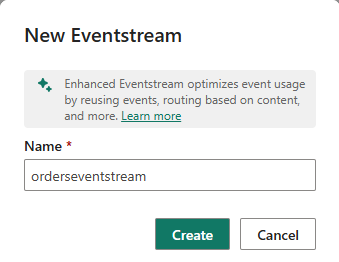
In the New Eventstream window, enter a name for the eventstream, and then select Create.
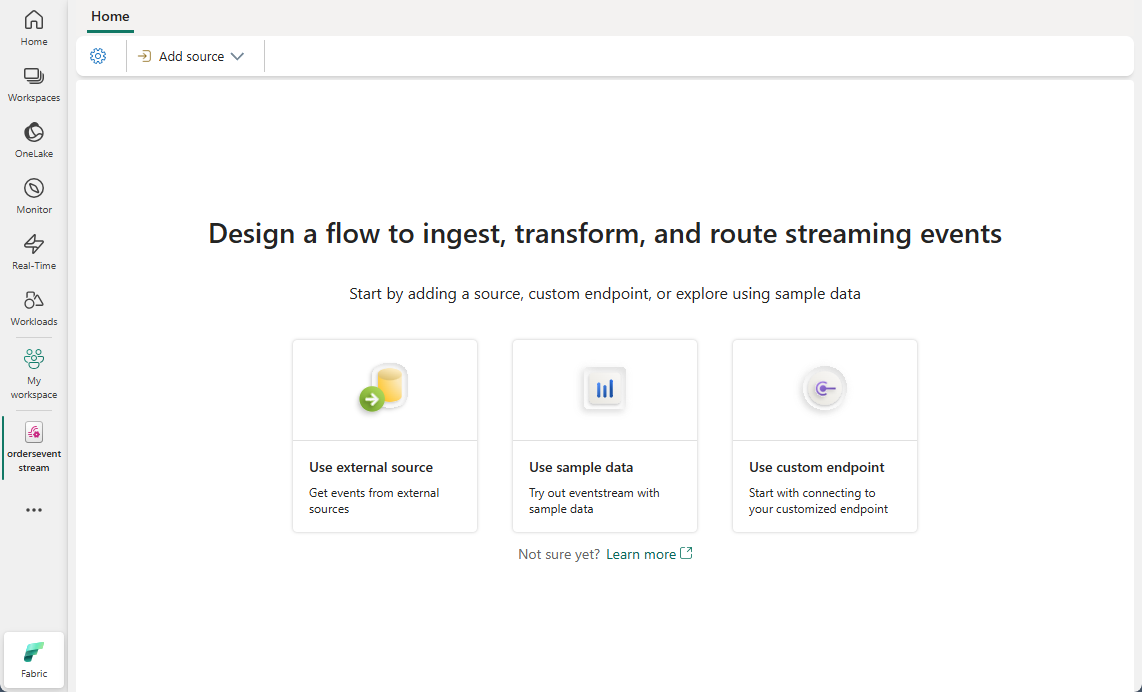
Creation of the new eventstream in your workspace can take a few seconds. After the eventstream is created, you're directed to the main editor where you can start with adding sources to the eventstream.