Note
Access to this page requires authorization. You can try signing in or changing directories.
Access to this page requires authorization. You can try changing directories.
This article shows you how to add an Azure Event Hubs source to a Microsoft Fabric eventstream.
Prerequisites
- Access to a workspace in the Fabric capacity license mode or trial license mode with Contributor or higher permissions.
- Appropriate permission to get an event hub's access keys. If your event hub is within a protected network, connect to it by using a managed private endpoint. Otherwise, ensure that the event hub is publicly accessible and not behind a firewall.
Open the wizard for selecting a data source
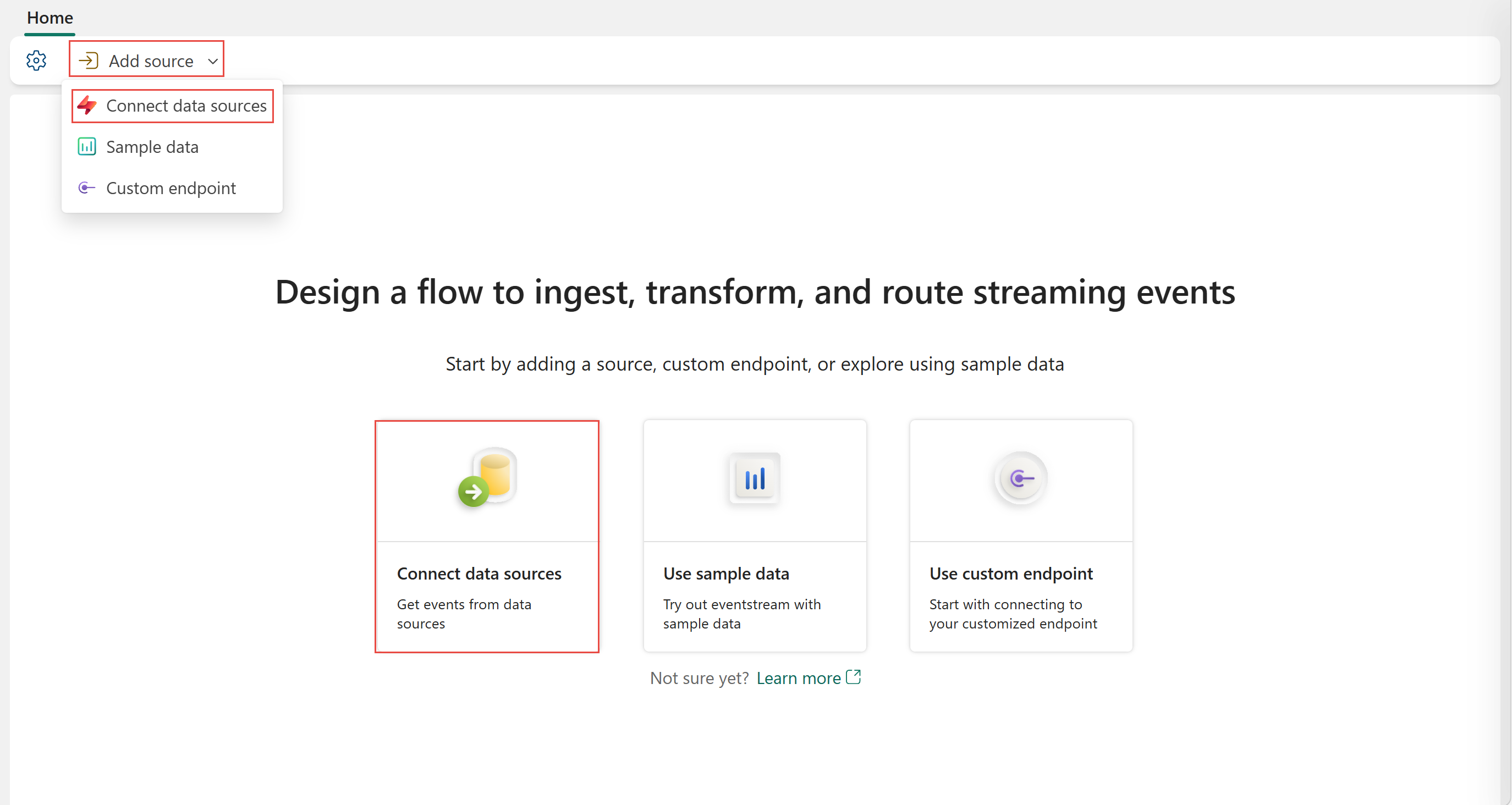
If you haven't added any source to your eventstream yet, select the Connect data sources tile. You can also select Add source > Connect data sources on the ribbon.
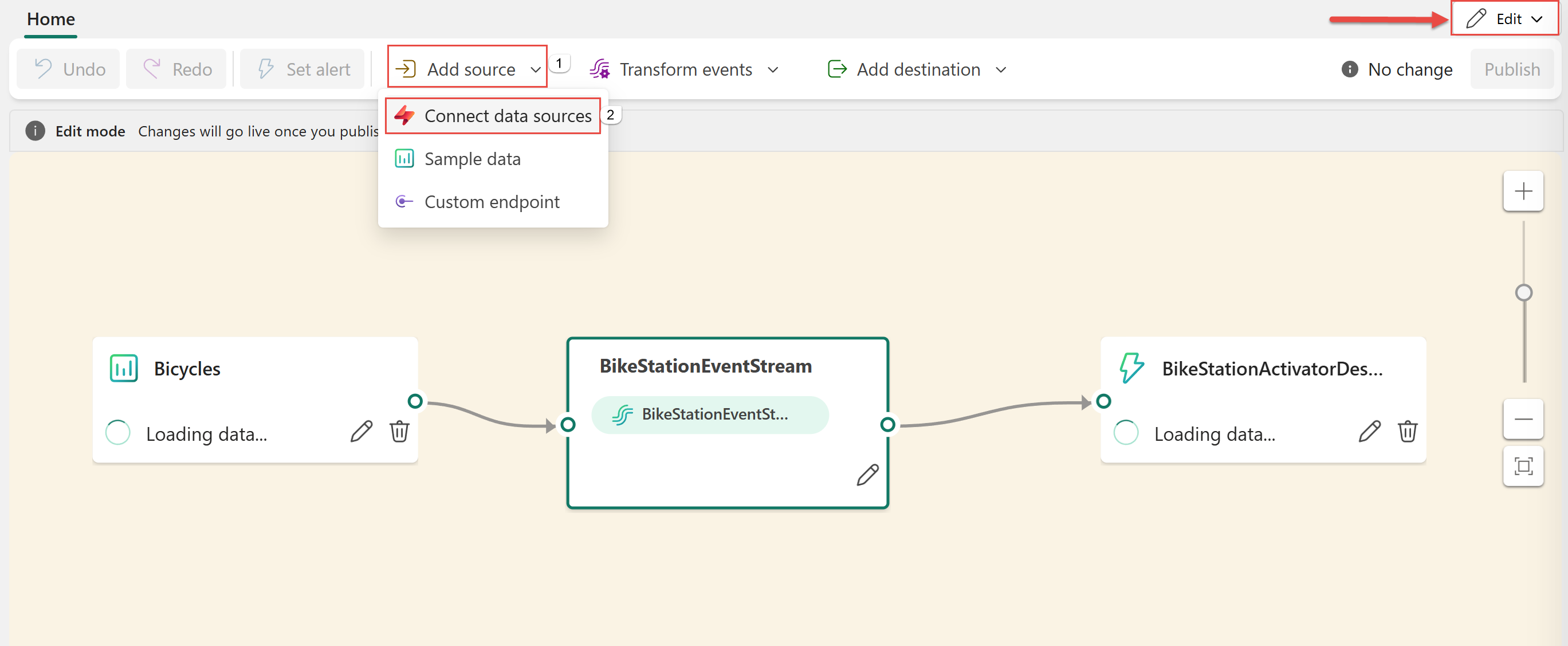
If you're adding the source to an already published eventstream, switch to Edit mode. On the ribbon, select Add source > Connect data sources.
Select Azure Event Hubs as a source
On the Select a data source page, search for Azure Event Hubs. On the Azure Event Hubs tile, select Connect.

Configure an Azure Event Hubs connector
On Configure connection settings, confirm that Basic is selected for the feature level, and then select New connection.
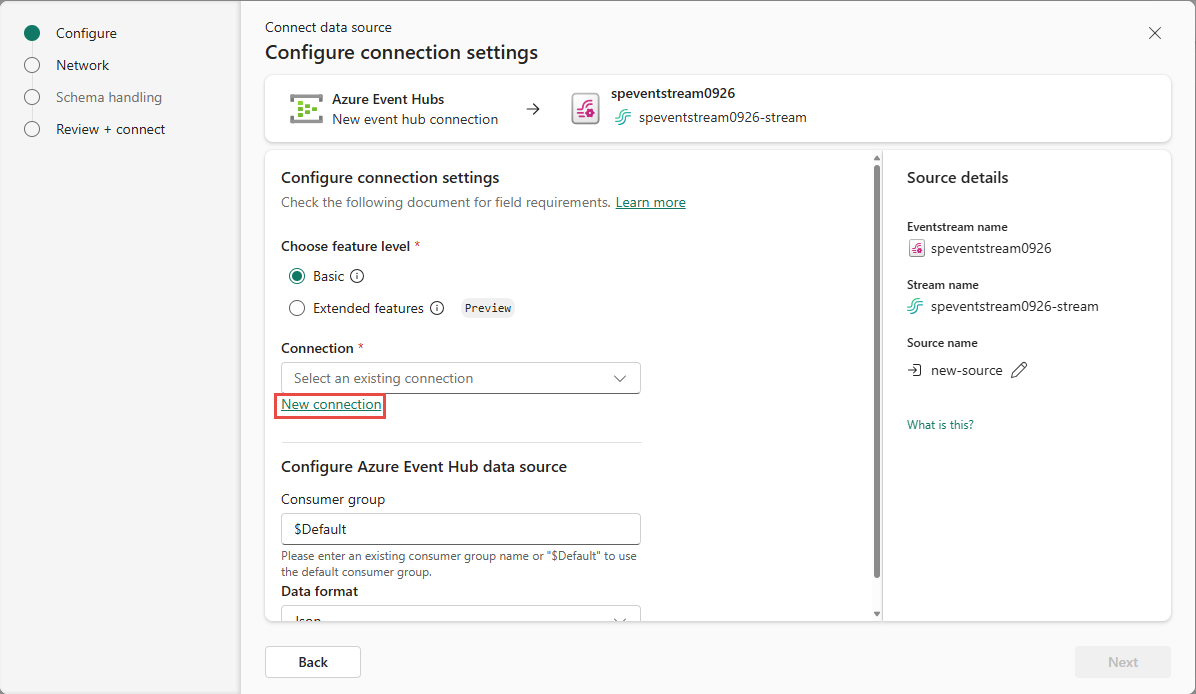
If there's an existing connection to your event hub, select that existing connection. Then, move on to configuring the data format in the following steps.

In the Connection settings section, follow these steps:
- Enter the name of the Event Hubs namespace.
- Enter the name of the event hub.
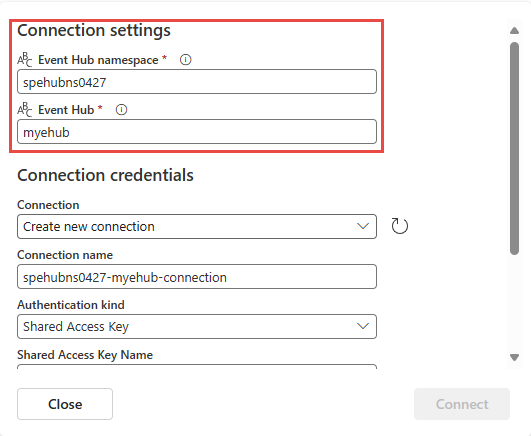
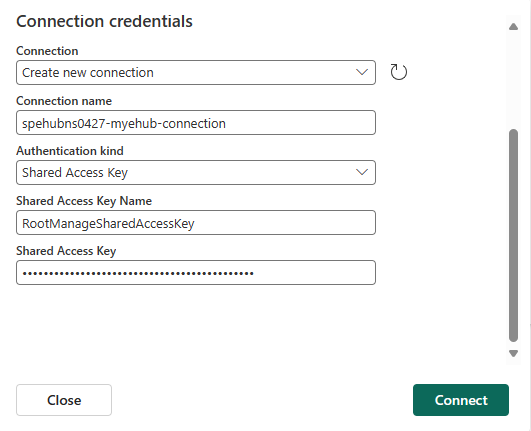
In the Connection credentials section, follow these steps:
- For Connection name, enter a name for the connection to the event hub.
- For Authentication kind, confirm that Shared Access Key is selected.
- For Shared Access Key Name, enter the name of the shared access key. For instructions on getting an access key, see Get an Azure Event Hubs connection string.
- For Shared Access Key, enter the value of the shared access key.
- Select Connect.
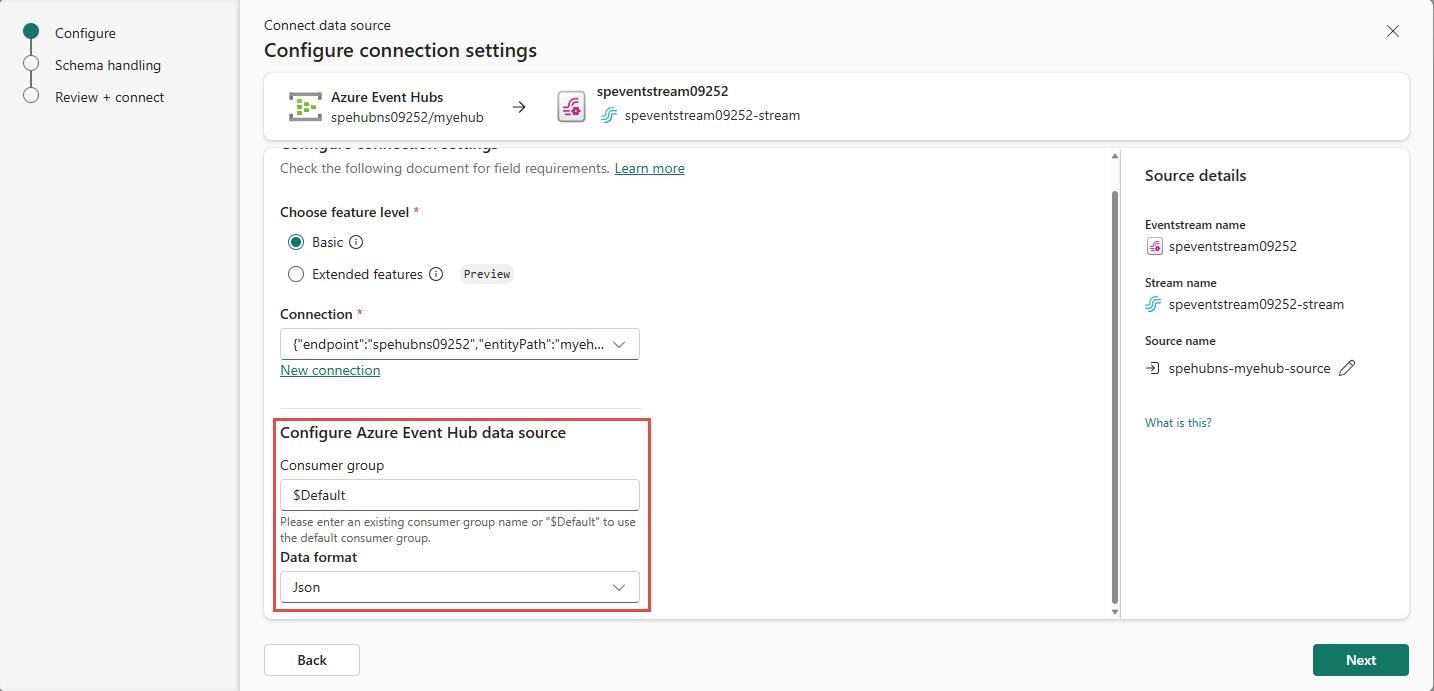
For Consumer group, enter the name of the consumer group. The default consumer group for the event hub is $Default.
For Data format, select a data format for the incoming real-time events that you want to get from your Azure event hub. You can select from JSON, Avro, and CSV (with header) data formats.
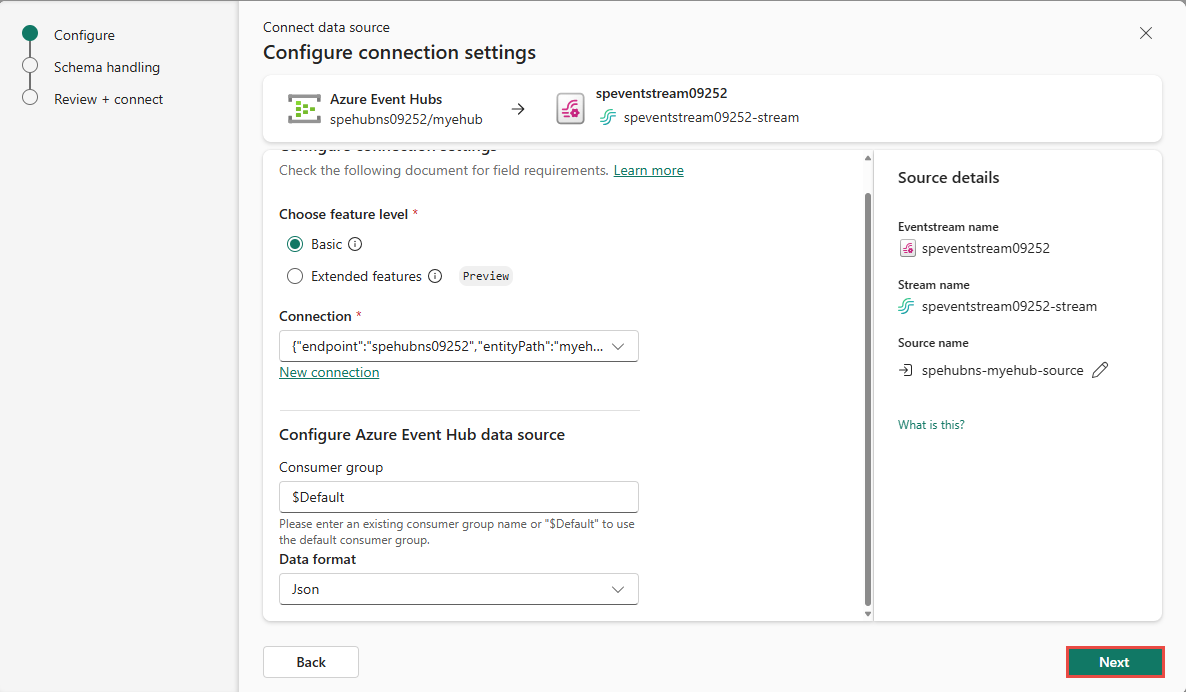
On the Source details pane to the right, select the pencil icon next to the source name, and then enter a name for the source. This step is optional.

Select Next at the bottom of the page.
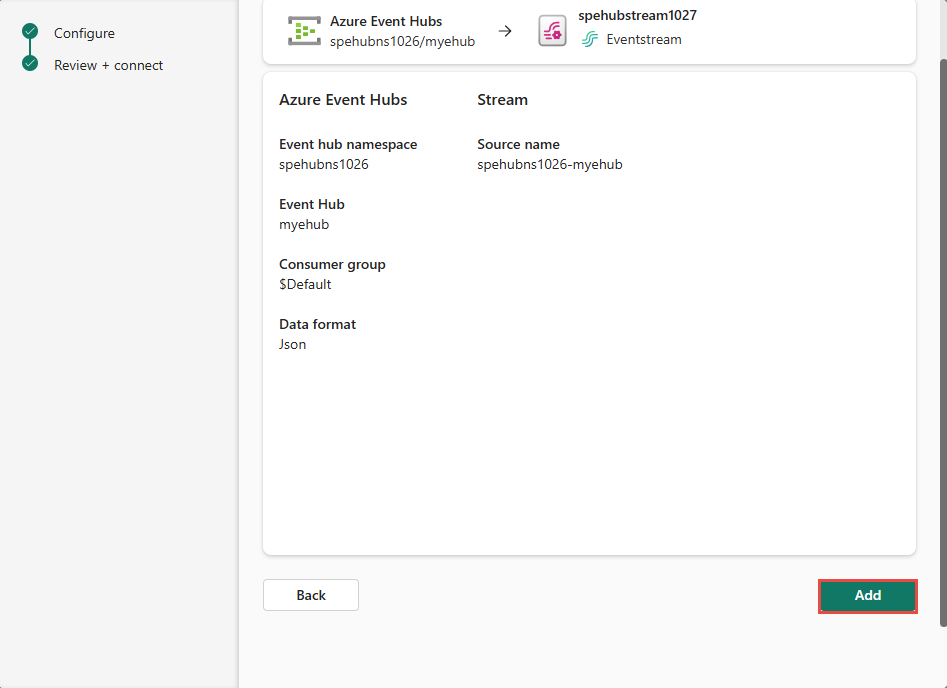
On the Review + connect page, review the settings, and then select Add.


On Configure connection settings, for Choose feature level, select Extended features.
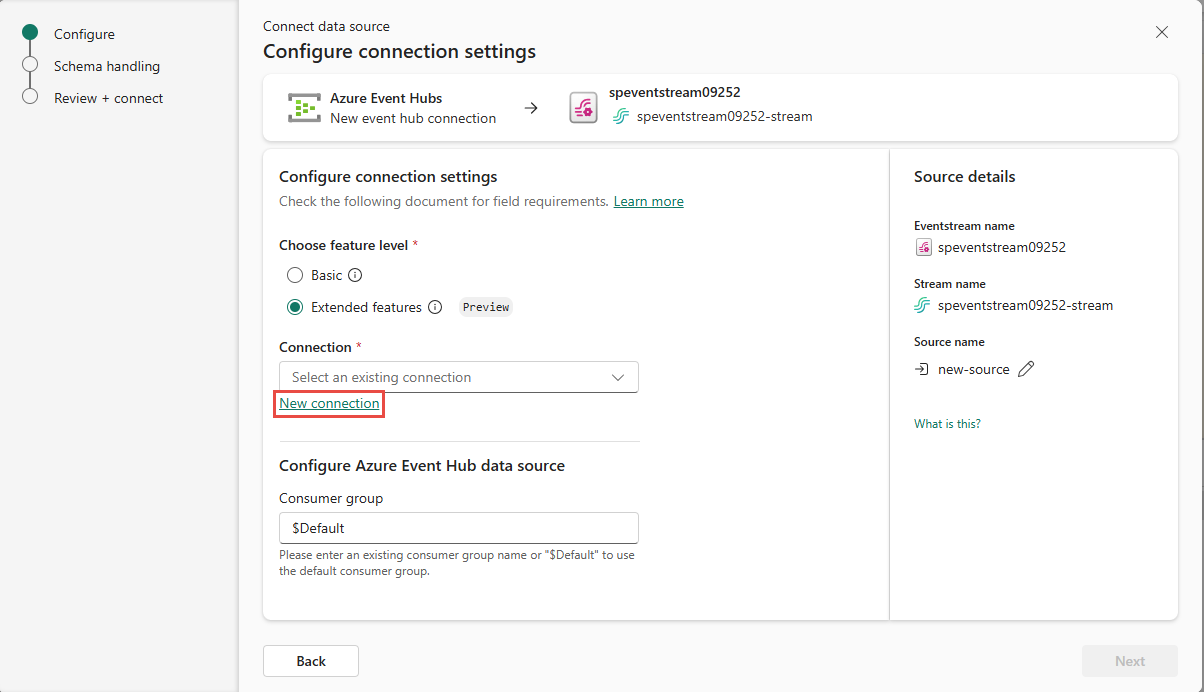
If there's an existing connection to your event hub, select that existing connection. Then, move on to configuring the data format in the following steps.
In the Connection settings section, follow these steps:
Enter the name of the Event Hubs namespace.
Enter the name of the event hub.
In the Connection credentials section, follow these steps:
For Connection name, enter a name for the connection to the event hub.
For Authentication kind, confirm that Shared Access Key is selected.
For Shared Access Key Name, enter the name of the shared access key. For instructions on getting an access key, see Get an Azure Event Hubs connection string.
For Shared Access Key, enter the value of the shared access key.
Select Connect.
For Consumer group, enter the name of the consumer group. The default consumer group for the event hub is $Default.
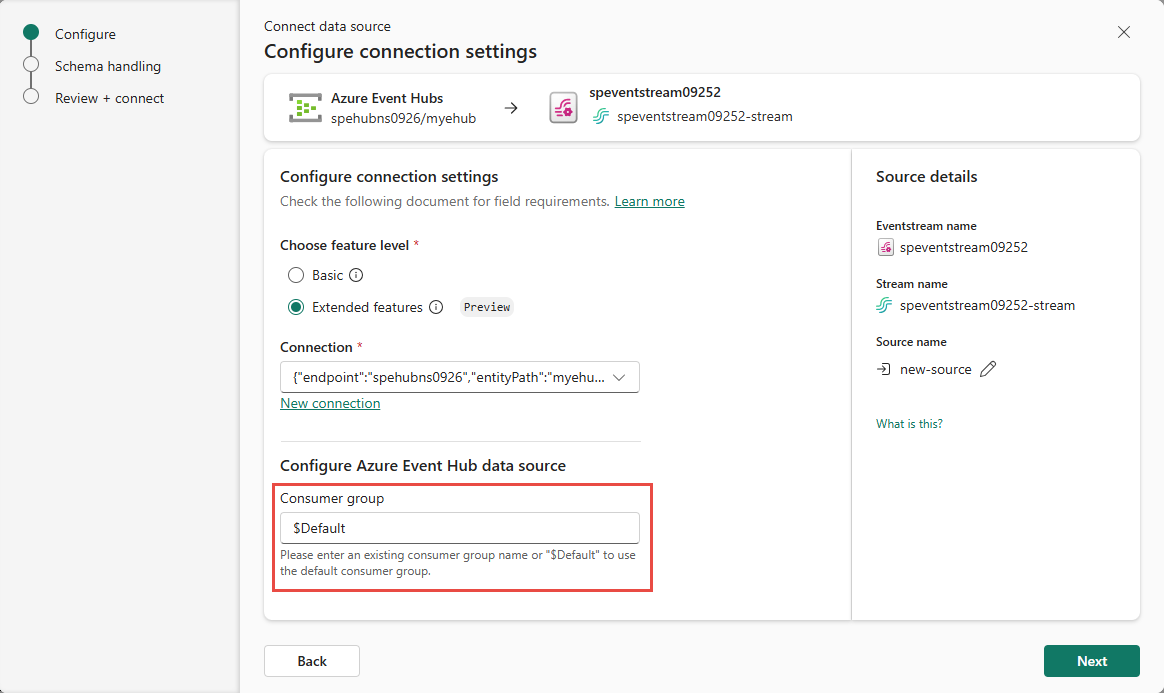
Stream or source details
On the Connect page, follow one of these steps based on whether you're using Eventstream or Real-Time hub.
Eventstream:
In the Source details pane to the right, follow these steps:
For Source name, select the Pencil button to change the name.
Notice that Eventstream name and Stream name are read-only.
Real-Time hub:
In the Stream details section to the right, follow these steps:
Select the Fabric workspace where you want to create the eventstream.
For Eventstream name, select the Pencil button, and enter a name for the eventstream.
The Stream name value is automatically generated for you by appending -stream to the name of the eventstream. This stream appears on the real-time hub's All data streams page when the wizard finishes.
Select Next at the bottom of the Configure page.
Schema handling page
On the Schema handling page, provide rules to handle events received from the selected event hub, so that the eventstream can apply them correctly. The mapping rules depend on how you model the events.
If you have one schema that governs all of the events, select Fixed schema.
If you have multiple schemas that represent the various incoming events, define matching rules to apply your schemas. To choose this mode, select Dynamic schema via headers. Then, specify the rules by using header/value pairs to select each schema. The header is a custom Kafka header property that's part of the event metadata. The value is the expected value for that property.
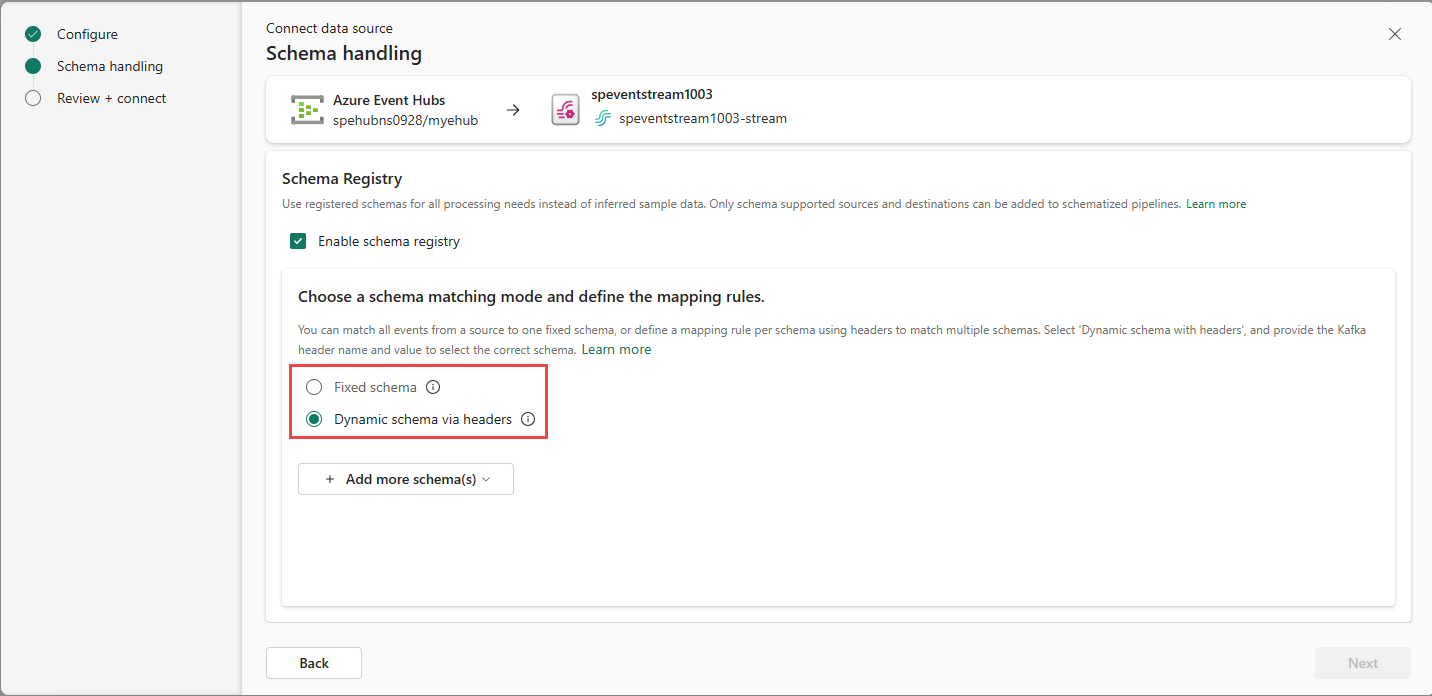
Choose schemas by selecting the Add more schema(s) dropdown menu and then choosing one or more existing schemas from the event schema registry. If you don't have schemas to choose from, you can create new schemas from this view. To learn how to define a new event schema, see Create and manage event schemas in schema sets.
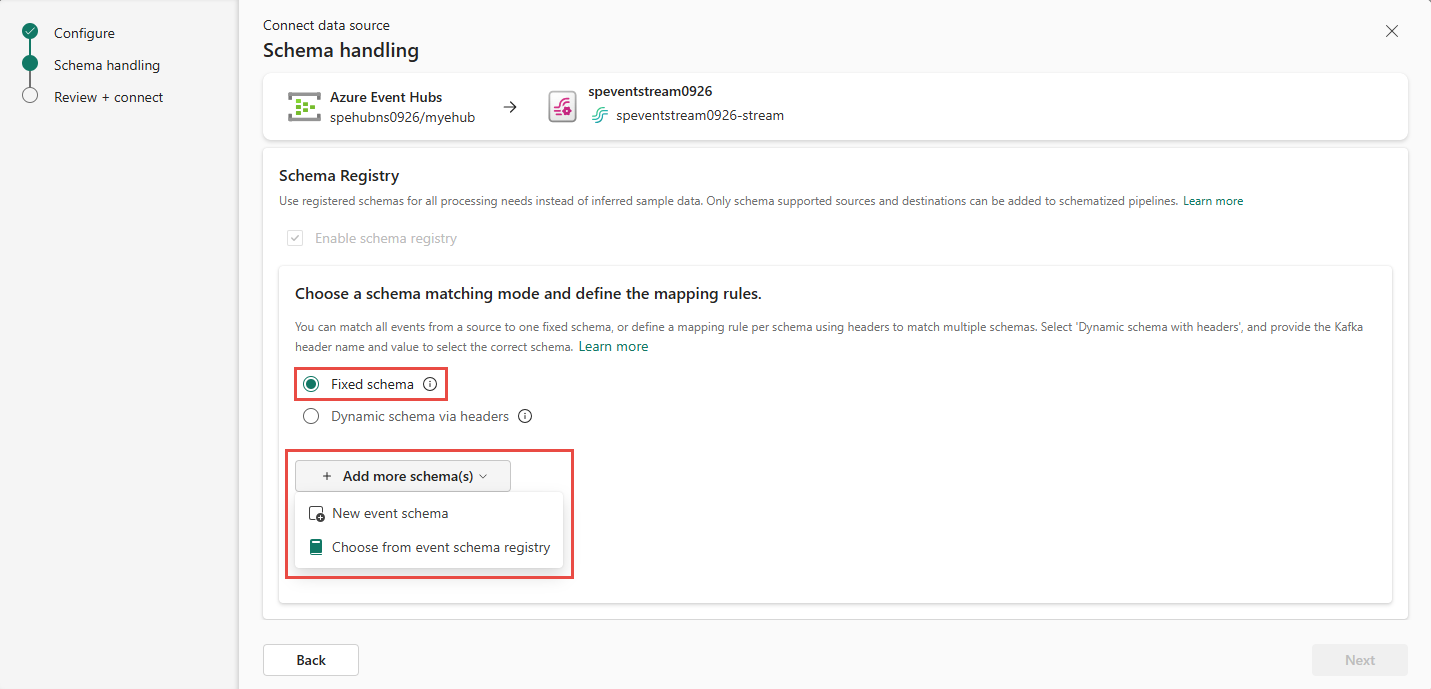
If you selected the Choose from event schema registry option, the Associate an event schema pane appears. Select one or more schemas from the registry, depending on your schema matching mode, and then select Choose at the bottom of the pane.
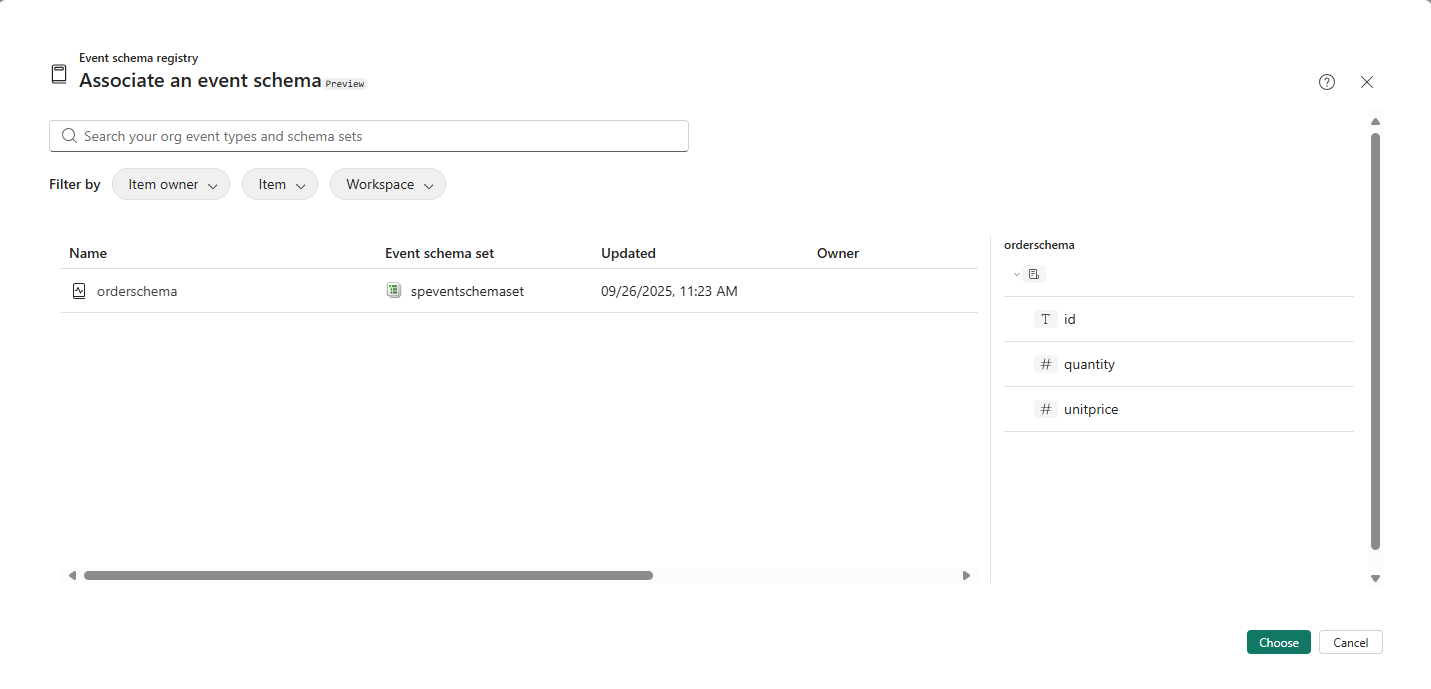
If you selected the Fixed schema option, you don't need to provide any more rules to match the schema. You can continue to the next step.
If you selected the Dynamic schema via headers option, specify the Kafka header property and the expected value that maps to the schema. Add more schemas and specify different header properties and/or different values to map to those schemas.
Note
When you define the mapping rules, each value of the header must be unique. If you try to reuse a schema, you see a warning message indicating that you might break existing streams. As long as the mapping rules are the same, you can reuse a schema. If this limitation affects your use, reach out to your Microsoft representative to share your feedback. We're actively working on removing this limitation.
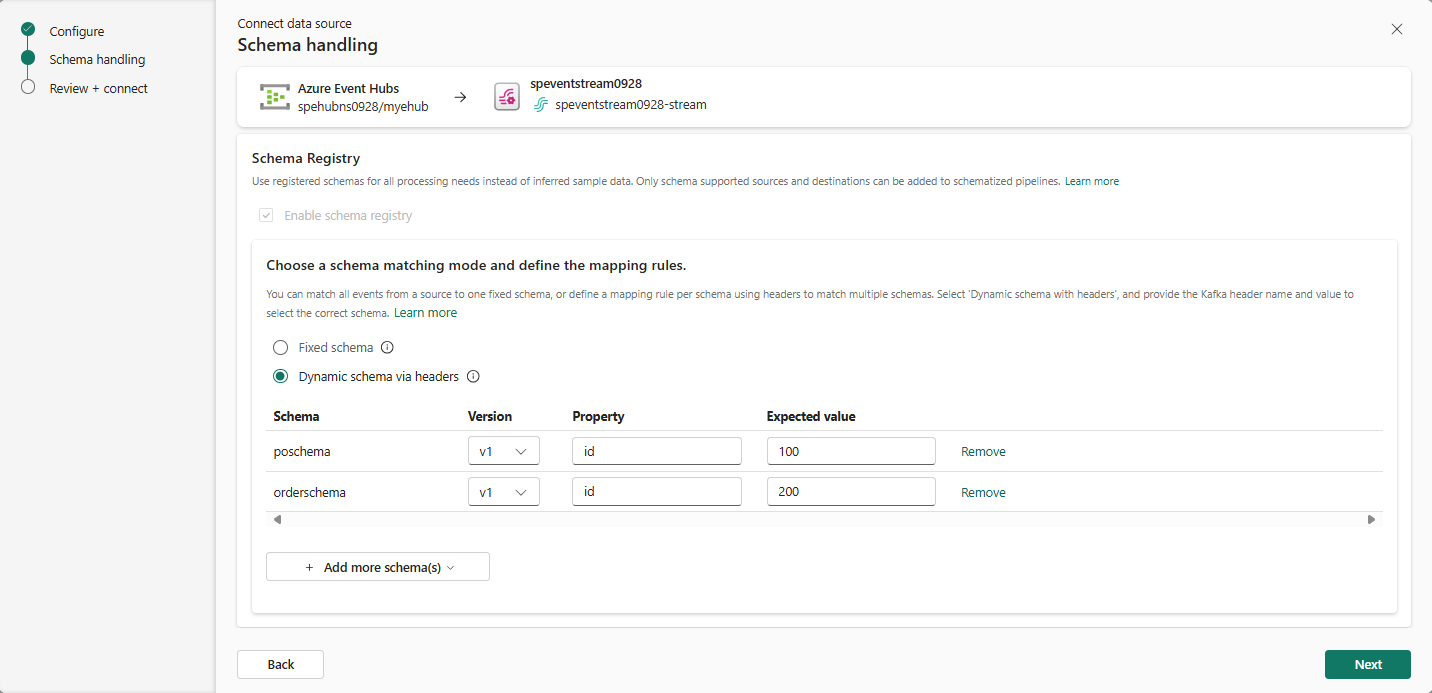
After you map schemas for all expected events, select Next at the bottom of the Schema handling page.
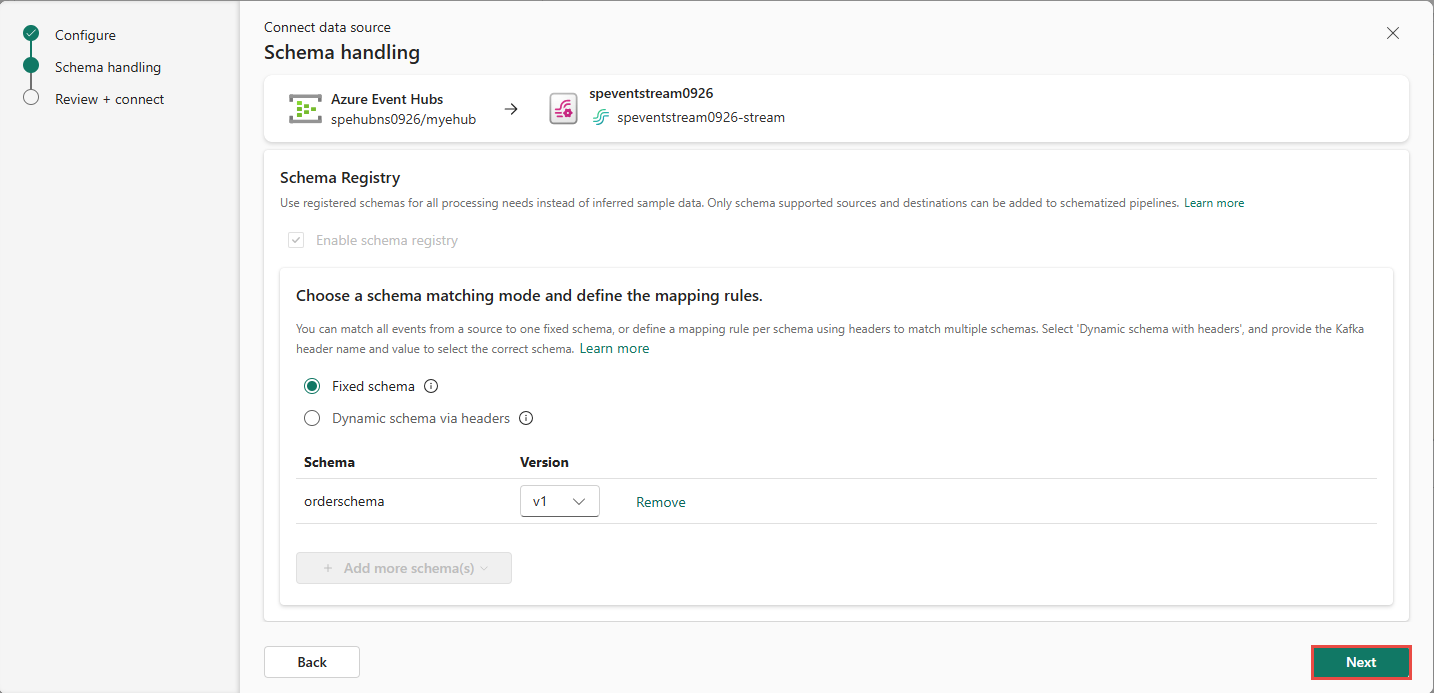
Review and connect
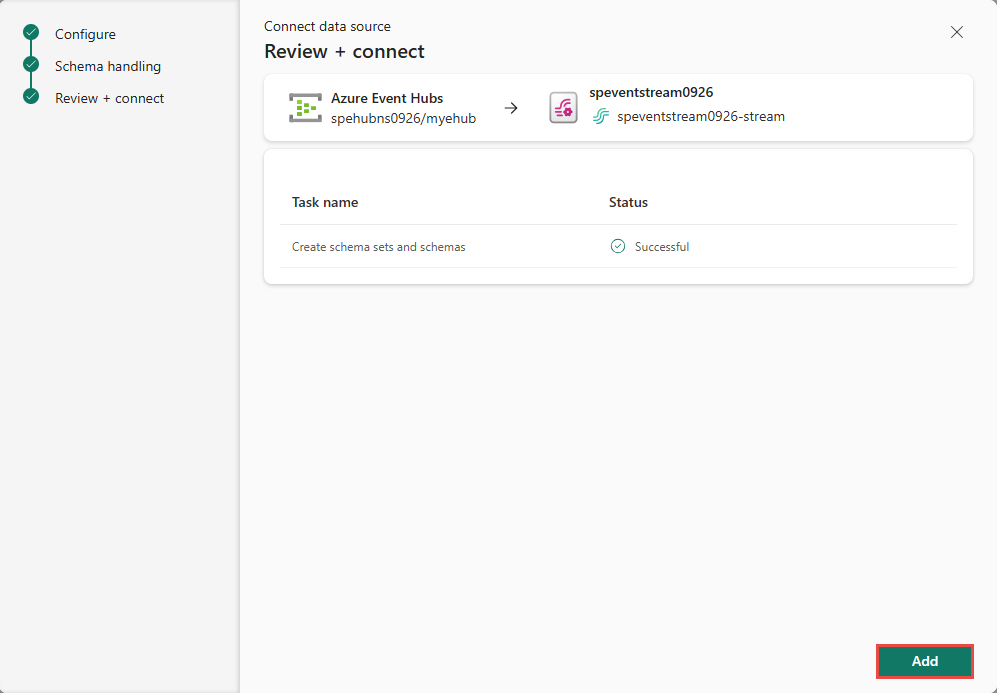
On the Review + connect page, review the settings, and then select Connect.
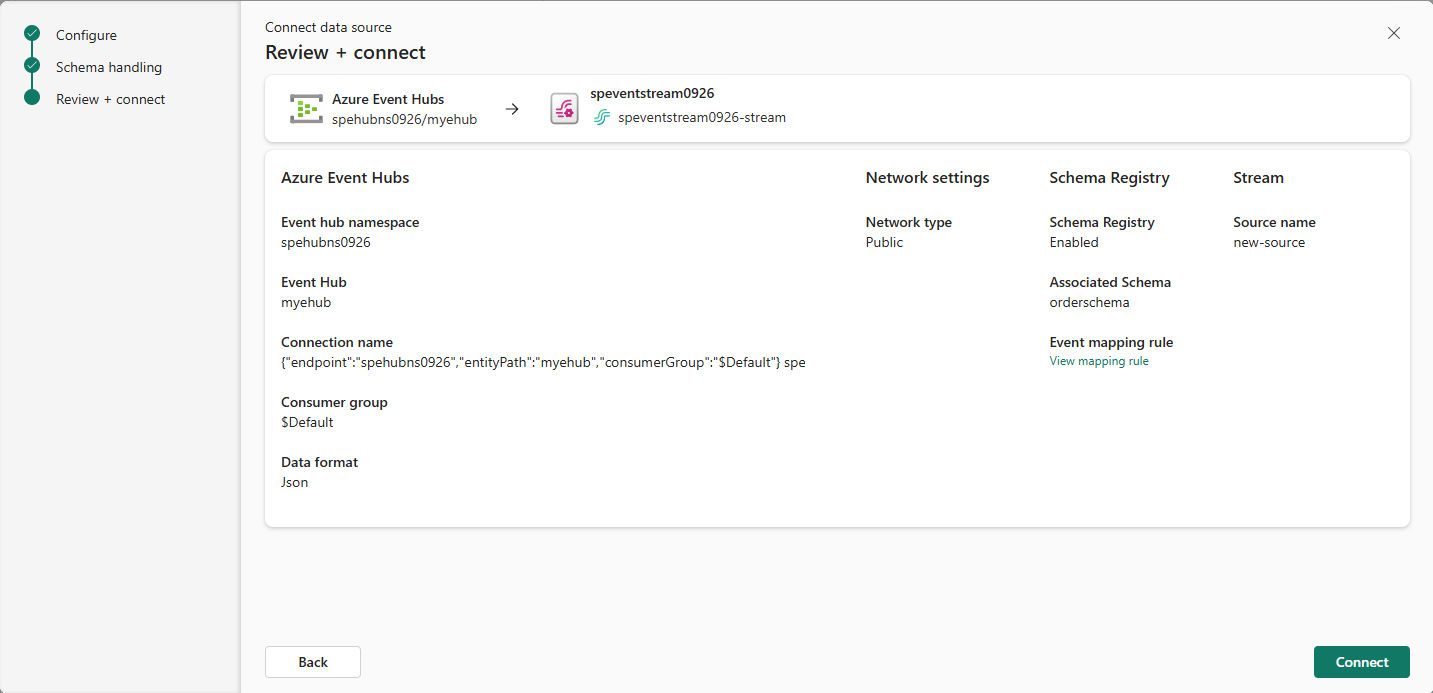
On the Review + connect page, select Add (Eventstream) or Connect (Real-Time hub).
Note
An eventstream can support up to 11 combined sources and destinations only when you're using the following types:
- Source: Custom endpoint.
- Destinations: Custom endpoint and eventhouse with direct ingestion.
Any sources or destinations not included in the preceding list, and destinations not appended to the default stream, don't count toward this limit.
View an updated eventstream
Confirm that the Event Hubs source is added to your eventstream on the canvas in the Edit mode. Select Refresh to display a preview of the data in the event hub. To implement this newly added event hub, select Publish on the ribbon.

The event hub is available for visualization in the Live view. Select the Event hub tile in the diagram to open a pane that's similar to the following example.


View an updated eventstream
Confirm that the Event Hubs source is added to your eventstream on the canvas in the Edit mode. Select Refresh to display a preview of the data in the event hub. To implement this newly added event hub, select Publish on the ribbon.

The event hub is available for visualization in the Live view. Select the Event hub tile in the diagram to open a pane that's similar to the following example.

Configure Eventstream destinations to use schemas
Currently, only the Eventhouse, custom endpoint, and derived stream destinations are supported for Eventstreams with associated schemas. This section shows you how to add and configure an Eventhouse destination when extended features (like schema support) are enabled for the eventstream.
Note
When you use DeltaFlow (Preview) with a supported Change Data Capture (CDC) source, destination tables in the Eventhouse are automatically created and managed to match the source table structure. You don't need to manually configure the destination table schema. DeltaFlow also handles schema evolution automatically when source tables change.
Configure a schema for a custom endpoint destination
Select Transform events or add destination, and then select CustomEndpoint.
On the Custom endpoint pane, specify a name for the destination.
For Input schema, select the schema for events. You make a selection in this box when you enable schema support for an eventstream.

For detailed steps on configuring a custom endpoint destination, see Add a custom endpoint or custom app destination to an eventstream.
Configure schemas for an eventhouse destination
Select Transform events or add destination, and then select Eventhouse.
On the Eventhouse pane, configure the following schema-related settings:
For Input schema, select one or more schemas from the dropdown list.

Note
If you selected the Dynamic schema via headers option when configuring an Event Hubs source, you might have configured multiple schemas for the source and mapped them to various properties and their values.
For Table creation method, select A single table with all schemas combined or Separate tables for each schema, depending on your requirements.
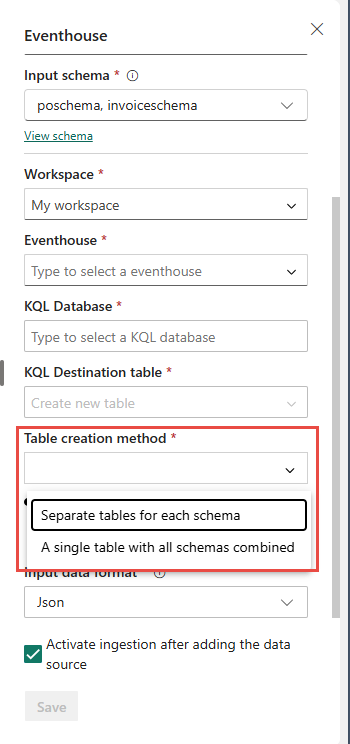
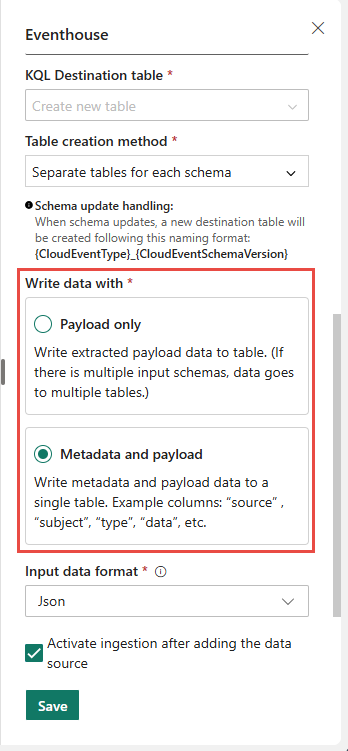
For Write data with, select one of the following options:
- Payload only: Write extracted payload data to the table. If there are multiple input schemas, data is sent to multiple tables.
- Metadata and payload: Write metadata and payload data to a single table. Example columns include
source,subject,type, anddata.

For detailed steps on configuring an eventhouse destination, see Add an eventhouse destination to an eventstream.
Related content
- For a list of supported sources, see Add and manage an event source in an eventstream.