Note
Access to this page requires authorization. You can try signing in or changing directories.
Access to this page requires authorization. You can try changing directories.
This article shows you how to add an Amazon MSK Kafka source to an eventstream.
Amazon MSK Kafka is a fully managed Kafka service that simplifies the setup, scaling, and management. By integrating Amazon MSK Kafka as a source within your eventstream, you can seamlessly bring the real-time events from your MSK Kafka and process it before routing them to multiple destinations within Fabric.
Prerequisites
Access to a workspace in the Fabric capacity license mode (or) the Trial license mode with Contributor or higher permissions.
An Amazon Managed Streaming for Kafka (MSK) cluster in active status.
Your Amazon MSK Kafka cluster must be publicly accessible and not be behind a firewall or secured in a virtual network. If it resides in a protected network, connect to it by using Eventstream connector virtual network injection.
If you plan to use TLS/mTLS settings, make sure the required certificates are available in an Azure Key Vault:
- Import the required certificates into Azure Key Vault in .pem format.
- The user who configures the source and previews data must have permission to access the certificates in the Key Vault (for example, Key Vault Certificate User or Key Vault Administrator).
- If the current user doesn’t have the required permissions, data can’t be previewed from this source in Eventstream.
Add Amazon MSK Kafka as a source
In Fabric Real-Time Intelligence, select Eventstream to create a new eventstream.
On the next screen, select Connect data sources, or select Add source -> Connect data sources.
On the Select a data source page, select View all sources.
Search for Amazon MSK Kafka, and then select Connect on the tile.

Configure and connect to Amazon MSK Kafka
On the Connect page, select New connection.

In the Connection settings section, for Bootstrap Server, enter one or more public Kafka bootstrap server endpoints. Use commas (,) to separate multiple servers.

To get the public endpoint:

In the Connection credentials section, If you have an existing connection to the Amazon MSK Kafka cluster, select it from the dropdown list for Connection. Otherwise, follow these steps:
- For Connection name, enter a name for the connection.
- For Authentication kind, confirm that API Key is selected.
- For Key and Secret, enter API key and key Secret for Amazon MSK Kafka cluster.
Note
If you only use mTLS to do the authentication, you can add any string in the Key section during connection creation.
Select Connect.
Now, on the Connect page, follow these steps.
For Topic, enter the Kafka topic.
For Consumer group, enter the consumer group of your Kafka cluster. This field provides you with a dedicated consumer group for getting events.
Select Reset auto offset to specify where to start reading offsets if there's no commit.
For Security protocol, select one of the following options:
- SASL_SSL: Use this option when your Kafka cluster uses SASL-based authentication. By default, the Kafka broker’s server certificate must be signed by a Certificate Authority (CA) included in the trusted CA list. If your Kafka cluster uses a custom CA, you can configure it by using TLS/mTLS settings.
- SSL (mTLS): Use this option when your Kafka cluster requires mTLS authentication, and you must configure both a custom server CA certificate and a client certificate in TLS/mTLS settings.
The default SASL mechanism is SCRAM-SHA-512 and can't be changed.
If your Kafka cluster uses a custom CA or requires mTLS, expand TLS/mTLS settings and configure the following options as needed:
Trust CA Certificate: Enable Trust CA Certificate configuration. Select your subscription, resource group, and key vault, and then provide the server ca name.
Client certificate and key: Enable Client certificate and key configuration. Select your subscription, resource group, and key vault, and then provide the client certificate name.
If you don’t use mTLS but still use SASL_SSL with your custom CA cert, then you can skip this client certificate configuration.
Note
The TLS/mTLS settings in this section are currently in preview.
For sources in a private network, ensure that the Azure Key Vault containing your certificates is connected to the Azure virtual network used by the streaming virtual network data gateway for Eventstream connector virtual network injection (for example, via a private endpoint).


Stream or source details
On the Connect page, follow one of these steps based on whether you're using Eventstream or Real-Time hub.
Eventstream:
In the Source details pane to the right, follow these steps:
For Source name, select the Pencil button to change the name.
Notice that Eventstream name and Stream name are read-only.
Real-Time hub:
In the Stream details section to the right, follow these steps:
Select the Fabric workspace where you want to create the eventstream.
For Eventstream name, select the Pencil button, and enter a name for the eventstream.
The Stream name value is automatically generated for you by appending -stream to the name of the eventstream. This stream appears on the real-time hub's All data streams page when the wizard finishes.
Select Next at the bottom of the Configure page.
Review and connect
On the Review + connect screen, review the summary, and select Add (Eventstream) or Connect (Real-Time hub).
View updated eventstream
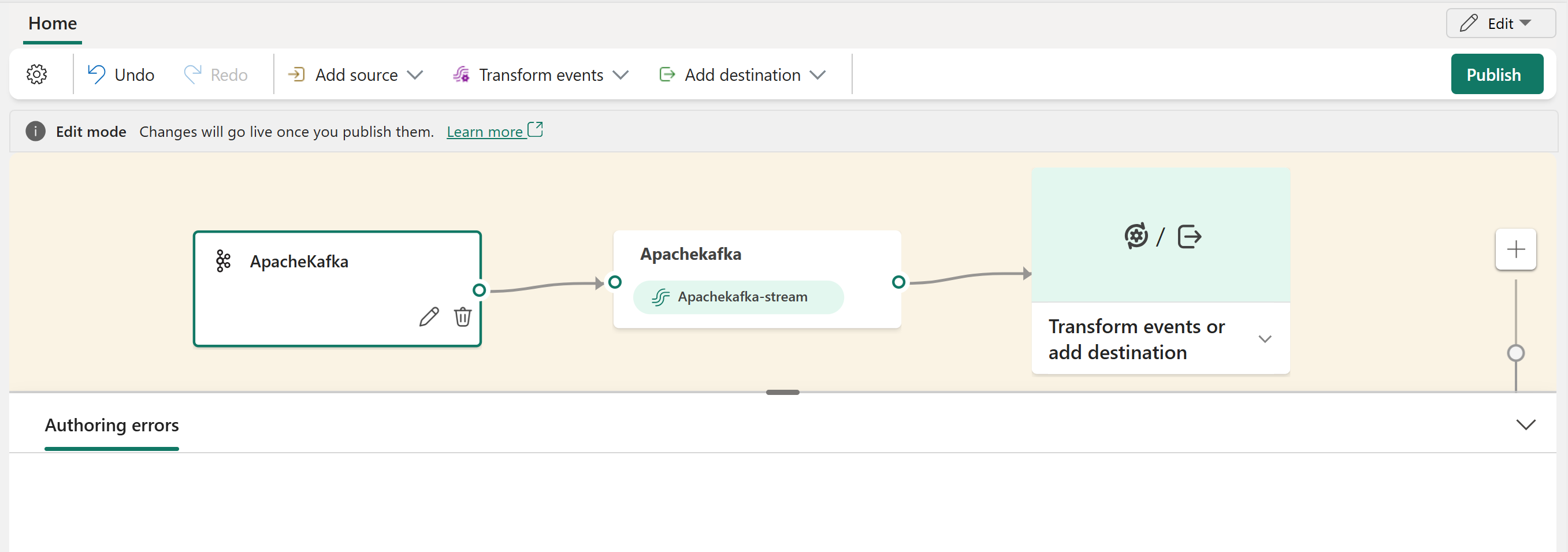
You can see the Amazon MSK Kafka source added to your eventstream in Edit mode.
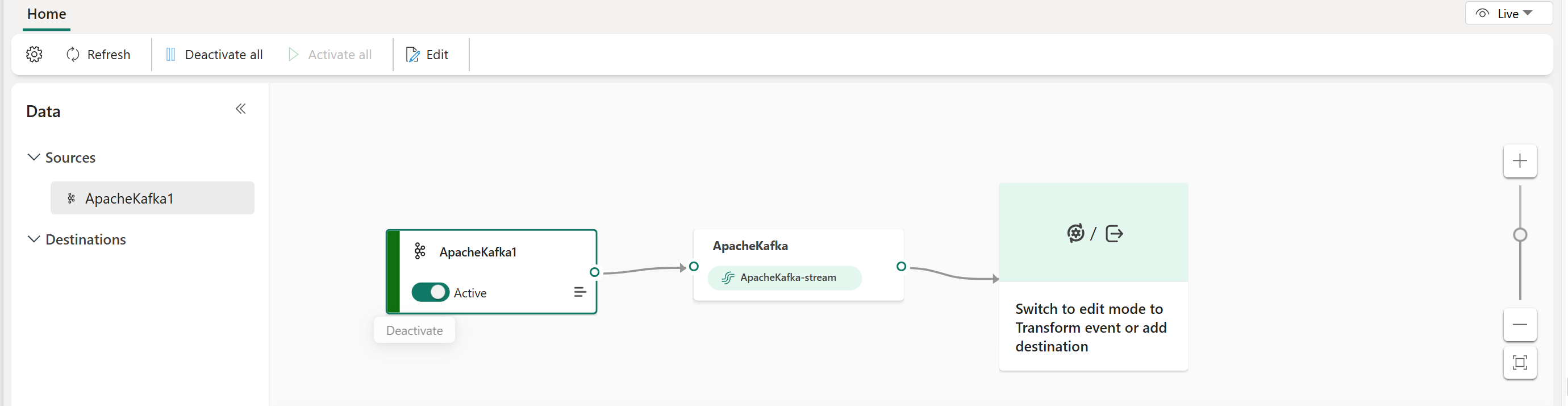
After you complete these steps, the Amazon MSK Kafka source is available for visualization in Live view.
Note
To preview events from this Amazon MSK Kafka source, ensure that the key used to create the cloud connection has read permission for consumer groups prefixed with "preview-".
For Amazon MSK Kafka source, only messages in JSON format can be previewed.

Related content
Other connectors: