Note
Access to this page requires authorization. You can try signing in or changing directories.
Access to this page requires authorization. You can try changing directories.
Form fill assistance for suggests AI-generated content for fields, making it easier and faster to enter data in forms. The suggestions are entirely optional and aren't saved until the user explicitly reviews and accepts them.
Prerequisites
- Form fill assistance is available for all apps on the web where the modern, refreshed look is turned on.
- Requires at least one of the AI form fill assistance environment feature settings enabled.
- The Allow form fill assistance column property is enabled for the column where form fill assistance occurs. For more information, see Create and edit columns in Dataverse using Power Apps.
Limitations
- Inside apps, suggestions are provided for fields only in main forms and quick create forms. In Microsoft 365 Copilot chat, suggestions are provided for fields based on main forms only.
- The currently supported field types inside apps are text, numeric, choice, and date. The currently supported field types inside Microsoft 365 Copilot chat are text, numeric, choice, date, and lookup.
- Fields that have column security aren't currently supported.
Use form fill assistance in apps
Form fill assistance in apps (Power Apps and Dynamics 365) provides suggestions for blank form fields in three ways:
- Based on the user's usage of the app, what information is already available in the form, and their frequently used data.
- Based on the copied text the user provides through the Smart paste (Preview) capability.
- Based on the file contents the user provides through the Files (Preview) capability.
The feature generates suggestions only for the open tab. It presents suggestions inline in the form.
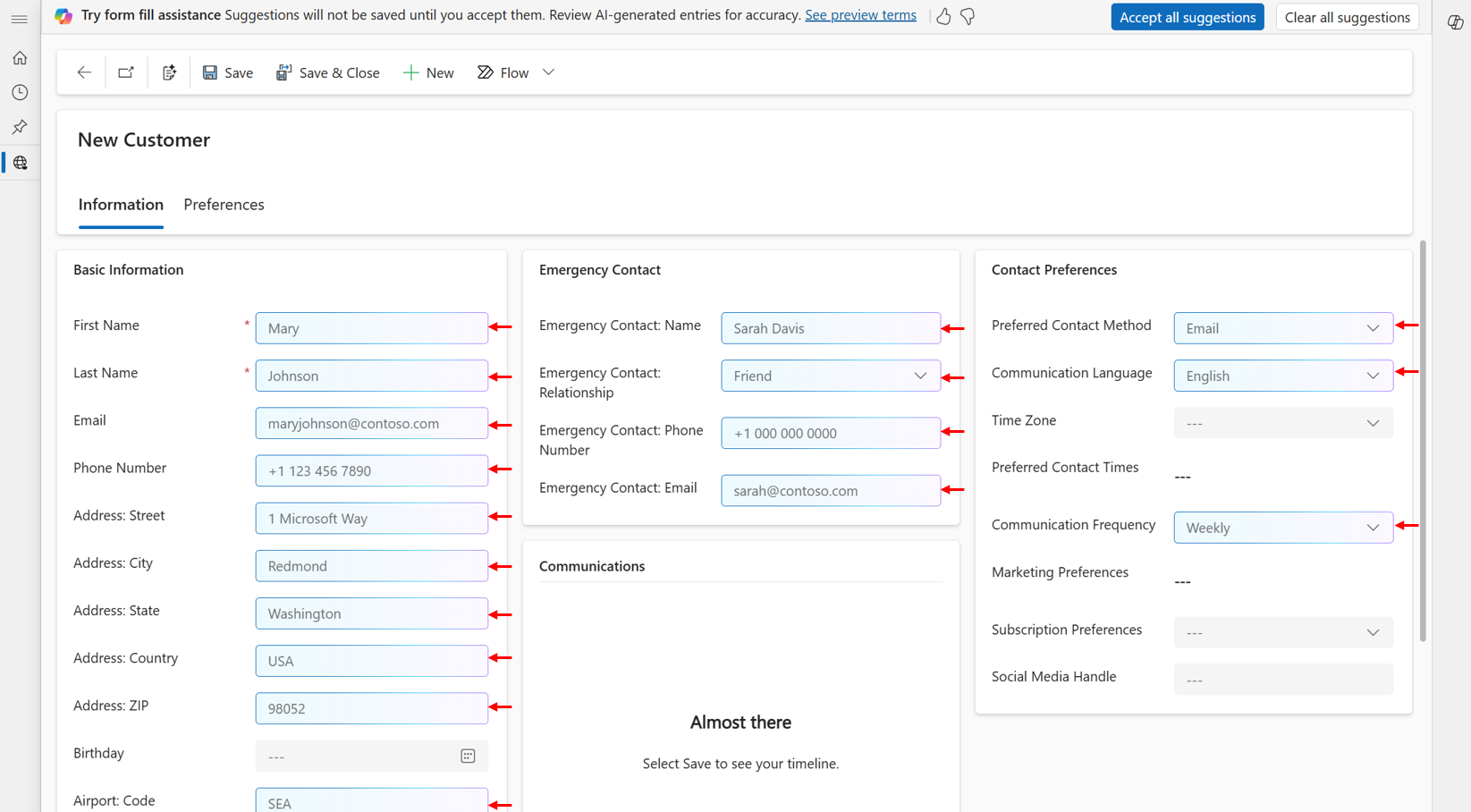
Suggestions are entirely optional and aren't saved in the app until you accept them. To learn more about a suggestion, hover over the field, and specifically hover over the information icon. This icon is a citation, and identifies the source of a specific suggestion, such as "Records you have updated recently" or "Clipboard".
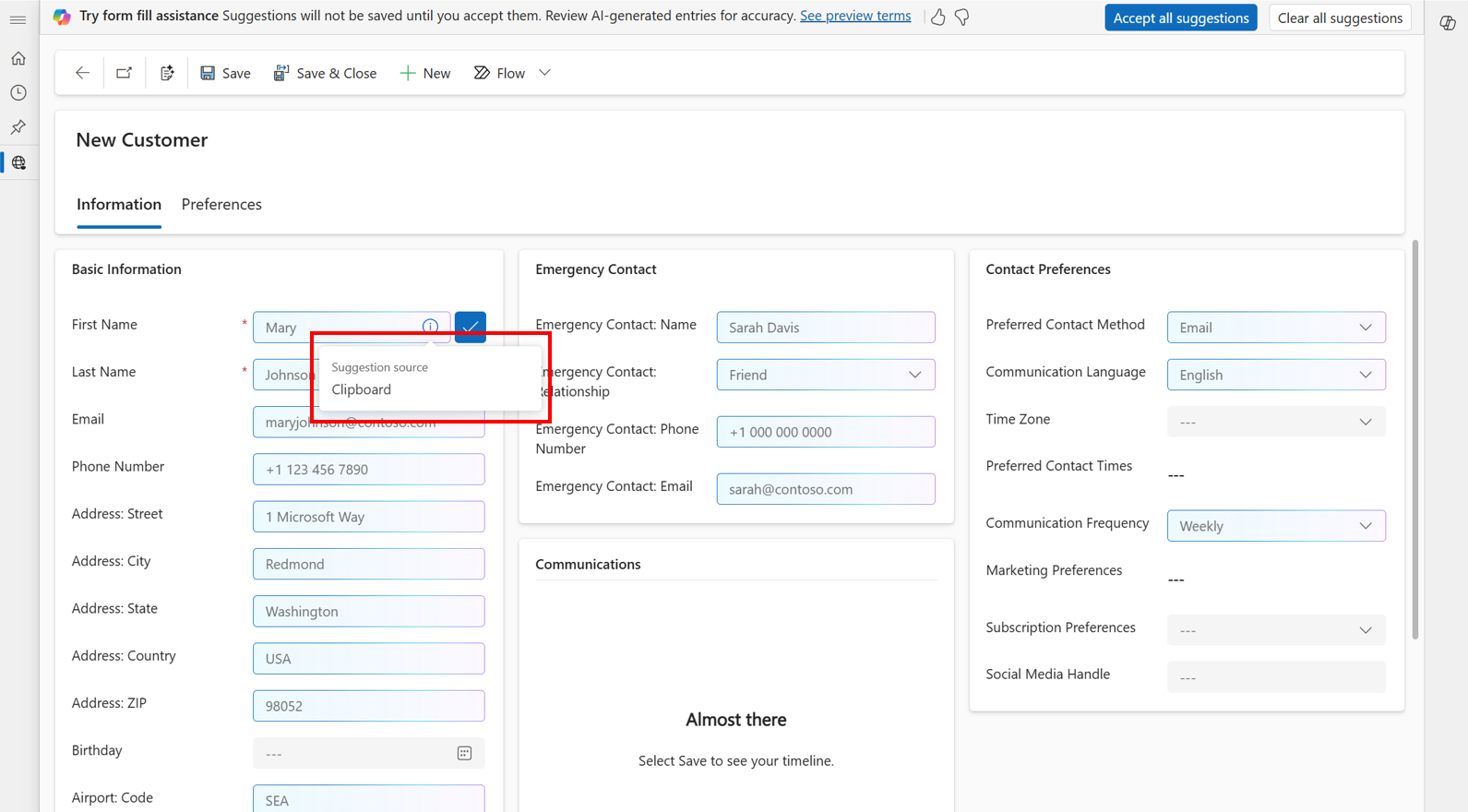
To accept a specific suggestion, hover over the field, and then select Accept. Alternatively, select the field, and then press the Enter key.

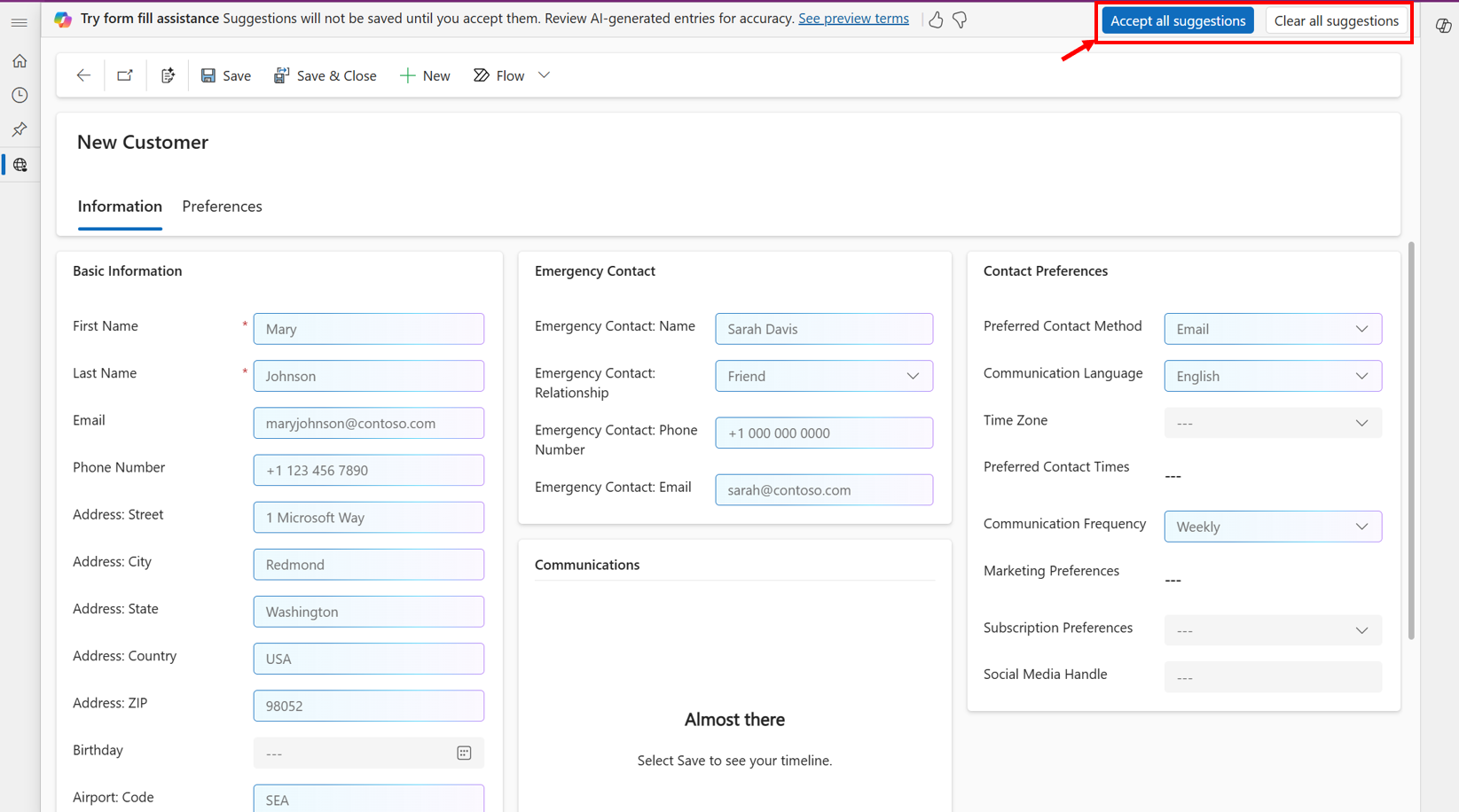
To accept all suggestions on the open tab of the form, select Accept all suggestions on the notification bar. To clear all suggestions on the open tab of the form, select Clear all suggestions.
To replace a suggestion with a different value, select the field and start typing to overwrite the suggestion. Alternatively, select the field, press Backspace or Delete, and then start typing.
If you have unsaved suggestions in a form and try to navigate away, you get a prompt asking if you want to discard those suggestions. The suggestions are saved only when you accept them. You can continue navigating away or stay on the form to review your pending suggestions. You can also select Do not show again to avoid being prompted in the future.

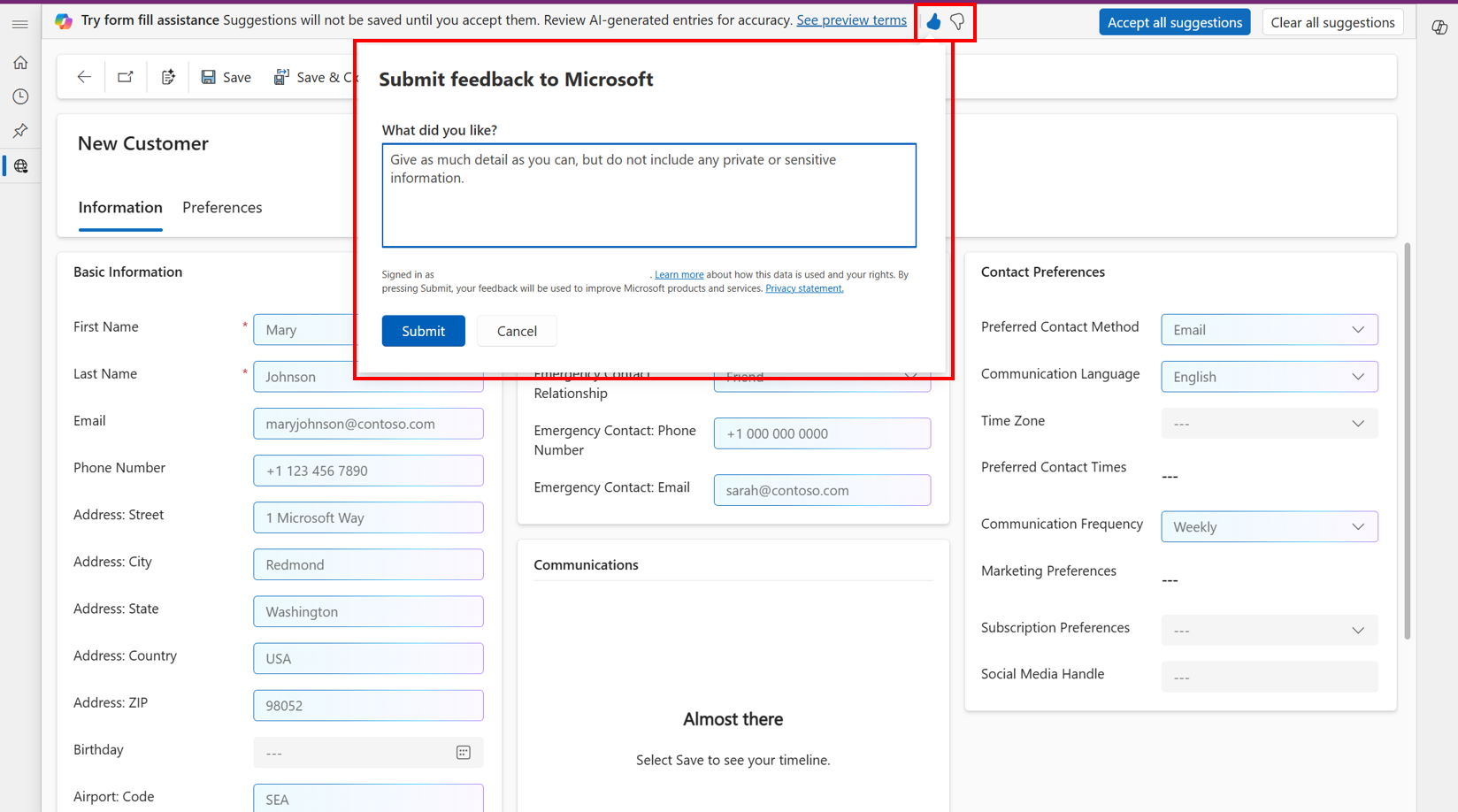
To provide feedback about the feature, select the thumbs up or down button on the notification bar, and optionally provide detailed comments to help improve the feature.
Important
- This feature is generally available in Dynamics 365 apps.
- This feature is in production ready preview in Power Apps.
- Preview features are available before an official release so that customers can get early access and provide feedback.
- Due to high demand, this feature might be unavailable intermittently. If the feature is unavailable, try again later.
Use smart paste (preview)
Smart paste (preview) is a capability that analyzes the form and the text or image you copy to your clipboard. It suggests what text could fill specific fields and provides suggestions inline in the form. To use smart paste (preview):
- Copy the text or image you want to use to fill in the form.
- Select the smart paste icon in the command bar. Alternatively, make sure you don't select any specific fields in the form, and then use the regular paste keyboard shortcut (Ctrl+V or Cmd+V).
To use the smart paste (preview) capability, your admin must enable it. For more information, see Manage feature settings.
You can continue to paste directly, without smart paste (preview), into a specific field by selecting that field first and then pasting.

Use toolbar and files (preview)
Files (preview) is a capability that can reason over the form and the file you provide to suggest what text could fill specific fields. It provides suggestions inline in the form. Supported file types are .txt, .docx, .csv, .pdf, .png, .jpg, .jpeg, and .bmp. Files classified with sensitivity labels aren't supported.
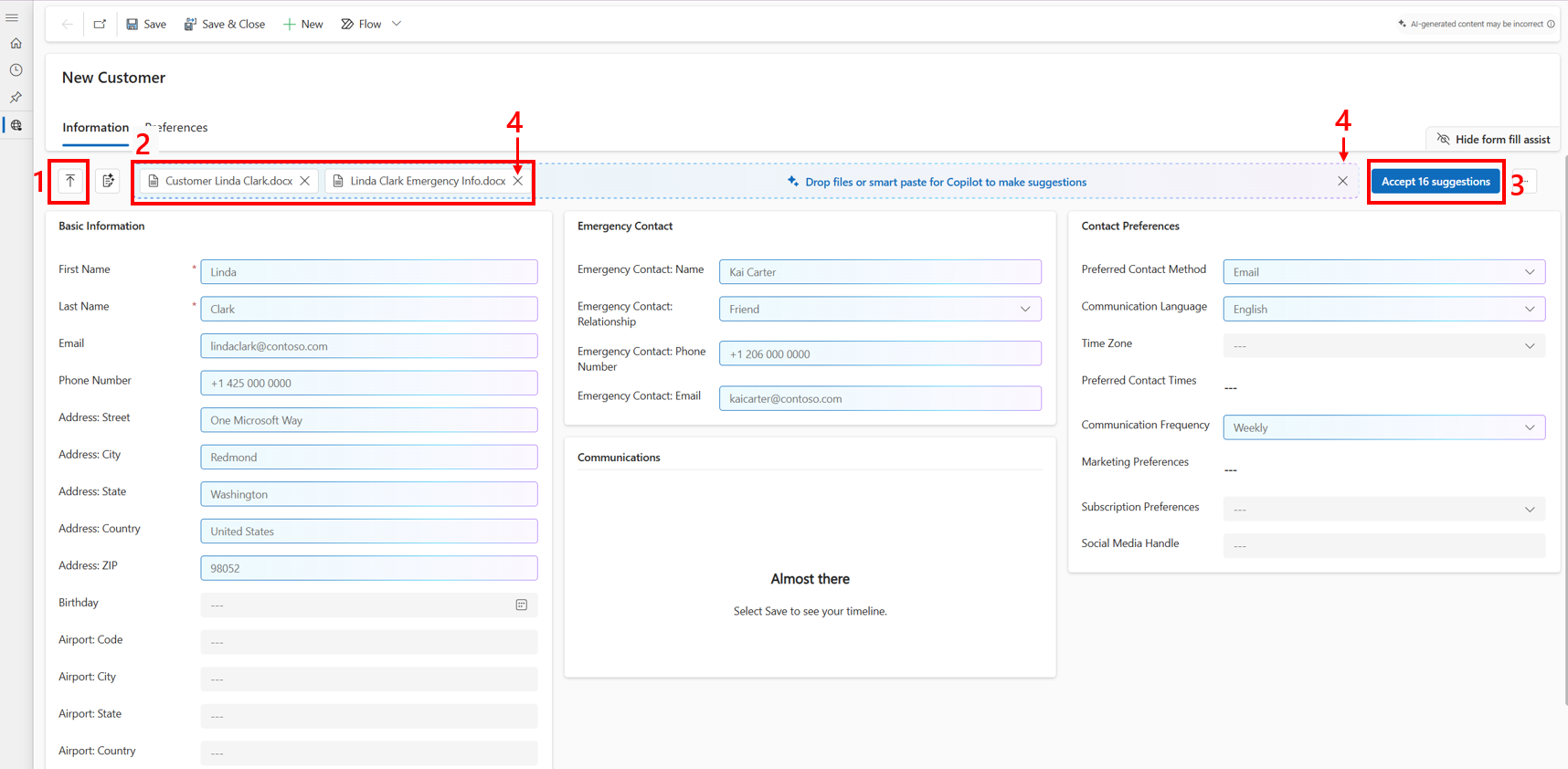
The form fill assist toolbar
- Show or hide the form fill assist toolbar by using the show/hide button.
- To provide feedback, select the more actions button (...) and give a compliment, report a problem, or make a suggestion.
- The smart paste button is now located to the left of the toolbar.

To use files (preview):
- Use the file selector button to select the file you want to use to fill in the form. Alternatively, drag and drop the file in the toolbar.
- Hover over the file's source tag to identify which fields are suggested based on the file's contents.
- To accept all suggestions from the sources listed in the toolbar, select the accept all button located to the right of the toolbar. This button identifies the number of open suggestions in the form that it accepts.
- To clear suggestions from the file, select the clear button in the tag. If the toolbar lists multiple sources, clear all suggestions by using the clear all button in the toolbar.
Admin control
The primary admin control for form fill assistance in apps is moving to the Power Platform admin center under Copilot > Settings > Power Apps > Data Entry Agent. Learn more in Copilot hub. This is gradually rolling out over the next coming weeks.
In Power Platform admin center, you can't manage Smart paste or form fill assist toolbar from Settings > Product > Feature page. You can manage this setting in model app designer setting or solution explorer app settings.
Use form fill assistance with agents in Microsoft 365 Copilot (preview)
Important
This feature is being gradually rolled out across regions and might not be available yet in your region.
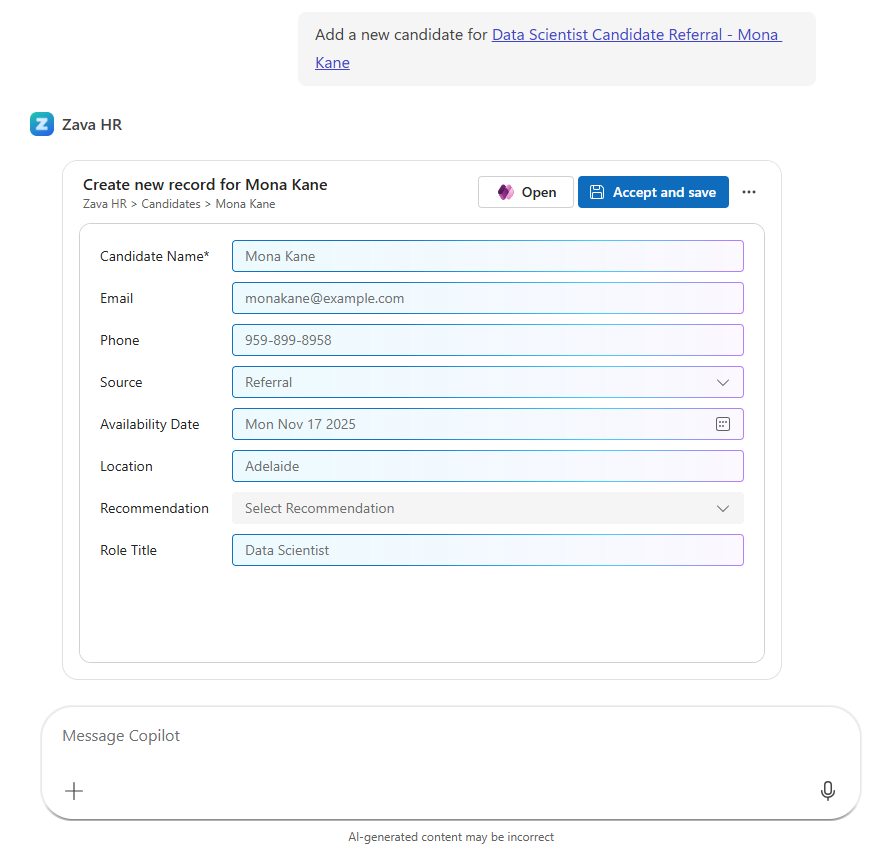
With Microsoft 365 Copilot, you have ability to bring app-based experiences to agents. The app experience can leverage the form fill assistance right in the chat.
Note
To use this capability, you need to set up an apps agent in Microsoft 365 Copilot.
When you interact with agents in Copilot, agents can surface forms from apps directly in the conversation. Form fill assistance helps populate these forms by suggesting values based on relevant context, such as existing data you have access to from emails, chats, or any document.
The suggestions appear inline in the chat-based form and you can review or edit them before submission. All suggestions are optional and aren't saved until you explicitly accept and save the input.
After submission, the data is saved to the connected app and is available, just as if you complete the form directly in the app.
Related information
Manage feature settings
Manage model-driven app settings in the app designer
Create and edit columns in Dataverse using Power Apps
Responsible AI FAQ about form fill assistance
Complete forms quickly with model-driven apps (video)