Note
Access to this page requires authorization. You can try signing in or changing directories.
Access to this page requires authorization. You can try changing directories.
Azure Service Bus is a fully managed enterprise message broker with message queues and publish/subscribe topics. You can use Microsoft Fabric eventstreams to connect to Service Bus. You can fetch messages from Service Bus into a Fabric eventstream and route them to various destinations within Fabric.
This article shows you how to add a Service Bus source to an eventstream.
Prerequisites
- Access to a workspace in the Fabric capacity license mode or trial license mode with Contributor or higher permissions.
- Appropriate permission to get access keys for the Service Bus namespace, queues, or topics. The Service Bus namespace should be publicly accessible and not behind a firewall or secured in a virtual network. If it resides in a protected network, connect to it by using Eventstream connector virtual network injection.
- An eventstream. If you don't have an eventstream, create one.
Start the wizard for selecting a data source
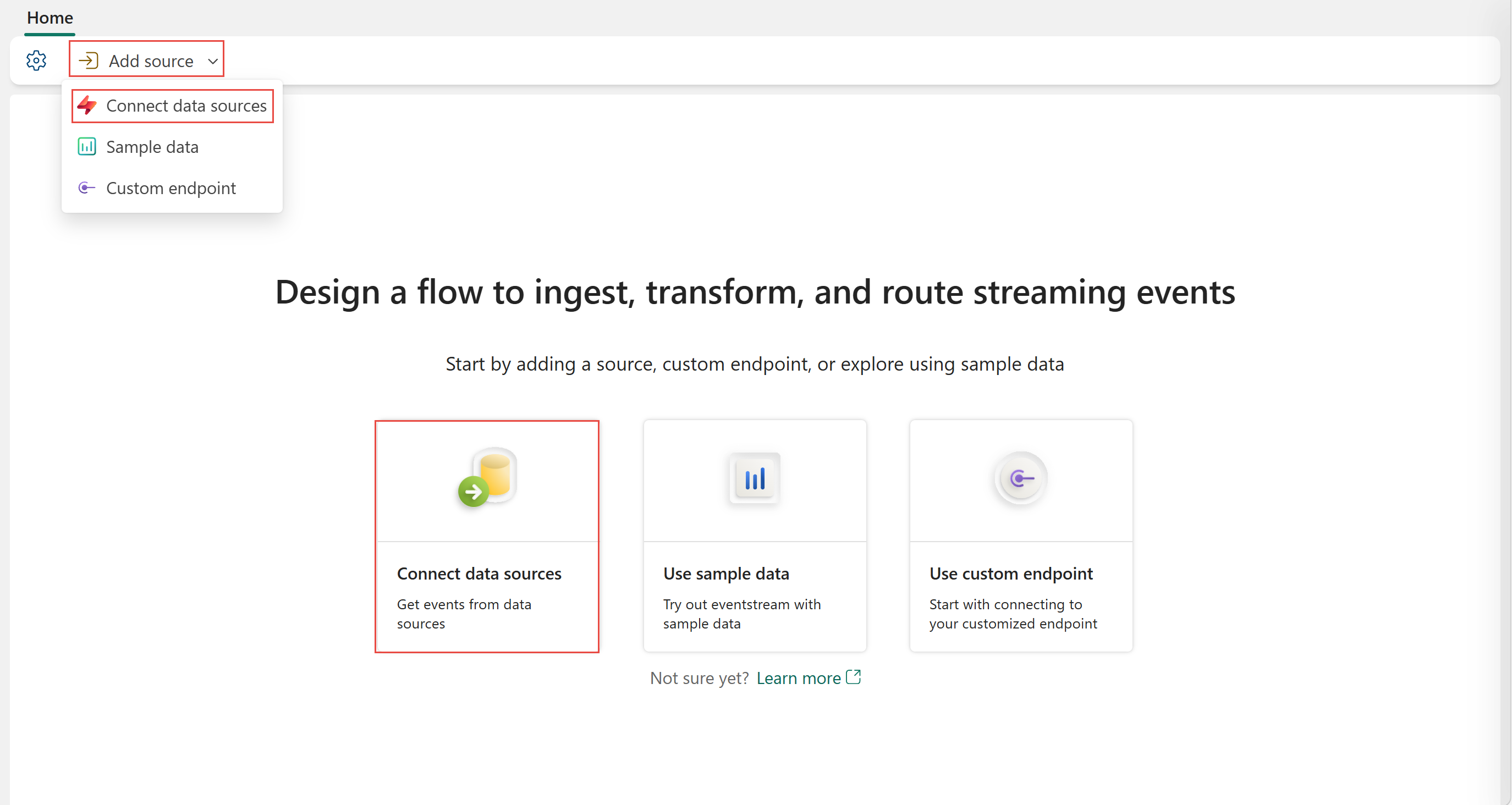
If you haven't added any source to your eventstream yet, select the Connect data sources tile. You can also select Add source > Connect data sources on the ribbon.
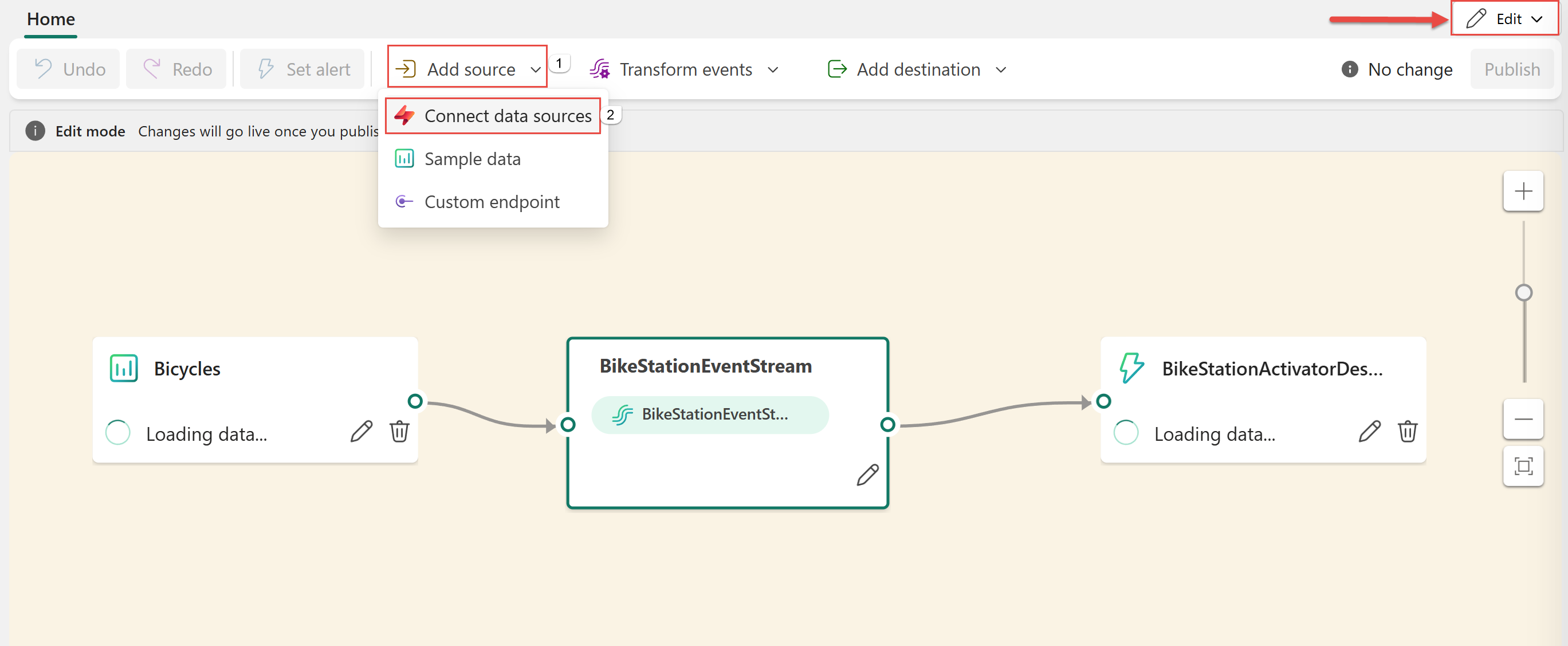
If you're adding the source to an already published eventstream, switch to Edit mode. On the ribbon, select Add source > Connect data sources.
On the Select a data source page, search for Azure Service Bus. On the Azure Service Bus tile, select Connect.

Configure a Service Bus connector
On the Connect page, select New connection.

If there's an existing connection to your Azure Service Bus resource, select that existing connection, and then move on to configuring Service Bus Type in the following steps.

In the Connection settings section, for Host Name, enter the host name for your service bus. You can get the name from the Overview page of your Service Bus namespace. It's in the form of
NAMESPACENAME.servicebus.windows.net.
In the Connection credentials section, follow these steps:
For Connection name, enter a name for the connection to the Service Bus queue or topic.
For Authentication kind, confirm that Shared Access Key is selected.
For Shared access key name, enter the name of the shared access key.
For Shared Access Key, enter the value of the shared access key.
To get the access key's name and value, follow these steps:
- In the Azure portal, go to the page for your Service Bus namespace.
- On the left menu, select Shared access policies.
- Select the access key from the list. Note the name of the access key.
- Select the copy button next to the Primary key value.
Select Connect.

In the Configure Azure Service Bus Source section, follow these steps:
For Service Bus Type, select Topic (default) or Queue.
If you selected Topic:
- For Topic name, enter the name of the topic.
- For Subscription, enter the name of the subscription to that topic.

If you selected Queue, enter the name of the queue.


Stream or source details
On the Connect page, follow one of these steps based on whether you're using Eventstream or Real-Time hub.
Eventstream:
In the Source details pane to the right, follow these steps:
For Source name, select the Pencil button to change the name.
Notice that Eventstream name and Stream name are read-only.
Real-Time hub:
In the Stream details section to the right, follow these steps:
Select the Fabric workspace where you want to create the eventstream.
For Eventstream name, select the Pencil button, and enter a name for the eventstream.
The Stream name value is automatically generated for you by appending -stream to the name of the eventstream. This stream appears on the real-time hub's All data streams page when the wizard finishes.
Select Next at the bottom of the Configure page.
Review and connect
On the Review + connect screen, review the summary, and select Add (Eventstream) or Connect (Real-Time hub).
View an updated eventstream
Confirm that you add the Service Bus source to your eventstream on the canvas in the Edit mode. To publish it, select Publish on the ribbon.

You can visualize the Service Bus source in the Live view. Select the Service Bus tile in the diagram to open a page similar to the following example.


Limitation
- The Azure Service Bus source currently doesn't support CI/CD features, including Git Integration and Deployment Pipeline. Attempting to export or import an Eventstream item with this source to a Git repository might result in errors.
Related content
- For a list of all supported sources, see Add and manage an event source in an eventstream.