Note
Access to this page requires authorization. You can try signing in or changing directories.
Access to this page requires authorization. You can try changing directories.
In today's connected world, organizations rely on streaming event data and Internet of Things (IoT) data for real-time analytics, monitoring, and decision-making. With the new capability to add an Azure Event Grid namespace as a source to an eventstream, you can seamlessly bring both standard events and Message Queuing Telemetry Transport (MQTT) messages into Microsoft Fabric.
This integration enables scenarios like industrial IoT monitoring, connected vehicle data, and enterprise system integration without complex custom pipelines. By bridging Event Grid and Fabric eventstreams, you gain a powerful, scalable foundation to process millions of events per second and unlock insights instantly across your data estate.
This connector ingests both CloudEvents from namespace topics and MQTT telemetry directly from Azure Event Grid into Fabric Eventstream.
This article shows you how to add an Event Grid namespace source to an eventstream.
Prerequisites
Create or have an Event Grid namespace with managed identity enabled.
A workspace that's not My workspace, operating in a Fabric capacity or trial license mode, is required.
If you have Member (or higher) permissions, no extra setup is needed. If you don't have Member permissions, ask a colleague with Member access to assign Contributor access to the Event Grid service principal before you add the source:
- In the workspace, open the Manage access pane.
- Select Add people or groups.
- Enter the Event Grid namespace name and choose the matching service principal.
- Assign the Contributor role and select Add.
Configure portal settings
To ensure that the managed identity of the Event Grid namespace has the required permissions, configure settings in the admin portal:
In the upper-right corner, select Settings (gear icon).
In the Governance and insights section, select Admin portal.

On the Tenant settings page, go to the Developer settings section.
To grant the service principal access to Fabric APIs for creating workspaces, connections, or deployment pipelines:
- Expand the Service principals can use Fabric APIs option.
- Set the toggle to Enabled.
- Under Apply to, select The entire organization.
- Select Apply.

To access all other APIs (enabled by default for new tenants):
- Expand the Allow service principals to create and use profiles option.
- Set the toggle to Enabled.
- Under Apply to, select The entire organization.
- Select Apply.


- Create an eventstream if you don't have one.
Start the wizard for selecting a data source
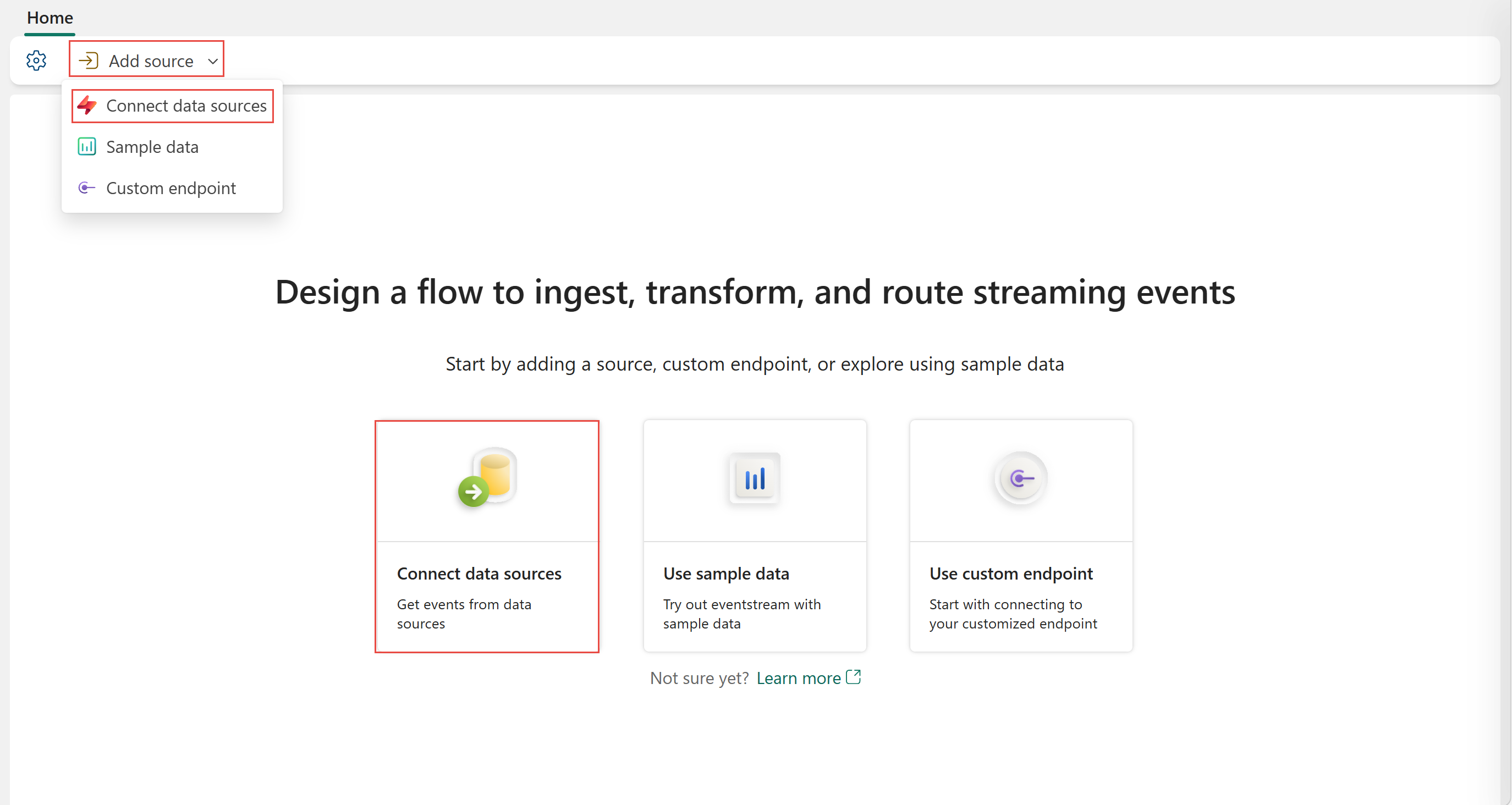
If you haven't added any source to your eventstream yet, select the Connect data sources tile. You can also select Add source > Connect data sources on the ribbon.
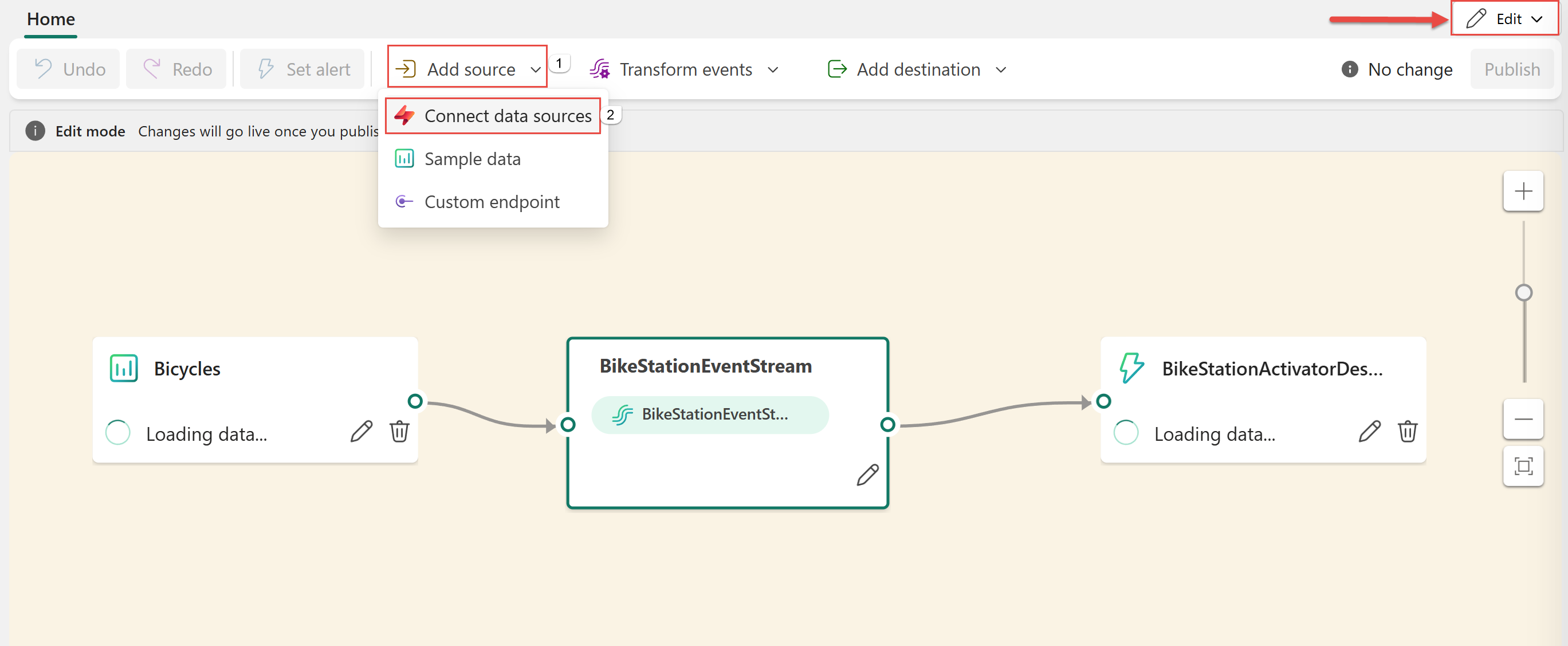
If you're adding the source to an already published eventstream, switch to Edit mode. On the ribbon, select Add source > Connect data sources.
On the Select a data source page, search for Azure Event Grid Namespace. On the Azure Event Grid Namespace tile, select Connect.

Configure the Event Grid connector
On the Configure connection settings page, follow these steps:
For Subscription, select the Azure subscription that has the Event Grid namespace.
For Namespace name, select your Event Grid namespace from the dropdown list.
The contents of the Namespace topic section vary depending on whether Message Queuing Telemetry Transport (MQTT) is enabled:
If MQTT isn't enabled for the namespace topic, create a new topic or select an existing topic.

If the namespace has MQTT enabled, a topic, and routing enabled, select the subscription and the namespace name.

If the namespace has MQTT enabled but routing isn't enabled for the namespace, select the subscription, the namespace name, and namespace topic options.

Stream or source details
On the Connect page, follow one of these steps based on whether you're using Eventstream or Real-Time hub.
Eventstream:
In the Source details pane to the right, follow these steps:
For Source name, select the Pencil button to change the name.
Notice that Eventstream name and Stream name are read-only.
Real-Time hub:
In the Stream details section to the right, follow these steps:
Select the Fabric workspace where you want to create the eventstream.
For Eventstream name, select the Pencil button, and enter a name for the eventstream.
The Stream name value is automatically generated for you by appending -stream to the name of the eventstream. This stream appears on the real-time hub's All data streams page when the wizard finishes.
Select Next at the bottom of the Configure page.
Review and connect
On the Review + connect screen, review the summary, and select Add (Eventstream) or Connect (Real-Time hub).
View an updated eventstream
On the Review + connect page, select Add.
Confirm that the Event Grid source is added to your eventstream on the canvas in the Edit mode. To implement this newly added Event Grid namespace, select Publish on the ribbon.

The Event Grid namespace is available for visualization in the Live view. Select the Event Grid Namespace tile in the diagram to show details about the source.

Related content
- To learn how to add other sources to an eventstream, see Add and manage an event source in an eventstream.