Note
Access to this page requires authorization. You can try signing in or changing directories.
Access to this page requires authorization. You can try changing directories.
This article shows you how to add an activator destination to an eventstream.
Prerequisites
Access to a workspace in the Fabric capacity license mode or the Trial license mode with Contributor or higher permissions.
If you already have an activator you want to use, access to the workspace where your activator is located with Contributor or higher permissions.
Each event in the source must consist of a JSON dictionary.
One of the dictionary keys must represent a unique object ID.
Here's an example of an event that meets these criteria:
{
    "PackageID": "PKG123",
    "Temperature": 25
}
In this example, PackageID is the unique ID.
Add activator as a destination
To add an activator destination to a default stream or derived stream, follow these steps.
In Edit mode for your eventstream, select Add destination on the ribbon and select Activator from the dropdown list.

You can also select Transform events or add destination tile on the canvas, and select Activator from the dropdown list.

On the Activator screen, enter a Destination name, select a Workspace, and select an existing Activator or select Create new to create a new one.

Select Save.
To implement the newly added activator destination, select Publish.
When you complete these steps, the activator destination is available for visualization in Live view. Select Edit to switch to the Edit mode to make more changes to the eventstream.
After you complete these steps, the activator destination is available for visualization in Live view. Select Edit to switch to the Edit mode to make more changes to the eventstream.


Create rules in the activator instance
When the eventstream is in Live mode, select the Activator icon on the Activator destination. In the Rules pane, select Add rule.

In the Add rule pane, enter the following details and select Save.
Rule name: Enter a name for the rule.
Condition: Define a condition to trigger the rule. For example, set the condition to
airport_fee* > 0to trigger the rule when the airport fee is greater than 0. The condition must be based on the keys in the JSON dictionary of the event. In this example, airport_fee is a key in the JSON dictionary of the event.Action: Select an action to perform when the condition is met. For example, choose to send an email notification or trigger a Logic App.

For more information on how to create rules in an activator instance, see Create rules in an activator instance.
You see the rule you created in the Rules pane.


Manage rules
Select the alert icon on the Activator destination in the eventstream. You see the Rules pane where you perform the following actions:
- View all the rules in the Activator item.
- Stop or start a rule.
- Edit a rule.
- Delete a rule.
- Open rule in the Fabric Activator UI.
- Add more rules.
Stop or start an alert rule
Select the alert icon on the Activator destination in the eventstream.

You can use the same toggle to start the alert rule again after you stop it.
Edit or delete a rule
In the Rules pane, select the ellipsis (...) on the Activator destination in the eventstream.
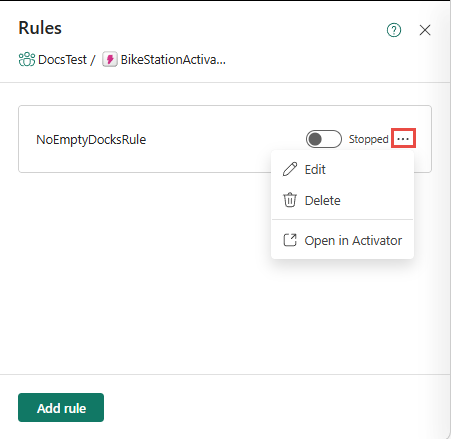
Open the rule in the Fabric Activator UI
In the Rules pane, select the ellipsis (...) on the Activator destination in the eventstream.

Add another alert rule
To add more rules to the Activator item, select Add rule at the bottom of the Rules pane.

Related content
To learn how to add other destinations to an eventstream, see the following articles: