Note
Access to this page requires authorization. You can try signing in or changing directories.
Access to this page requires authorization. You can try changing directories.
This article describes how to add PostgreSQL Database Change Data Capture (CDC) as an event source in Fabric Real-Time hub.
The PostgreSQL Database Change Data Capture (CDC) source connector for Microsoft Fabric event streams allows you to capture a snapshot of the current data in a PostgreSQL database. Currently, PostgreSQL Database Change Data Capture (CDC) is supported from the following services where the databases can be accessed publicly:
- Azure Database for PostgreSQL
- Amazon RDS for PostgreSQL
- Amazon Aurora PostgreSQL
- Google Cloud SQL for PostgreSQL
Once the PostgreSQL Database CDC source is added to the eventstream, it captures row-level changes to the specified tables. These changes can then be processed in real-time and sent to different destinations for further analysis.
Note
With DeltaFlow (Preview), you can transform raw Debezium CDC events into analytics-ready streams that mirror your source table structure. DeltaFlow automates schema registration, destination table management, and schema evolution handling. To use DeltaFlow, choose Analytics-ready events & auto-updated schema during the schema handling step.
Prerequisites
Access to a workspace in the Fabric capacity license mode (or) the Trial license mode with Contributor or higher permissions.
Registered user access in the PostgreSQL database.
Your PostgreSQL database should be publicly accessible and not be behind a firewall or secured in a virtual network. If it resides in a protected network, connect to it by using Eventstream connector virtual network injection.
CDC enabled in the PostgreSQL database and tables.
If you have Azure Database for PostgreSQL, follow the steps in the next section to enable CDC. For detailed information, see Logical replication and logical decoding - Azure Database for PostgreSQL - Flexible Server.
For other PostgreSQL databases, see Debezium connector for PostgreSQL :: Debezium Documentation.
If you don't have an eventstream, create an eventstream.
Enable CDC in your PostgreSQL Database
This section uses Azure Database for PostgreSQL as an example.
To enable CDC in your Azure Database for PostgreSQL Flexible Server, follow these steps:
On your Azure Database for PostgreSQL Flexible Server page in the Azure portal, select Server parameters in the navigation menu.
On the Server parameters page:
- Set wal_level to logical.
- Update the max_worker_processes to at least 16.

Save the changes and restart the server.
Confirm that your Azure Database for PostgreSQL Flexible Server instance allows public network traffic.
Grant the admin user replication permissions by running the following SQL statement. If you want to use other user account to connect your PostgreSQL Database (DB) to fetch CDC, ensure the user is the table owner.
ALTER ROLE <admin_user_or_table_owner_user> WITH REPLICATION;
Navigate to Data sources page
Sign in to Microsoft Fabric.
If you see Power BI at the bottom-left of the page, switch to the Fabric workload by selecting Power BI and then by selecting Fabric.
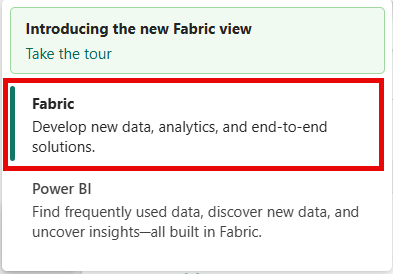
Select Real-Time on the left navigation bar.

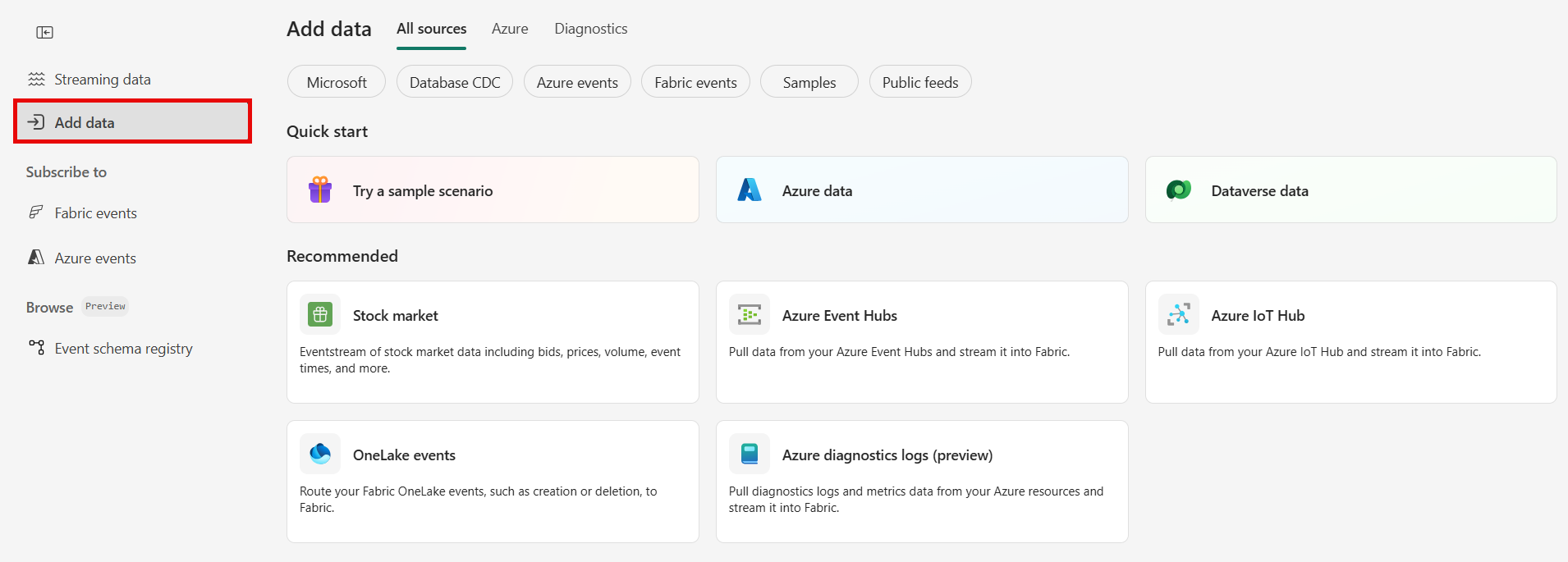
The Streaming data page opens by default. Click on the Add data button to get to the Data sources page.

You can also get to the Data sources page directly by selecting the Add data option in the left navigation bar.


Select PostgreSQL Database CDC as source type
On the Data sources page, select Microsoft sources category at the top, and then select Connect on the Azure DB for PostgreSQL (CDC) tile.

Configure Azure Database for PostgreSQL CDC source
Ingest change data from PostgreSQL databases with automatic table schema registration via CDC into Eventstream.
Note
DeltaFlow (Preview): When you select Analytics-ready events & auto-updated schema in the schema handling step, DeltaFlow transforms raw Debezium CDC events into analytics-ready streams that mirror your source table structure. DeltaFlow also automates destination table creation and schema evolution handling.
On the Connect page, select New connection.
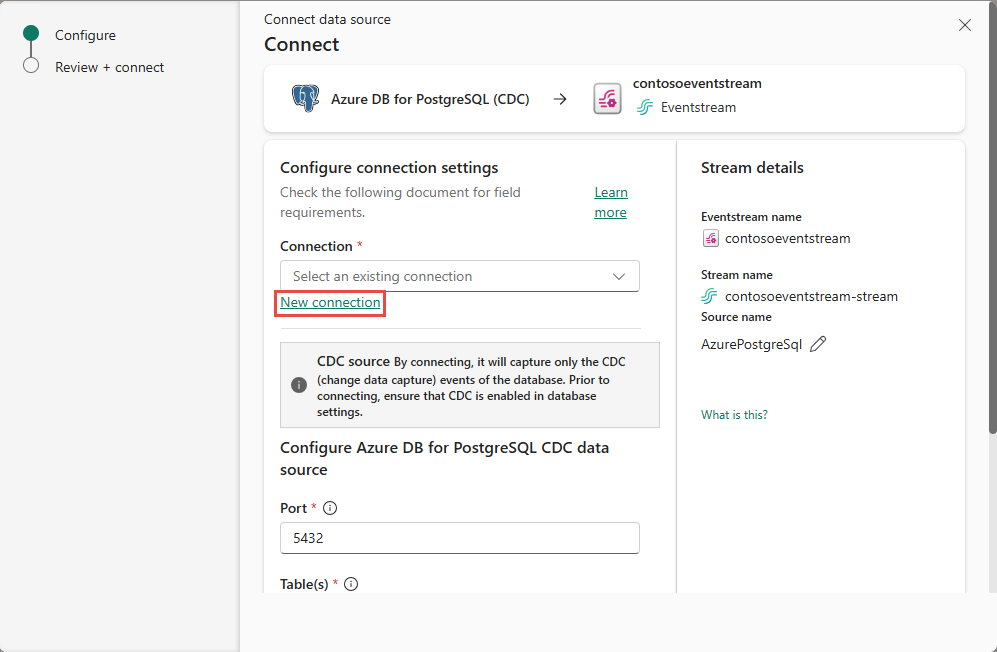
In the Connection settings section, enter the following information.
Server: The server address of your PostgreSQL database, for example my-pgsql-server.postgres.database.azure.com.
Database: The database name, for example my_database.
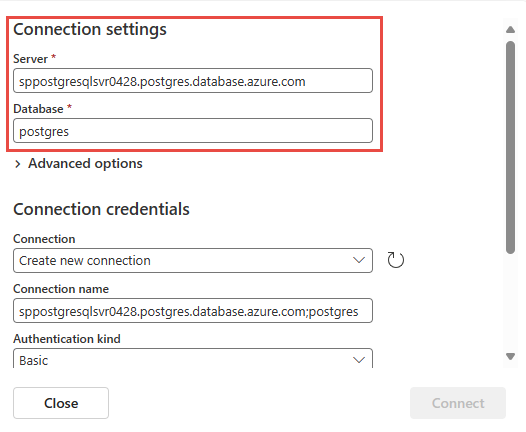
Connection name: Enter a name for the connection.
Authentication kind, Select Basic and enter your Username and Password for the database.
Note
Currently, Fabric event streams support only Basic authentication.
Select Connect to complete the connection settings.

Port: Enter the port number of your server. Default value is 5432. If your selected cloud connection is configured in Manage connections and gateways, ensure that the port number matches the one set there. If they don't match, the port number in cloud connection in Manage connections and gateways take precedence.
You can choose between two options when capturing changes from database tables:
- All tables: Capture changes from every table in the database.
- Enter table name(s): Allows you to specify a subset of tables using a comma-separated list. You can use either: full table identifiers in the format
schemaName.tableNameor valid regular expressions. Examples: dbo.test.*: Select all tables whose names start withtestin thedboschema.dbo\.(test1|test2): Selectdbo.test1anddbo.test2.
You can combine both formats in the list. The total character limit for the entire entry is 102,400 characters.
Slot name (optional): Enter the name of the PostgreSQL logical decoding slot that was created for streaming changes from a particular plug-in for a particular database/schema. The server uses this slot to stream events to Eventstream streaming connector. It must contain only lowercase letters, numbers, and underscores.
- If not specified, a GUID is used to create the slot, requiring the appropriate database permissions.
- If a specified slot name exists, the connector uses it directly.
Expand Advanced settings to access more configuration options for the PostgreSQL Database CDC source:
Publication name: Specifies the name of the PostgreSQL logical replication publication to use. This value must match an existing publication in the database, or it's automatically created depending on the autocreate mode. Default value:
dbz_publication.Note
The connector user must have superuser permissions to create the publication. We recommend that you create the publication manually before starting the connector for the first time to avoid permission-related issues.
Publication auto-create mode: Controls whether and how the publication is automatically created. Options include:
Filtered(default): If the specified publication doesn't exist, the connector creates one that includes only the selected tables (as specified in the table include list).AllTables: If the specified publication exists, the connector uses it. If it doesn't exist, the connector creates one that includes all tables in the database.Disabled: The connector doesn't create a publication. If the specified publication is missing, the connector throws an exception and stops. In this case, the publication must be manually created in the database.
For more information, see the Debezium documentation on publication autocreate mode
Decimal handling mode: Specifies how the connector handles PostgreSQL
DECIMALandNUMERICcolumn values:Precise: Represents values using exact decimal types (for example, JavaBigDecimal) to ensure full precision and accuracy in data representation.Double: Converts values to double-precision floating-point numbers. This option improves usability and performance but can result in a loss of precision.String: Encodes values as formatted strings. This option makes them easy to consume in downstream systems but loses semantic information about the original numeric type.
Snapshot mode: Specify the criteria for performing a snapshot when the connector starts:
Initial: The connector runs a snapshot only when no offsets were recorded for the logical server name, or if it detects that an earlier snapshot failed to complete. After the snapshot completes, the connector begins to stream event records for subsequent database changes.InitialOnly: The connector runs a snapshot only when no offsets were recorded for the logical server name. After the snapshot completes, the connector stops. It doesn't transition to streaming to read change events from the binlog.NoData: The connector runs a snapshot that captures only the schema, but not any table data. Set this option if you don't need a consistent snapshot of the data, but you need only the changes happening since the connector starts.
Heartbeat action query: Specifies a query that the connector executes on the source database when the connector sends a heartbeat message.
Snapshot select statement override: Specifies the table rows to include in a snapshot. Use the property if you want a snapshot to include only a subset of the rows in a table. This property affects snapshots only. It doesn't apply to events that the connector reads from the log.
Stream or source details
On the Connect page, follow one of these steps based on whether you're using Eventstream or Real-Time hub.
Eventstream:
In the Source details pane to the right, follow these steps:
For Source name, select the Pencil button to change the name.
Notice that Eventstream name and Stream name are read-only.
Real-Time hub:
In the Stream details section to the right, follow these steps:
Select the Fabric workspace where you want to create the eventstream.
For Eventstream name, select the Pencil button, and enter a name for the eventstream.
The Stream name value is automatically generated for you by appending -stream to the name of the eventstream. This stream appears on the real-time hub's All data streams page when the wizard finishes.
Select Next at the bottom of the Configure page.
Review and connect
On the Review + connect screen, review the summary, and select Add (Eventstream) or Connect (Real-Time hub).
Schema handling page
In the Schema handling step, choose one of the following options:
- Analytics-ready events & auto-updated schema (DeltaFlow Preview): The connector transforms raw CDC events into analytics-ready streams that mirror your source table structure. DeltaFlow enriches events with metadata such as change type (insert, update, or delete) and timestamps, and automatically manages destination tables and schema evolution.
- Raw CDC events: The connector ingests and makes available the raw CDC events. Optionally, the connector can autodiscover table schemas and register them in the schema registry. Use this option when you want schema awareness without DeltaFlow transformation.
Note
The following screenshot shows Azure SQL Database CDC. The schema handling options are the same for all supported CDC source connectors.
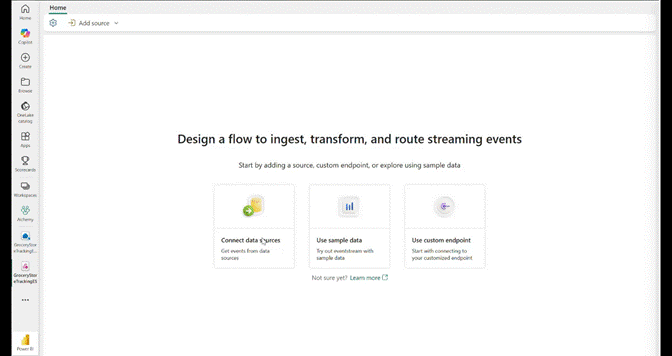
Enable event schema association.
For Workspace, select a Fabric workspace for the schema set.
For Schema set, + Create is selected by default, which creates a new schema set. You can change it to select an existing event schema set.
If you selected the + Create option in the previous step, enter a name for the schema set.
On the Review + connect page, review the summary, and then select Add (Eventstream) or Connect (Real-Time hub).
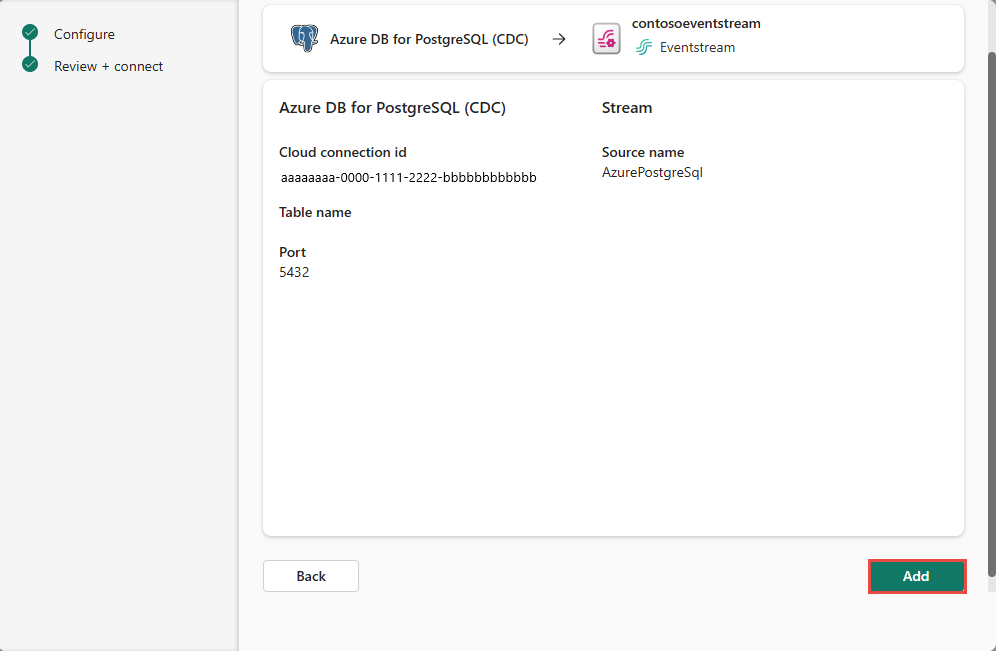
For all tables or selected tables in the PostgreSQL database, the connector autodiscovers and creates schemas, and registers them with the schema registry.
DeltaFlow: Analytics-ready event transformation (Preview)
When you enable Analytics-ready events & auto-updated schema (DeltaFlow), the connector provides the following capabilities:
- Analytics-ready event shape: Raw Debezium CDC events are transformed into a tabular format that mirrors the source table structure. Events are enriched with metadata columns including the change type (
insert,update, ordelete) and the event timestamp. - Automatic destination table management: When you route DeltaFlow-enabled streams to a supported destination like an eventhouse, destination tables are automatically created to match the source table schema. You don't need to manually create or configure destination tables.
- Schema evolution handling: When source database tables change (for example, new columns are added or tables are created), DeltaFlow automatically detects the changes, updates the registered schemas, and adjusts the destination tables accordingly. This behavior minimizes manual intervention caused by schema changes.
Note
DeltaFlow (Preview) is currently supported with Azure SQL Database CDC, Azure SQL Managed Instance CDC, SQL Server on virtual machine CDC, and PostgreSQL CDC source connectors.
For details on how DeltaFlow transforms raw CDC events into analytics-ready output, including operation types and metadata columns, see DeltaFlow output transformation.
View data stream details
On the Review + connect page, if you select Open eventstream, the wizard opens the eventstream that it created for you with the selected PostgreSQL Database CDC as a source. To close the wizard, select Finish at the bottom of the page.
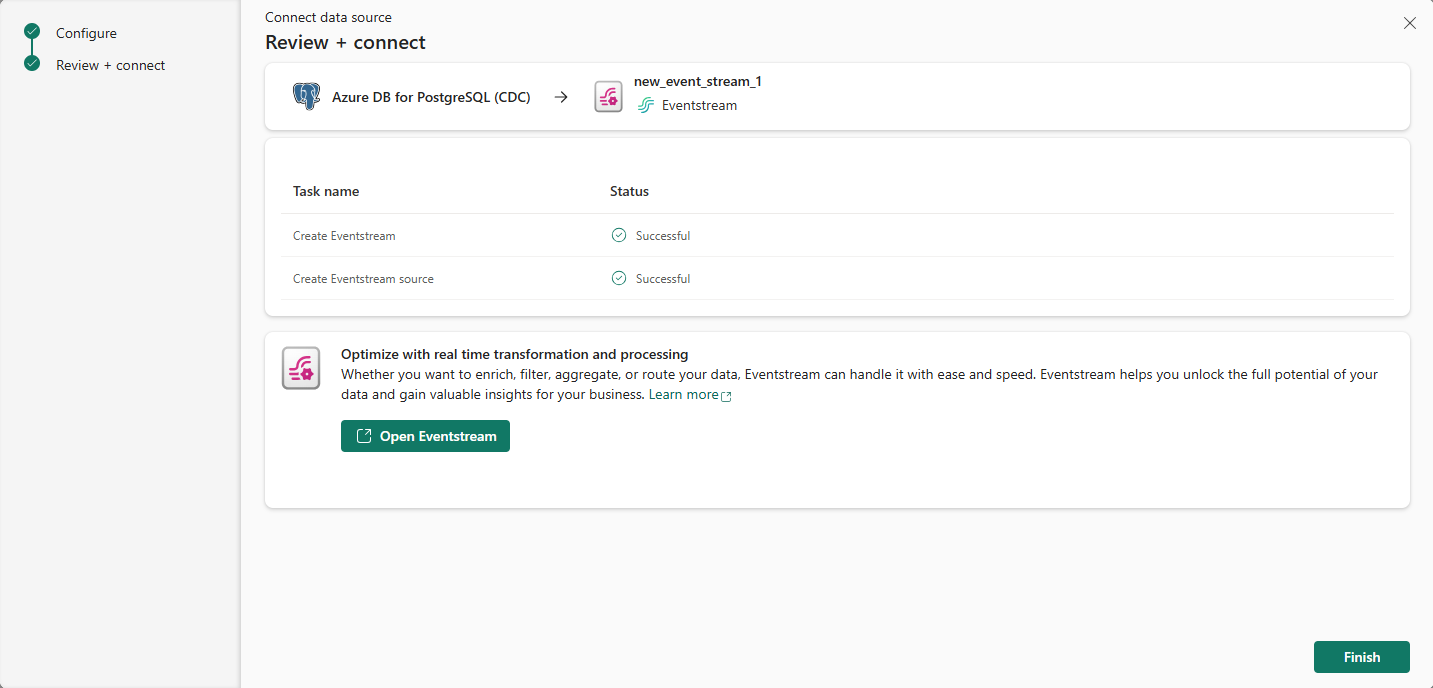
You should see the stream in the Recent streaming data section of the Real-Time hub home page. For detailed steps, see View details of data streams in Fabric Real-Time hub.
Related content
To learn about consuming data streams, see the following articles: