Note
Access to this page requires authorization. You can try signing in or changing directories.
Access to this page requires authorization. You can try changing directories.
Azure DevOps Services | Azure DevOps Server | Azure DevOps Server 2022
Use Microsoft Test Runner to run manual tests and record results for each test step. You can test both web and desktop applications, run all active tests in a suite or select specific test cases, and run tests against a specific build.
During a test run, you can capture screenshots, record actions, and create or update bugs directly from Test Runner with test steps, screenshots, and comments automatically included.
Test points
Test cases by themselves aren't executable. When you add a test case to a test suite, you generate test points. A test point is a unique combination of a test case, test suite, configuration, and tester.
For example, a test case called Test sign in functionality with two configurations (Microsoft Edge and Chrome) generates two test points. You can run each test point independently, and each execution produces a test result. You can view all executions for a test point in the execution history. The Execute tab shows the latest result for each test point.
Run options
The web browser runner runs in any supported browser and supports screenshots, action logs, and screen recordings. It works for both web and desktop applications.
Important
The Test Runner Client for Windows is retiring. Transition to the web-based test runner, which provides the same functionality with improved performance and ongoing development. For more information, see Run manual tests in Azure Test Plans.
To access run options, in the Execute tab, select a test, and then select Run with options. The Run with options dialog lets you:
- Select a specific build to test against (see Run tests for a build)
- Run automated tests by using a release stage (see Run automated tests from test plans)
Prerequisites
| Category | Requirements |
|---|---|
| Project access | Project member. |
| Access levels | At least Basic access. For more information, see Manual test access and permissions. |
Prerequisites for TCM command-line tool
| Category | Requirements |
|---|---|
| Tools | Visual Studio 2017 (Professional or Enterprise) or earlier. The TCM executable (tcm.exe) is in the following directories:- %programfiles(x86)%\Microsoft Visual Studio\2017\Professional\Common7\IDE- %programfiles(x86)%\Microsoft Visual Studio\2017\Enterprise\Common7\IDE- %programfiles(x86)%\Microsoft Visual Studio 14.0\Common7\IDE |
| Access levels | At least Basic access and membership in the project you want to access. To clone or import test plans and test suites, you need Basic + Test Plans access. For more information, see Manual test access and permissions. |
To run a TCM command, specify the /collection and /teamproject parameters, and /login as needed.
| Parameter | Description |
|---|---|
/collection:CollectionURL |
Required. Specifies the URI of the team project collection. The format for the URI is as follows: - For Azure DevOps Services: https://dev.azure.com/OrganizationName or https://OrganizationName.visualstudio.com- For Azure DevOps Server: http://ServerName:Port/VirtualDirectoryName/CollectionName. If no virtual directory is used, the format is: http://ServerName:Port/CollectionName. |
/teamproject:project |
Required. The name of the project that contains the test objects you want to clone or import automated tests into. |
/login:username,[password] |
Optional. Specifies the name and password of a valid Azure DevOps user who has permissions to run the command. Use this option if your Windows credentials don't have the appropriate permissions, you're using basic authentication, or you're not connected to a domain. |
Run tests for web apps
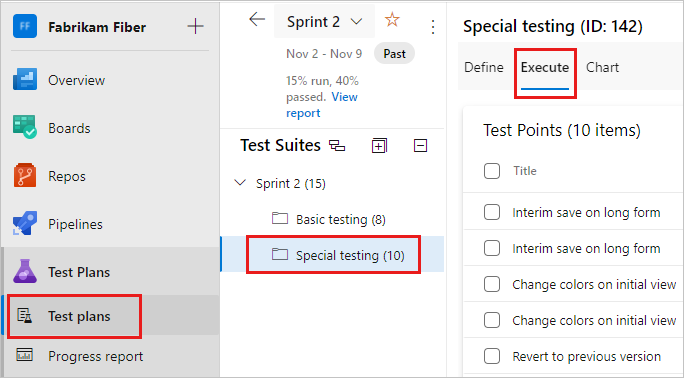
From the web portal, open your project and select Test Plans > Test plans. If you didn't create test cases yet, see Create test cases.
Select Mine or All, or use Filter by title to find your test plan and select it. Select the Execute tab.
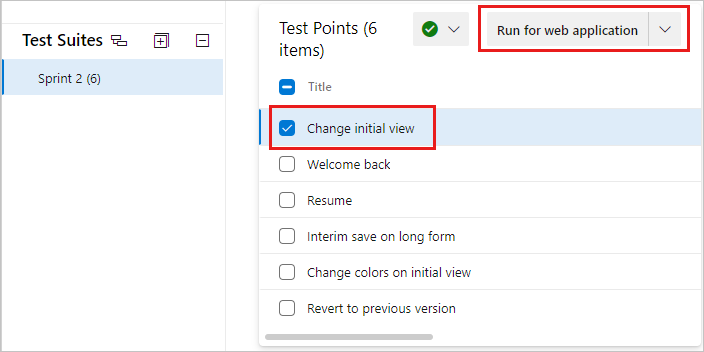
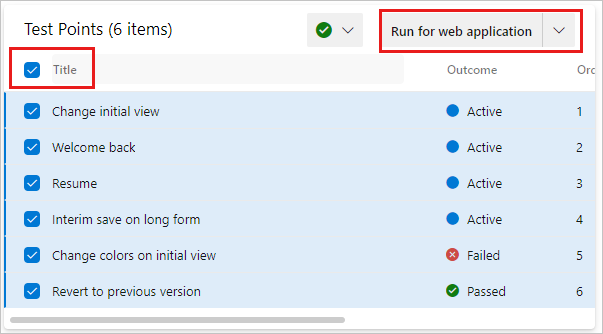
Select one or more tests, or all the tests from a test suite. Then select Run for web application.
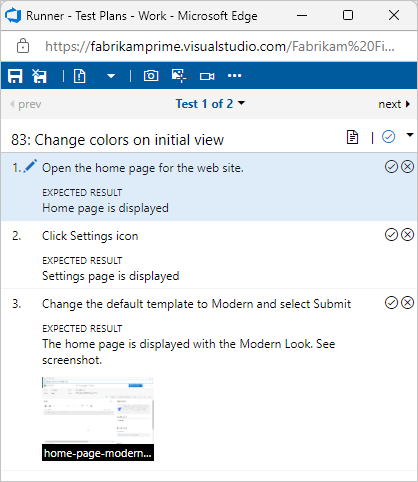
Microsoft Test Runner opens in a new browser window.
Start the app that you want to test.
The app under test doesn't have to run on the same computer as Test Runner. For example, you might run Test Runner on a desktop while testing a mobile or tablet app on a separate device.
Mark each test step as either passed or failed based on the expected results.

If a test step fails, you can enter a comment on why it failed or collect diagnostic data for the test. You can also create or add to a bug.
Important
A test step with an expected result is a validation test step. Testers must mark each validation test step as passed or failed. The overall test case result is failed if any validation test step is marked as failed or left unmarked.
Create or add to a bug
When a test step fails, you can create a new bug or update an existing bug directly from Test Runner. Test steps, comments, and diagnostic data are automatically included.
Create a new bug
When a step fails, enter a comment and select Create bug.
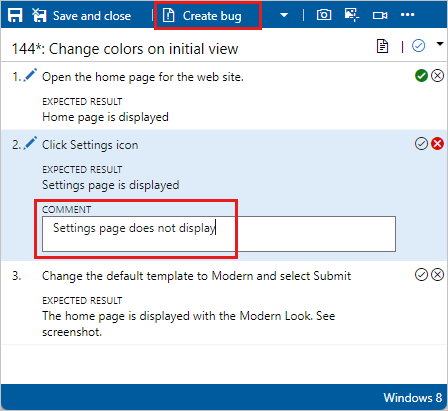
In the New bug dialog box, enter a name for the bug. The steps and your comments are automatically added.
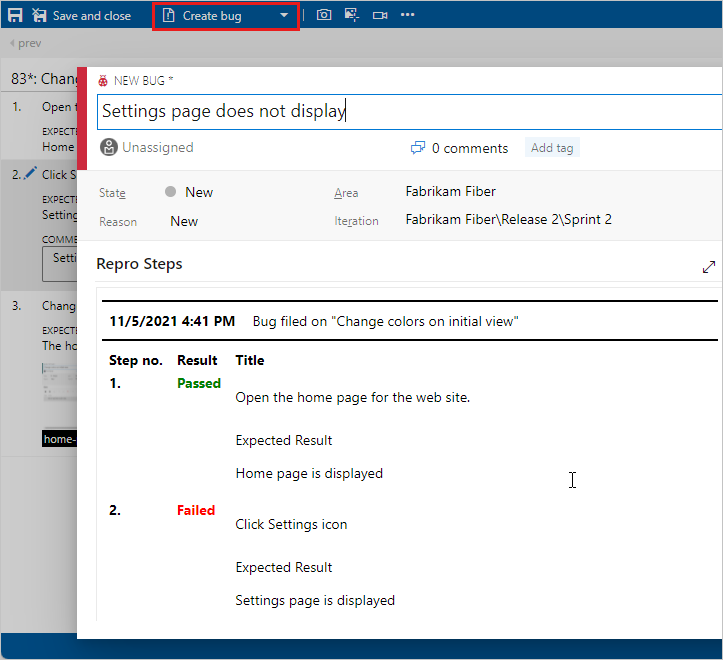
If Test Runner is running in a web browser, you can paste a screenshot from the clipboard directly into the bug.
Optionally, assign the bug, add comments, or link to other work items. Select Save & Close when done.
You can see any bugs reported during your test session.
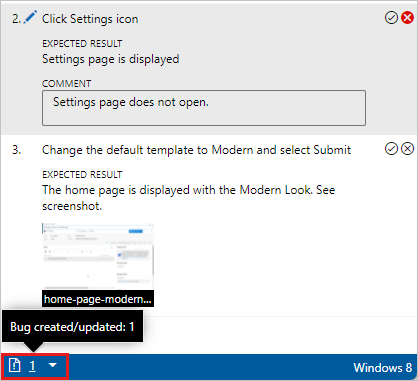
Note
If the Create bug button doesn't launch a bug work item, verify the team settings:
- Go to Project settings > Team and verify that the correct team is set as default.
- Select the Iterations and Area paths link to open the Team configuration page.
- Verify that the Iterations, Default, and Backlog iterations match the team for the test case.
- Select Areas and verify that the Default area matches the team for the test case.
Add to an existing bug
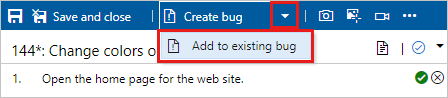
Instead of creating a new bug, update an existing bug with the failure details. Select Add to existing bug from the Create bug drop-down menu.
Save and review results
When you finish running tests, select Save and close. Azure Test Plans stores all the test results.
In the Execute tab, view the testing status for your test suite. The most recent result for each test is shown.
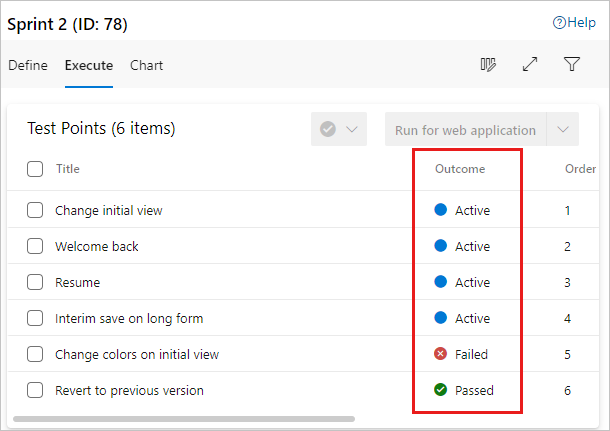
Tests that you didn't run yet show a state of Active. To run a test again, reset its state to Active.
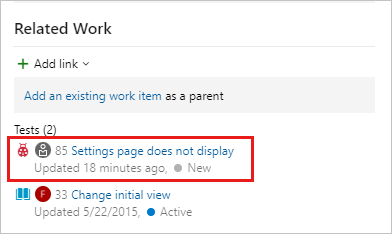
To view bugs filed during a test, open the test case work item and check the Related Work section for child bug links.
Tip
You can also run tests offline and then import the results. For more information, see the Offline Test Execution extension.
Run tests for desktop apps
Important
The Test Runner Client for Windows is retiring. Transition to the web-based test runner, which provides the same functionality with improved performance and ongoing development. For more information, see Run manual tests in Azure Test Plans.
You can use the web browser runner to test desktop applications. Run Test Runner in a browser window alongside your desktop app and mark each test step as passed or failed.
Follow the steps in Run tests for web apps to open your test plan in the Execute tab.
Select one or more tests, and then select Run for web application.
Open your desktop app and follow the test steps, marking each step as passed or failed in Test Runner.
The web runner supports screenshots, action logs, and screen recordings for desktop apps. For more information, see Collect diagnostic data while testing.
Note
When you use the web runner for desktop apps, screenshots and action logs capture the browser window, not the desktop application. Use screen recordings to capture the full screen, including the desktop app.
Run all tests
You can run all the tests in a test suite at once.
Select a test suite and select Run for web application to run all the active tests.
Run tests for a build
To run tests against a specific build, choose the build from the run options.
From the dropdown, select Run with options.
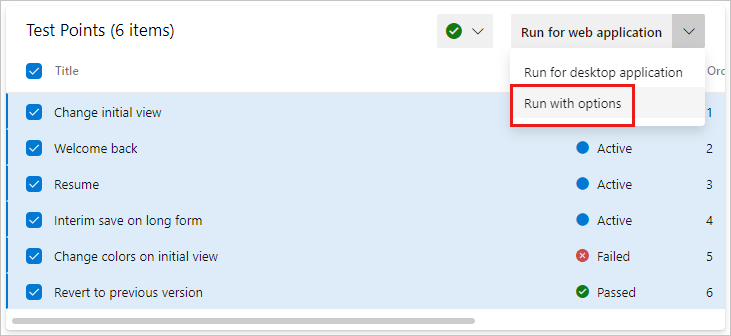
In the Run with options dialog box, select the build you want.

Note
The selected build must be from the same project as the tests.
Any bugs you file during the run are associated with the selected build, and the test outcome is published against that build.
Modify a test step during a test run
You can fix test steps while the test is still running. Select the Edit test step icon to insert, reorder, delete, or edit steps.

Capture diagnostic data
While running tests, you can capture screenshots, action logs, and screen recordings. For detailed steps, see Collect diagnostic data.
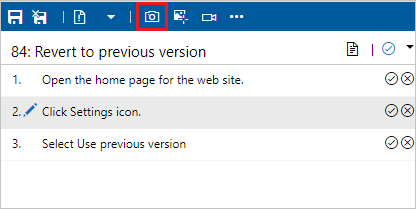
Capture a screenshot
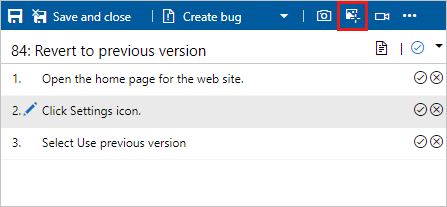
Use the web runner to take screenshots of the app while testing.
Capture an action log
Use the web runner to capture your actions on the app as image logs while testing.
Capture a screen recording
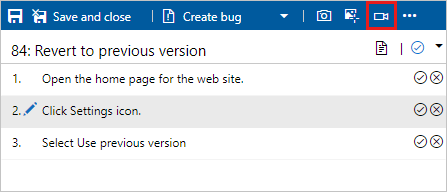
Use the web runner to capture screen recordings of your web and desktop apps while testing.
Run tests with TCM
You can run tests that are part of a test plan by using the Test Case Management (TCM) command-line tool. This tool lets you create and start a test run, and then manage all your existing test runs. Use the tcm commands documented here to accomplish these tasks.
List test runs | Create test runs | Execute test runs | Abort test runs | Delete test runs | Export test runs | Publish test runs
List test runs
Use tcm run /list to list the runs available in a test plan and to show their ID. The ID corresponds to the work item ID defined when you create the run.
tcm run /list /collection:teamprojectcollectionurl /teamproject:project
           [/planid:id  |  /querytext:query] [/login:username,[password]]
| Parameter | Description |
|---|---|
/planid:id |
Optional. Returns only test runs that are associated with the specified test plan. |
/querytext:query |
Optional. Specifies the query to use to list a subset of test runs. |
For descriptions of /collection, /teamproject and /login parameters, see Work with the TCM command-line tool.
Example
The following command lists the test runs defined for the Fabrikam Fiber project hosted in the fabrikamprime organization. The ID and Title correspond to the work item ID and title defined for the test run. For example, test run 1000052 is titled Test Plan for Cycle 1 (Manual).
tcm run /list /collection:https://fabrikamprime.visualstudio.com /teamproject:"Fabrikam Fiber"

Id        Title                              Owner               Date Completed
--------- ---------------------------------- ------------------- -----------
1000006   Sprint 2 (Manual)                  Jamal Hartnett      1/5/2026
1000032   33 : Change initial view (Manual)  Christie Church     1/11/2026
1000040   Sprint 2 (Manual)                  Jamal Hartnett      1/16/2026
1000042   Sprint 3 (Manual)                  Jamal Hartnett      1/16/2026
1000046   Special testing (Manual)           Francis Totten      1/18/2026
1000052   Test Plan for Cycle 1 (Manual)     Chuck Reinhart      2/1/2026
1000060   Game Shopping (Manual)             Chuck Reinhart      2/6/2026
Create test runs
Use tcm run /create to create a test run associated with the specified test plan. In addition to the test plan, specify the test suite and configuration you want to use by their corresponding ID. Use the tcm plans /list, tcm suites /list, and tcm configs /list commands to gather these IDs.
tcm run /create /title:title /planid:id /collection:CollectionURL /teamproject:project
            (suiteid:id /configid:configid | /querytext:query)
            [/settingsname:name] [/owner:owner] [/builddir:directory]
            [/testenvironment:name] [/login:username,[password]] [/include]
| Parameter | Description |
|---|---|
/title:title |
Specifies the title for the test run that you create. |
/planid:id |
Specifies the test plan where you want to create the test run. |
/suiteid:id |
Specifies the test suite that you want to use for your test run. |
/configid:id |
Specifies the test configuration you want to run for your test suite. |
/querytext:query |
Optional if you specify suiteid and configid. Specifies the query to use to select the tests that you want to run. Tip: Use the /querytest parameter to run more than one test suite. For example: querytext:“SELECT * FROM TestPoint WHERE (ConfigurationId=20 OR ConfigurationId=21) AND (Suiteid=1185 OR Suiteid=1186)”. |
/settingsname:name |
Optional. Specifies the test settings that you want to use for this test run. If you don't select test settings, the default test settings in the test plan are used. |
/owner:owner |
Optional. Specifies the owner of the test run. |
/builddir:directory |
Optional. Specifies the build directory to use to locate the test assemblies for the test. If you don't specify this parameter, the build location is used based on the build that is currently assigned to the test plan. |
/testenvironment:name |
Optional. Specifies the test environment that you want to use for this test run. If you don't select a test environment, the default test environment in the test plan is used. |
| /include | Optional. Includes all tests selected for the test run, even if the tests aren't currently in the Active state. |
For descriptions of /collection, /teamproject and /login parameters, see Work with the TCM command-line tool.
Example
The following command creates a test run named MyTestRun in the test plan with ID 77. The run uses the test suite with ID 161 and the test configuration with ID 9. The run is defined for the Fabrikam Fiber project hosted in the fabrikamprime organization.
In this example, the test run has an ID of 1000082.
tcm run /create /title:MyTestRun /planid:77 /collection:https://fabrikamprime.visualstudio.com /teamproject:"Fabrikam Fiber" /suiteid:161 /configid:9

Run created with ID: 1000082.
Execute test runs
Use tcm run /execute to start one of the runs in your test plan. The ID you specify corresponds to the work item ID defined when you create the run. To see a list of all test run identifiers, use the tcm run /list command.
tcm run /execute /id:id /collection:teamprojectcollectionurl /teamproject:project [/login:username,[password]]
| Parameter | Description |
|---|---|
/id:id |
Specifies the ID for the test run that you want to run. |
For descriptions of /collection, /teamproject and /login parameters, see Work with the TCM command-line tool.
Example
The following command starts a test run for the ID 1000082 for the Fabrikam Fiber project hosted in the fabrikamprime organization. The results appear in your CLI window.
tcm run /execute /id:1000082 /collection:https://fabrikamprime.visualstudio.com /teamproject:"Fabrikam Fiber"

Executing run: MyTestRun

Results
------------------------
Total:                   2
Passed:                  1
Failed:                  1
Inconclusive:            0
Abort test runs
Use tcm run /abort to cancel a test run that's in progress. The ID you specify corresponds to the work item ID defined when you create the run.
tcm run /abort /id:id /collection:teamprojectcollectionurl /teamproject:project [/login:username,[password]]
| Parameter | Description |
|---|---|
/id:id |
Specifies the ID for the test run that you want to cancel. |
For descriptions of /collection, /teamproject and /login parameters, see Work with the TCM command-line tool.
Example
The following command stops the test run with the ID 1000082 for the Fabrikam Fiber project hosted in the fabrikamprime organization. The results confirm the ID and Title of the canceled run.
tcm run /abort /id:1000082 /collection:https://fabrikamprime.visualstudio.com /teamproject:"Fabrikam Fiber"

Run with ID [1000082] and title [MyTestRun] has been aborted.
Delete test runs
Use tcm run /delete to delete a test run from your test plan. The ID you specify corresponds to the work item ID defined when the test run was created.
tcm run /delete /id:id [/noprompt] /collection:teamprojectcollectionurl /teamproject:project [/login:username,[password]]
| Parameter | Description |
|---|---|
/id:id |
Specifies the ID for the test run that you want to delete. |
| /noprompt | Optional. Specifies that the user isn't prompted to confirm deletion of a test run. |
For descriptions of /collection, /teamproject and /login parameters, see Work with the TCM command-line tool.
Example
The following command deletes the test run with the ID 1000082 for the Fabrikam Fiber project hosted in the fabrikamprime organization. The user is prompted to confirm that they want to delete the specified test run and the result is provided.
tcm run /delete /id:1000082 /collection:https://fabrikamprime.visualstudio.com /teamproject:"Fabrikam Fiber"

Are you sure you want to delete run [MyTestRun]? (Yes/No) y

Run [MyTestRun] has been deleted.
Export test runs
Use tcm run /export to export a test run to a specified location. The ID you specify corresponds to the work item ID defined when the run was created.
tcm run /export /id:id /resultsfile:path /collection:teamprojectcollectionurl /teamproject:project [/login:username,[password]]
| Parameter | Description |
|---|---|
/id:id |
Specifies the test run ID that you want to export. |
/resultsfile:path |
Specifies a location and filename for the test run you want to export. |
For descriptions of /collection, /teamproject and /login parameters, see Work with the TCM command-line tool.
Example
The following command exports the test run with the ID 1000082 for the Fabrikam Fiber project hosted in the fabrikamprime organization to c:\temp\ResultsForDeveloper.trx.
tcm run /export /id:1000082 /resultsfile:"c:\temp\ResultsForDeveloper.trx" /collection:https://fabrikamprime.visualstudio.com /teamproject:"Fabrikam Fiber"
Publish test runs
Use tcm run /publish to publish the results from a Visual Studio test run results file for a specified test plan.
tcm run /publish /suiteid:id /configid:id /resultowner:owner /resultsfile:path
            /collection:teamprojectcollectionurl /teamproject:project [/title:runtitle]
            [/runowner:owner] [/build:buildnumber /builddefinition:builddefinition]
            [/flavor:flavor] [/platform:platform] [/assignfailurestouser:user]
            [/login:username,[password]] [/buildverification]
| Parameter | Description |
|---|---|
/suiteid:id |
Specifies the test suite to use when you publish a test run. |
/configid:id |
Specifies which test configuration you want to use when you publish a test run. |
/resultowner:owner |
Specifies the owner for the test results. |
/resultsfile:path |
Specifies the location of the test run you want to publish, for example, "c:\temp\ResultsForDeveloper.trx." |
/title:runtitle |
Optional. Specifies a title that you want to use for the test run that you publish. |
/runowner:owner |
Optional. Specifies the owner of the test run. |
/build:buildnumber |
Optional. Specifies the build number to use to publish a test run. This parameter must be used with /builddefinition. |
/builddefinition:builddefinition |
Optional. Specifies the build definition to use to publish a test run. This parameter must be used with /build. |
/flavor:flavor |
Optional. Specifies the build flavor, such as Release. This parameter can only be used if the /build parameter is used. |
/platform:platform |
Optional. Specifies the build platform, such as x86. This parameter can only be used if the /build parameter is used. |
/assignfailurestouser:user |
Optional. Specifies the user to whom any failed tests in the test run are assigned. |
| /buildverification | Optional. Specifies that this test run contains build verification tests that check the basic functionality of your build. |
For descriptions of /collection, /teamproject and /login parameters, see Work with the TCM command-line tool.
Example
The following command publishes a test run for the test suite with ID 161 and test configuration with ID 9 and reassigns the owner. This command updates the existing test points for the test cases in the test suite that pairs with this configuration and publishes the results in the specified .trx file. The command assigns any failed tests in the test run to the specified user.
tcm run /publish /suiteid:167 /configid:9 /resultowner:"Jamal Hartnett" /resultsfile:"c:\temp\ResultsForDeveloper.trx" /assignfailurestouser:"Chuck Reinhart" /collection:https://fabrikamprime.visualstudio.com /teamproject:"Fabrikam Fiber"
Frequently asked questions
Q: Why can't I preview some test run attachments?
A: You can preview only .txt and .log files. For other file types, download the attachment.
Q: How do I control how long I keep my test data?
A: See Set test retention policies.
Q: Can I run tests offline and then import the results?
A: Yes, see the Offline Test Execution extension.