Note
Access to this page requires authorization. You can try signing in or changing directories.
Access to this page requires authorization. You can try changing directories.
Azure DevOps Services | Azure DevOps Server | Azure DevOps Server 2022
In this article, you learn how to navigate the Test Plans page, including how to find and favorite test plans, manage test suites, define and organize test cases, execute tests, and track results with charts.
Prerequisites
| Category | Requirement |
|---|---|
| Project access | Project member. |
| Access levels | - To view test-related work items or run test cases: At least Basic access. Users with Stakeholder access have no access to Test Plans. - To exercise the full range of test-related features: Basic + Test Plans access level or one of the following Visual Studio subscriptions: - Enterprise - Test Professional - MSDN Platforms |
| Permissions | Area Path permissions: - To add or modify test plans, test suites, test cases, or other test-based work item types: Edit work items in this node set to Allow. - To modify test plan properties such as build and test settings: Manage test plans set to Allow. - To create and delete test suites, add and remove test cases from test suites, or change test configurations associated with test suites: Manage test suites set to Allow. Project-level permissions: - To view, create, or delete test runs: View test runs, Create test runs, and Delete test runs set to Allow. - To manage test configurations or test environments: Manage test configurations and Manage test environments set to Allow. - To add new tags to test-based work items: Create tag definition set to Allow. - To permanently delete test-based work items: Permanently delete work items set to Allow. |
For more information, see Manual test access and permissions.
The Mine page
The Mine page shows test plans that you created, are assigned to, or marked as favorites. You can expand and collapse plans by team to quickly locate specific plans. Choose  More options to edit or delete a plan.
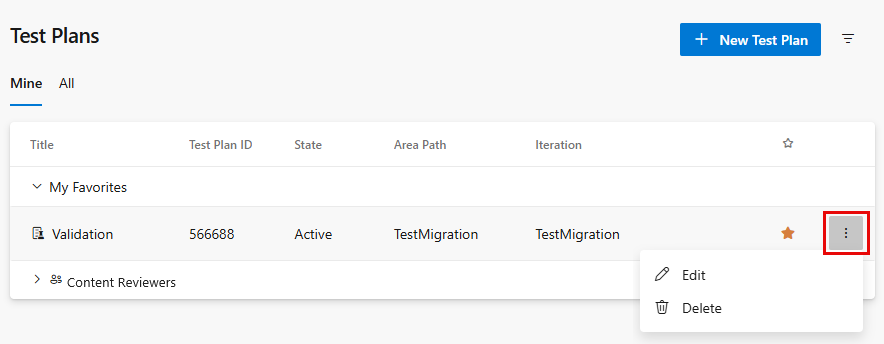
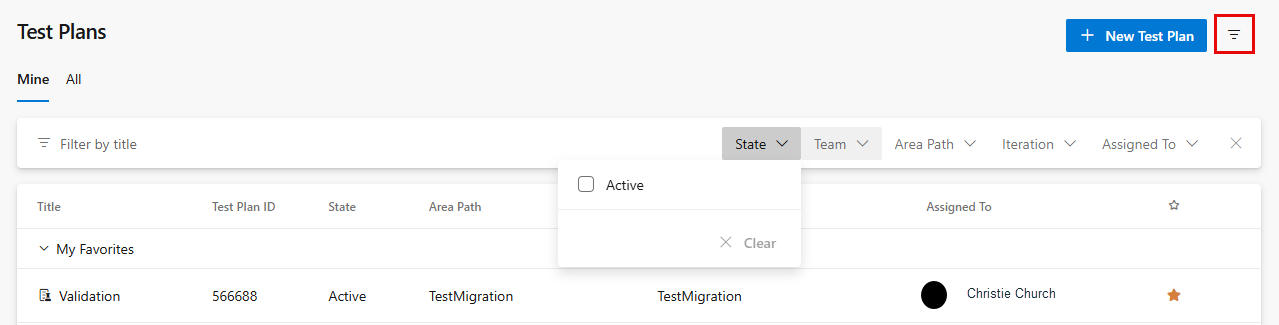
Use the filter controls to find plans by name, team, state, or iteration.
The All page
The All page shows a list of all test plans. Filter test plans, and edit and delete plans by using the More options menu, in the same way as on the Mine page. Use this page to add any test plan to your favorites list.
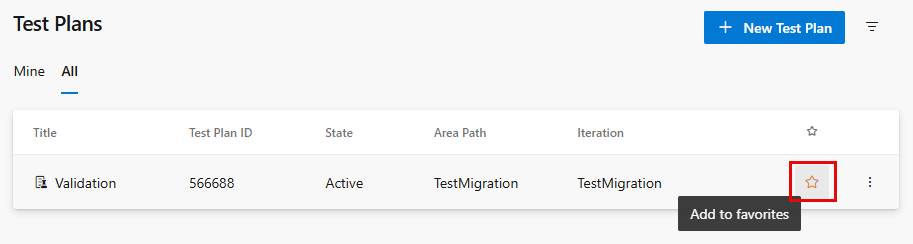
You can also add a plan to your favorites list while you view it.

Test plan header

From the test plan header, you can:
- Mark or unmark a test plan as a favorite.
- Navigate among your favorite test plans.
- View the iteration path, which indicates whether the test plan is Current or Past.
- Go to the Test Progress report by selecting View report.
- Return to the All/Mine page by choosing
 All test plans.
Select
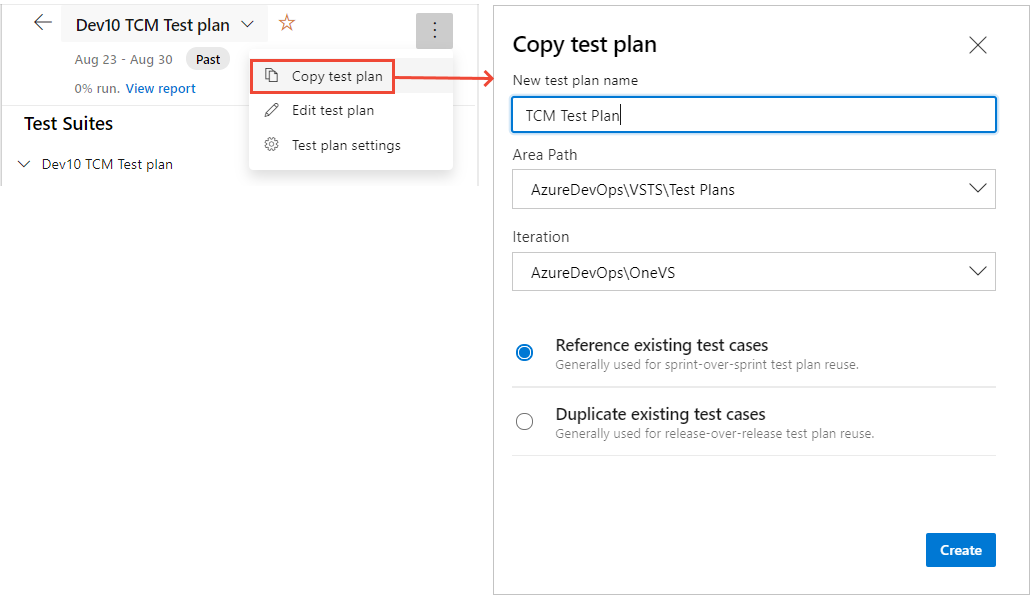
More options to access the following actions:
- Copy test plan: Copy the current test plan.
- Edit test plan: Edit the test plan work item form to define work item fields or add to the description or discussion.
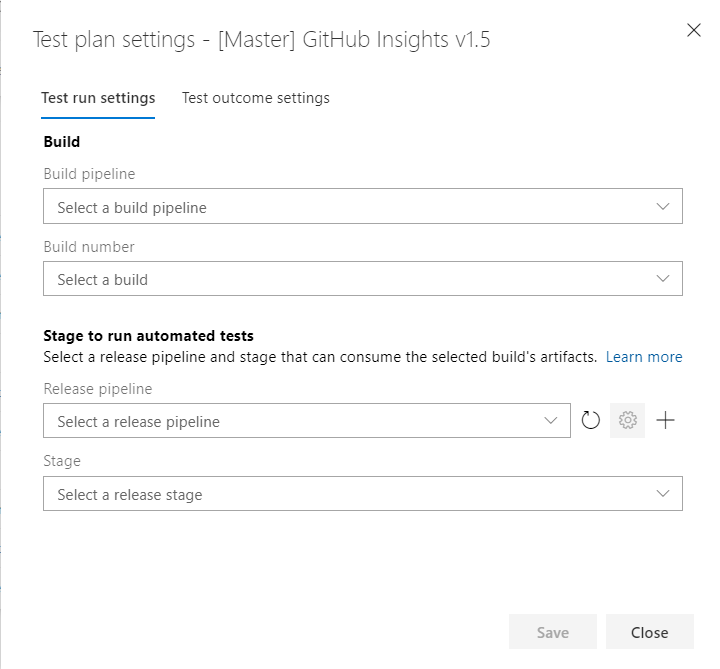
- Test plan settings: Configure the Test Run settings (to associate build or release pipelines) and the Test Outcome settings.
Configure test plan settings
Select Test plan settings to configure test runs or test outcomes.
Copy test plan
Create a new test plan for each sprint or release. You can copy the test plan from the previous cycle and make a few changes to get the copied test plan ready for the new cycle. This option lets you copy or clone test plans within a project.
Test suites header and tree
Test suites header tasks
The test suite header enables you to perform the following tasks:
- Expand or collapse: Select the
 Expand All or Collapse All toolbar options to expand or collapse the suite hierarchy tree.
 - Show test points from child suites: Select the
 Show test points from child suites toolbar option. You can only see this option when you're in the Execute tab. It lets you view all the test points for the given suite and its children in one view, so you can manage test points more easily without having to go to individual suites one at a time.
 - Order suites: Drag and drop suites to reorder the hierarchy of suites or move them from one suite hierarchy to another within the test plan.
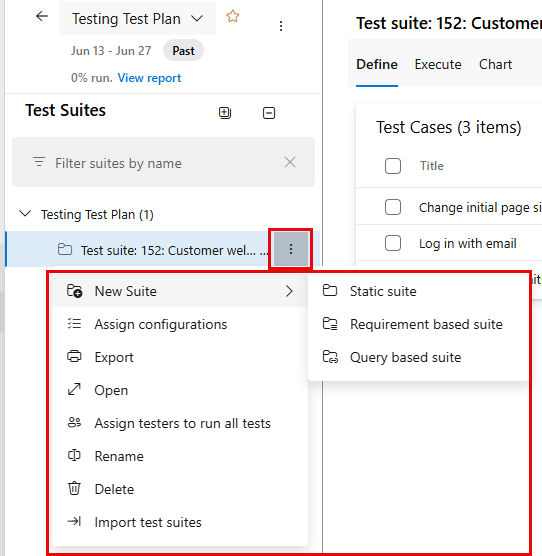
Test suite More options
Select
More options to access the following actions:
- Create new suites: Create suites under any static suite. You can create three types:
- Static suite: Organize your tests within a folder suite.
- Requirement-based suite: Link directly to requirements or user stories for seamless traceability.
- Query-based suite: Dynamically organize test cases that meet query criteria.
- Assign configurations: Assign configurations for the suite. For example, assign Chrome, Firefox, EdgeChromium, which then apply to all existing or new test cases that you add later to the suite.
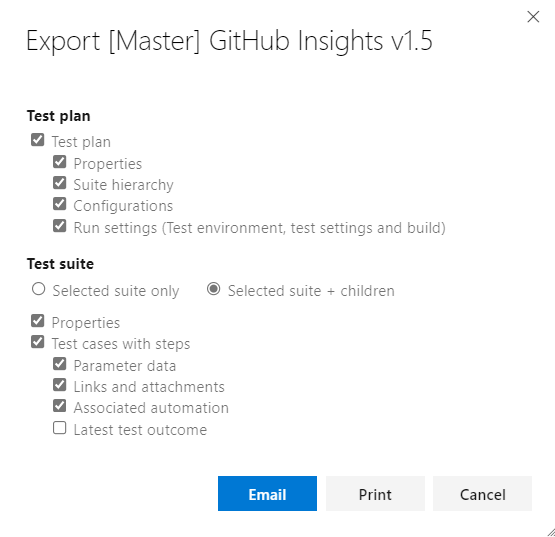
- Export: Export the test plan and test suite properties and details as either an email or print to PDF.
- Open test suite work item: Edit the test suite work item form to manage the work item fields.
- Assign testers to run all tests: This option is useful for user acceptance testing (UAT) scenarios where the same test gets executed by multiple testers, generally belonging to different departments.
- View requirement: This option is visible only for requirement-based suites. Choose this option to open the requirement category work item (for example, user story) linked to the test suite.
- Rename/Delete: These options manage the suite name or remove the suite and its content from the test plan.
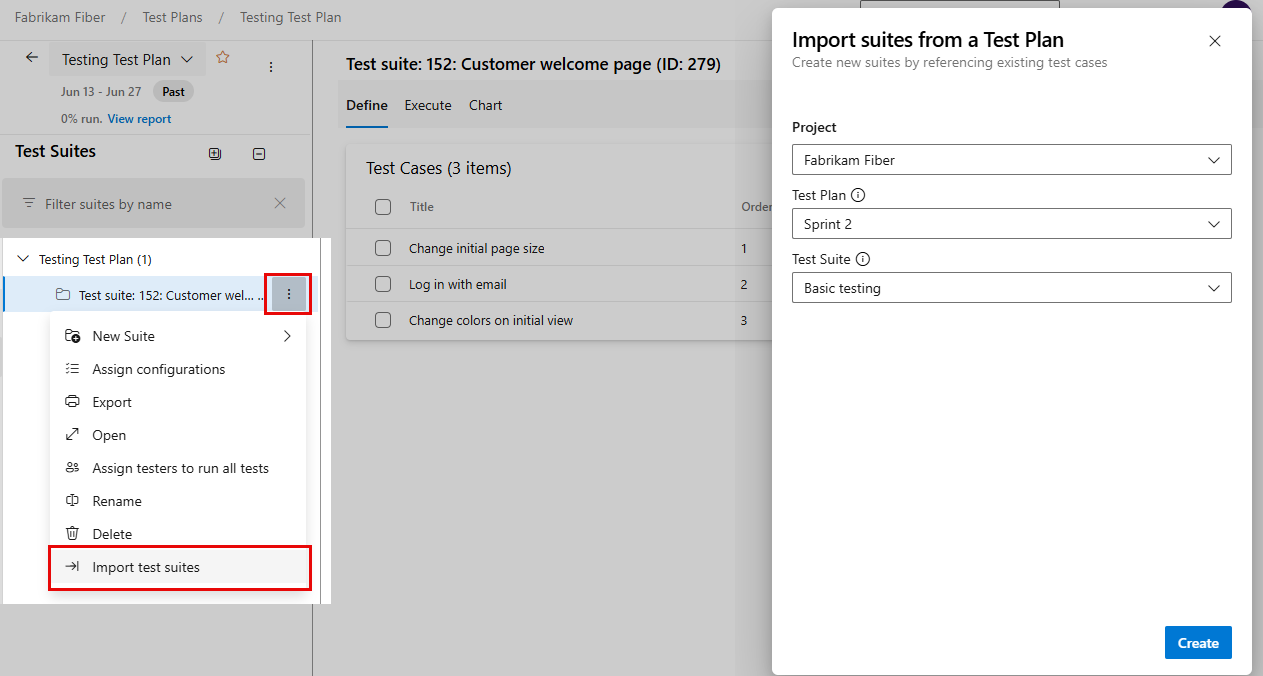
- Import test suites: Import test cases present in other suites from other test plans in the same project or even across projects.
Export test suite dialog
Import test suites
Reuse the suites you created and import them into the current suite or plan. Select the Project, Test Plan, and Test Suite from which you want to import the tests. Depending upon the suite you select, the entire hierarchy of that suite and corresponding test cases is imported into the current plan. The test cases are added as a reference and not a clone or copy. Also, you can't import test suites from the same test plan.
Define and organize test cases
From the Define tab, you can collate, add, and manage test cases for a test suite. Use the Execute tab for assigning test points and executing them.
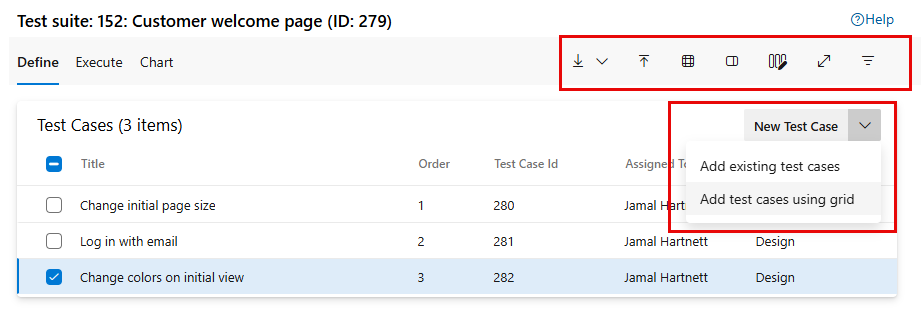
Define test case tasks
From the Define tab, you can complete the following tasks.
- New Test Case:
- Add Test Case: Create a new test case by using the work item form and automatically add it to the suite.
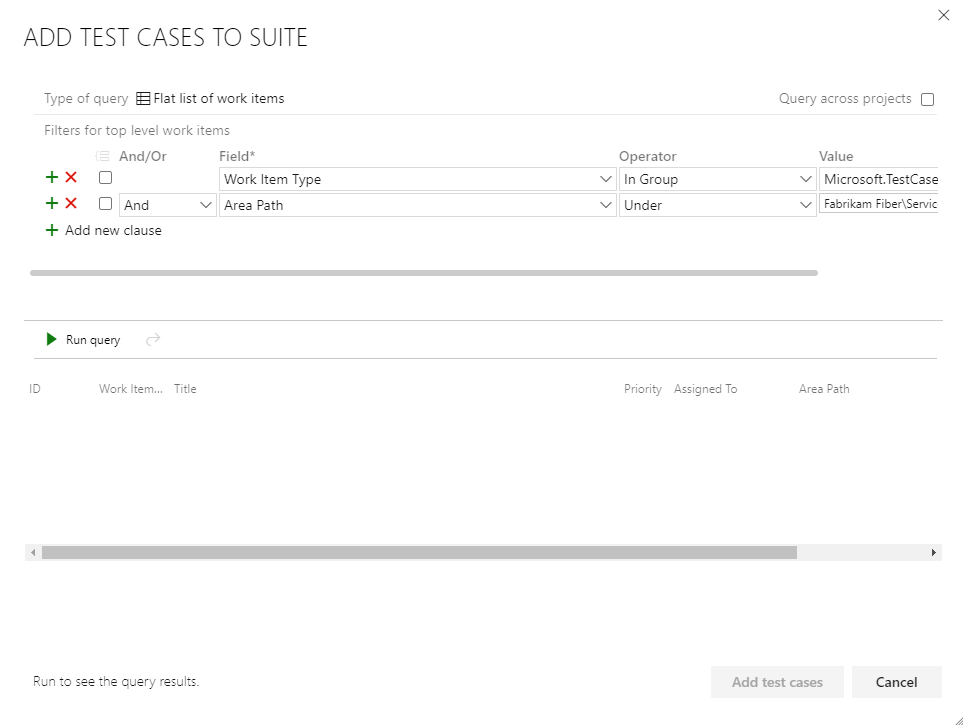
- Add existing test cases: Open a dialog to query for existing test cases that you can select from and add to the test suite.
- Add New test case using grid: Create one or more test cases by using the test cases grid view and automatically add them to the suite.
- Order test cases: Reorder test cases by dragging and dropping one or more test cases within a given suite. The order of test cases only applies to manual test cases and not to automated tests.
- Move test cases from one suite to another: Use drag and drop to move test cases from one test suite to another.
- Export/Import: Export existing test cases or import updates to test cases from a CSV file.
Add existing test cases to a test suite dialog
Define tab toolbar options

From the Define tab, toolbar, use the following options:
- Export test cases to CSV: Export existing test cases to a CSV file and make changes by using Excel.
- Export test cases to XLSX: Export existing test cases to an XLSX file and make changes by using Excel.
- Import test cases from CSV: Import changes you made to test cases from a CSV file.
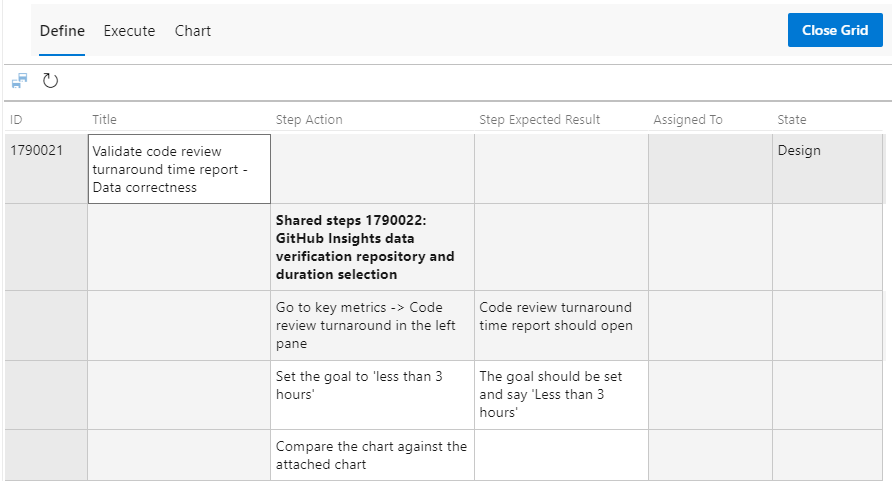
- Grid View: Use the grid mode for viewing or editing multiple test cases along with test steps.
- Toggle test case preview pane: Preview test case details in the work item form side-by-side and modify the selected test case details.
- Toggle full screen mode: Expand the view by choosing full screen mode.
- Filter: Choose
 Filter to toggle the filter toolbar to filter the list of test cases.
 - Column options: Add or remove fields to display and sort on. The list of columns available for selection primarily comes from the fields in the test case work item form.
Define tab More options
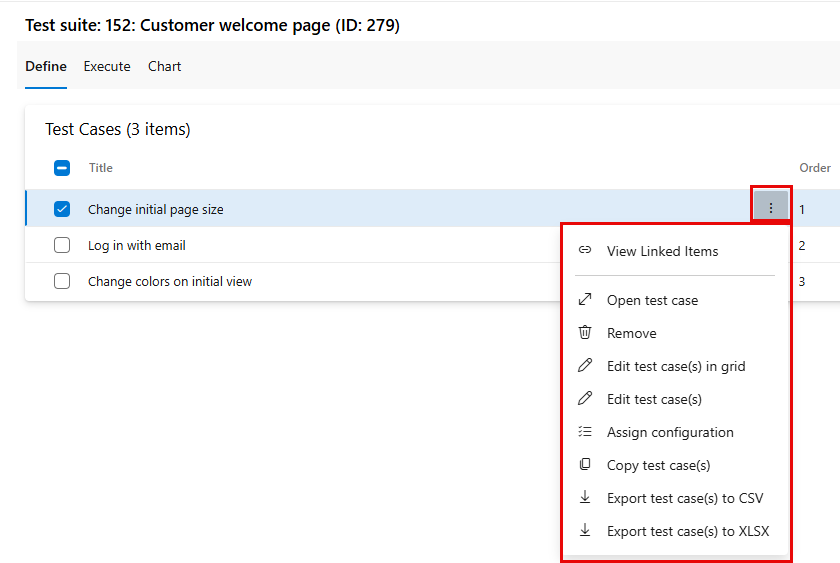
Choose
More options on a test case to access the following actions:
- Open/edit test case work item form: This option opens the work item form where you can edit the test case, including the test steps.
- Edit test cases: This option opens the bulk edit form for test case work item fields. You can't use this option to bulk edit test steps.
- Edit test cases in grid: This option opens the grid view where you can bulk edit the selected test cases, including test steps.
- Assign configurations: This option overrides the suite level configurations with test case level configurations.
- Remove test cases: This option removes the test cases from the given suite. It doesn't change the underlying test case work item.
- Create a copy/clone of test cases: Create a copy or clone selected test cases.
- Export test cases to CSV/XLSX: Export existing test cases to a CSV or XLSX file and make changes by using Excel.
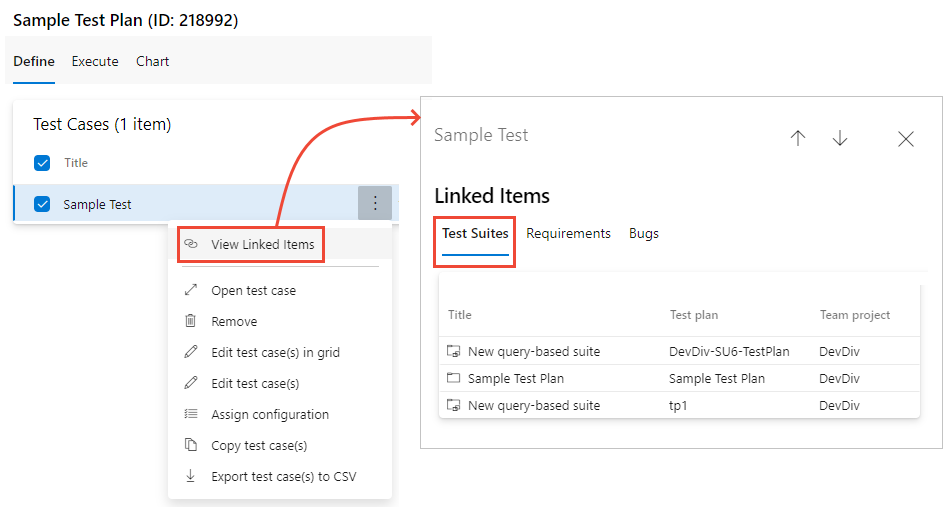
- View linked items: Review items linked to a test case.
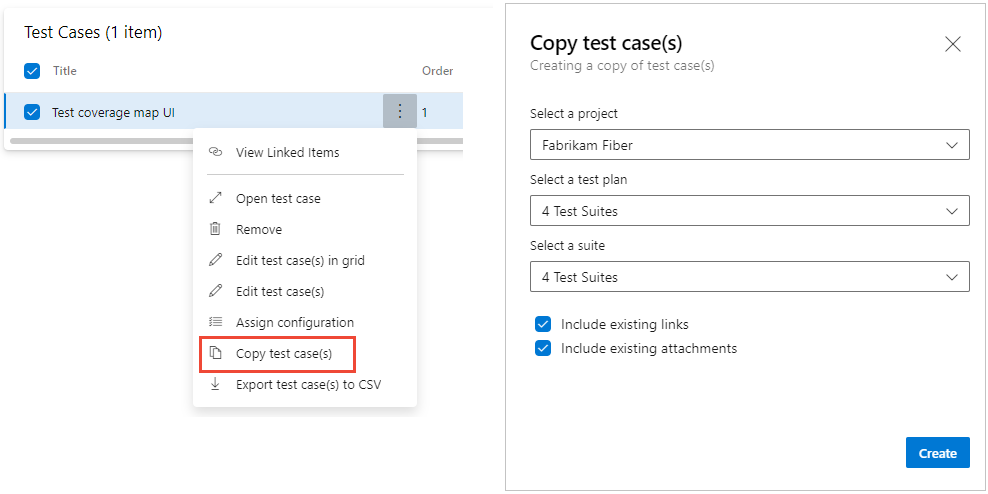
Copy or clone test cases
Select Copy test case to copy or clone a test case. Enter the destination project, destination test plan, and destination test suite where you want to create the copy or cloned test case. You can also specify whether you want to include existing links and attachments in the cloned copy.
View linked items
Use the View linked items option to review objects linked to the test case. Select each tab to view the links listed under the linked object type:
- Test Suites: View which test suites and test plans include the selected test case.
- Requirements: Includes any work item that belongs to the Requirements Category, such as User Stories (Agile), Product Backlog Items (Scrum), Requirements (CMMI).
- Bugs: Includes bugs filed as part of test execution and any work items that belong to the bug Category that links to the test case.
Bulk update using the Grid view
Select the  Grid View to perform bulk updates to the test cases.
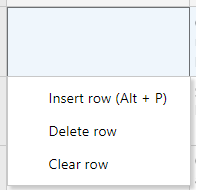
Select a cell to edit the text in that cell. Right-click within a cell to choose an option to Insert row, Delete row, or Clear row. Select  Save test cases to perform a bulk save of your changes. Or, select
  Refresh to clear your changes. When complete, select Close Grid.
Execute tests
Use the Execute tab to assign test points or run tests.
What is a test point? Test cases by themselves aren't executable. When you add a test case to a test suite, you generate test points. A test point is a unique combination of a test case, test suite, configuration, and tester.For example, a test case called Test sign in functionality with two configurations (Microsoft Edge and Chrome) generates two test points. You can run each test point independently, and each execution produces a test result. You can view all executions for a test point in the execution history. The Execute tab shows the latest result for each test point.
Test cases are reusable entities. When you include them in a test plan or suite, you generate test points. By executing test points, you determine the quality of the product or service under development.
Execute tasks
From the Execute tab, you can perform the following tasks:
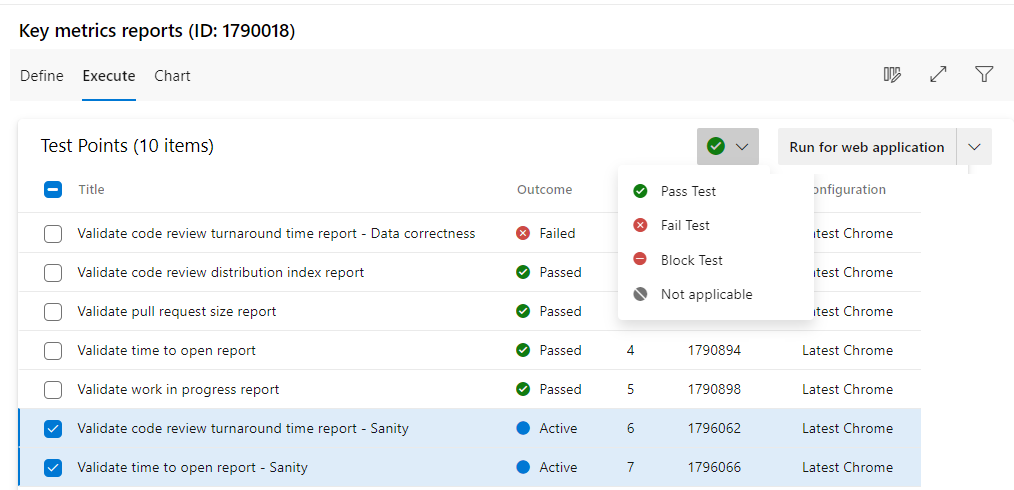
- Bulk mark test points: Quickly mark the outcome of one or more test points—Passed, Failed, Blocked, or Not Applicable—without running the test case through the Test runner.
- Run test points: Run the test cases by individually going through each test step and marking them pass or fail by using a Test runner. Depending on the application you're testing, you can use the Web Runner for testing a "web application" or the Desktop Runner for testing desktop or web applications. Select Run with options to specify a Build against which you want to perform the testing.
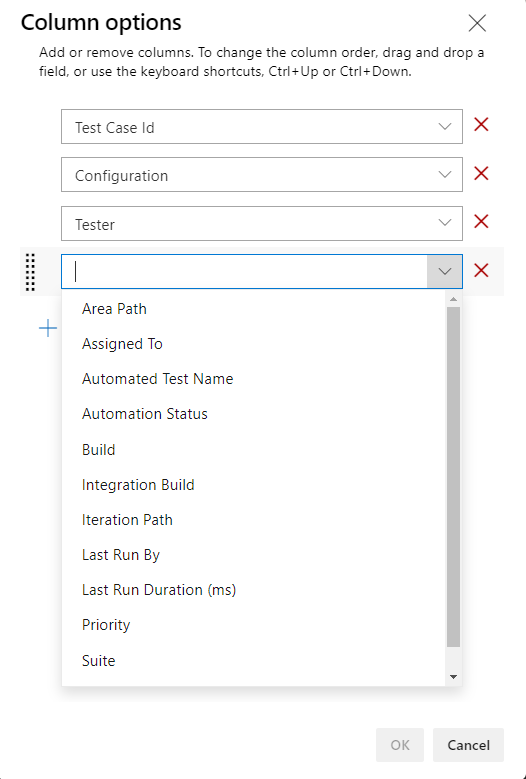
- Column options: Add or remove columns. The list of columns available for selection is associated with test points, such as Run by, Assigned Tester, Configuration, and more.
- Toggle Full screen view: View the contents of the page in a full screen mode.
- Filter: Filter the list of test points by using the fields of a test case Title, ID, Outcome, Tester, Configuration, Assigned To, or State. You can also sort the list by choosing a column header.
Change column options
Choose  Column options to open the Column options dialog. Add or remove columns and drag and drop them in the order you want.
Test point More options
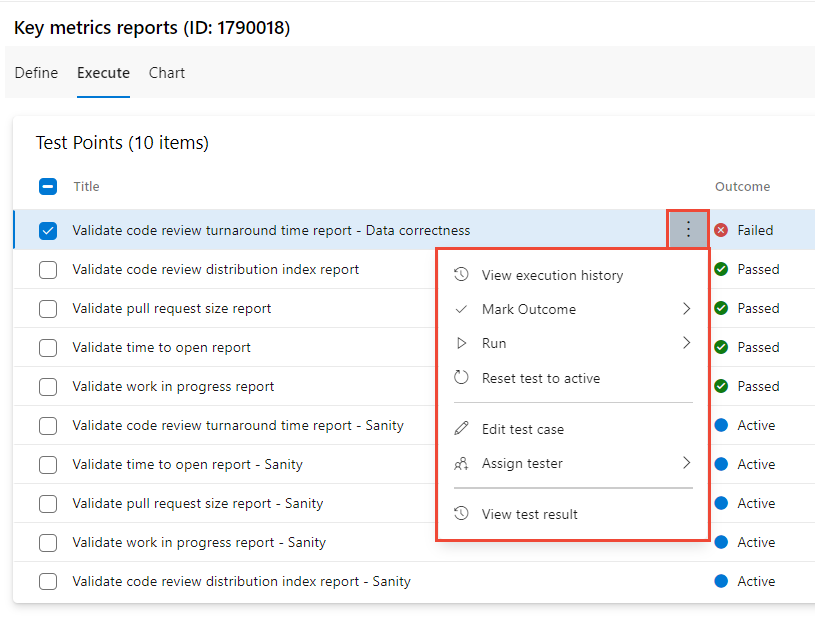
Select
More options on a test point to access the following actions:
- View execution history: View the execution history for the test point in a side pane. You can navigate to the detailed test case execution history from the pane.
- Mark Outcome: Quickly mark the outcome of the test points—Passed, Failed, Blocked, or Not Applicable.
- Run - Initiate a test runner with options to Run for web application, Run for desktop, Run with options.
- Reset test to active: Reset the test outcome to Active, ignoring the last outcome of the test point.
- Edit test case: Open the work item form, optionally edit work item fields including test steps.
- Assign tester: Assign the test points to a tester for test execution.
For more information about executing tests, see Run manual tests and Run automated tests from test plans.
Chart test cases and test results
From the Chart tab, you can create various test case or test result charts. For more information, see Track test status, Charts.