Note
Access to this page requires authorization. You can try signing in or changing directories.
Access to this page requires authorization. You can try changing directories.
A standalone data asset is a data asset that isn't associated with a data product in Microsoft Purview Unified Catalog. Data quality for standalone data assets means you can measure, monitor, and improve the quality of these assets independently, without requiring a data product association.
Benefits of running data quality on a data asset
Helps you assess and improve the quality of your data before linking it to a data product. Microsoft Purview Data Quality users can profile and evaluate the quality of their data before associating it with a data product. Users can standardize, clean, and resolve issues upfront.
Helps you decide which assets should be part of a data product. By understanding the quality of standalone assets, organizations can make informed decisions about which assets are suitable for curation and governance within a data product.
Supports broader use cases beyond analytics. Many organizations associate data products only with analytics use cases. Standalone data assets might serve other purposes such as:
- Data monetization
- AI grounding data
- Operational workloads
Provides unified data quality tooling across all data. Organizations can use a single Microsoft Purview Data Quality solution to assess both standalone data assets and data product–associated assets, including issue remediation.
Helps optimize data storage and reduce costs. If standalone assets are low quality, incomplete, or unusable, organizations can archive them to lower-cost storage or apply data minimalism principles—reducing unnecessary data retention and improving return on investment.
Accelerates data governance maturity. Organizations can begin measuring and improving data quality immediately, without waiting for data product definitions or use cases. This significantly speeds up governance adoption.
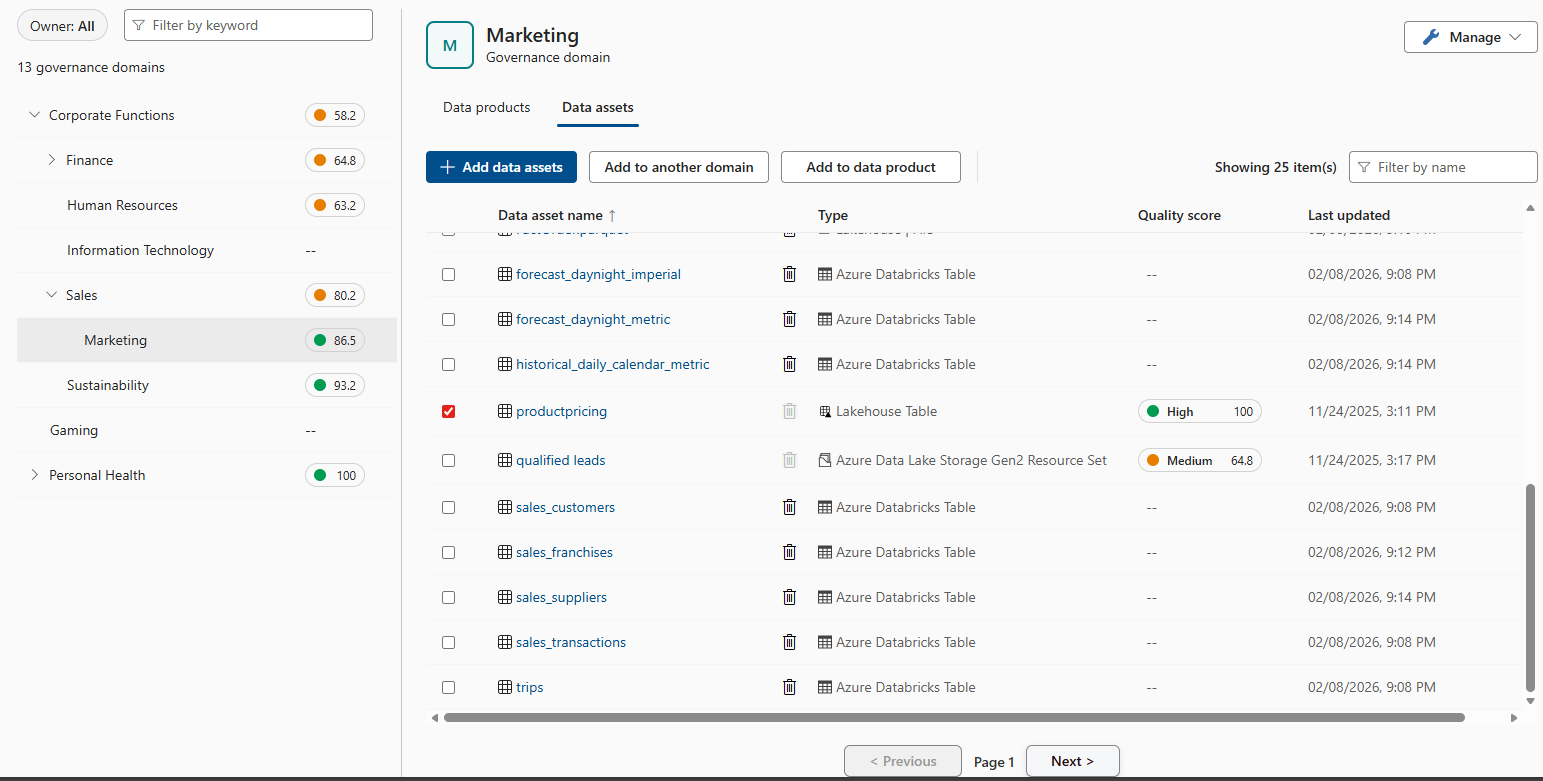
Data quality scans review your data assets based on their applied data quality rules and produce a score. Your data stewards can use that score to assess the data health and address any issues that might be lowering the quality of your data. Here's an example of how data asset scores appear in a governance domain:
Prerequisites
- To run and schedule data quality assessment scans, users need the data quality steward role.
- Currently, you can set the Microsoft Purview account to allow public access or managed virtual network access so that data quality scans can run.
- Configure the data source connection if it isn't created yet for the data asset’s source system.
- Configure the data quality error records storage if you want to store data quality failed records for review and correction.
Data quality life cycle for data assets
Data quality scanning is the seventh step in the data quality life cycle for a data asset. The previous steps are:
- Register and scan a data source in Microsoft Purview Data Map.
- Assign users data quality steward permissions in Unified Catalog so they can use all data quality features.
- Set up a data source connection to prepare your source for data quality assessment.
- Add your data asset from Data Map to a governance domain.
- Configure a storage to store data quality error records if you want to store data quality error record for review and remediation.
- Configure and run data profiling for an asset in your data source.. When profiling is complete, browse the results for each column in the data asset to understand your data's current structure and state to identify what rules need to be created to measure and monitor data quality of your data continuously.
- Set up data quality rules based on the profiling results, and apply them to your data asset.
- Review data quality error records and correct those failed records to improve data quality of your data.
Supported multicloud data sources
Browse the supported data source document to view the list of supported data sources, including file formats for data profiling and data quality scanning, with and without virtual network support.
Important
Data quality for Parquet file is designed to support:
- A directory with Parquet Part File. For example: ./Sales/{Parquet Part Files}. The Fully Qualified Name must follow
https://(storage account).dfs.core.windows.net/(container)/path/path2/{SparkPartitions}. Make sure there are no {n} patterns in directory/sub-directory structure. It must be a direct FQN leading to {SparkPartitions}. - A directory with Partitioned Parquet Files, partitioned by Columns within the dataset like sales data partitioned by year and month. For example: ./Sales/{Year=2018}/{Month=Dec}/{Parquet Part Files}.
Both of these essential scenarios, which present a consistent parquet dataset schema, are supported. Limitation: It isn't designed to or won't support N arbitrary Hierarchies of Directories with Parquet Files. We recommend presenting data in (1) or (2) constructed structure.
Supported authentication methods
Currently, Microsoft Purview can only run data quality scans by using Managed Identity as authentication option. Data quality services run on Apache Spark 3.4 and Delta Lake 2.4. For more information about supported regions, see data quality overview.
Important
- If you update the schema on the data source, you need to import schema from data quality overview page by using schema import feature before running a data quality scan.
- Virtual network isn't supported for Google BigQuery.
Run a data quality scan for standalone data asset
In Unified Catalog, select Health Management, then select Data quality.
Select a governance domain from the list.
Configure a data source connection to the assets you're scanning for data quality if you haven't already done so.
Select a Data asset and select Add data assets to add data assets from Data Map for a data quality assessment. Select the desired data assets from the Data Map assets list to add them to the governance domain to begin measuring their data quality.
Select the name of a data asset, which takes you to the data quality Overview page.
Profile the selected data asset if you want to know the distribution, min, max, uniqueness, completeness, standard deviation, and other statistical measures of your data assets.
To set up scan, browse the existing data quality rules and add new rules by selecting Rules. Browse the schema of the data asset by selecting Schema. Toggle on or off the rules you added. If you toggle off a rule, that rule isn't included in the data quality scan.
Run the quality scan by selecting Run quality scan on the overview page.
While the scan is running, you can track its progress from the data quality monitoring page in the governance domain.
If you configured data quality error records in the governance domain level or data asset level, check the error records in the configured storage.
Add a data asset with quality score to another domain
After a data asset has a data quality score, you can add it to another governance domain by cloning it. You can clone and associate the same data asset with any governance domain as needed.
- Select a data asset with data quality score.
- Select Add to another domain, then select the domain from the drop-down list.
- Select the domain to add the selected data asset.
Associate asset with quality score to a data product
You can associate a data asset with its latest data quality score to a data product in a different governance domain.
- Select a data asset with data quality score.
- Select Add to data product, then select the Governance domain and Data product from the drop-down list.
- Select the domain and data product to add the selected data asset.
Roles and permissions
- You can't associate a standalone data asset with a data quality score to a data product that is in a published state; the data product must be in draft state.
- If you aren't the data product owner, you can't add a standalone data asset to a data product.
- If you don't have permissions for a business domain, you can't clone a standalone data asset into that domain.
- A data product owner must have a local or global Domain Reader role or a Data Quality Reader role to browse the standalone data asset data quality page and to associate a data asset (with data quality scores and rules) to a data product.
- A data steward must have a local or global Domain Owner role to browse the standalone data asset data quality page.
Note
If you delete a data asset from the Data Map, it appears in read-only mode and you identify it by its GUID instead of the asset name. When you hover over the asset GUID, a tooltip message is displayed. You can remove the asset from the list, as data quality scans can't be run on deleted assets.
Schedule data quality scans
Although you can run data quality scans on an ad-hoc basis by selecting Run quality scan, in production scenarios the source data is likely to be constantly updated. You should regularly monitor data quality to detect any issues. Automating the scanning process helps you manage regular updates of quality scans.
In Unified Catalog, select Health Management, then select Data quality.
Select a governance domain from the list.
Select Manage, then select Scheduled scans.
Fill out the form on the Create scheduled scan page. Add a name and description for the source you're setting up the schedule.
Select Continue.
On the Scope tab, select data assets you want to set up schedule to run data quality as per configured schedule.
Select Continue.
Set a schedule based on your preferences and select Continue.
On the Review tab, select Save (or Save and run to test immediately) to complete scheduling the data quality assessment scan.
You can monitor scheduled scans on the data quality job monitoring page under the Scans tab.
Note
You can't add more than 30 assets across all data products in a single schedule. Create multiple schedules for 30 assets per batch. You can configure to run multiple schedules in the same time window.
Delete previous data quality scans and history
To remove a data asset from the data asset list on the data quality page, first delete the data quality score if the data asset has one. Then, remove the data asset from the data quality data asset list.
When you delete data quality history data, you remove the profile history, the data quality scan history, and data quality rules. Data quality actions aren't deleted.
To delete previous data quality scans for a data asset, follow these steps:
- In Unified Catalog, select Health Management, then select Data quality.
- Select a governance domain from the list.
- Select the data asset from the list to go to the Data quality overview page.
- Select the ellipsis (...) at the upper right of the Data quality overview page.
- Select Delete data quality data to delete the history of data quality runs.
Note
- Use Delete data quality data for test runs, errored data quality runs, or if you're removing a data asset from the data quality data asset list.
- The system stores up to 50 snapshots of data quality profiling and data quality assessment history. To delete a specific snapshot, select the desired history run and select the delete icon.
Import schema
If the data type in a schema is undefined, incorrectly defined, or changed in the source, your data quality job might fail. If it fails, reimport the schema by using the schema import capability. You can import schemas for data sources on both public networks and behind private endpoints. For a list of supported data sources, see Data sources and file formats supported for data quality. To import a schema from your data sources, follow these steps:
- Select Data quality from Health Management.
- Select a governance domain, then select a data asset from the list to navigate the Data quality overview page.
- Select Schema, then select the Schema management toggle.
- Select Import schema to import the schema.
Related content
- Data quality for Fabric data estate
- Data quality for Fabric Mirrored data sources
- Data quality for Fabric shortcut data sources
- Data quality for Azure Synapse serverless and data warehouses
- Data quality for Azure Databricks Unity Catalog
- Data quality for Snowflake data sources
- Data quality for Google BigQuery
Next steps
- Monitor data quality scan.
- Review your scan results to evaluate your data product's current data quality.
- Configure alerts for data quality scan results.