Note
Access to this page requires authorization. You can try signing in or changing directories.
Access to this page requires authorization. You can try changing directories.
Power BI offers several ways to collaborate and share Power BI reports, dashboards, and data with others - inside or outside your organization. This article explains the main sharing and collaboration options, when to use each, and how to manage permissions.
Choose a sharing method
Not sure which option to use? Start here:
| Scenario | Best method | Requirements |
|---|---|---|
| Share a specific report or dashboard with named people | Direct link or access | Pro/PPU license or Premium capacity |
| Distribute polished content to a large team or your whole org | Publish an app | Pro/PPU license to publish; free license to consume in Premium/Fabric capacity |
| Co-author or collaborate on content with a team | Workspace | Assign workspace roles (Admin, Member, Contributor) |
| Share and discuss reports in Microsoft Teams | Teams integration | Power BI app for Teams |
| Share with people outside your organization | External sharing | Admin must enable external sharing; users sign in with Microsoft Entra B2B |
| Share with a large audience via a security group | Security group access | Pro/PPU license or Premium capacity |
Prerequisites
- You need a Power BI Pro or Premium Per User (PPU) license to share content, unless the content is in a Premium capacity.
- Recipients also need a Power BI Pro or PPU license, unless the content is in a Premium or Fabric capacity.
- To let recipients edit a shared report, assign them a workspace role that allows editing. See Roles in workspaces for details.
- For recipients with free licenses to access shared reports, both the report and its underlying semantic model must be in Premium capacity. If the semantic model is in a different workspace that isn't in Premium capacity, free users receive a prompt to upgrade their license.
Note
Only P SKUs and F SKUs F64 or larger let users with a Microsoft Fabric free license and the Viewer role use Power BI apps and shared content. Smaller F SKUs require a Pro license. The F SKU is part of Fabric. To learn more, see Microsoft Fabric licenses.
Ways to collaborate and share
Share reports and dashboards
- Share reports and dashboards from My Workspace or other workspaces when you have the right role or permissions.
- Share reports and dashboards from the Power BI mobile apps.
- Share reports and dashboards from Power BI Desktop with OneDrive and SharePoint integration.
- Publish reports from Power BI Desktop to the Power BI service.
- In a list of reports or dashboards, or when viewing one, select Share.
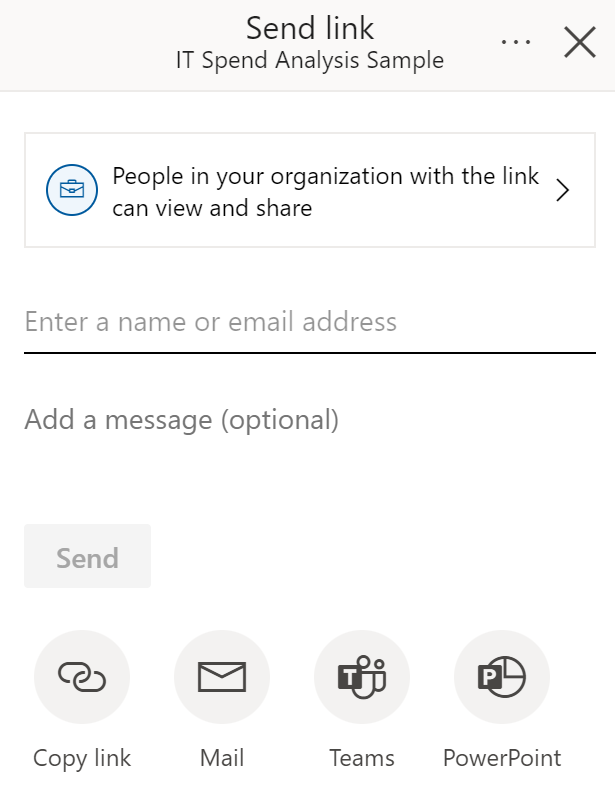
- In the Send link dialog, choose how to share:
- People in your organization: Anyone in your organization with the link can view (not for external or guest users).
- Specific people: Enter names or emails to share directly (can include Microsoft Entra B2B guests).
- People with existing access: Send a link to someone who already has access.
- Set permissions:
- Reshare: Allow recipients to share with others.
- Build: Allow recipients to build their own reports based on the data.
- Copy the link or send it directly via email, Outlook, PowerPoint, or Teams.
Note
Your organization might restrict shareable links to People in your organization. See tenant settings.
Collaborate using workspaces
- Use workspaces to collaborate on content with a team.
- Assign roles (Admin, Member, Contributor, Viewer) to control access and editing.
- Publish content in workspaces as apps for broader distribution.
Publish apps to distribute content
- Package dashboards and reports into an app for easy distribution.
- Share apps with large groups or your entire organization.
- Recipients get a consistent, read-only experience unless you grant build permissions.
Share reports in Microsoft Teams
- Share reports and dashboards directly in Teams channels or chats.
- Collaborate in real time and discuss insights with your team.
Share Power BI content outside your organization
To share content with external users, your Power BI administrator must enable external sharing in the tenant settings. For more information, see tenant settings for guest users.
- Enter the external user's email address (Microsoft Entra B2B guests recommended).
- Recipients must sign in to Power BI to view shared content.
- Only direct recipients can access the shared content; forwarding the link doesn't grant access.
- If RLS is implemented, external users only see data they're permitted to view.
For more information, see Distribute Power BI content to external guest users with Microsoft Entra B2B.
Share with large groups using security groups or apps
- Use security groups to share with large audiences.
- Or, create an app from a workspace and publish it to many users. See publishing apps in Power BI.
Manage permissions
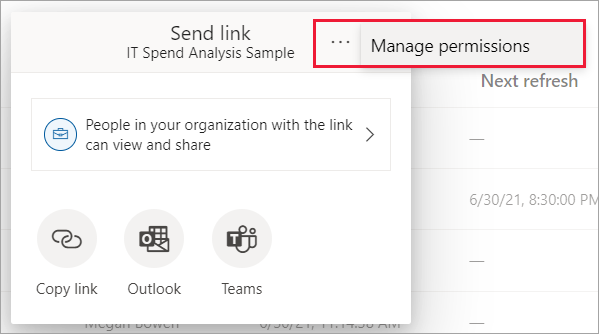
- Select More options (...) in the sharing dialog, and then select Manage permissions.
- In the Manage permissions pane, you can:
- Copy or change existing links
- Grant or remove direct access
- View pending requests and related content
- Use Advanced for more options
Note
Each report can't have more than 1,000 sharing links. If you reach this limit, remove links for "Specific people" and grant those users direct access.
Considerations and limitations
- Only reports can be shared via links that grant access; dashboards require direct access.
- Sharing a report or dashboard also grants access to the underlying semantic model. For free users to access shared content, both the report and the underlying semantic model must be in Premium capacity. If the semantic model is stored in a different workspace that isn't in Premium capacity, free users are prompted to upgrade their license even if the report itself is in Premium capacity.
- Recipients can interact with content in Reading view but can't edit unless granted build permissions.
- Admins can restrict Analyze in Excel access.
- You can't share reports distributed to you in an app; ask the app owner to add users and republish.
- You can use distribution groups for sharing, but you can't use Microsoft 365 Unified groups for direct sharing.
- If coworkers already have access, you can send a direct link by copying the URL.
- Email notifications are only sent to individual users, not groups.