Note
Access to this page requires authorization. You can try signing in or changing directories.
Access to this page requires authorization. You can try changing directories.
Appropriate roles: Account admin
Enrolling into Microsoft AI Cloud Partner Program creates a default pair of global and local account referred to as partner global account (PGA) and partner location account (PLA). Each Microsoft AI Cloud Partner Program account has a PartnerID.
- The global PartnerID identifies the equivalent of a company's headquarters. Used for membership, benefits, and tracking support requests.
- A location PartnerID identifies a company subsidiary. There can be one or more location accounts. It's used to enroll in incentive programs, to transact in the Cloud Solution Provider (CSP) business, enroll into Marketplace or Microsoft 365 Copilot program. Incentive payouts are tied to these specific locations.
Note
Create more location accounts only when needed. You're able to use the locations for Marketplace or CSP only once vetting is authorized.
Example of Microsoft AI Cloud Partner Program account structure
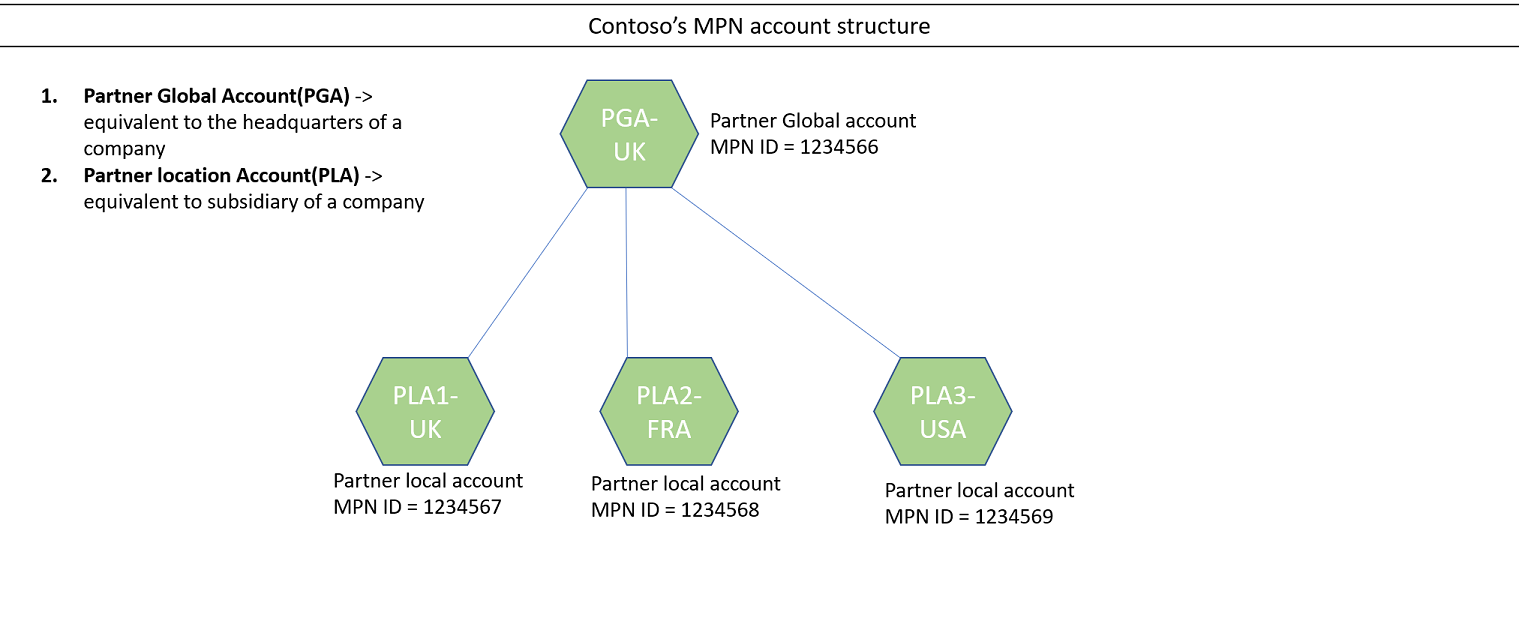
In the diagram, Contoso has its company headquarters in the UK, so that's where the business is legally registered. The UK is also the location of Contoso's partner global account (PGA), PartnerID 1234566.
Contoso has subsidiaries in the UK, France, and the United States. Each has its own partner location account (PLA) and PartnerID.
Note
There's a one-to-one relationship between a CSP tenant and a Microsoft AI Cloud Partner Program location ID.
Prerequisites for adding a new account for a CSP business
Enrolling into CSP program warrants a new work account. Prerequisites to add a new CSP business account
- After submitting the CSP enrollment form, accept the Microsoft Partner Agreement to activate the enrollment post vetting.
- Create a PartnerLocationID in the country/region where you want to do CSP business.
- To enroll as a direct-bill partner, read Requirements to enroll as a CSP direct-bill partner
- To create a new CSP indirect reseller enrollment, read Work with indirect providers.
Note
Choose to create a new work account at the time of CSP enrollment and use the newly produced credentials to proceed with enrollment.
Use of partner location account for Azure Marketplace
The default MAICPP location is sufficient for getting started with Commercial Marketplace. While enrolling in Marketplace, publisher profile gets created. Use the publisher profile to publish offers and eventually get paid in a single currency.
Add more publishers under a location account only when you need payment in another currency. Create more locations only if you operate as separate legal entities.
Setting up locations for Azure Marketplace

Partner Global Account (PGA) - Partner ID
(Global PartnerID)
│
│  Represents your organization
│  Used for non-transactional activities (support, profile)
│
├── Partner Location Account (PLA – EMEA) - Partner ID
│   (Location PartnerID)
│   │
│   │  Represents EMEA legal entity / payout boundary
│   │
│   ├── Publisher (EUR) - Seller ID
│   │     └── Marketplace Offer A
│   │           └── Plan A
│   │           └── Plan B
│   │     └── Marketplace Offer B
│   │           └── Plan A
│   │           └── Plan B
│   │
│   ├── Publisher (GBP)
│   │     └── Marketplace Offers
│   │           └── Plans
│   │
│   └── Publisher (CHF)
│         └── Marketplace Offers
│               └── Plans
│
└── Partner Location Account (PLA – US)
    (Location PartnerID)
    │
    │  Represents US legal entity / payout boundary
    │
    └── Publisher (USD)
          └── Marketplace Offers
                └── Plans
Add a partner location
- Sign in to Partner Center with a Microsoft AI Cloud Partner Program account that has Account admin privileges and select Settings gear.
Note
Your Microsoft AI Cloud Partner Program credentials might be different from your CSP credentials.
Select the Account settings workspace, and then select Organization profile.
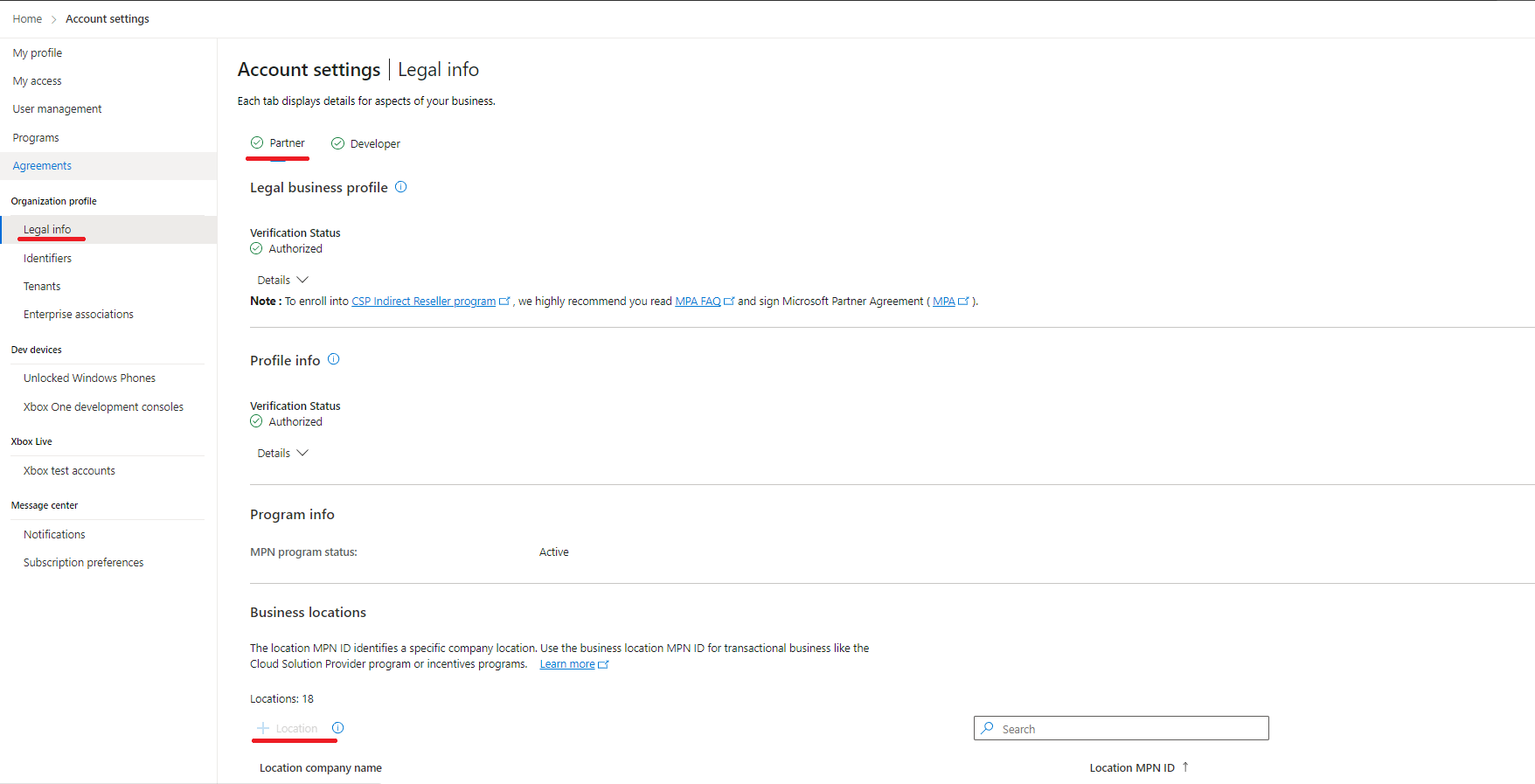
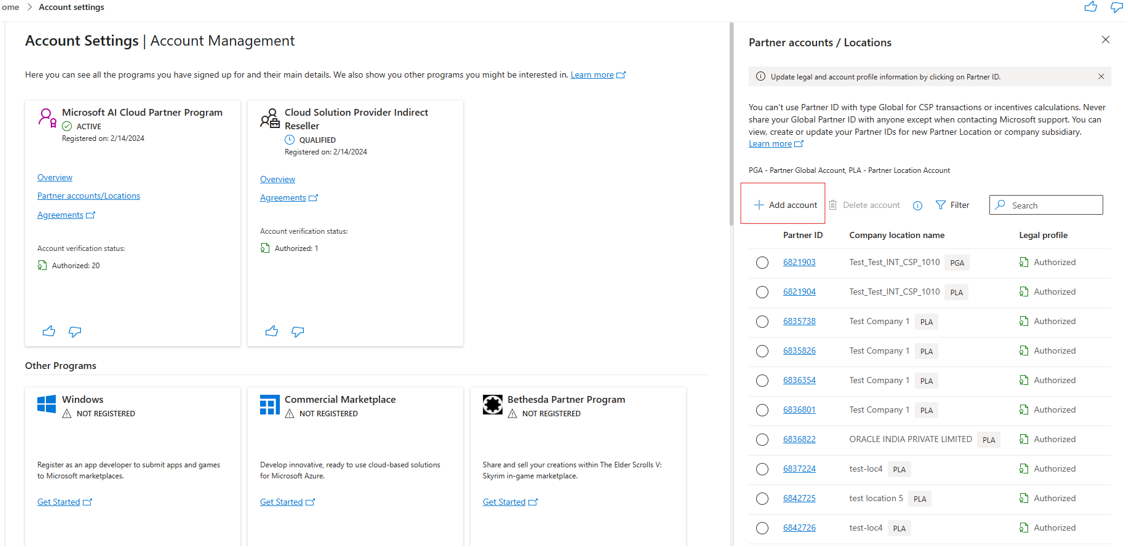
Select Legal and then, on the Partner tab, select Business locations and select Add location.
Provide the required details, including business name, address, and contact information for the location.
Select Add location to create a new PartnerID for the location that you can use for CSP transactions and incentives.
Important
- After you add a PartnerLocationID in Partner Center, you must contact Partner Support if you want to remove it. For more information about deleting a location, see the next section, Delete a location PartnerID.
- For verification to be successful, ensure that the enrolling location is a legitimate business entity and at the stated address.
- When creating new locations, choose to create a new Legal Entity or choose from an already existing one that was previously used for setting up another location.
- Multiple locations can be created using the same Legal Entity. If a company name changes, that change applies to all locations sharing the same Legal Entity.
Delete a partner location
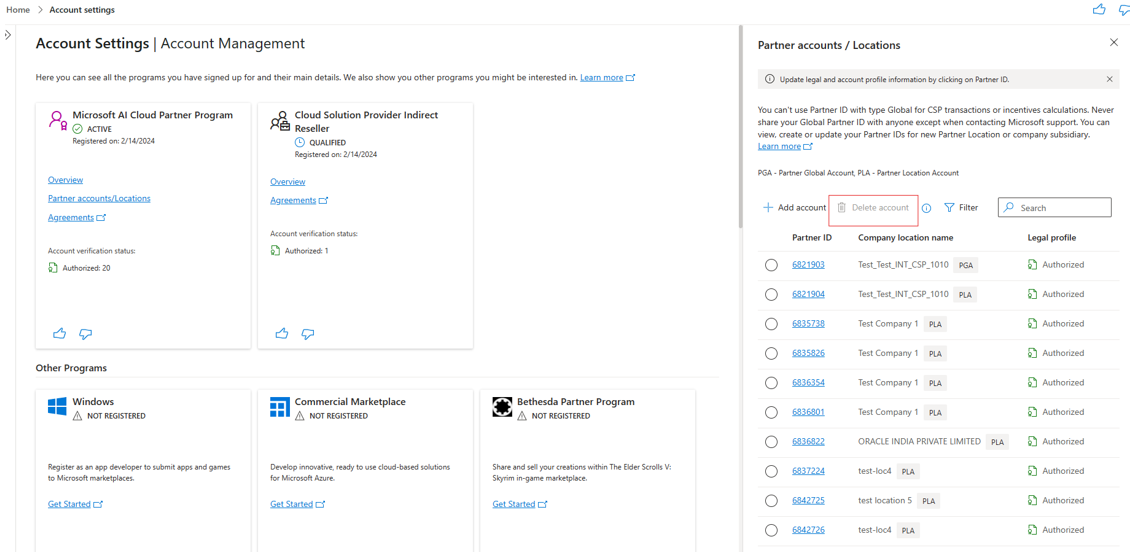
To delete a PartnerLocationID from your account, you must contact Partner Support.
Before a PartnerLocationID can be deleted, provide written statement saying that you understand that:
- Deleted locations can't be retrieved.
- Program enrollments, co-sell solutions, incentives, and many more Partner Center functions tied to that Partner ID will no longer be recognized or be active for your company.
View and update your Microsoft AI Cloud Partner Program locations
Use the following steps to view and update your Microsoft AI Cloud Partner Program locations.
- Sign in to Partner Center with your Microsoft AI Cloud Partner Program account credentials (your Microsoft AI Cloud Partner Program credentials might be different from your CSP credentials) and select Settings (gear).
- Select Account settings, then Organization profile, and then Identifiers.
- Find the PartnerID with type Location that matches the country/region of this CSP account and use it to complete the association.
- If there's no location account matching the legal address of CSP account, create a new location and use the Partner ID generated for association during CSP enrollment. See Add a location PartnerID.
Add the registration number ID
As a CSP partner - indirect reseller, direct or indirect provider, if you're in business with new or existing customers in the countries or regions listed, refer Registration ID number information before location creation.
Change the country/region of a partner global account
Use the following steps to change the country/region of the partner global account.
Sign in to Partner Center with your Microsoft AI Cloud Partner Program account credentials (your Microsoft AI Cloud Partner Program credentials might be different from your CSP credentials) and select Settings (gear).
Select Account settings. On the Partner tab, go to Business locations and check the list of locations to ensure that the location you want as your legal entity is listed.
To add a location, select Add a location, and provide the required details, including business name, address, and primary contact for the location that you want to add to your company.
Select Change your country next to the Country/region dropdown list and follow the steps.

Select Save.

The Microsoft AI Cloud Partner Program global account country/region is changed to the new country or region.
Related content
- Learn about the verification process
- Learn about creating publishers