Note
Access to this page requires authorization. You can try signing in or changing directories.
Access to this page requires authorization. You can try changing directories.
Use this article to get sales insights from a Teams meeting recap and take follow-up actions in CRM.
In this article, you learn how to:
- View sales insights in a meeting recap.
- Create a CRM task from follow-up items.
- Draft a post-meeting summary email.
- Save AI-generated meeting notes to CRM.
If insights don't appear, go to When sales insights aren't generated.
Prerequisites
- Turn on Copilot AI features in your environment.
- Add the Sales agent to the meeting either manually or automatically.
- Transcribe the meeting. It's required to generate sales insights.
- Ensure that the meeting is not recurring.
- Ensure that the meeting is not created in Dynamics 365 Sales.
Supported languages
To see a list of supported languages, go to supported languages.
Quick links
- View sales related insights in meeting recap
- Create a CRM task from a meeting recap
- Create a post-meeting summary email
- Save AI-generated meeting notes to CRM
- When sales insights aren't generated
View sales related insights in meeting recap
You can view a meeting recap if you record and transcribe a meeting. With the Sales agent added to the Teams meeting, you can view sales related insights in the meeting recap.
To view sales related insights, open the meeting recap in Teams, select the down-arrow next to Transcript, and then select Sales.
After you open the Sales tab in recap, you can view the following sales related insights:
Post-meeting actions: View a list of suggested post-meeting actions such as creating a summary email for meeting participants and saving AI-generated meeting notes to CRM. This section is not available if you are viewing the meeting recap using the older Sales Copilot license.
Suggested follow-ups from the meeting: View a list of follow-up tasks that are created during the meeting. You can also create a task in CRM by selecting Create task.
Questions: See questions that were asked during the meeting. It helps you to identify if your sellers are asking the right questions to understand customer needs. Questions are grouped by the person who asked them. When you select a question, the video jumps to the point in the conversation where the question was asked.
Keywords mentioned: View keywords that were mentioned during the meeting. Keywords are grouped as per the following categories:
- Brands: Names of brands that were mentioned during the meeting.
- Times: Time mentioned during the meeting.
- People: Names of people mentioned during the meeting.
- Others: Other keywords mentioned during the meeting.
If you track keywords and competitors in your CRM, they also appear in this section.
Key highlights: View topics discussed during the meeting, including time stamps for each topic and speaker names. The summary is generated using AI and is based on the meeting recording and transcript. It helps you to quickly understand the main topics discussed during the meeting. This section is available only if you are viewing the meeting recap using the older Sales Copilot license.
Overall meeting sentiment: View the overall sentiment of the meeting, which is calculated based on the tone of the conversation. The sentiment is categorized as positive, negative, or neutral. It also shows the trend of the sentiment over time, which helps you to understand how speakers felt during each phase of the meeting. Learn more about accuracy of sentiment analysis.
Speaker-level insights: View insights for each speaker, including their talk time, sentiment distribution, and summary. This helps you to understand how each speaker contributed to the meeting and how they felt during the conversation.

When sales insights aren't generated
Sales insights aren't generated in the following scenarios:
| Scenario | What to check |
|---|---|
| The meeting is recurring. | Use a non-recurring meeting for insights generation. |
| The meeting was not transcribed. | Verify transcription is enabled for the meeting. |
| The meeting was created in Dynamics 365 Sales. | Create the meeting in Teams instead. |
| The meeting recording was started and stopped multiple times. | Use one continuous recording session. |
| You are not connected to your CRM in the Sales agent. | Sign in to CRM in Sales agent. |
| The organizer hasn't granted recording/transcript access to everyone. | Ask the organizer to update meeting access permissions. |
Accuracy of sentiment analysis
Sentiment analysis is AI-generated from meeting transcript tone and content. It provides a quick high-level view of whether the conversation was mostly positive, neutral, or negative. Because AI can misinterpret nuance, sarcasm, or context, use these insights as a supporting signal only, not a definitive assessment of participant intent or satisfaction. Always validate with your own judgment and direct customer follow-up.
Create a CRM task from a meeting recap
Open a meeting recap in Teams and view sales related insights.
Find the follow-up item for which you need to create a task, and then select Create task.
Add or update the following information:
Item Description Required Subject Name of the task. Yes Owner Who will complete the task; if it isn't you, you can assign someone else. Yes Connected to A record that provides information about the task; select from accounts and opportunities that are associated with the email's recipients. No Due date The date by which the owner should complete the task. No Description Text snippet of the follow-up item; you can change it if needed.
Note: A link to the meeting is populated automatically in this field.No 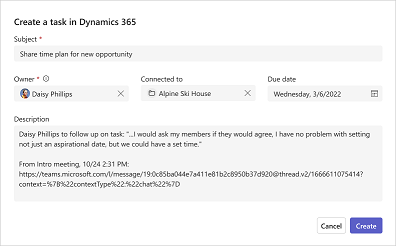
Select Create.
After you create a task, Create task changes to Open task. Select Open task to open the task in your CRM.
Create a post-meeting summary email
After meeting with your customers, you often send an email with a summary of your interaction, relevant action items or next steps, and a follow-up date. Manually creating a meeting summary and compiling all the notes and action items taken during the meeting takes some amount of time and often gets missed.
With the Sales agent, you can quickly draft an email from the meeting recap in Teams. The email includes a summary of the meeting, action items, and follow-up tasks.
To create a post-meeting summary email:
Open a meeting recap in Teams and view sales related insights.
Under the Post-meeting actions section, select Draft email. The email is drafted and opened in a pop-up window.
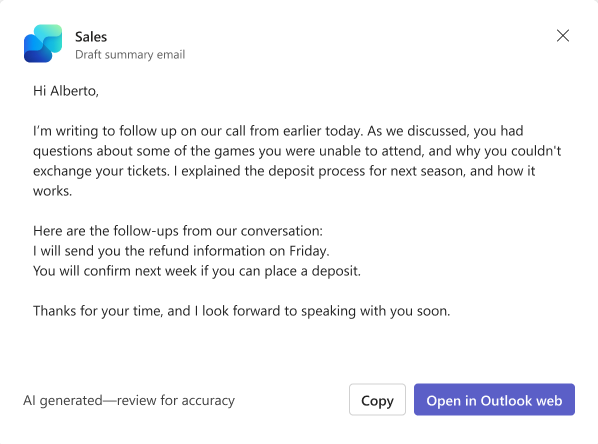
To copy the email content to your clipboard, select Copy.
To open the email in Outlook web, select Open in Outlook web.
Review and update the email content as needed, and then send it to your customers.
Save AI-generated meeting notes to CRM
With intelligent recap, you can focus on the meeting discussion and not on capturing notes. AI-generated notes allow you to see key points and takeaways after the meeting.
AI-generated meeting notes can be saved to your CRM directly from the Teams meeting recap summary page. Depending on admin configuration, you can save the meeting notes either to a specific record in your CRM, such as an opportunity or account, or to the default appointment description field. This feature helps you maintain a record of meeting notes in your CRM for future reference or for sharing with your team.
By default, this feature is enabled.
Note
Administrators can configure meeting notes to be saved either to the default appointment or event description field, or directly to a specific CRM record or object. If the default option is selected, saving AI-generated notes will create a new appointment or event and link it to the selected CRM record. If categorization fields have been set up by the admin, these options will appear when saving to a new appointment or event. However, categorization fields will not be shown if the appointment or event has already been created and saved to the CRM.
To save AI-generated meeting notes to CRM:
- Open a meeting recap in Teams and view sales related insights.
- Under the Post-meeting actions section, select Save to (CRM).
- In the Save meeting notes window, search and select the record from the CRM record field. If the meeting is already saved to the CRM, the search bar doesn't appear.
- If required, edit the notes before saving them to CRM.
- Select Save. A confirmation message appears indicating that the meeting notes are saved to your CRM. You can view the saved meeting notes in your CRM by selecting View saved notes. Once notes are saved, all applicable internal participants will see the URL to the CRM record in place of the "Save to (CRM)" button.
If you don't see the Save to (CRM) button, it could be due to one of the following reasons:
- The meeting has multiple recordings.
- The meeting is a part of a recurring series.
- You're not signed in to the CRM.
- You don't have a valid license.
- The meeting transcript is not sufficiently long to generate meeting notes.
- Your administrator has disabled the Save AI notes to CRM feature.
- Your administrator hasn't configured the correct CRM fields for saving notes.