Note
Access to this page requires authorization. You can try signing in or changing directories.
Access to this page requires authorization. You can try changing directories.
This article describes how to get Fabric workspace item events as an eventstream in Fabric Real-Time hub.
Fabric workspace item events are discrete Fabric events that occur when contents of your Fabric Workspace are changed. These changes include creating, updating, or deleting of Fabric items except for the item types listed in the following note.
Note
Currently, Fabric workspace item events for the following Power BI item types (itemKind) are not supported:
- Semantic Model
- Paginated report
- Report
- App
- Dashboard
With Fabric eventstreams, you can capture these Fabric workspace events, transform them, and route them to various destinations in Fabric for further analysis. This seamless integration of Fabric workspace events within Fabric eventstreams gives you greater flexibility for monitoring and analyzing activities in your Fabric workspace.
Here are the supported Fabric workspace events:
- Microsoft.Fabric.ItemCreateSucceeded
- Microsoft.Fabric.ItemCreateFailed
- Microsoft.Fabric.ItemUpdateSucceeded
- Microsoft.Fabric.ItemUpdateFailed
- Microsoft.Fabric.ItemDeleteSucceeded
- Microsoft.Fabric.ItemDeleteFailed
Note
Effective March 21, 2025, the Microsoft.Fabric.ItemReadSucceeded and Microsoft.Fabric.ItemReadFailed event types are deprecated. So, users in your organization don't see these event types when creating subscriptions (eventstreams or alerts) for the Fabric workspace.
Existing subscriptions (eventstreams or alerts) for these events will stop receiving events on March 21, 2025.
Prerequisites
- Access to a workspace in the Fabric capacity license mode (or) the Trial license mode with Contributor or higher permissions.
- A Fabric workspace with events you want to track.
Create streams for Fabric workspace item events
You can create streams for Fabric workspace item events in Real-Time hub using one of the ways:
Data sources page
Sign in to Microsoft Fabric.
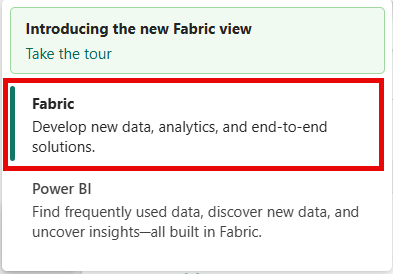
If you see Power BI at the bottom-left of the page, switch to the Fabric workload by selecting Power BI and then by selecting Fabric.
Select Real-Time on the left navigation bar.

The Streaming data page opens by default. Click on the Add data button to get to the Data sources page.

You can also get to the Data sources page directly by selecting the Add data option in the left navigation bar.
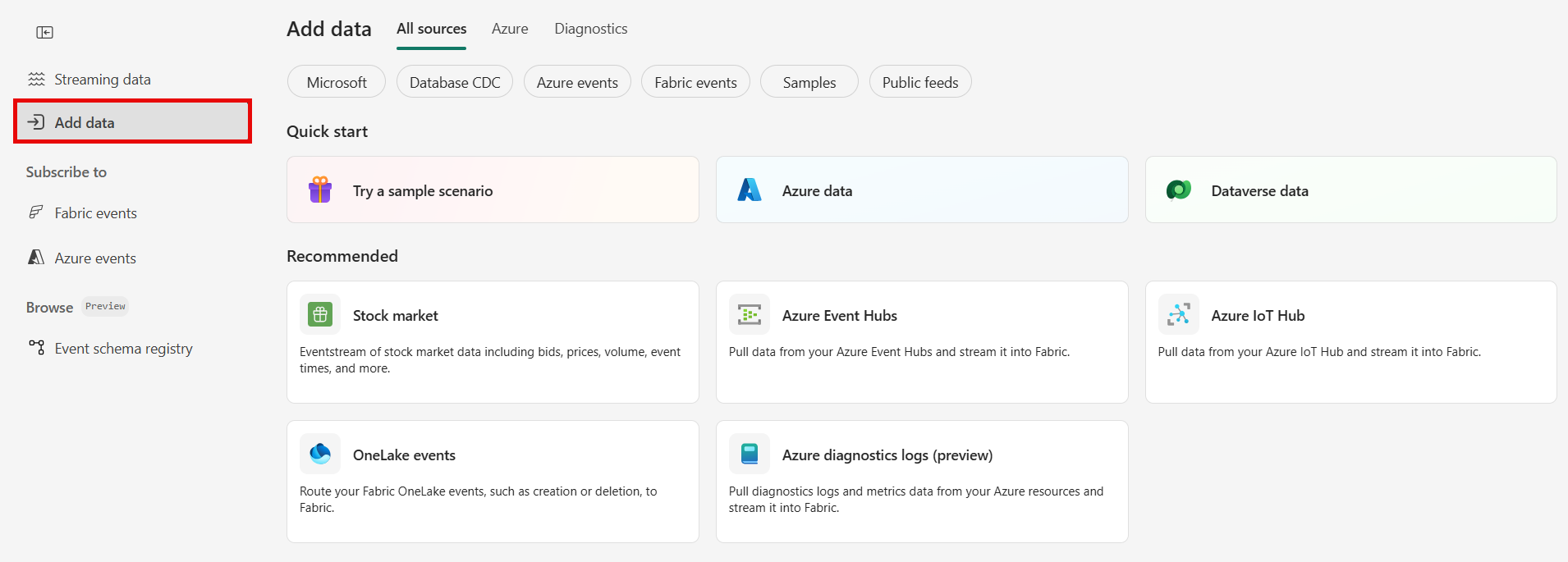


On the Data sources page, select Fabric events category at the top, and then select Connect on the Fabric Workspace Item events tile.

Now, use instructions from the Configure and create an eventstream section.

Fabric events page
In Real-Time hub, select Fabric events on the left navigation menu.
Move the mouse over Workspace item events, and select the + (plus) link, or select ... (ellipsis) and then select Create Eventstream.

Now, use instructions from the Configure and create an eventstream section, but skip the first step of using the Add source page.

Configure and create an eventstream
On the Connect screen, first select Event type(s) of interest that you want to capture in the eventstream. By default, all supported events are captured.

In the next step, select the right Event source. You can choose between streaming all workspace item events in a tenant by selecting the source option as Across this tenant or restrict to specific workspace by choosing By workspace option. To select a workspace for which you want to stream workspace item events, you must be a workspace admin, member, or contributor of that workspace. To receive workspace item events across the tenant, you need to be a Fabric tenant admin

Stream or source details
On the Connect page, follow one of these steps based on whether you're using Eventstream or Real-Time hub.
Eventstream:
In the Source details pane to the right, follow these steps:
For Source name, select the Pencil button to change the name.
Notice that Eventstream name and Stream name are read-only.
Real-Time hub:
In the Stream details section to the right, follow these steps:
Select the Fabric workspace where you want to create the eventstream.
For Eventstream name, select the Pencil button, and enter a name for the eventstream.
The Stream name value is automatically generated for you by appending -stream to the name of the eventstream. This stream appears on the real-time hub's All data streams page when the wizard finishes.
Select Next at the bottom of the Configure page.
Review and connect
On the Review + connect screen, review the summary, and select Add (Eventstream) or Connect (Real-Time hub).
View stream from the Real-Time hub page
When the wizard succeeds in creating a stream, on the Review + connect page, if you select Open eventstream, the wizard opens the eventstream that it created for you. To close the wizard, select Finish at the bottom of the page.

Select Real-Time hub on the left navigation menu, and confirm that you see the stream you created. Refresh the page if you don't see it.

For detailed steps, see View details of data streams in Fabric Real-Time hub.


Related content
To learn about consuming data streams, see the following articles: