Note
Access to this page requires authorization. You can try signing in or changing directories.
Access to this page requires authorization. You can try changing directories.
This article describes the change data capture (CDC) capability in Copy job and how to use it.
What is change data capture (CDC) in Copy job
Change data capture (CDC) in Copy job is a powerful capability in Fabric Data Factory that enables efficient and automated replication of changed data including inserted, updated, and deleted records from a source to a destination. This ensures your destination data stays up to date without manual effort, improving efficiency in data integration while reducing the load on your source system.
Key benefits of CDC in Copy job
- Zero manual intervention: Automatically captures incremental changes (inserts, updates, deletes) directly from the source.
- Automatic replication: Keeps destination data continuously synchronized with source changes.
- Optimized performance: Processes only changed data, reducing processing time and minimizing load on the source.
- Smarter incremental copy: Automatically detects CDC-enabled source tables and allows you to select either CDC-based or watermark-based incremental copy for each table.
Read methods: CDC-based vs. Watermark-based incremental copy
- CDC-based incremental copy: If your source database has CDC enabled, Copy job automatically captures and replicates inserts, updates, and deletes to the destination, applying the exact changes.
- Watermark-based incremental copy: If CDC isn't enabled on your source database, Copy job detects changes by comparing an incremental column (e.g., timestamp or ID) against the last run, then appends or merges the changed data to the destination based on your configuration.
Write methods: SCD Type 1 (Merge) vs. SCD Type 2
When using CDC in Copy job, it's important to understand how changes are applied to your destination. The update method you choose maps to slowly changing dimension (SCD) patterns commonly used in data warehousing.
SCD Type 1 (Merge)
SCD Type 1, also known as the Merge update method, is the default behavior for CDC in Copy job. With this approach, the destination always reflects the current state of the source data:
- Inserts: New rows from the source are added to the destination.
- Updates: Changed rows in the source overwrite the corresponding rows in the destination.
- Deletes: Deleted rows in the source are removed from the destination.
This method keeps only the latest version of each record. No historical data is preserved. It's ideal when you need the destination to be an exact, up-to-date replica of the source.
SCD Type 2 (Historical tracking)
SCD Type 2 preserves historical data by creating new rows for changes while keeping previous versions of records. When a source record is detected as updated from the last run, the existing current record in the destination is expired by setting its Valid_To and changing Is_Current to false. A new record is then inserted with the updated attribute values, a new Valid_From, and Is_Current = true. When a record is deleted at the source, the current version is soft-deleted — it isn't physically removed, but its Valid_To date is set and Is_Current is marked as false. This approach preserves the complete lifecycle of each record when writing to destination, including records that no longer exist in the source.
CDC in Copy job provides built-in support for SCD Type 2 as a write method. To enable SCD Type 2, select it as the write method when configuring your Copy job — no custom code or additional logic is required. Both history tracking and soft delete handling are enabled together and applied consistently across all selected tables.
SCD Type 2 in Copy job adds the following columns to the destination:
Valid_From: The timestamp when the record version became effective.Valid_To: The timestamp when the record version was superseded or deleted. Active records use NULL value.Is_Current: A flag indicating whether the record is the current active version.
For example, if a customer moves from California to New York, both versions are preserved:
| Customer Key | Customer ID | Name | State | Valid_From | Valid_To | Is_Current |
|---|---|---|---|---|---|---|
| 1001 | C-123 | Company | CA | 2023-01-15 | 2026-02-20 | No |
| 1002 | C-123 | Company | NY | 2026-02-20 | NULL | Yes |
Choosing between SCD Type 1 and SCD Type 2
| Feature | SCD Type 1 (Merge) | SCD Type 2 (Preview) |
|---|---|---|
| Supported in CDC Copy job | Yes | Yes |
| Historical data | Not preserved | Preserved with versioned rows |
| Destination state | Always reflects current source | Contains all versions of records comparing to the last run |
| Deletes | Rows are physically removed | Soft delete — rows are marked as inactive |
| Use case | Operational reporting, real-time sync | Historical analysis, audit trails, compliance |
| Implementation effort | Built-in, no extra configuration | Built-in, select SCD Type 2 as write method |
Supported connectors
Currently, CDC in Copy job supports the following source and destination data stores:
| Connector | Source | Destination | Read - CDC | Write - Merge | Write - SCD Type 2 |
|---|---|---|---|---|---|
| Azure SQL DB | 
|
|
|
|
|
| Azure SQL Managed Instance |
|
|
|
|
|
| Fabric Lakehouse table |
|
|
|
|
|
| Google BigQuery |
|

|
|
|
|
| On-premises SQL Server |
|
|
|
|
|
| SAP Datasphere Outbound for ADLS Gen2 |
|
|
|
|
|
| SAP Datasphere Outbound for AWS S3 |
|
|
|
|
|
| SAP Datasphere Outbound for Google CloudStorage |
|
|
|
|
|
| Snowflake |
|
|
|
|
|
| Oracle |
|
|
|
|
|
| SQL database in Fabric (Preview) |
|
|
|
|
|
| Fabric Data Warehouse |
|
|
|
|
|
Note
SCD Type 2 in Copy job is currently in preview. When doing CDC replication from Snowflake or Oracle sources, SCD Type 2 isn't supported yet. If your destination database already has existing schema created by yourself, SCD2 can't be supported.
For SAP Datasphere Outbound, please go to Change Data Capture from SAP via SAP Datasphere Outbound in Copy job to learn more details.
How to get started
Complete the following steps to create a new Copy job to ingest data from Azure SQL DB via CDC to another Azure SQL DB:
Ensure that change data capture (CDC) is enabled on your database and tables in the supported source store. In this case, it's Azure SQL DB.


Note
- We suggest you enable CDC for all the tables mentioned above.
- Be sure supports_net_changes is enabled.
- All of the columns in the source table must be identified as captured columns as default.
Learn more in Enable and Disable change data capture - SQL Server | Microsoft Learn.
Select + New Item, choose the Copy job icon, name your Copy job, and select Create.

Choose the data stores to copy data from. In this example, choose Azure SQL DB.

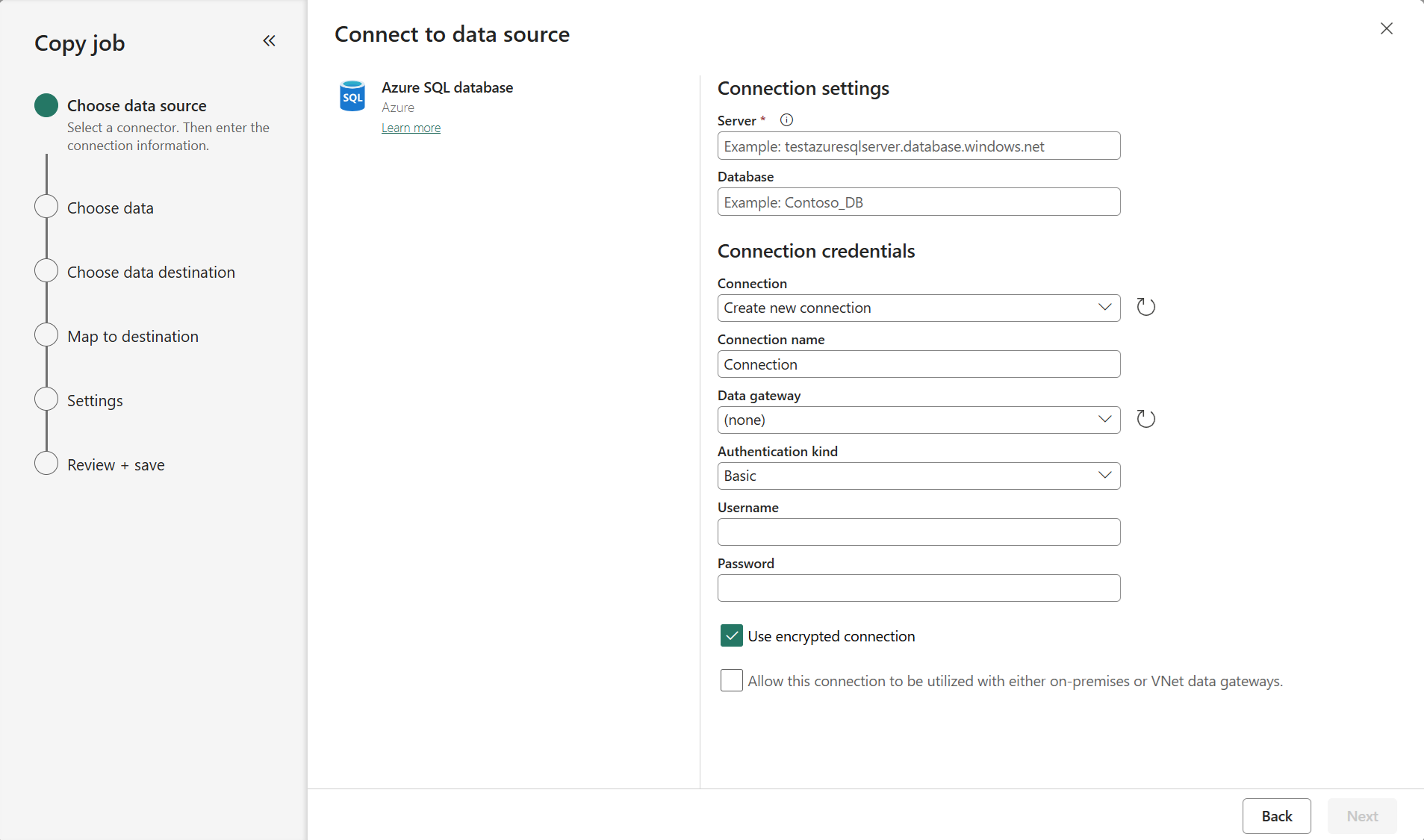
Enter your server path and credentials to connect to Azure SQL DB. You can copy data securely within a virtual network environment using on-premises or virtual network gateway.
You should have clear visibility of which source tables have CDC enabled. Select the tables with CDC enabled to copy.
Tables with CDC enabled:

Tables without CDC enabled:


Note
- Fabric Lakehouse tables cannot currently be detected for whether their CDF is enabled.
Select your destination store. In this example, choose another Azure SQL DB.

The default Update method should be set to Merge, and the required key columns will match the primary key defined in the source store by default.

Select Incremental copy and you'll see no Incremental column for each table is required to be input to track changes.
Note
Copy Job initially performs a full load and subsequently carries out incremental copies in subsequent runs via CDC.

Review the job summary, set the run option to on schedule, and select Save + Run.

Note
Please ensure that your CDC log retention period is longer than the interval between scheduled runs; otherwise, the changed data captured by CDC might be lost if not processed within the retention period.
Your copy job will start immediately. The first run will copy an initial full snapshot.

Update your source tables by inserting, updating, or deleting rows.

Run the Copy job again to capture and replicate all changes, including inserted, updated, and deleted rows, to the destination.

Known limitations
- When both CDC-enabled and non-CDC-enabled source tables are selected in a Copy Job, it treats all tables as watermark-based incremental copy.
- Net change capture only (full change capture coming later).
- Custom capture instances aren't supported; only the default capture instance is supported.
- Whether CDF is enabled or not on Fabric Lakehouse tables cannot be automatically detected.