Note
Access to this page requires authorization. You can try signing in or changing directories.
Access to this page requires authorization. You can try changing directories.
In this quickstart, you create source tables in a Microsoft Fabric Lakehouse, define materialized lake views that transform the data, and schedule automatic refresh. By the end, you have a working bronze-to-gold pipeline with lineage tracking.
Prerequisites
- A workspace with a Microsoft Fabric-enabled capacity.
- A Lakehouse with Lakehouse schemas enabled and Fabric Runtime 1.3.
Create your first materialized lake view
Go to the Fabric portal and navigate to your workspace.
Open your Lakehouse and select Materialized lake views.

Select New > New notebook > Create with Spark SQL. Alternatively, you can select Open notebook from the main canvas.

A new notebook opens with a template to create a materialized lake view.
Note
If you are using a Fabric Data Warehouse table as a source for a materialized lake view, you are required to create a table shortcut in your Lakehouse.
Create the source tables
productsandorders. Enter the following SQL command into the existing notebook cell and run it:CREATE SCHEMA IF NOT EXISTS bronze; CREATE TABLE IF NOT EXISTS bronze.products ( product_id INT, product_name STRING, price DOUBLE ); INSERT INTO bronze.products VALUES (101, 'Laptop', 1200.50), (102, 'Smartphone', 699.99), (103, 'Tablet', 450.00); CREATE TABLE IF NOT EXISTS bronze.orders ( order_id INT, product_id INT, quantity INT, order_date DATE ); INSERT INTO bronze.orders VALUES (1001, 101, 2, '2025-06-01'), (1002, 103, 1, '2025-06-02'), (1003, 102, 3, '2025-06-03');Refresh the explorer to view the newly created
productsandorderstables under thebronzeschema. Select + Code to add a new cell below the existing one.
Enable change data feed (CDF) on the source tables so that optimal refresh can use incremental processing. Copy the following SQL command into the new cell and run it:
ALTER TABLE bronze.products SET TBLPROPERTIES (delta.enableChangeDataFeed = true);
ALTER TABLE bronze.orders SET TBLPROPERTIES (delta.enableChangeDataFeed = true);
Select + Code to add another new cell.
Create materialized lake views from the source tables. Copy the following SQL command into the new cell and run it:
CREATE SCHEMA IF NOT EXISTS silver;

CREATE MATERIALIZED LAKE VIEW IF NOT EXISTS silver.cleaned_order_data AS
SELECT
   o.order_id,
   o.order_date,
   o.product_id,
   p.product_name,
   o.quantity,
   p.price,
   o.quantity * p.price AS revenue
FROM bronze.orders o
JOIN bronze.products p
ON o.product_id = p.product_id;

CREATE SCHEMA IF NOT EXISTS GOLD;

CREATE MATERIALIZED LAKE VIEW IF NOT EXISTS gold.product_sales_summary AS
SELECT
   product_id,
   product_name,
   SUM(quantity) AS total_quantity_sold,
   SUM(revenue) AS total_revenue,
   ROUND(AVG(revenue), 2) AS average_order_value
FROM
   silver.cleaned_order_data
GROUP BY
   product_id,
   product_name;
Refresh the Lakehouse explorer to view the newly created materialized lake views
cleaned_order_dataandproduct_sales_summaryunder thesilverandgoldschemas, respectively.
You can further verify the results by querying the gold materialized lake view. Copy the following SQL command into a new cell and run it:
SELECT * FROM gold.product_sales_summary;The output shows three rows — one for each product — with the total quantity sold, total revenue, and average order value calculated from the source orders data.
Close the notebook and go back to your Lakehouse. Select Materialized lake views. You might need to select the refresh icon to view the autogenerated lineage.
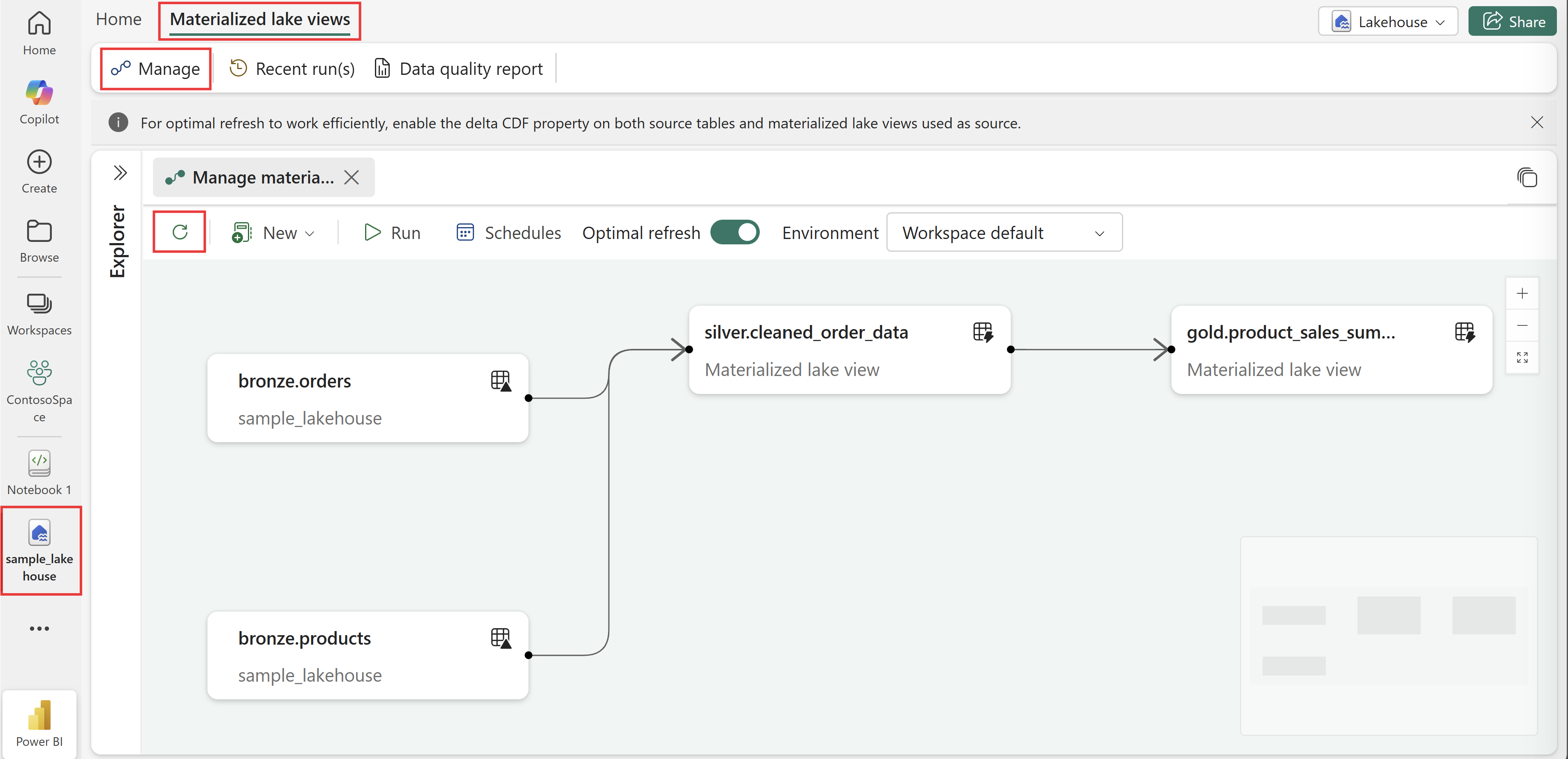
Schedule the lineage execution. Select Schedules from the ribbon. In the Schedules pane, select the On radio button for Schedule refresh.

Select the desired frequency from the Repeat drop-down (by the minute, hourly, daily, weekly, or monthly) and specify the recurring interval. Select Apply.

Wait for the next scheduled run time and then select Recent run(s) to see the progress of the lineage execution.

Select the ongoing run to monitor progress.

After the run succeeds, the lineage status shows Completed.


What happens next
Now that you have a scheduled lineage refresh, Fabric automatically keeps your materialized lake views up to date as source data changes. When new rows are inserted into the bronze.orders or bronze.products tables, the next scheduled run detects the changes, refreshes the silver.cleaned_order_data view first (because the gold view depends on it), and then refreshes gold.product_sales_summary with the updated totals. You don't need to manage refresh order or write orchestration logic — Fabric handles it based on the lineage graph.
To learn more about refresh behavior and how Fabric determines the optimal strategy (incremental, full, or skip), see Optimal refresh for materialized lake views in a Lakehouse. For a complete end-to-end walkthrough that demonstrates these concepts with a larger dataset, see Tutorial: Implement medallion architecture with materialized lake views.