Note
Access to this page requires authorization. You can try signing in or changing directories.
Access to this page requires authorization. You can try changing directories.
Stay ahead of your work by asking Copilot to help you prepare for meetings. You can either use predefined prompts or ask questions in natural language. This article describes some of the predefined prompts you can use to stay ahead with Copilot. Learn more about chatting with Copilot in natural language.
Prepare for upcoming sales appointments
If you have meetings scheduled on your Outlook calendar in the next seven days, Copilot can help you prepare for them.
Note
Currently, meeting preparation is available only for opportunities.
Select Stay ahead > Prepare for sales meetings.
Copilot lists the meetings scheduled for the current day and the next seven days from the records that you have access to. The meetings listed here have an external participant whose email address is linked to a contact in Dynamics 365, and this email address must be associated with an opportunity.From the list of sales appointments, hover over the meeting that you'd like to prepare for and select Prepare.
A list of meeting insights are displayed. The first point of the meeting insights always shows the short summary of the opportunity.
Select Source corresponding to the insight to view the record from which the insight is created.
The insights are generated based on the following considerations for the opportunity:- Notes added to the timeline.
- All open tasks.
- Any related open opportunity and cases of the associated account.
(Optional) To view the meeting in Outlook, select Open Meeting. 15 minutes before the start time, the option changes to join teams meeting. You can join the meeting directly by selecting this option.
Connect to or disconnect from Outlook
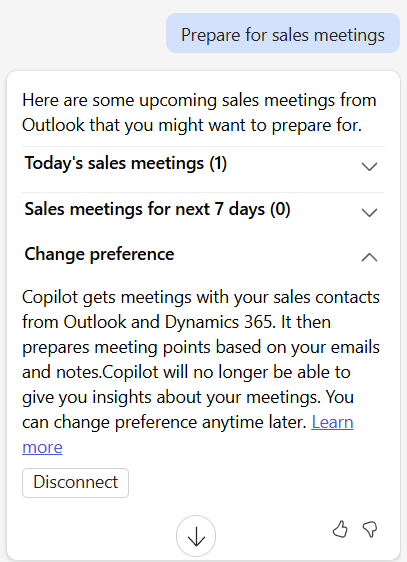
Copilot uses your Outlook to gather data from your sales contacts (external) and shows upcoming meetings and schedules. If you haven't provided access for Copilot to use your Outlook, you'll see a prompt requesting this access when you try to prepare for meetings. Proceed to grant the access.
To disconnect from Outlook after granting access, select Change preference in the response for the meeting preparation prompt and select Disconnect.