Note
Access to this page requires authorization. You can try signing in or changing directories.
Access to this page requires authorization. You can try changing directories.
Note
Dynamics 365 Guides and Remote Assist will no longer be available after December 31, 2026. Learn more at Dynamics 365 Guides and Remote Assist reaching end of support.
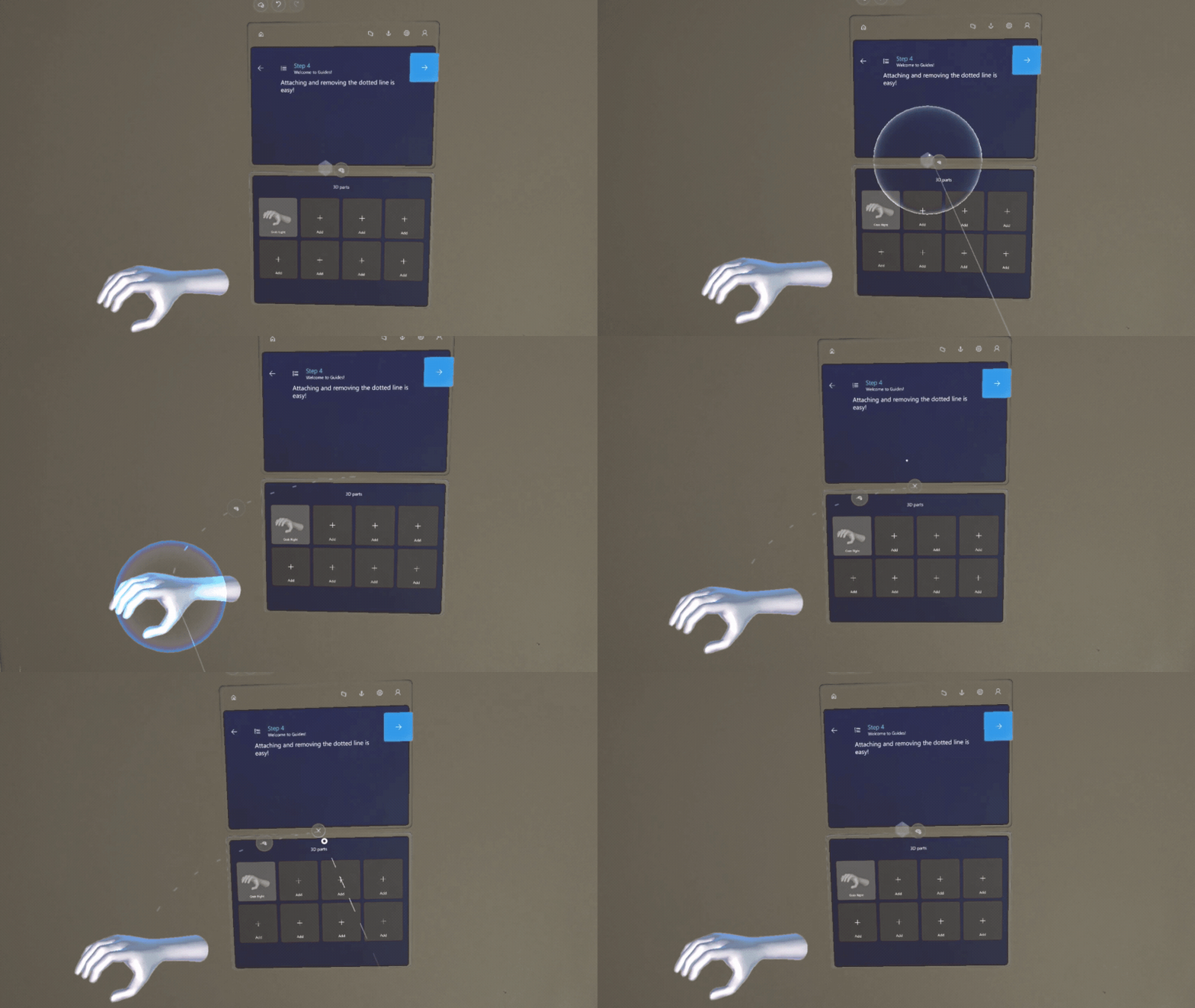
You can add a dotted line in the Microsoft Dynamics 365 Guides HoloLens app to link a Step card to the area where the work is done. Dotted lines are a very simple but powerful feature; they show operators where to focus.

Add a dotted line
Tap and hold the gem below the Step card.
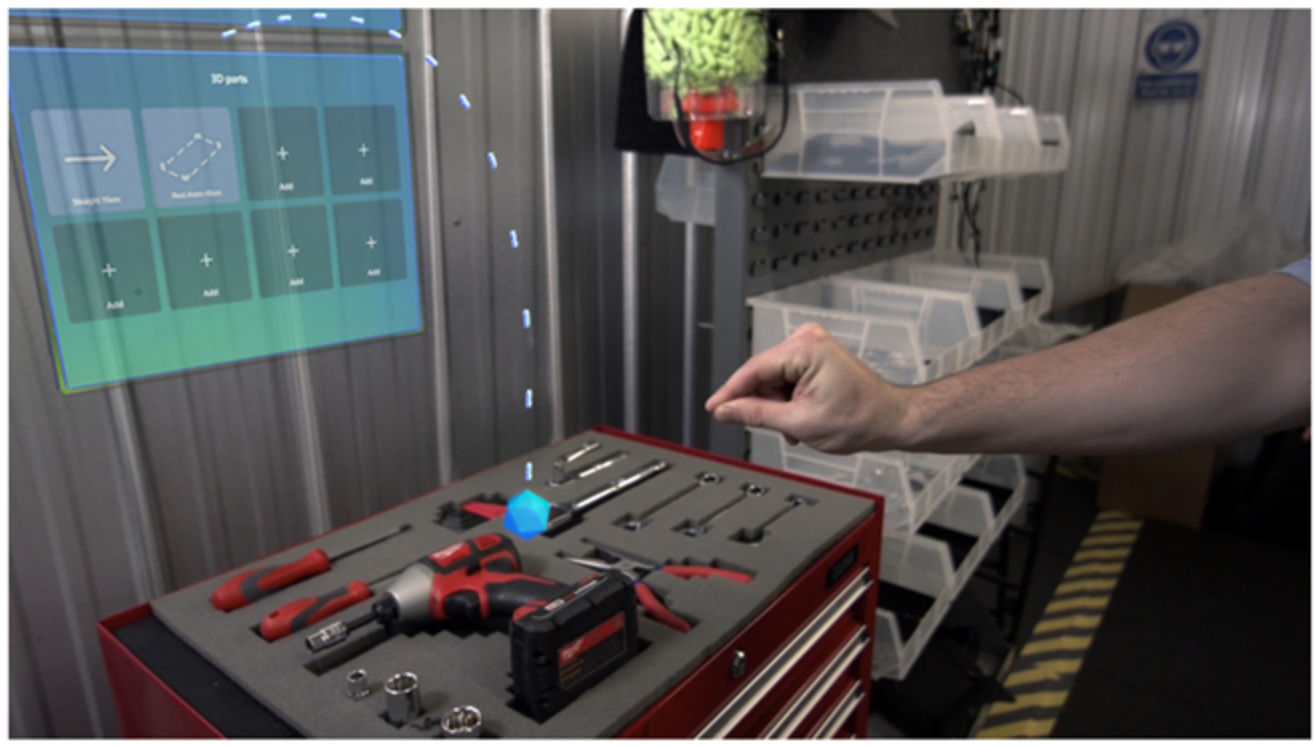
Drag it to the real-world location that you want.
Tip
Placement isn't exact. If you're connecting a dotted line to a 3D object from the toolkit, place the dotted line in the general area, and then place the 3D object (for example, a number) at the end of the dotted line.
Remove a dotted line
Select the "X" where the dotted line originates. The gem is restored to the bottom of the Step card.