Note
Access to this page requires authorization. You can try signing in or changing directories.
Access to this page requires authorization. You can try changing directories.
Note
Community interest groups have now moved from Yammer to Microsoft Viva Engage. To join a Viva Engage community and take part in the latest discussions, fill out the Request access to Finance and Operations Viva Engage Community form and choose the community you want to join.
This article explains default financial dimensions for developers. It explains where the dimensions originate, the application programming interfaces (APIs) that are used to merge them, and how you use them to create ledger dimensions. The article includes examples that show the user interface (UI), SQL table queries, and the output of those queries. It also includes some explanation of APIs and examples of how they're used.
This article uses examples from the USMF demo data company.
For conceptual information about financial dimensions and how they affect business processes, see Financial dimensions.
Entering default dimensions
More than 250 pages let you enter default financial dimensions. The dimensions are shown on a FastTab that lists them together with values and descriptions. In standard demo data, more than 30 dimensions are available. However, the following example of a Financial dimensions FastTab shows just five dimensions: BusinessUnit, CostCenter, Department, ItemGroup, and Project.

Dimensions list
The system first filters the dimensions based on the list of all active account structures that are associated with the ledger of the current company or the company that you specify on the page. Next, the system gets a union of all the dimensions in those account structures, plus all active advanced rules that are associated with those structures.

Ledger page
On the Ledger page (General Ledger > Setup > Ledger), you can maintain the account structures for a company.

Account structures where the number of dimensions varies
To determine how many dimensions an account structure uses, select it on the Ledger page, select Configure account structure above the grid, and then count the columns. The following illustrations show one account structure that uses three dimensions and another account structure that uses five dimensions.
Account structure that uses three dimensions

Account structure that uses five dimensions

Between the two account structures that are shown in the preceding illustrations, there are four unique dimensions: BusinessUnit, Department, CostCenter, and ItemGroup. These four dimensions appear in the list of default dimensions. In addition, dimensions from advanced rule structures that are linked to the account structures through advanced rules are examined. In this example, the examination of dimensions from advanced rule structures causes a fifth dimension, Project, to be added to the list of default dimensions.
The following illustration shows the advanced rule that causes the Project dimension to be included in the list of default dimensions.

The following illustration shows the rule structure.

Note
The MainAccount dimension doesn't appear in most lists of default dimensions. However, Budgeting is the exception. It explicitly includes the MainAccount dimension in the list of default dimensions.
API for the list of default dimensions
The default dimension controller, DimensionDefaultingController, uses the DimensionCache::getDimensionAttributeSetForLedger() API to determine which dimensions are applicable to a company.
Control uptake and storage
Form uptake and the dimensions data model
All pages that show default dimensions use the DimensionDefaultingController controller. This controller automatically shows dimensions, and loads and saves values and user interactions. For information about these uptake patterns, see the Implementing the Account and Financial Dimensions Framework for Microsoft Dynamics AX 2012 Applications white paper.
Storage of default dimension values
You store the values that are associated with the dimensions in a table that's separate from the primary table that references those dimension values. For example, the LedgerJournalTable table has a DimensionDefault column that holds a foreign key reference to a record in the DimensionAttributeValueSet table. This record is the parent record that represents the set of values that is shown.

Each value is stored as a separate row in the DimensionAttributeValueSetItem table and has the same parent record foreign key.

The data can be queried directly through these tables. Alternatively, it can be queried by using DimensionAttributeValueSetItemView, as shown in the following illustration.

Empty values
The dimension framework stores rows only for dimensions that a value has been entered for. No data is stored for empty rows. Therefore, after data is persisted, the framework can't distinguish a dimension that didn't have a value from a dimension that did have a value, but it was cleared by a user. To save an empty value, you must create a real value and give it a name that indicates that it's empty. For example, name it empty, n/a, <cleared>, or *blank*. Users can then select this value at entry time to affect the defaulting behavior as they desire.
Immutable data
Like most dimension data, the records that you insert into the tables mentioned earlier are immutable. You initially write them, but you never subsequently update or delete them. For example, a user adds a project ID as a dimension and then saves the change.

In this case, the SQL query still returns the same three rows as shown previously even though a new row was added. When you add a new value, the dimension framework creates a new value set record and four additional value set item records that are linked to the new value set rather than changing the previous dimension set.

Copy patterns
This section explains how you copy default dimensions between entities.
Typically, you copy or merge default dimensions with other dimension combinations to create ledger account dimensions. Each page or process determines the precedence based on its business logic. Some default dimensions have higher precedence and replace other default dimensions, while others are merged together.
Configure default dimensions
To define whether a main account has a Not fixed or Fixed value for each financial dimension used across all account structures for the ledger, follow these steps:
- Go to General ledger > Chart of accounts > Accounts > Main accounts.
- Select the main account.
- On the Legal entity overrides FastTab, select the appropriate legal entity.
- Select Default dimensions.
Specify the default dimensions for an account
If you set a financial dimension as Fixed, the specified value (including a blank value) overrides transaction values at the time of posting. This rule applies to all sources, including values entered on journal lines or documents.
If you set a financial dimension as Not fixed, it uses a default value that you can overwrite. This rule applies to all default values in the system, including those from master records.
Important
A Fixed dimension always overwrites the dimension value at posting time, even if a user manually enters a different value. If a voucher displays different dimensions than the values entered on a journal, or if dimensions appear blank after posting, check whether the main account has fixed dimensions configured. To resolve unexpected overwrites, change the dimension from Fixed value to Not fixed, remove the default dimension, or set a default value that honors the account structure constraints.
For more information, see Default and fixed financial dimensions on the main account.
Copy vs. merge
Typically, you copy or merge default dimensions with other dimension combinations to create ledger account dimensions. The dimension framework doesn't set the precedence for defaulting behavior. Each page or process determines the precedence, based on the requirements of its business logic.
The following examples use a hypothetical order document. This document might be a customer sales order that contains services as line items. Alternatively, it might be a vendor purchase order that contains inventory items as line items. You can enter or override default dimensions at various points in the processing, as the following illustration shows.

For an order document, multiple default dimensions are available for the business logic to consider. The document header might have a set of default dimensions, as is the case with the purchase order that the example uses. The customer or, in this example, the vendor for the order also has a set of default dimensions. Depending on the business logic of the order, these various sets of default dimensions might have different precedence when they're combined. Some default dimensions might have higher precedence and replace other default dimensions. However, some default dimensions might be merged together.
Copy default dimensions
The following illustration shows a default dimension that you enter on a specific vendor account.

The following illustration shows the SQL query for the default dimension reference on the vendor record.

The following illustration shows the default dimension that is created.

The following illustration shows a new purchase order that you create for this vendor. The default dimension is copied to the document header.

The following illustration shows the SQL query and default dimension reference on the header record.

As the following illustration shows, as soon as you select a vendor, the dimensions from the vendor replace any dimensions that were already on the purchase order header.

Therefore, you just need to copy the default dimension foreign key. The following illustration shows the code that you use to copy default dimensions from the vendor to the purchase order.

The following illustration shows the header dimensions after a user enters a value for the Project dimension.

The following code shows the SQL query for the default dimension reference on the header record.
SELECT RecID, PURCHID, DEFAULTDIMENSION from PurchTable
WHERE PURCHID = '00000125' and DATAAREAID = 'usmf'

SELECT DA.NAME, DISPLAYVALUE, V.DIMENSIONATTRIBUTEVALUESET,
V.SETITEMRECID
FROM DIMENSIONATTRIBUTEVALUESETITEMVIEW V
JOIN DIMENSIONATTRIBUTE DA ON DA.RECID = V.DIMENSIONATTRIBUTE
WHERE V.DIMENSIONATTRIBUTEVALUESET = 52565466755
The following illustration shows the default dimension that is created.

When the user switches to the Line view to enter lines, default dimensions are copied from the purchase order header, as the following illustration shows.

The following illustration shows the code that is used to copy the foreign key reference to the line. In this case, the line isn't yet saved. Therefore, the default dimension foreign key appears only in the table buffer in memory.

Merging patterns
This section explains how default dimensions merge between entities.
Merging default dimensions
In the following illustration, the user manually clears the BusinessUnit dimension on the line. Therefore, the system creates a new default dimension foreign key and updates the purchase order header.

Because the header isn't saved yet, the table buffer in memory is the only place where the updated foreign key appears. However, as the following illustrations show, you can query and find the new default dimension.


Now consider the item that the user enters on the purchase order line. The following illustration shows the default financial dimensions on the released product.

The following code shows the SQL query for those default dimensions in the database.

The following illustration shows the results of the query.
Next, the user enters the item on the purchase order line. The following illustration shows the item selected on the purchase order line and the resulting default dimensions. In this case, the purchase order logic merges the default dimension values.

The following code and illustration show the SQL query and the resulting default dimensions from the item record on the purchase order line.
SELECT PURCHID, LINENUMBER, ITEMID, DEFAULTDIMENSION from PURCHLINE where PURCHID = '00000100' AND DATAAREAID = 'USMF'

SELECT DA.NAME, DISPLAYVALUE, V.DIMENSIONATTRIBUTEVALUESET,
V.SETITEMRECID
FROM DIMENSIONATTRIBUTEVALUESETITEMVIEW V
JOIN DIMENSIONATTRIBUTE DA ON DA.RECID = V.DIMENSIONATTRIBUTE
WHERE V.DIMENSIONATTRIBUTEVALUESET = 68719490325

When you specify the item for a purchase order line, the purchase order logic merges the default dimensions from three different sources. Consider the following information:
Default dimensions on the order header merge with default dimensions on the order line to yield merged result 1 default dimensions.
Item Order line Order header Merged result 1 Description BusinessUnit The value is blank in both sources. CostCenter The value is blank in both sources. Department 027 027 The value is blank on the order line. Therefore, the value is copied from the order header. ItemGroup The value is blank in both sources. Project 000003 000003 000003 The value is the same in both sources. Foreign key 6190 *9574 *9574 The merged result uses the same record as the order header. Default dimensions on the item merge with the merged result 1 default dimensions to yield default dimensions on the final order line (merged result 2 default dimensions). The following table shows the logical steps of the merge that occurs. However, these steps are combined during execution by using the APIs that the dimension framework provides.
Item Merged result 1 Item Merged result 2 Description BusinessUnit The value is blank in both sources. CostCenter 008 008 The value is blank in the header line merged result. Therefore, the value is copied from the item. Department 027 023 027 The value is set in the header line merged result. Therefore, the item is skipped. ItemGroup AudioRM AudioRM The value is blank in the header line merged result. Therefore, the value is copied from the item. Project 000003 000003 The value is set in the header line merged result. Foreign key *6190 0324 0325 A new record ID is used for the merged result.
The following illustration shows the code that you need to merge the dimensions from the three sources.

Creating ledger dimensions
This section explains how to merge default dimensions to create new ledger dimensions.
Default dimensions provide values that you use later to create ledger account combinations for journals and accounting distributions. A ledger account combination is a set of MainAccount and dimension values that structure and order are applied to. For more information, see Part 5: Ledger dimensions.
Default dimensions provide all the dimensions, except MainAccount, that are required for a ledger account combination. You can combine default dimensions with a default account, or you can combine them with another ledger dimension to produce a ledger dimension.
The following illustrations show an example where accounting distributions are done from the purchase order line. The user selects Financials > Distribute amounts from the purchase order line to open the Accounting distributions page. On that page, a default ledger account combination, 618900--027-008-AudioRM, is already entered.


The values for the Project, CostCenter, ItemGroup, and Department dimensions are filled in to the accounting distribution. Additionally, the default MainAccount value from the posting item group is entered on the item as the purchase expenditure for expense account for a purchase order, as the following illustration shows. The project isn't shown because it isn't part of the applicable account structure.


The following illustrations show the query and the resulting default account source.

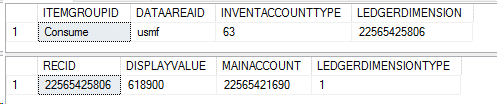
The following illustration shows the code that is required to merge the default dimension on the purchase order line with the default account from the item group.

After you complete the merge, you create a new ledger account combination, as the query in the following illustration shows. This behavior resembles the behavior when default dimensions are merged with each other.

Common pattern APIs
This section describes the APIs that you use for the most common defaulting patterns.
Default dimension APIs
The DimensionDefaultFacade and LedgerDimensionDefaultFacade classes provide the APIs that you need for defaulting scenarios. The LedgerDimensionFacade class contains methods for working with ledger dimensions. These methods are highly optimized for performance.
Default dimensions
serviceMergeDefaultDimensions()
Use the serviceMergeDefaultDimensions() API to work with default dimensions. Call this API when you need to create a new default dimension from two to four other default dimensions. If you need to merge more than four default dimensions, call this API multiple times. Use the result of the previous call as the first parameter for each subsequent call. This method merges all values without checking if they're valid.
Example: DimensionDefaultFacade::serviceMergeDefaultDimensions()
public static DimensionDefault serviceMergeDefaultDimensions(
    DimensionDefault _value1,
    DimensionDefault _value2,
    DimensionDefault _value3 = 0,
    DimensionDefault _value4 = 0)
serviceReplaceAttributeValue()
Use the serviceReplaceAttributeValue() API to copy a single dimension value from one default set to another default set. The specified value replaces whatever value already exists in the source set.
Example: DimensionDefaultFacade::serviceReplaceAttributeValue()
public static DimensionDefault serviceReplaceAttributeValue(
    DimensionDefault _target,
    DimensionDefault _source,
    RecId _dimensionAttributeId)
serviceMergeValidDefaultDimensions()
Use the serviceMergeValidDefaultDimensions() API if you want the merge to include only values that are valid for the current ledger. It works just like serviceMergeDefaultDimensions but includes a check for valid values.
Example: DimensionDefaultFacade::serviceMergeValidDefaultDimensions()
public static DimensionDefault serviceMergeValidDefaultDimensions(
    DimensionDefault _defaultDimension1,
    DimensionDefault _defaultDimension2,
    DimensionDefault _defaultDimension3 = 0,
    DimensionDefault _defaultDimension4 = 0)
Ledger dimensions
serviceCreateLedgerDimension()
Use the serviceCreateLedgerDimension() API for ledger dimensions. Call it when you need to create a new ledger account combination from a default account or an existing ledger account combination and zero to three default dimensions. If you need to merge more than three default dimensions, call this API multiple times. In this case, different sources take the result of the previous call as the first parameter for each subsequent call. You retrieve the MainAccount dimension only from the ledger dimension that you supply.
Example: LedgerDimensionFacade.serviceCreateLedgerDimension()
public static LedgerDimensionAccount serviceCreateLedgerDimension(
    RecId            _ledgerDimensionId,
    DimensionDefault _dimensionDefault1 = 0,
    DimensionDefault _dimensionDefault2 = 0,
    DimensionDefault _dimensionDefault3 = 0)
    {
serviceCreateLedgerDimensionForType()
The serviceCreateLedgerDimensionForType() API is similar to the serviceCreateLedgerDimension() API. However, instead of creating a ledger account combination, it creates other ledger dimension types, such as budget accounts or budget planning accounts. Use the LedgerDimensionType parameter to specify the type of ledger account that you want to create.
Example: LedgerDimensionFacade.serviceCreateLedgerDimensionForType()
public static LedgerDimensionBase serviceCreateLedgerDimensionForType(
    LedgerDimensionType _ledgerDimensionType,
    LedgerDimensionBase _ledgerDimensionId,
    DimensionDefault    _dimensionDefault1 = 0,
    DimensionDefault    _dimensionDefault2 = 0,
    DimensionDefault    _dimensionDefault3 = 0)
serviceCreateLedgerDimForDefaultDim()
The serviceCreateLedgerDimForDefaultDim() API is similar to the serviceCreateLedgerDimension() and serviceCreateLedgerDimensionForType() APIs. However, you copy the values from the default dimension directly to the new ledger dimension, whereas the dimension values from the ledger dimension are merged afterwards. (By contrast, for the previous two APIs, you copy the ledger dimension values, and merge the default dimension values.)
Example: LedgerDimensionFacade::serviceCreateLedgerDimForDefaultDim()
public static LedgerDimensionBase serviceCreateLedgerDimForDefaultDim(
    DimensionDefault    _defaultDimension,
    LedgerDimensionBase _ledgerDimensionId)
serviceLedgerDimensionFromLedgerDims()
The serviceLedgerDimensionFromLedgerDims() API is similar to the previous APIs. However, it uses only ledger dimensions as sources to construct a new ledger dimension. You retrieve the main account only from the first ledger dimension.
Example: LedgerDimensionFacade::serviceLedgerDimensionFromLedgerDims()
public static LedgerDimensionAccount serviceLedgerDimensionFromLedgerDims(
    LedgerDimensionBase _ledgerDimensionId1,
    LedgerDimensionBase _ledgerDimensionId2 = 0,
    LedgerDimensionBase _ledgerDimensionId3 = 0,
    LedgerDimensionBase _ledgerDimensionId4 = 0,
    LedgerDimensionBase _ledgerDimensionId5 = 0)
serviceMergeLedgerDimensions()
The serviceMergeLedgerDimensions() API is similar to the serviceLedgerDimensionFromLedgerDims() API. However, it's optimized to combine just two ledger dimensions.
Example: LedgerDimensionFacade::serviceMergeLedgerDimensions()
public static LedgerDimensionBase serviceMergeLedgerDimensions(
    LedgerDimensionBase _ledgerDimension1,
    LedgerDimensionBase _ledgerDimension2,
    LedgerDimensionType _ledgerDimensionType = LedgerDimensionType::Account)
serviceCreateLedgerDimFromLedgerDim()
The serviceCreateLedgerDimFromLedgerDim() API is useful if you want to copy ledger dimensions from a historic posted document to a new unposted document, and you want to make sure that the current account structure configuration is used. By using this API, you help prevent validation errors when the new ledger dimensions are validated during posting.
Example: LedgerDimensionFacade::serviceCreateLedgerDimFromLedgerDim()
public static LedgerDimensionAccount serviceCreateLedgerDimFromLedgerDim(LedgerDimensionAccount _ledgerDimension)