Note
Access to this page requires authorization. You can try signing in or changing directories.
Access to this page requires authorization. You can try changing directories.
Time entry capabilities help field service organizations better track the time that technicians spend on a job. You can tie time entry to a work order or booking. Use time entries for reporting, invoicing, and billing for the provided services. You can also integrate them with ERP systems. Other applications can write to the Time Entry table in Dataverse.
Administrators determine the following settings:
Timestamp Frequency: Whether to create a timestamp based on a change in Booking Status or Work Order System Status.
Time Entry Generation Strategy: Automatic (default) or manual time entries.
Time Cost Actuals Source: Whether time cost actuals come from time entries or booking journals.
Frontline workers can enter manual time entries and time-off requests in the mobile app and the web app.
For a guided walkthrough of the automated and manual time entry process, see the following video.
Automatic time entries
By default, the system automatically creates time entries for time-off requests and in the work order process. You can view the time entries after a technician sets the Booking Status to Completed.
Work order process
When the Booking Status for a work order changes, the system logs booking timestamps. When the technician completes a work order, the system creates time entries based on the booking timestamps. If another user updates the booking status to Completed on behalf of a technician, the booking's end time keeps the previous end time value.
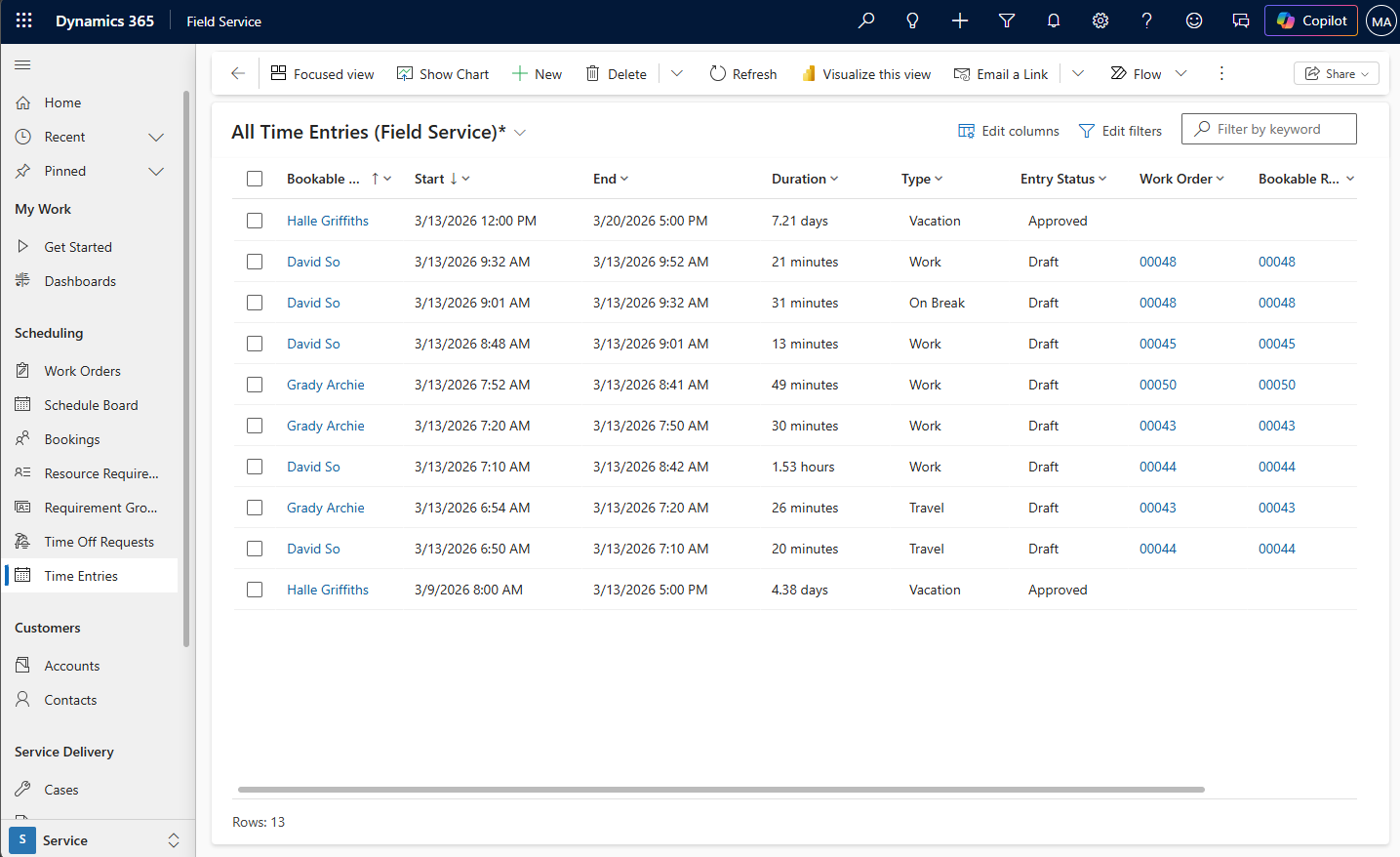
When the Work Order System Status changes to Closed-Posted, the system creates records for actuals based on the time entries. These records represent the internal cost of the technician's time.

The system only automatically creates time entries for work order bookings, not for independent bookings or bookings related to other tables.
Time off requests
The system automatically records time off requests as time entries. Depending on the settings for the bookable resource record, someone might need to approve the request. The system automatically creates a time entry record with the type Vacation. The scheduling assistant doesn't recommend that resource for a job during that period. The time slots for that resource are grayed out on the schedule board to provide a visual notification to the dispatchers that the resource isn't available.
Manual time entry
Frontline workers can also create time entries manually in the Field Service web app and on the mobile app from the main menu. Add a start time, end time, or duration, and the bookable resource. If the time entry is related to a work order or booking, enter that information as well.