Note
Access to this page requires authorization. You can try signing in or changing directories.
Access to this page requires authorization. You can try changing directories.
You can associate and dissociate a knowledge article with a record.
Link knowledge articles to related entities
Create relationships between knowledge articles and other records, like incident types, products, or customer assets. When a user adds any of these records to a work order, the system automatically links the related knowledge articles. For an example, use asset.
In Field Service, go to Settings > Knowledge management > Knowledge articles.
Open an article, and then select the Summary tab. In the Related Information section, select the related entity icon. In this example, select Customer asset.
Select More commands (⋮) and then Add Existing Customer Asset.
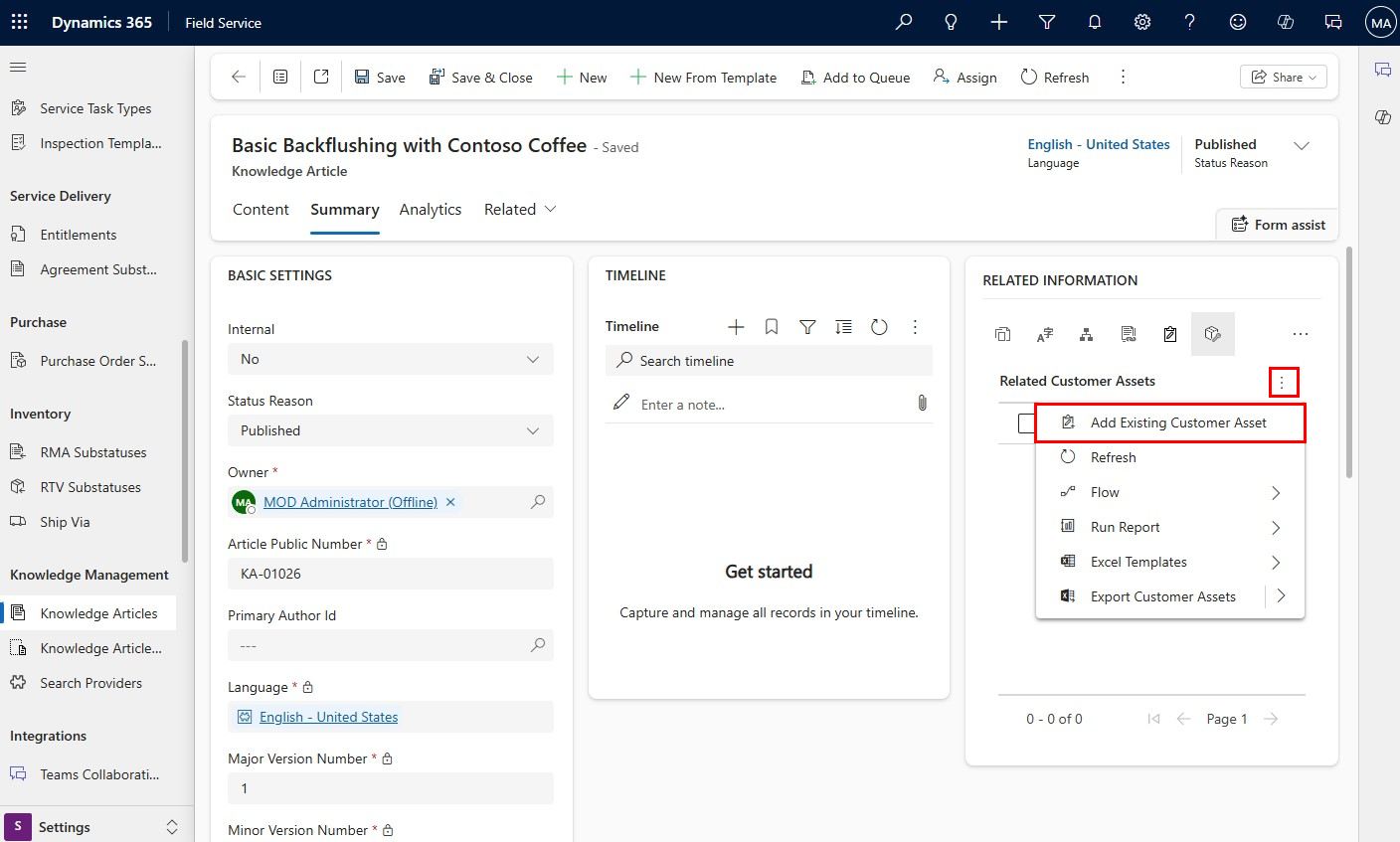
Search for and select the asset to link to the article, and then select Add. To remove, select the ⋮ next to the asset and select Remove.
- Close the article.
Link related entities to knowledge articles
You can link knowledge articles to incidents, assets, or products even if you didn't configure a relationship between these entities.
On a related entity, go to the Linked Articles section.
- For a customer asset, select the Summary tab.
- For an incident type, select the Details tab.
- For a product, select the Additional Details tab.
In the Linked Articles section, select Add Existing Article and search for the specific article.
Select the Link icon for the article. The icon changes and Linked to Customer Asset appears. To unlink, select the icon.

Add other articles or select Done.
Select Save & Close.
Link a knowledge article to a work order
In Field Service, go to Service > Work Orders.
Select the work order and then select the Reference tab.
To add an existing knowledge article to the work order:
- Select Add existing article and search for the specific article.
- Select the Link icon for the article. The icon changes and Linked to appears. To unlink, select the icon.

- Add other articles or select Done. The article appears on the work order's Reference tab.
To add a new knowledge article to the work order:
- Select New article and create the knowledge article.
- Select Save & Close. The article is created and linked to the work order.
Select Save & Close.