Note
Access to this page requires authorization. You can try signing in or changing directories.
Access to this page requires authorization. You can try changing directories.
Applies to: Dynamics 365 Customer Service and Dynamics 365 Contact Center—standalone only
[This article is prerelease documentation and is subject to change.]
Users can quickly find, filter, and sort their data by using natural language, so they don't need to use complicated advanced filters. If your administrator turns on Natural Language Grid and View Search, you see the natural language search box.
Natural language search in apps
Use smart grid natural language search to ask data-related questions in natural language. For example, request “cases with high priority with overdue follow-up by date” to filter your view and display only those relevant cases.

Important
- This is a preview feature.
- Preview features aren’t meant for production use and might have restricted functionality. These features are subject to supplemental terms of use, and are available before an official release so that customers can get early access and provide feedback.
Admin control
The primary admin control for natural language grid and view search is moving to the Power Platform admin center under Copilot > Settings > Power Apps > Data Exploration Agent. Learn more in Copilot hub. This is gradually rolling out over the next coming weeks.
In Power Platform admin center, you can't manage Natural language grid and view search app setting from Settings > Product > Feature page. You can manage this setting in model app designer setting or solution explorer app settings.
Explore data with agents in Microsoft 365 Copilot
Important
This feature is being gradually rolled out across regions and might not be available yet in your region.
With Microsoft 365 Copilot you have the ability to bring app-based experiences to agents, the app experience can also use the AI assisted search in the grid view.
Note
To use this capability, you need to set up an apps agent in Microsoft 365 Copilot.
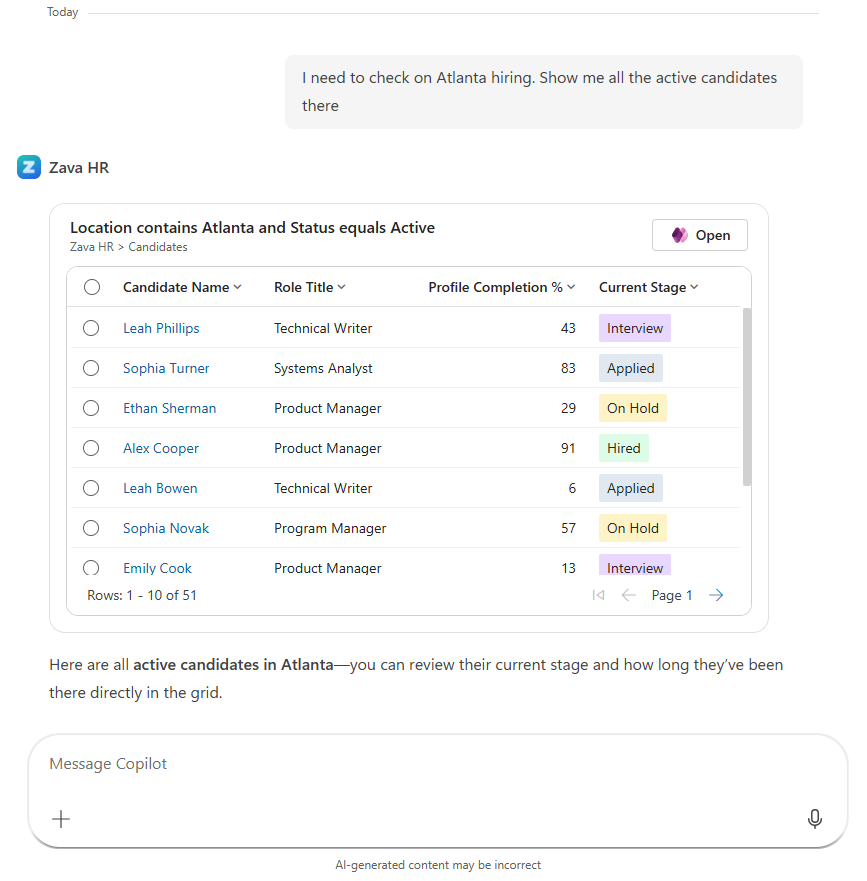
When users interact with agents in Copilot, the agents can search and retrieve data from apps view directly within the conversation. By using natural language, users can find, filter, and review app data without switching to the app experience. Copilot interprets the user's request and applies the appropriate filters, sorting, and text search against the underlying view data. The agent returns the results in Copilot, presented in a structured, tabular format that reflects the view data. Users can continue to work with the returned results in the conversation, iterating with natural language to refine the output until it reflects the exact results they’re looking for.
Supported features
- Filtering of records
- Sorting
- Text search
Known limitations
These capabilities aren't supported:
- Query aggregation
- Query grouping
- Adding columns
Considerations
- After you run a query, check the generated filter tags to make sure that the filter conditions were correctly interpreted from your natural language query. If any part of your query is missing from the filter tags, the results aren't filtered by that condition.
- If search doesn't give the desired results, consider modifying your query by:
- Referring to data columns by the names shown in the grid header.
- Separating multiple conditions with commas or periods.
- In model-driven app for grids, if your search string has two words or fewer, the search does a text search. To do a natural language search, use more than two words. To do a text search with more than two words, put the search term in single or double quotes. This behavior doesn't apply to Copilot chat.
Related information
Agents, Copilot, and AI capabilities in Dynamics 365 apps
Copilot feature availability across products