Note
Access to this page requires authorization. You can try signing in or changing directories.
Access to this page requires authorization. You can try changing directories.
The Row summary feature in apps provides users with a concise, AI-generated overview of key details about a record. Summaries help users quickly understand essential information without manually scanning fields, related records, or activity timelines. You see summaries as a paragraph or bullet points, so they're easy to read.
Summaries can be accessed in two ways:
- From the Insights bar at the top of main forms.
- From view pages by selecting the inline Summary action in the grid, which opens the summary for a record in a modal popup.
The feature enhances user efficiency by delivering context-rich insights directly within the form. Users can interact with summaries to copy content, regenerate updated information, and provide feedback on their relevance, improving both usability and accuracy.
Important
- This feature is in public preview for Dynamics 365 apps.
- Preview features aren't meant for production use and might have restricted functionality.
- Preview features are available before an official release so that customers can get early access and provide feedback.
Prerequisite
Each of the following settings must be turned on to see the row summaries for apps.
- The AI insight cards toggle is turned on for the Power Platform environment.
Limitations
Summaries are only currently supported in the English language.
Admin control
The primary admin control for row summary is moving to the Power Platform admin center under Copilot > Settings > Power Apps > Summary Agent > Row summaries. Learn more in Copilot hub. This is gradually rolling out over the next coming weeks.
In Power Platform admin center, you can't manage AI insight cards on forms or AI insight cards on view pages app setting from Settings > Product > Feature page. You can manage this setting in model app designer setting or solution explorer app settings.
Feature details
Accessing record summaries
View the record summary from a form or a view when a table is configured to display summaries.
- Forms: When viewing a record in a main form, the summary appears in the insights bar at the top of the main form.
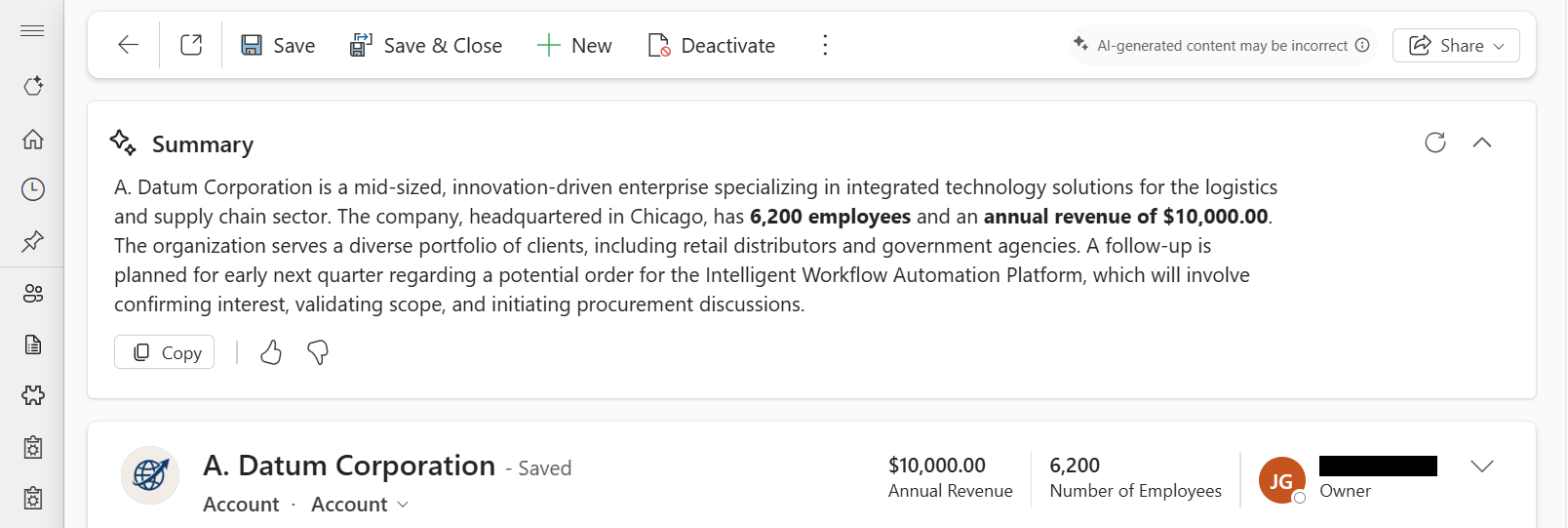
Note
You see the record summary after you save a new record. If you haven't saved the record, the summary area stays hidden.
- Views: When browsing records in a view, select the inline Summary action next to a record to open the summary in a modal popup.


Interacting with summaries
Here are some actions you can take with summaries:
- Copy: Select to copy the summary content directly to your clipboard for easy sharing or documentation. The summary copies in markdown format, so when you paste it into other applications, the formatting might not appear exactly as it appears in the app.
- Feedback: Use the thumbs up or thumbs down icons to rate the summary's usefulness. Your feedback helps improve future summaries so they better meet your expectations and needs.
- Refresh (forms only): Select the Refresh button to regenerate the summary so it reflects the latest updates to the record.
- Expand/Collapse (forms only): In forms, the insights bar is collapsed by default and shows a one-line peek of the summary. Expand the insights bar to see more details.

