Note
Access to this page requires authorization. You can try signing in or changing directories.
Access to this page requires authorization. You can try changing directories.
Remove unwanted rows from your source data before processing in Customer Insights - Data to improve the performance and quality of your unified customer profiles and insights.
Key benefits include:
- Improved processing time: Filtering out unnecessary data like old or obsolete rows can reduce the time required to process the data. Filtering out a significant percentage of unwanted rows can substantially improve performance.
- Simplified data configuration: Removing unwanted data at the source eliminates the need to create rules in multiple locations to avoid incorporating the unwanted data. Unification, segments, measures, activities, and predictive insights use the filtered source data.
- Improved data quality: Removing old or obsolete data at the source prevents accidental inclusion in your results, such as when a new team member creates a segment that includes obsolete data.
Limitations include:
- The preview of a source table's data shows the full, unfiltered data.
- The export of a source table ingested in .csv or .parquet format contains the full, unfiltered data.
Common use cases for row filtering
Common use cases for row filtering include:
Exclude records that are missing key data points needed by downstream processes or your teams.
Remove records that are obsolete or no longer relevant.
Exclude records specifically flagged as inactive or flagged with other indicators that the record is obsolete.
In some cases, you might want to exclude records based on related data. For example, exclude customers who haven't had transactions for over two years. While table row filters can't evaluate related data directly, consider one of the following options:
If the number of customer records is small, ingest all customers and apply the related-data conditions directly in your segments and measures.
If the number of customer records is large, pre-process your data to include an attribute, such as a “last transaction date,” and filter the customer input data on that value.
How conditions are evaluated
When you add multiple conditions, all conditions must be true for a record to be included. This condition set uses AND logic.
Example:
- Field A isn't null
- Field B > 0
Result: Only rows where Field A isn't null AND Field B > 0 are processed.
Note
Customer Insights - Data doesn't support combining conditions with OR across different fields. For example, you can't filter rows where either Field A or Field B is true.
Use "Any of" for string values
For string fields, use the Any of condition to apply OR logic within a single field.
Example:
- Field A is any of ("x", "y", "z")
Result: Rows are included if Field A = "x" OR Field A = "y" OR Field A = "z".
Combine AND and OR
You can combine AND logic across fields with OR logic within a single field.
Example:
- Field A isn't null
- Field B is any of ("x", "y")
Result: Rows are included if Field A is not null AND (Field B = "x" OR Field B = "y").
Limitations
- You can use OR logic only within a single field by using Any of.
- You can't use Any of for numeric values.
Filter out unwanted rows
After configuring your data sources, apply row filters before processing. When you run unification, segments, measures, activities, and predictive models, the system processes only the filtered table data.
Go to Data > Tables.

Select the row filter link for any table and set the filters. The type of data determines the filter options.
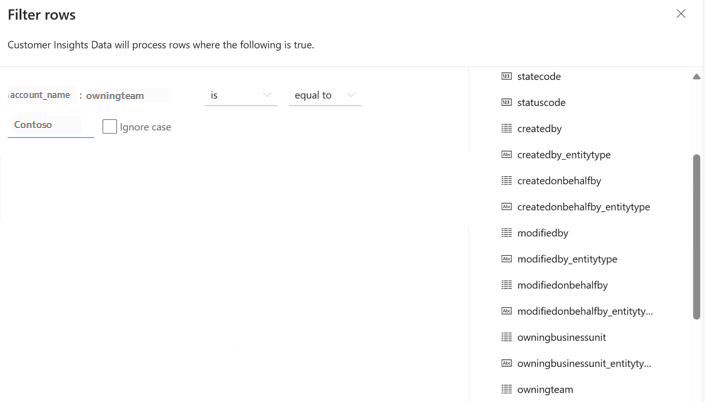
After you set the filter criteria, select Apply. All processes use the filtered tables.