Note
Access to this page requires authorization. You can try signing in or changing directories.
Access to this page requires authorization. You can try changing directories.
In this article, you learn how to register a client application in Microsoft Entra ID to access Azure Health Data Services. When you register a client application, you can authenticate and securely connect to FHIR and DICOM services. For more information, see Register an application with the Microsoft identity platform.
Register a new application
In the Azure portal, select Microsoft Entra ID.
Select App registrations.
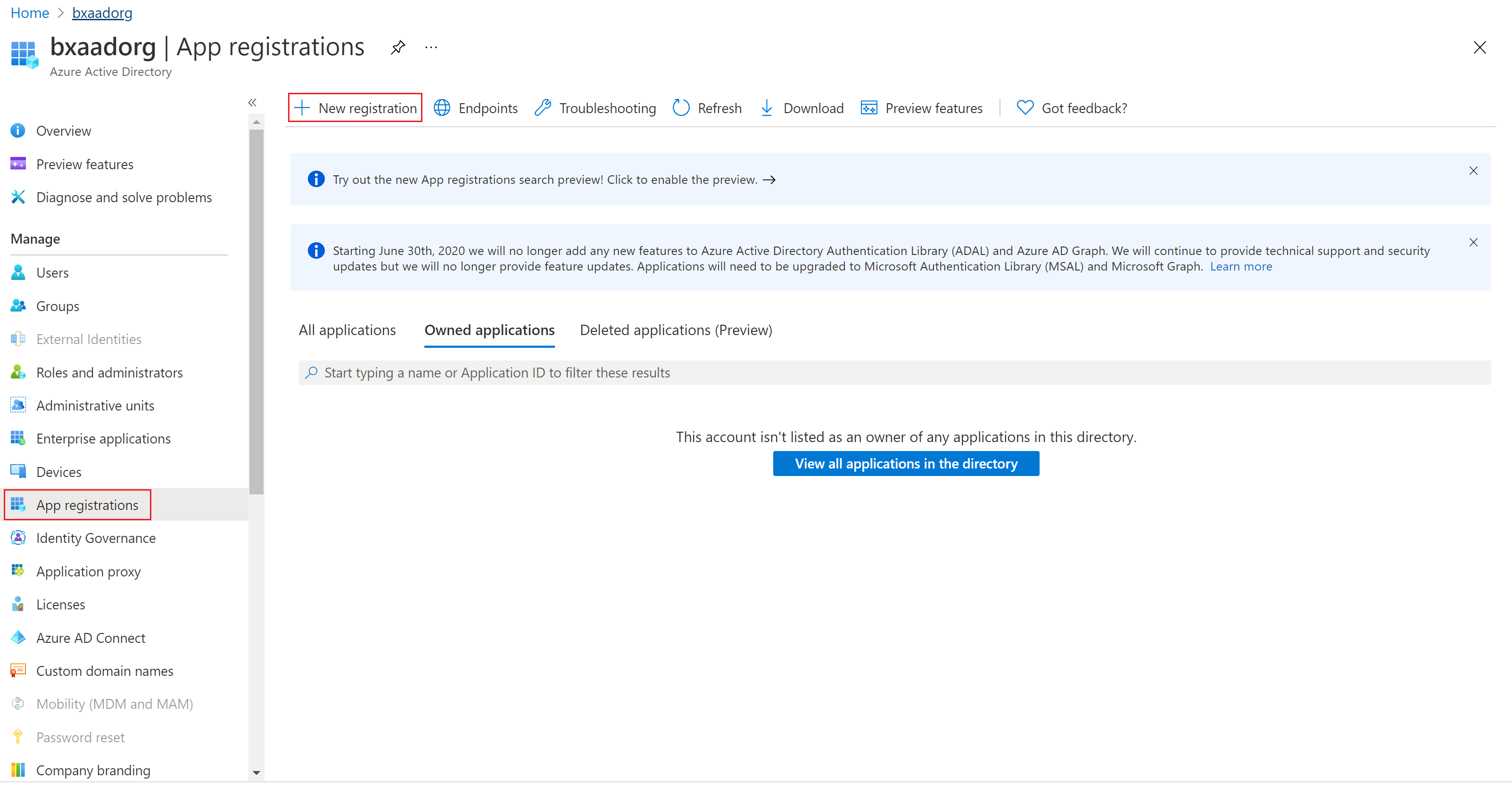
Select New registration.
For Supported account types, select Accounts in this organization directory only. Don't change the other options.
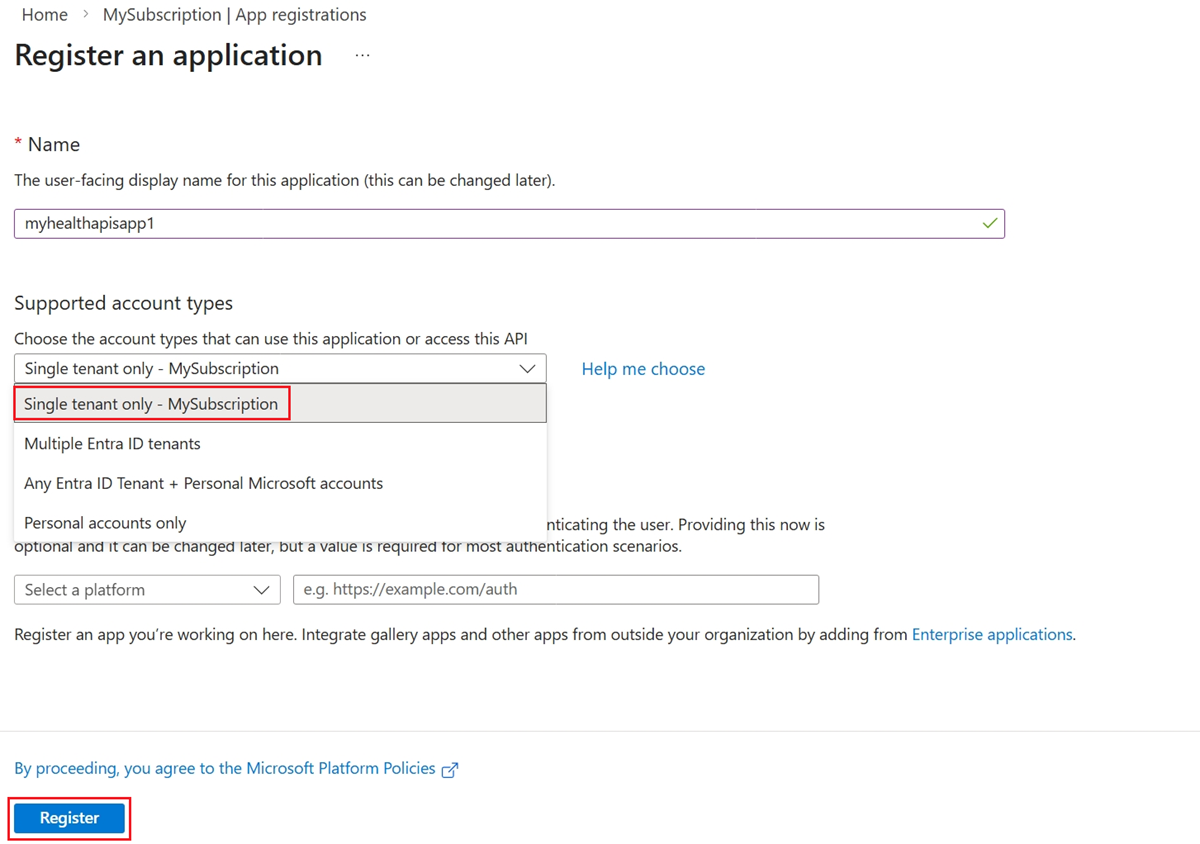
Select Register.
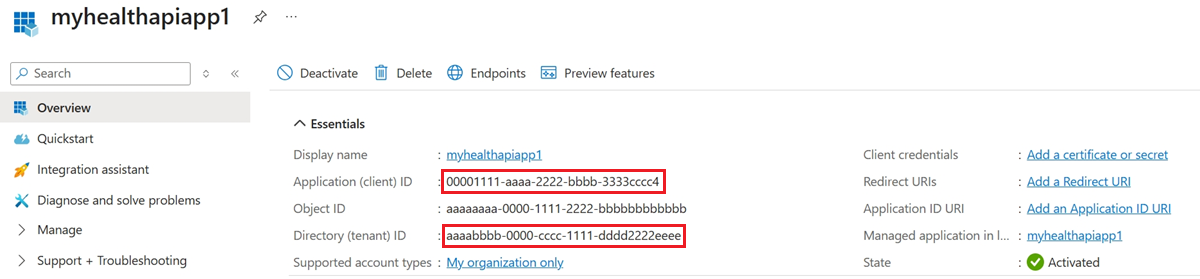
Application ID (client ID)
After registering a new application, you can find the Application (client) ID and Directory (tenant) ID in the Overview page. Make a note of the values for use later.
Authentication setting: confidential vs. public
Select Authentication and the Settings tab. The default value for Allow public client flows is Disabled.
If you keep this default value, the application registration is a confidential client application and requires a certificate or secret.
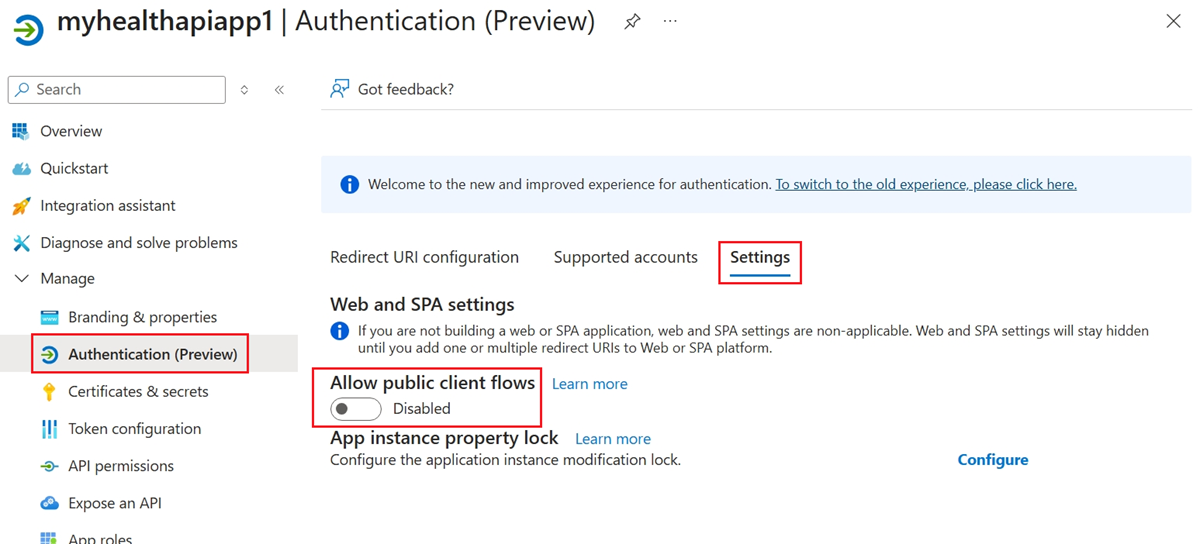
If you enable the Allow public client flows option, the application registration is a public client application and doesn't require a certificate or secret. Public client applications are useful when you want to use the OAuth 2.0 authorization protocol or features as described in Public client and confidential client applications.
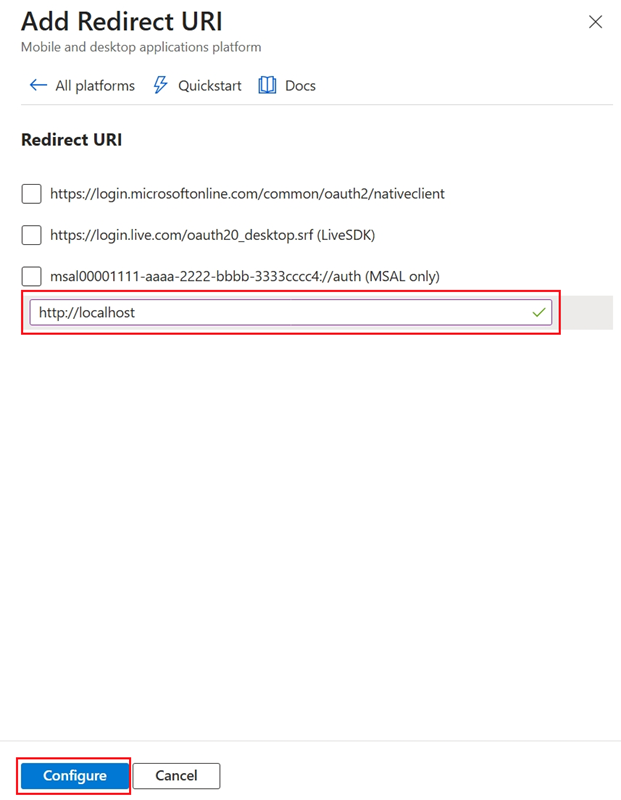
For tools that require a redirect URI, such as OAuth 2.0, go to the Redirect URI configuration tab and select Add Redirect URI to configure the platform.
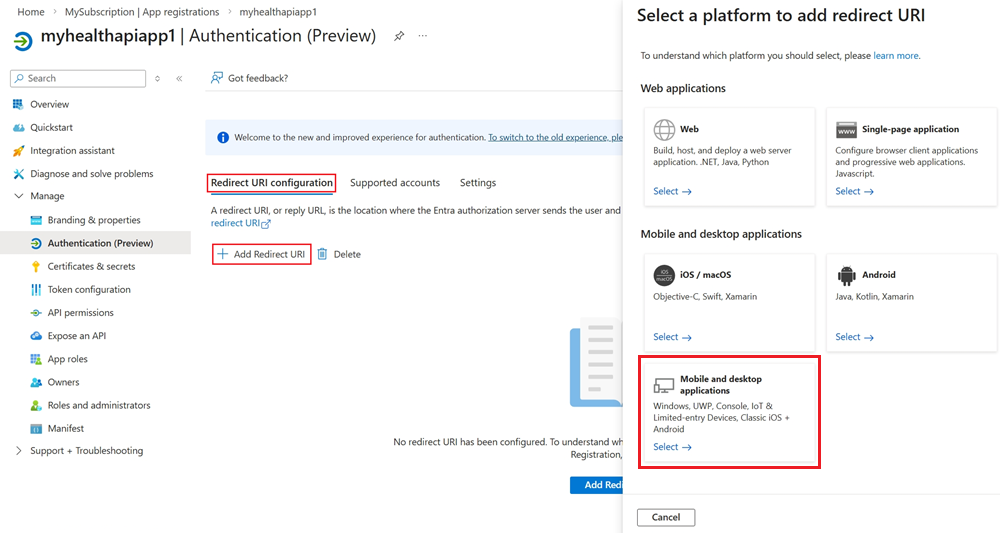
For example, when you choose Mobile and desktop applications, you select the redirect URI for that platform.
Certificates and client secrets
To create a new client secret, use the following steps:
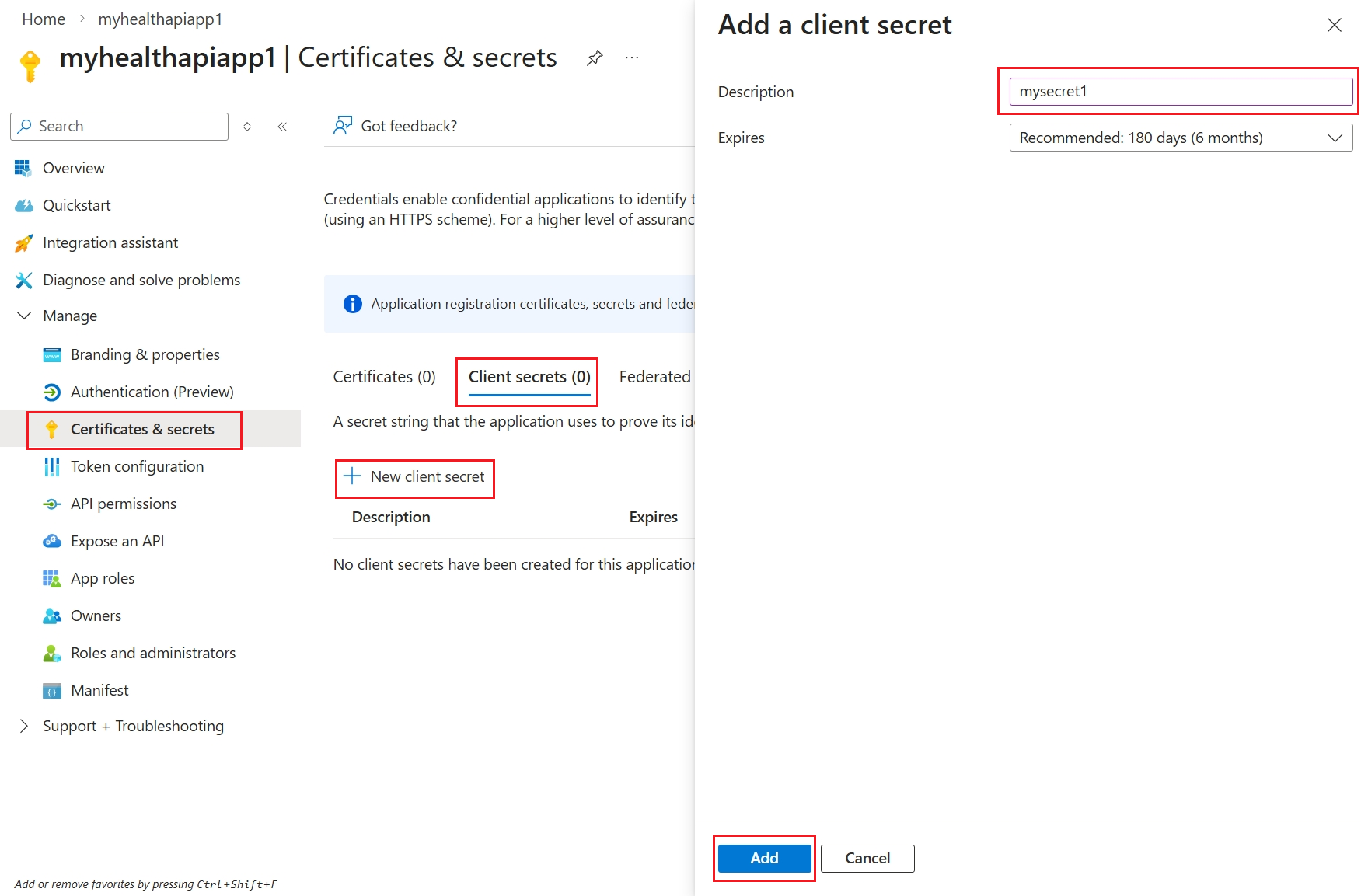
Go to Certificates & Secrets > Client secrets.
Select New Client Secret.
In Add a client secret, enter a Description.
Accept the recommended 180-day value in the Expires field, or select a different value from the list.
Select Add.
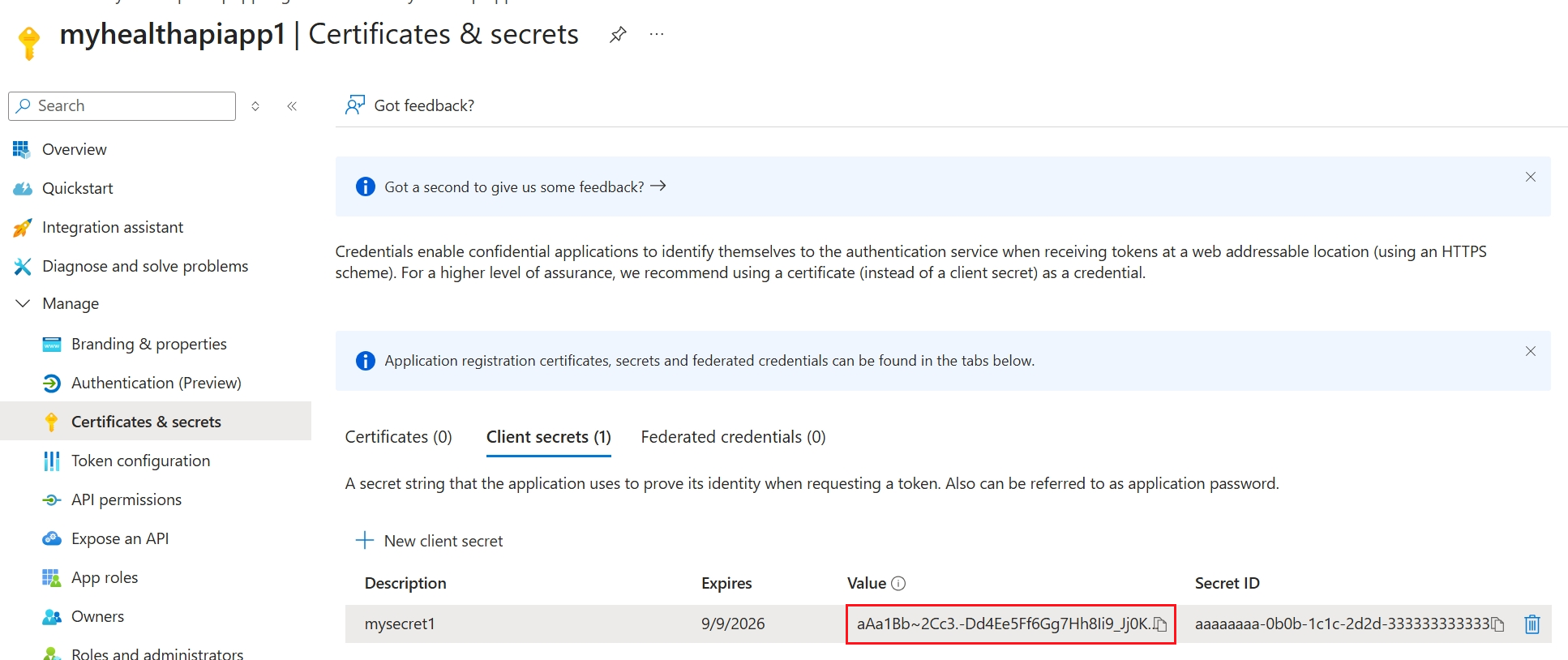
Copy the secret value by selecting the copy button next to the Value.
Note
It's important that you save the secret value, not the secret ID.
Optionally, you can upload a certificate (public key) and use the Certificate ID, a GUID value associated with the certificate. For testing purposes, you can create a self-signed certificate by using tools such as the PowerShell command New-SelfSignedCertificate, and then export the certificate from the certificate store. For more information, see Create a self-signed public certificate to authenticate your application.
API permissions for DICOM and FHIR services
To allow the client application to access the FHIR and DICOM services, you need to add API permissions. The required permissions depend on your application scenario and the service you want to access.
The following steps are required for the DICOM service.
Select API permissions.
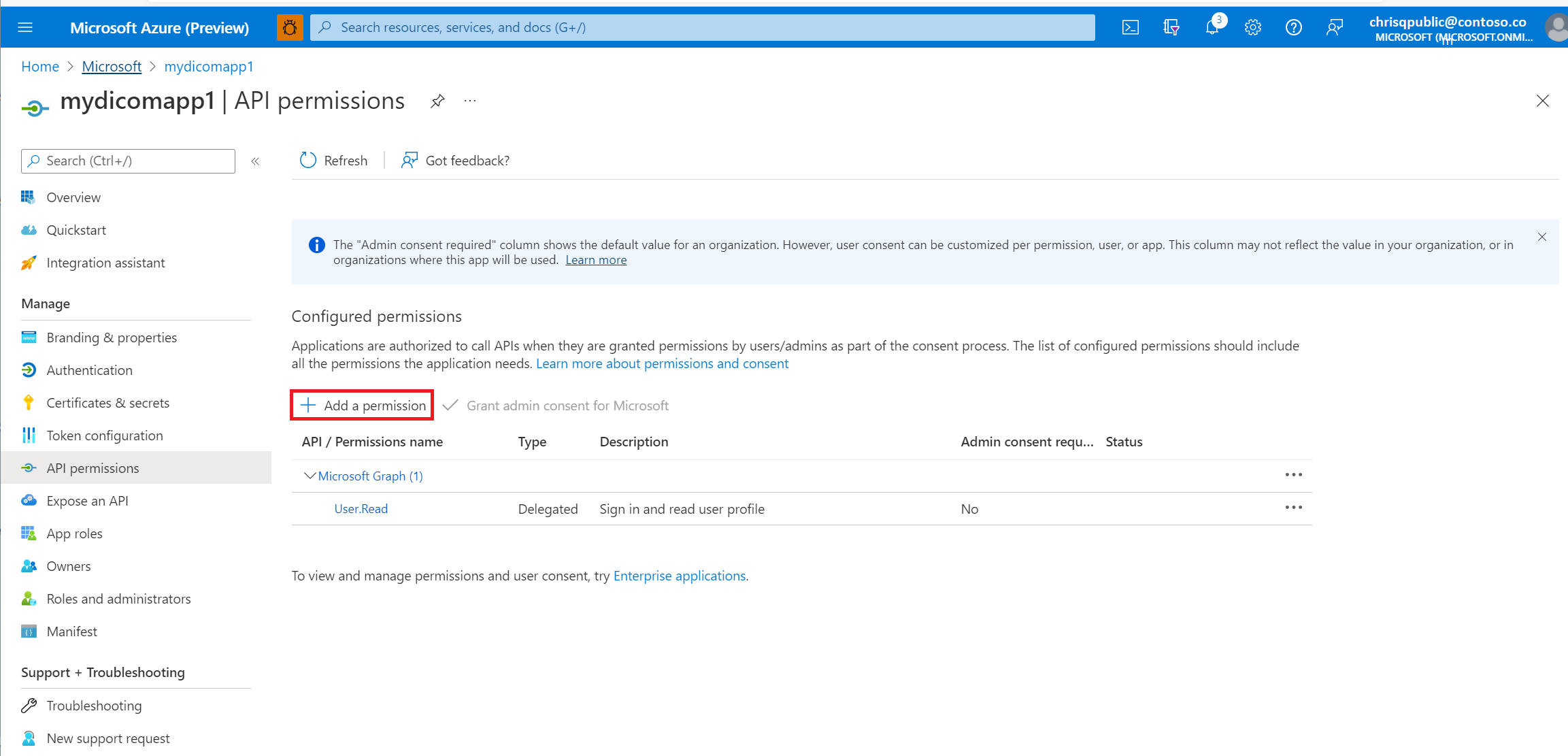
Select Add a permission.
If you're using Azure Health Data Services, add a permission to the DICOM service by searching for Azure API for DICOM under APIs my organization uses.
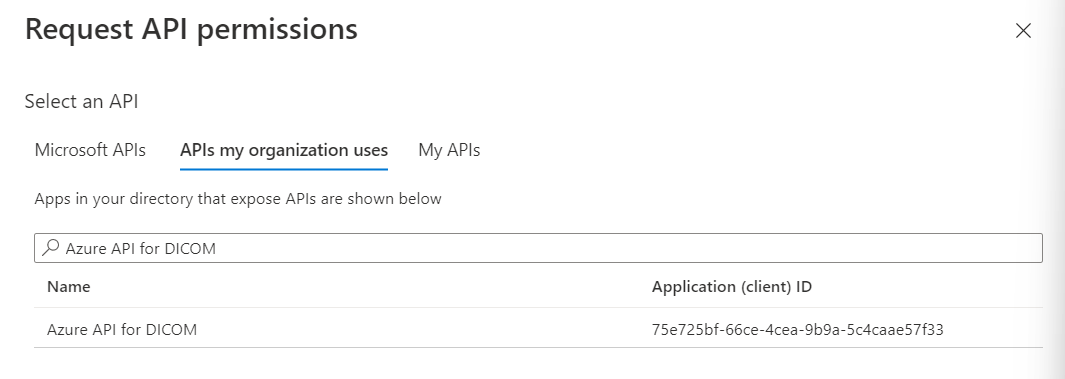
The search result for Azure API for DICOM appears only if you already deployed the DICOM service in the workspace.
If you're referencing a different resource application, select your DICOM API Resource Application Registration that you created previously under APIs my organization.
Select scopes (permissions) that the confidential client application asks for on behalf of a user. Select Dicom.ReadWrite, and then select Add permissions.
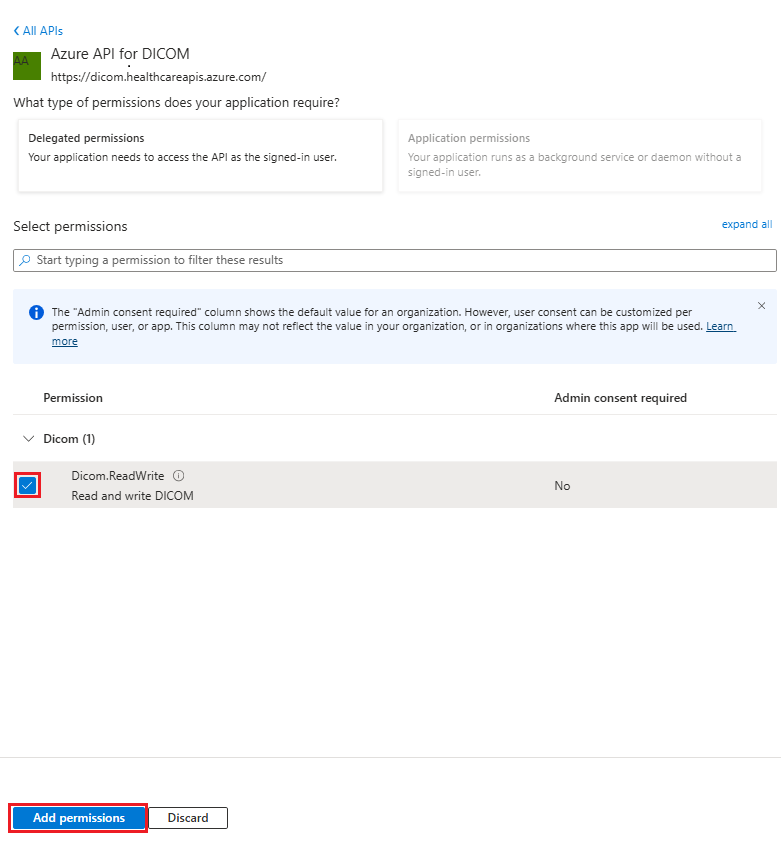
If you're using Azure Health Data Services, adding API permissions to the FHIR service is optional because the FHIR service supports both user delegated permission and application permission. If your application scenario requires application permission, which is used when the application runs without a signed-in user, search for Azure API for FHIR under APIs my organization uses, and then select the required permissions.
Note
Use grant_type of client_credentials when getting an access token for the FHIR service by using tools such as REST Client. For more information, see Accessing Azure Health Data Services using the REST Client Extension in Visual Studio Code.
Use
grant_typeofclient_credentialsorauthentication_codewhen getting an access token for the DICOM service. For more information, see Using DICOM with cURL.