Note
Access to this page requires authorization. You can try signing in or changing directories.
Access to this page requires authorization. You can try changing directories.
Azure DevOps Services | Azure DevOps Server | Azure DevOps Server 2022
You can change a project that uses the Agile process to use an inherited Scrum process. This article provides the steps needed to make this change.
Before you make this change, familiarize yourself with the process you're changing to. The Task, Bug, Feature, and Epic work item types are the same for both Scrum and Agile processes. Some State and Reason field values, however, are different.
| Process | Work item types | Workflow |
|---|---|---|
| Agile |  |
 |
| Scrum |  |
 |
For more information, see About processes and process templates.
Reasons you might want to change your process from Agile to Scrum include:
- You want to use Product Backlog Item and Effort instead of User Story and Story Points.
- Your organization requires everyone to standardize their tracking with a customized inherited process based on the Scrum process.
Warning
If you have existing work items, this process requires manual updates to work items and board configuration. Make sure you follow the steps provided in this article to ensure you address the manual steps required after you change the process used by a project.
Prerequisites
| Category | Requirements |
|---|---|
| Permissions | - To create, delete, or edit a process: Member of the Project Collection Administrators group or specific collection-level permissions Create process, Delete process, Edit process, or Delete a field from organization. For more information, see Set permissions and access for work tracking, Customize an inherited process. - To update boards: Team Administrator or a member of the Project Administrators group. |
| Access | - Even if you have Basic or lower access, you can still change a process if someone gives you permissions to do so. - To update and change the type of your existing work items: Project member. |
Open Settings>Process
You create, manage, and make customizations to processes from Organization settings>Process.
Choose the
 Azure DevOps logo to open Projects. Then choose Organization settings.
Then, choose Process.
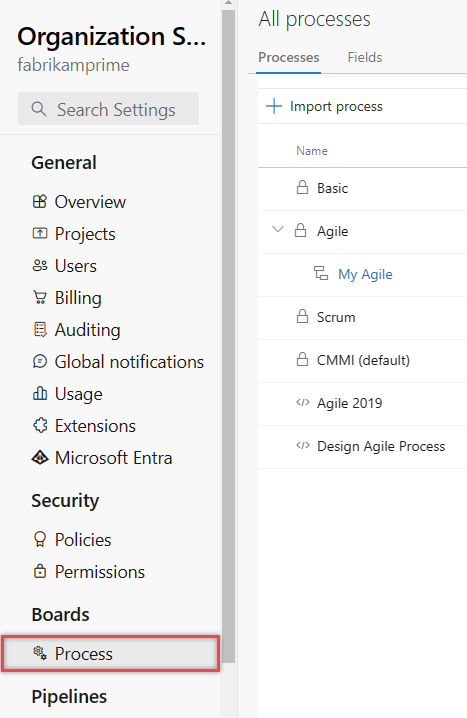
Important
If you don't see Process, then you're working from TFS-2018 or earlier version. The Process page isn't supported. You must use the features supported for the On-premises XML process model.
You create, manage, and make customizations to processes from Collection Settings>Process.
Choose the
Azure DevOps logo to open Projects. Choose the project collection whose processes you want to customize, and then choose Collection Settings.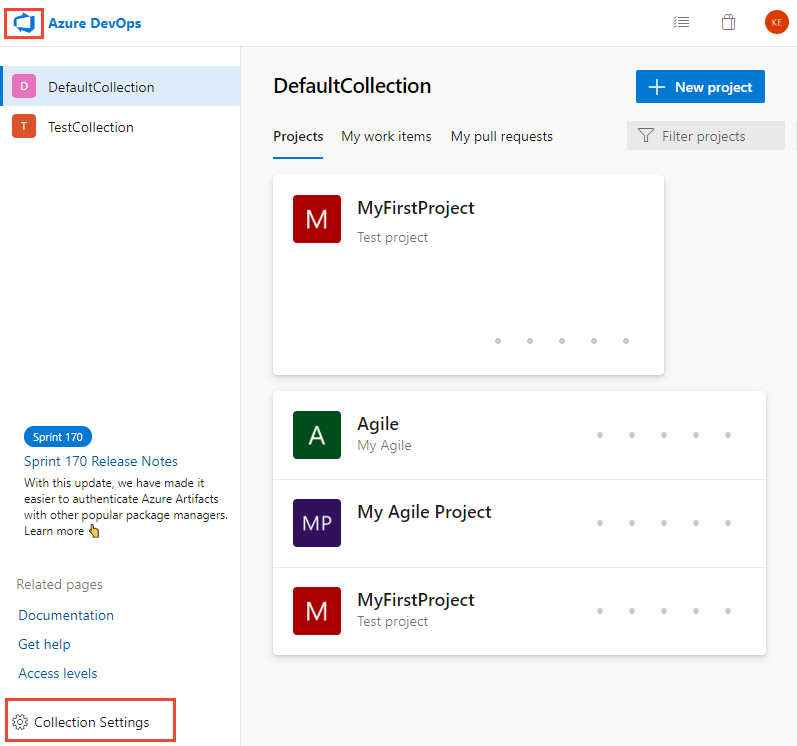
Then, choose Process.

Create and customize a Scrum inherited process
First, create an inherited process that you can customize. You can't customize the default, system processes.
From the Process page, choose the
 actions icon of the Scrum system process, and then select Create inherited process. Name the process "Scrum - Inherited".
If your current project uses the User Story and Issue work item types, add these work item types to the "Scrum - Inherited" process.
You don't need to add any details to these work item types because you'll change them later to Product Backlog Item and Impediment. However, if you captured details within a field - such as Story Points, Priority, or other field - add those fields to the work item types.
When you finish, your work item types list should appear as follows.

Change the project process
Choose the process that contains the project you want to change. To change from Agile to Scrum, choose Agile or the custom process based on Agile. Here, choose Agile.

Choose Projects, and then choose the
actions icon for the project you want to change. Select Change process. Here, choose the MyAgile project.
Follow the steps in the wizard.
Choose the Scrum - Inherited process that you created earlier and then choose Save.

If you skipped step 2 of Create and customize a Scrum inherited process, you receive the following message to add the missing work item types.

Close the wizard dialog and add the missing work item types now. See Add and manage work item types.
Upon successful completion, the wizard displays the following information. Make a note of the steps to follow and then choose Close.

Steps to manually update your work items and board settings:
- Update the column to state mapping for each team board.
- Update existing work items by using the work item types set by the target process.
- Update existing work items by using the correct state model of the target process.
Update board column-to-state settings
You can customize boards to display intermediate columns. For each column you add, choose a valid workflow state for the work item types displayed on the board. For more information, see Workflow states & state categories.
For each team, open your board.
Choose the Correct this now link or the
 gear icon to configure the board settings.
The Settings dialog opens. Those tabs that display a
 required icon need correction.
Rename each column and choose the correct state for each column so that the column-to-state mapping is correct. Add one or more columns as needed. When done, choose Save and close.

Update work items
Next, bulk update work items. Follow this sequence:
- Create a work item query that displays all work items that need updating.
- Perform a bulk update to change the work item type of User Story work items to Product Backlog Items.
- Perform a bulk update on all States to change from Agile states - Active, Resolved, and Closed - to Scrum process states - Approved, Committed, and Done.
Create a query to get a list of all User Stories, Issues, Features, Tasks, and Epics. You need to change the work item type of the first two work item types, and the State and Reason fields for all items.

Choose the
actions icon and then select Column options. Choose to show the State and Reason fields. Choose the Sort tab, and set it to sort the list by work item type and state value.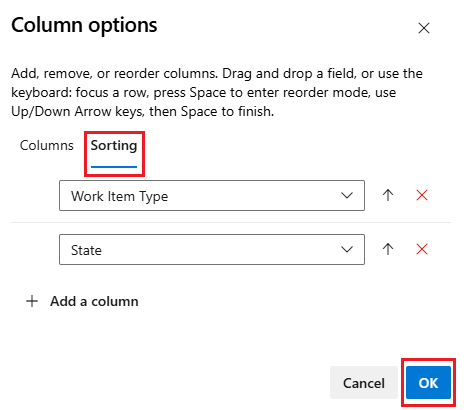
Choose Results to show only the list of work items.
Highlight all User Stories, choose the
actions icon, select Change type, and change the type to Product Backlog Item.
For more details, see Move, change, or delete work items, Change the work item type.
You might receive errors where the work item type and the state don't match. In that case, you can't save your changes until you update the state as described in the next step.

Highlight all work items of the same State, such as Resolved, choose the
actions icon, and then select Edit. Add the State field and select Committed or a valid value for the Product Backlog Item. You might also need to update the Reason field. For details, see Bulk edit work items.
This update removes the errors.

To save your changes, choose the
actions icon and select Save items.Repeat the preceding steps to change the work item type for Issue to Impediment, and update the states to valid states for the work item types.
When done, make sure you choose the
actions icon and select Save items.
Tip
If you need to change many field values, such as populating the Effort field with the value held in Story Points, use Excel. See Bulk add or modify work items with Excel.
Verify your changes
Go to your team backlog and review the user stories.

Go to your team board and verify that the column settings are valid.

To add columns or change column names, see Add columns to your board.
Optional updates
After changing the process, you might want to make the following updates:
- Change the project name.
- Update your project summary or vision.
- Disable or delete the work item types that you won't use going forward. See Customize a work item type for an inherited process.