Note
Access to this page requires authorization. You can try signing in or changing directories.
Access to this page requires authorization. You can try changing directories.
Azure DevOps Services | Azure DevOps Server | Azure DevOps Server 2022
This article introduces key concepts and tasks for managing project requirements by using Agile tools and features in Azure DevOps.
Tip
You can use AI to help with this task later in this article, or see Enable AI assistance with Azure DevOps MCP Server to get started.
Capture requirements
Use work items to capture requirements. Each work item has a type, which depends on the process you choose. You can also create a custom work item type.
Note
Requirements specify expectations of users for a software product. In Azure Boards, requirements are defined by work items that appear on your product backlog. Based on the process selected for your project, requirements correspond to User Story (Agile), Product backlog item (Scrum), Issue (Basic), or Requirement (CMMI) work item types. They also belong to the Requirements category, which manages the work item types that appear on the product backlog.
Tip
Requirements management is a continuous process throughout a project lifecycle. It encompasses the processes of documenting, analyzing, prioritizing, tracking, and collaborating with stakeholders to agree on work to perform. A single requirement corresponds to a capability to which a project outcome - product, service, architecture, or performance - should conform.
Work item types
Work items let you capture different information and workflows. Each work item has a type, which depends on the process you choose. Use these default work item types for requirements and defects:
- Agile: User Story and Bug
- Basic: Issue and Bug
- Scrum: Product Backlog Item and Bug
- CMMI: Requirement and Bug
You can customize each process for your Azure DevOps project. You can also decide how to track bugs for each team.
Default work item types
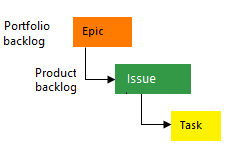
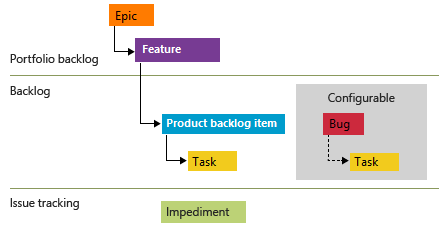
The following image shows the hierarchy for the Agile process backlog work item:

- User Stories and tasks are used to track work.
- Bugs track code defects.
- Epics and features are used to group work under larger scenarios.
Each team can configure how they manage Bug work items at the same level as User Story or Task work items. Use the Working with bugs setting. For more information about using these work item types, see Agile process.

Customize work item types
You can customize the following aspects of work item types:
- Add custom fields and workflow states.
- Add custom rules that support business workflow processes.
- Add custom portfolio backlogs and customize backlogs and boards.
- Add custom controls to work item forms to gain enhanced functionality.
Add work items to the product backlog or board
To capture requirements, start by adding a Title to the product backlog. You can add more details later as needed.
Capture requirements on the product backlog
Adding a Title to the product backlog helps you quickly capture and organize requirements. You can prioritize and refine them over time.

Work item fields
Each work item tracks data in fields, captures changes in the History field, and stores comments in the Discussion section.
Use work items to:
- Add information, update status, assign to team members, link work items, and attach files
- Assign work to a timebox or sprint
- Quickly fill in fields using templates
- Contribute to a queryable discussion thread
- Prioritize and triage work items
The Development and Deployment sections support end-to-end traceability:
- Create a new branch or pull request from a work item
- Complete the pull request
- Perform a squash merge
- Create a branch for several work items
- Link a work item to existing development and build objects
- View release stages associated with the work item in real time
- View the status of releases associated with commits in build and release pipelines
Import and update requirements using Excel
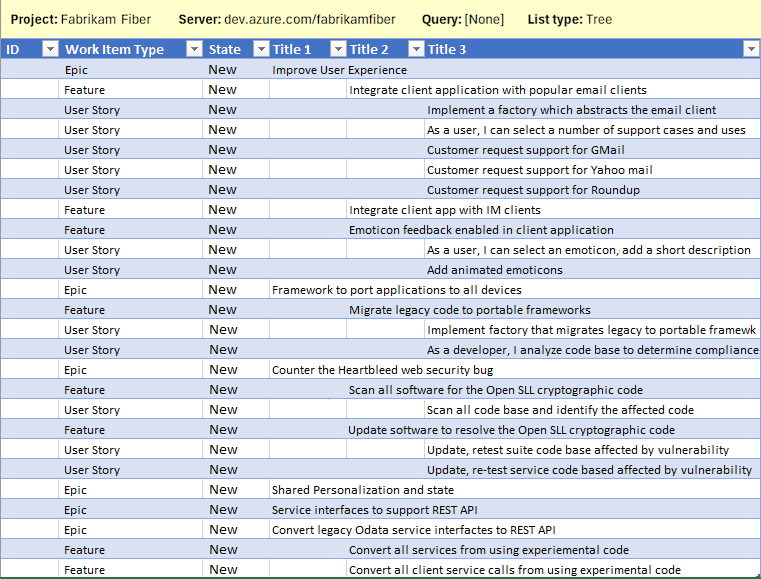
You can use a .csv file or Excel spreadsheet to import and update your requirements. These tools let you work with a flat list or a tree of work items. For example, you can define a tree of Epics, Features, and User Stories in Excel and then import them to Azure DevOps.
Import requirements from Excel
Functional and nonfunctional requirements
Work items help you track any work that you or your team need to do. Use the same work item type for both functional and nonfunctional requirements:
- Functional requirements: Describe what your product or service should do.
- Nonfunctional requirements: Describe how your product or service should operate.
Categorize your requirements using the following elements:
- Tags
- Business Value field
- Custom fields
Maintain requirement specifications
Some requirements need more details than what you can put in a work item. Use Azure DevOps to store and manage your requirements in an Azure Repos repository or a project wiki.
You can link or attach your specifications to your requirements.
Analyze and prioritize requirements
Use Azure Boards tools to prioritize and refine your backlog, ensuring your requirements are clear and well-defined:
- Product backlog: Drag and drop work items to reorder by priority. Edit multiple work items at once to change assignments or update fields.
- Query Results, Triage mode: Review and quickly update work items and add details.
Group and organize requirements
Use Azure Boards to group your requirements by features or business objectives. Utilize portfolio work item types, portfolio backlogs and boards, and the Mapping tool to link requirements to higher-level work items.
You can also use work item tags to group requirements in different ways.
Epics, features, and portfolio backlogs
Use parent-child links to create a hierarchy of requirements, features, and epics. Parent-child links are useful for organizations with multiple teams that want to see how their work contributes to overall goals and utilize portfolio planning tools.
With a hierarchy, you can manage a set of features that different teams work on. You can also view summaries of estimates, progress, and more on the product backlogs.
Group user stories under Features using Mapping

Use tags to group work items
Work item tags are labels that team members can add to work items. You can filter backlogs and boards by these tags to see only the matching work items. Use tags in queries. For example, you can filter the board to see only the cards with the web tag.
Filter backlogs and boards based on tags

Use Kanban or Scrum
Azure Boards supports two major Agile methods—Kanban and Scrum—and a hybrid approach like Scrumban. Choose the method that best fits your team's workflow:
- Kanban board: Visualize work items on a board, define columns and swimlanes, set WIP limits, and drag items between columns to update status. For more information, see About Kanban and Azure Boards.
- Scrum sprints: Assign work items to time-boxed sprints, use the sprint backlog and taskboard to track progress, and review sprint burndown charts for daily status updates. For more information, see About Sprints, Scrum, and project management.
For more information, see Plan and track your work.
Manage dependencies
In Microsoft Project, you manage task dependencies by linking them. In Azure Boards, link work items by using the Predecessor/Successor link type. View link relationships by using the Work Item Visualization Marketplace extension. The following image illustrates link relationships among several work items.
To see the full image, click the image to expand. Choose the  close icon to close.

Minimum Viable Product versus Critical Path Management
Azure Boards doesn't have a built-in way to show the critical path because Agile methods prefer a Minimum Viable Product (MVP) over Critical Path Management (CPM). With MVP, you find the shortest and most dependent path by ranking epics, features, stories, and tasks by importance.
Perform milestone planning
Use team velocity and forecasting to plan when you can deliver your work.
Team velocity
Working in sprints helps you understand your team’s velocity. Velocity shows how much work your team can finish in a sprint, based on the number or the size of the completed work items.
Example team Velocity chart

Forecast requirements
Use the Forecast tool to estimate Story Points, Effort, or Size for each requirement.
Set team velocity based on your estimates. For example, if you say your team can do 12 Story Points per sprint, the Forecast tool shows you which requirements and features you can finish in the next six sprints. Use the Planning tool to assign requirements to the predicted sprints.
Example Forecast of requirements backlog

Use a Marketplace extension to integrate your requirements planning with Microsoft Project tools.
Milestone markers
Azure Boards work tracking doesn't use milestone markers, except for Delivery Plans. Delivery Plans provide a calendar view and allow you to define a milestone marker.
Use one or more of the following options to mark a work item as a milestone:
- Prepend or append the word Milestone in the title of your work item
- Add a work item tag labeled Milestone
- Add a custom field labeled Milestone and populate it with a pick list of milestones
- Link work items using the Predecessor/Successor or Related link type to a milestone work item
- Assign a milestone work item to the sprint targeted for completion.
Assign requirements to timeboxes
You can quickly assign work items to a sprint by dragging and dropping them from the product backlog to the sprint listed within the Planning pane.
Example assign requirements to sprints

Monitor and report on progress
To review progress and deliverables, use the following tools:
- Features board: Shows the status of each feature and its tasks
- Features backlog: Displays the rollup columns for the features and their child work items
- Delivery plans: Provides a timeline view of the features and their dependencies across different teams
Features board
Use your Features board to track progress and ensure the continuous delivery of value. The following image shows an example of a customized Features board with added columns for different stages of feature development, such as Need more info, Spec Complete, In Progress, and Customer Rollout. These columns reflect the natural flow of features from proposal to production.
Example of Features board with customized columns
To see the full image, click the image to expand. Choose the close icon to close.

Rollup
The Features backlog offers a quick and visual way to monitor progress. You can add the rollup progress bar column to see the completion percentage of each feature’s work items. The following image shows how the column shows the progress of different features.
Example of Requirements backlog showing progress rollup

Delivery plans and multiple team deliverables
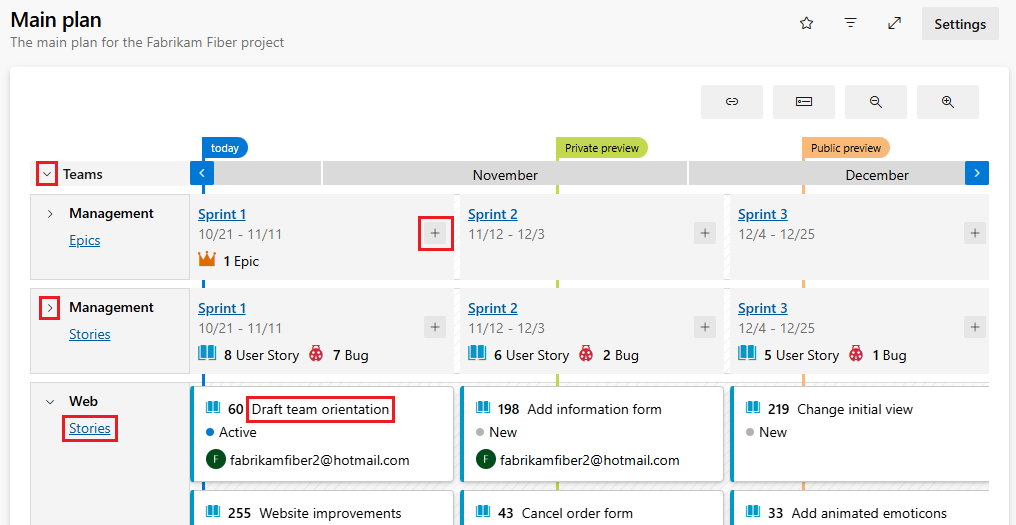
If you want to see the features that several teams are delivering across a timeline, you can set up a delivery plan. A delivery plan is an interactive board that shows a calendar view of the stories or features that different teams plan to deliver.
Example of multi-team delivery plan

Get notified of changes
Azure DevOps provides a robust alert system. Project members can set alerts for themselves, a team, or a project. As changes occur to work items, code reviews, source control files, and builds, you can receive email notifications.
Use AI to manage requirements
If you connect the Azure DevOps MCP Server to your AI agent in agent mode, you can use natural language prompts to capture, organize, and track requirements.
| Task | Example prompt |
|---|---|
| Create a requirement | Create a user story titled 'Add single sign-on support' with acceptance criteria in project <Contoso> |
| Build a feature hierarchy | Create a feature called 'Authentication Module' and add user stories #101, #102, and #103 as children in project <Contoso> |
| Tag nonfunctional requirements | Add tag 'nonfunctional' to all work items in area path <Contoso\Performance> |
| Find unsized backlog items | List all user stories on the <Contoso Team> backlog that have no story points assigned |
| Forecast delivery | Based on a velocity of 25 story points, how many sprints to complete the remaining backlog for <Contoso Team>? |
| Check sprint assignments | List all user stories in Sprint 10 for <Contoso Team> and show their state and assigned-to fields |
| Track rollup progress | Show all features in project <Contoso> with the percentage of child user stories completed |
| Identify missing parents | List user stories in project <Contoso> that aren't linked to a parent feature |
| Review dependencies | Show work items in project <Contoso> that have predecessor links to items that are still active |
| Audit backlog completeness | List the top 20 backlog items by priority for <Contoso Team> and flag any that are missing acceptance criteria or story points |
Note
Agent mode and the MCP Server use natural language, so you can adjust these prompts or ask follow-up questions to refine the results.