Note
Access to this page requires authorization. You can try signing in or changing directories.
Access to this page requires authorization. You can try changing directories.
You can change the default settings of the Azure portal to suit your preferences.
To view and manage your portal settings, select the Settings menu icon in the global controls. The global controls are located in the page header at the top right of the screen.

Within Portal settings, you see different sections. This article describes the available options for each section.
Directories + subscriptions
The Directories + subscriptions section lets you manage directories (Azure tenants) and set subscription filters.
Switch and manage directories
In the Directories section, you see your Current directory (the directory, or Azure tenant, that you're currently signed in to).
The Startup directory shows your default directory when you sign in to the Azure portal, or Last visited if you chose that option. To choose a different startup directory, select change to open the Appearance section, where you can change this selection.
To see a full list of directories you can access, select All Directories.
To mark a directory as a favorite, select its star icon. The portal lists those directories in the Favorites section.
To switch to a different directory, find the directory that you want to work in, and then select the Switch button in its row.

Subscription filters
You can choose a set of subscriptions to filter what's shown in the Azure portal filters by default. This can be helpful if you have a primary list of subscriptions you work with but use others occasionally.
Important
After you apply a subscription filter, you see only subscriptions that match that filter, across all portal experiences. You won't be able to work with other subscriptions that the selected filter excludes. If you create new subscriptions after applying the filter, those subscriptions will be excluded unless they match the filter criteria. To see excluded subscriptions, update the filter criteria as needed, or select Advanced filters and use the Default filter to always show all subscriptions.
Certain areas of the Azure portal, such as Management groups or Security, might still show subscriptions that don't match your filter criteria. However, you won't be able perform operations on those subscriptions (such as moving a subscription between management groups) unless you adjust your filters to include the subscriptions that you want to work with.
To use customized filters, select Advanced filters. You're prompted to confirm before continuing.

After you continue, Advanced filters appears in the left navigation menu of Portal settings. This section lets you create and manage subscription filters. Your currently selected subscriptions are saved as an imported filter that you can use again. You see this filter selected in Directories + subscriptions.
To stop using advanced filters, select the toggle again to restore the default subscription view. The portal saves any custom filters you create. You can use them again if you enable Advanced filters in the future.
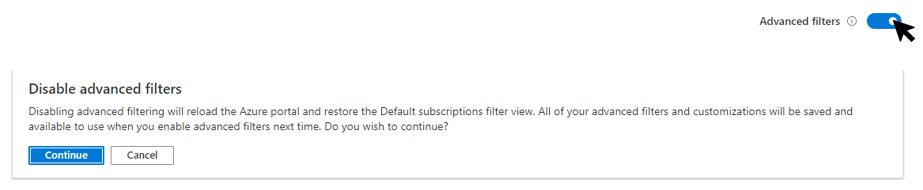
Advanced filters
After you enable Advanced filters, you can create, modify, or delete subscription filters.
The Default filter shows all subscriptions that you can access. The portal uses this filter if there are no other filters, or when the active filter doesn't include any subscriptions.
You might also see a filter named Imported-filter, which includes all subscriptions that you previously selected.
To change the filter that is currently in use, select Activate next to that filter.
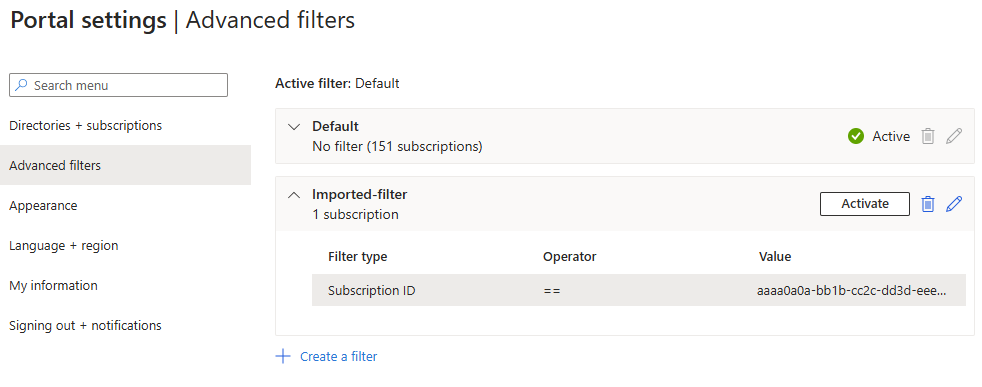
Create a filter
To create a new filter, select Create a filter. You can create up to 10 filters.
Each filter must have a unique name that is between 8 and 50 characters long and contains only letters, numbers, and hyphens.
After you name your filter, enter at least one condition. In the Filter type field, select Management group, Subscription ID, Subscription name, or Subscription state. Then select an operator and the value to filter on.
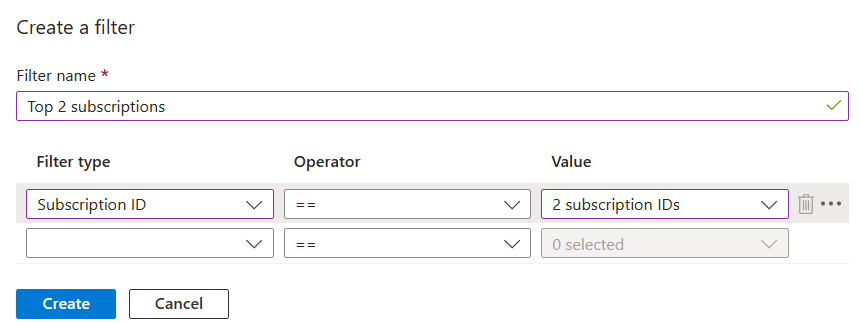
When you finish adding conditions, select Create. Your filter appears in the list in Active filters.
Modify or delete a filter
You can modify or rename an existing filter by selecting the pencil icon in that filter's row. Make your changes, and then select Apply.
Note
If you modify a filter that is currently active, and the changes result in zero subscriptions, the Default filter becomes active instead. You can't activate a filter that doesn't include any subscriptions.
To delete a filter, select the trash can icon in that filter's row. You can't delete the Default filter or a filter that is currently active.
Appearance
The Appearance pane has two sections. The Appearance section lets you choose menu behavior, default service menu behavior, and theme. The Startup views section lets you set options for what you see when you first sign in to the Azure portal.
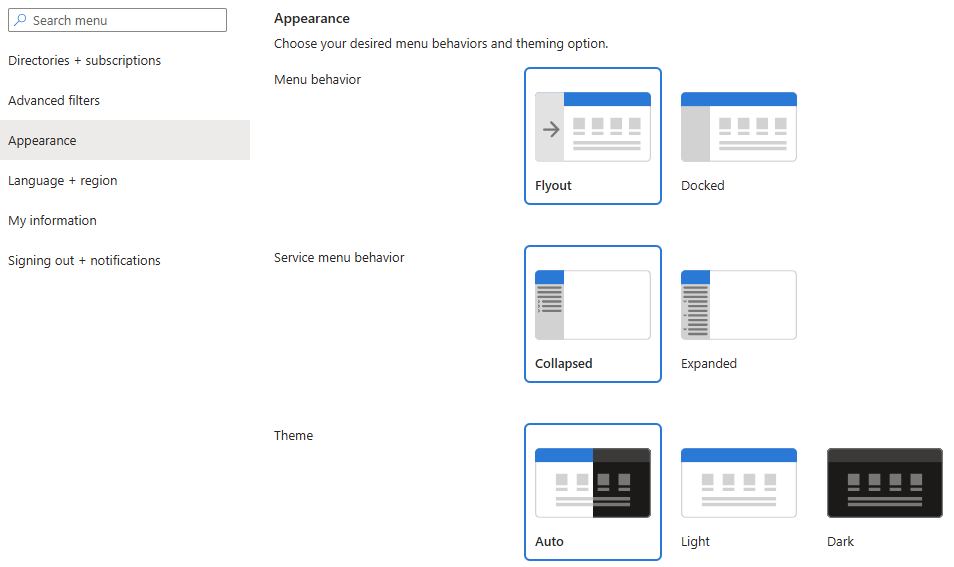
Portal menu behavior
The Menu behavior section lets you choose how the Azure portal menu appears.
- Flyout: The menu is hidden until you need it. Select the menu icon in the upper left corner to open or close the menu.
- Docked: The menu is always visible. You can collapse the menu to provide more working space.
Service menu behavior
The Service menu behavior section lets you choose how items in service menus are displayed.
- Collapsed: Groups of commands in service menus appear collapsed. You can still manually select any top-level item to display the commands within that menu group.
- Expanded: Groups of commands in service menus appear expanded. You can still manually select any top-level item to collapse that menu group.
Theme
The theme that you choose affects the background and font colors that appear in the Azure portal. In the Theme section, you can choose to use a Light or Dark theme. You can also select Auto to have the Azure portal theme follow your system settings.
If you use a high-contrast mode on your device, the Azure portal respects that setting and appears in high-contrast mode.
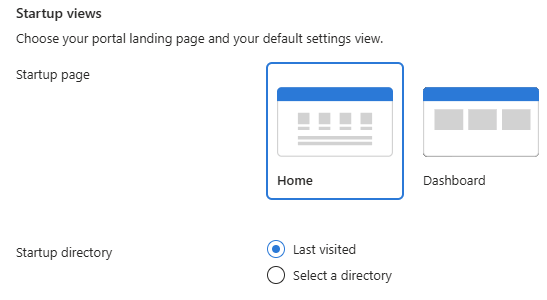
Startup page
Choose one of the following options for Startup page. This setting determines which page you see when you first sign in to the Azure portal.
- Home: Displays the home page, with shortcuts to popular Azure services, a list of resources you recently used, and useful links to tools, documentation, and more.
- Dashboard: Displays your most recently used dashboard. You can customize dashboards to create a workspace designed just for you. For more information, see Create and share dashboards in the Azure portal.
Manage startup directory options
Choose one of the following options to control which directory (Azure tenant) to work in when you first sign in to the Azure portal.
- Last visited: When you sign in to the Azure portal, you start in the same directory from your previous visit.
- Select a directory: Choose this option to select a specific directory. You start in that directory every time you sign in to the Azure portal, even if you were working in a different directory last time.
Language + region
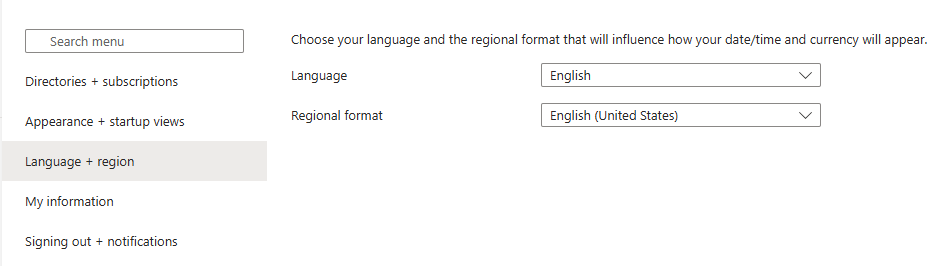
Choose the language used in the Azure portal. You can also select a regional format to determine the format for dates, time, and currency.
Note
These language and regional settings affect only the Azure portal. Documentation links that open in a new tab or window use your browser's settings to determine the language to display.
Language
Select a language from the list. This setting controls the language you see for text throughout the Azure portal. The Azure portal supports the following 18 languages in addition to English: Chinese (Simplified), Chinese (Traditional), Czech, Dutch, French, German, Hungarian, Indonesian, Italian, Japanese, Korean, Polish, Portuguese (Brazil), Portuguese (Portugal), Russian, Spanish, Swedish, and Turkish.
Regional format
Select an option to control the way dates, time, numbers, and currency are shown in the Azure portal.
The options shown in the Regional format drop-down list correspond to the Language options. For example, if you select English as your language, and then select English (United States) as the regional format, currency is shown in U.S. dollars. If you select English as your language and then select English (Europe) as the regional format, currency is shown in euros. If you prefer, you can select a regional format that is different from your language selection.
After making the desired changes to your language and regional format settings, select Apply.
My information
Use My information to provide information specific to your Azure experience.
Email setting
Provide an email address for contacting you about updates on Azure services, billing, support, or security issues. You can change this address at any time.
You can also indicate whether you want to receive email about Microsoft Azure and other Microsoft products and services. If you select the checkbox to receive these emails, you're prompted to select the country/region in which you'll receive these emails. Note that certain countries/regions might not be available. You only need to specify a country/region if you want to receive these optional emails. Selecting a country/region isn't required to receive standard emails about your Azure account at the email address you provide in this section.
Export, restore, and delete user settings
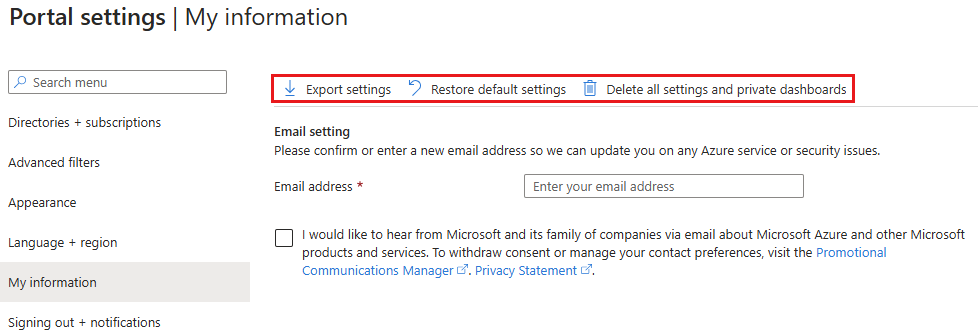
Near the top of My information, you see options to export, restore, or delete settings.
Export settings
Azure stores information about your custom settings. You can export the following data:
- Private dashboards in the Azure portal
- User settings like favorite subscriptions or directories
- Themes and other custom portal settings
To export your portal setting data, select Export settings from the top of the My information pane. This action creates a JSON file that contains your user setting data.
Because of the dynamic nature of user settings and the risk of data corruption, you can't import settings from a JSON file. However, you can use this file to review the settings you selected. It can be useful to have an exported backup of your selections if you choose to delete your settings and private dashboards.
Restore default settings
If you made changes to the Azure portal settings and want to discard them, select Restore default settings from the top of the My information pane. After you confirm this request, any changes you made to your Azure portal settings are lost. This option doesn't affect dashboard customizations.
Delete all settings and private dashboards
You can delete the following user setting data from Azure:
- Private dashboards in the Azure portal
- User settings, such as favorite subscriptions or directories
- Themes and other custom portal settings
It's a good idea to export and review your settings before you delete them, as described in the previous section. Rebuilding dashboards or redoing custom settings can be time-consuming.
Note
For information about viewing or deleting personal data, see General Data Subject Requests for the GDPR, Azure Data Subject Requests for the GDPR, or Windows Data Subject Requests for the GDPR, depending on your specific area and needs. For more information about GDPR, see the GDPR section of the Microsoft Trust Center and the GDPR section of the Service Trust portal.
To delete your portal settings, select Delete all settings and private dashboards from the top of My information. After you confirm the deletion, all settings customizations return to the default settings, and all of your private dashboards are deleted.
Signing out + notifications
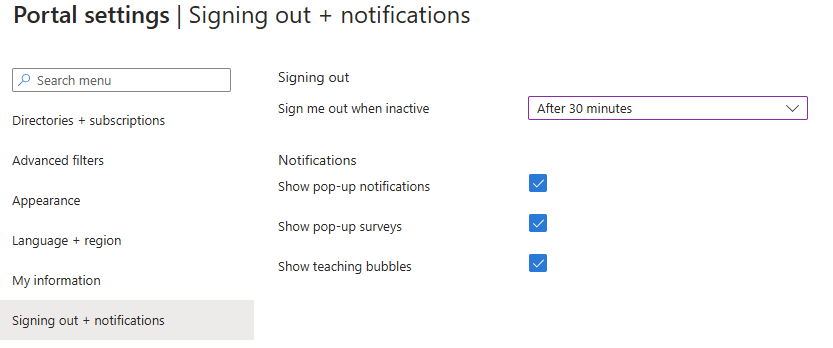
Use this pane to manage pop-up notifications and session timeouts.
Signing out
The inactivity timeout setting helps protect resources from unauthorized access if you forget to secure your workstation. Your session automatically terminates when the device’s active focus isn't on the Azure portal for the period you define in the Sign me out when inactive option.
As an individual, you can change the timeout setting for yourself. If you're an admin, you can set it at the directory level for all your users in the directory.
Change your individual timeout setting (user)
In the drop-down menu next to Sign me out when inactive, choose the duration after which your Azure portal session is signed out if you're idle.
Select Apply to save your changes. After that, if you're inactive during the portal session, you're automatically signed out after the duration you set.
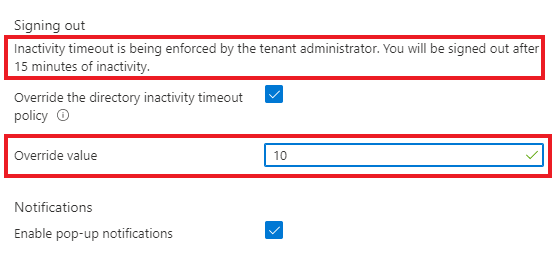
If your admin enabled an inactivity timeout policy, you can still choose your own timeout duration, as long as it's shorter than the directory-level setting. To do so, select Override the directory inactivity timeout policy, and then enter a time interval for the Override value.
Change the directory timeout setting (admin)
Users with the Global Administrator role can set the maximum idle time before a session signs out. This inactivity timeout setting applies to all users in the Azure tenant. When you set it, all new sessions will follow the new timeout settings. Users who are currently signed in will have the setting applied on their next session.
Global Administrators can't specify different settings for individual users in the tenant, but users can set a shorter timeout interval for themselves. Users can't change their individual timeout setting to a longer interval than the option set by a Global Administrator.
To enforce an idle timeout setting for all users in the tenant, sign in with a Global Administrator account, and then select Enable directory level idle timeout to turn on the setting. Next, enter the Hours and Minutes for the maximum time that a user can be inactive before their session automatically signs out. Select Apply to start enforcing the setting.
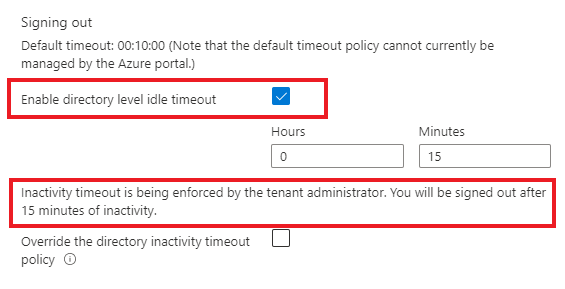
To change a previously selected timeout, a Global Administrator can follow these steps again to apply a new timeout interval. If a Global Administrator unchecks the box for Enable directory level idle timeout, the previous setting becomes the default for all users, but each user is free to change their individual setting to whatever they prefer.
Show or hide pop-up notifications
Notifications are system messages related to your current session. They provide information such as showing your current credit balance, confirming your last action, or letting you know when resources you created become available. When you turn on pop-up notifications, the messages briefly display in the top corner of your screen.
To enable or disable pop-up notifications, select or clear Show pop-up notifications.
To read all notifications received during your current session, select the Notifications icon from the global header.

To view notifications from previous sessions, look for events in the Activity log. For more information, see View and retrieve the Activity log.
Show or hide pop-up surveys
Occasionally, Microsoft might ask for feedback in the form of pop-up surveys. These surveys help Microsoft understand your needs and improve the Azure portal experience.
To enable or disable pop-up surveys, select or clear Show pop-up surveys.
Show or hide teaching bubbles
Teaching bubbles might appear in the portal when new features are released. These bubbles contain information to help you understand how new features work.
To turn teaching bubbles on or off in the portal, select or clear Show teaching bubbles.
Next steps
- Learn about keyboard shortcuts in the Azure portal.
- View supported browsers and devices for the Azure portal.
- Learn how to add, remove, and rearrange favorite services.
- Learn how to create and share custom dashboards.