Note
Access to this page requires authorization. You can try signing in or changing directories.
Access to this page requires authorization. You can try changing directories.
This article provides implementation-level architecture and configuration guidance for deploying Azure Virtual Desktop with multiregion business continuity and disaster recovery (BCDR). It describes how FSLogix stores user profiles in virtual hard disk (VHD) containers and how cloud cache replicates profiles across regions. It also outlines BCDR model options, including active-active, active-passive, and personal host pools that use Azure Site Recovery, along with FSLogix cloud cache configuration, failover and failback procedures, and storage considerations.
The guidance builds on two related resources:
The Azure Virtual Desktop landing zone design guide, which establishes foundational infrastructure for Azure Virtual Desktop, including subscriptions, networking, identity, and governance.
BC considerations for Azure Virtual Desktop workloads, which provides design principles and component-level recommendations based on the Azure Well-Architected Framework.
This article focuses on implementation details, including architecture diagrams, registry-level configuration, step-by-step failover procedures, and DR testing approaches.
Goals and scope
This guide has the following goals:
Ensure maximum resiliency and geo-disaster recovery capability while you minimize data loss for selected user data.
Minimize recovery time.
These objectives are also known as the recovery point objective (RPO) and the recovery time objective (RTO).
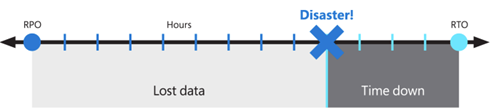
The achievable RPO and RTO depend on the BCDR model and host pool type that you select. The following table provides approximate estimates for each model.
| BCDR model | RPO | RTO | Key factors |
|---|---|---|---|
| Active-active with cloud cache (pooled) | Seconds to a few minutes (cloud cache asynchronous replication lag) | Near zero (no failover needed, both host pools serve users) | Dual-region compute and storage cost. Restrict users to access only one host pool at a time. |
| Active-passive with cloud cache (pooled) | Seconds to a few minutes (cloud cache asynchronous replication lag) | 15 to 60 minutes depending on compute warm-up time, autoscale ramp time, and application group reassignment | You can deallocate secondary compute to reduce cost. Capacity isn't guaranteed unless virtual machines (VMs) run or on-demand capacity reservations are in place. |
| Personal host pool with Site Recovery | 5 to 15 minutes (Site Recovery replication frequency) | Site Recovery VM failover time (typically minutes for each VM), the time for domain rejoin, and the time for VM extension reapplication | No FSLogix cloud cache. You must set up Site Recovery for each VM. |
Note
Treat these examples as estimates, not Microsoft guarantees. Validate them through DR testing in your environment. Actual RPO depends on profile size, storage throughput, and network bandwidth between regions. Actual RTO depends on the number of session hosts, autoscale configuration, and the time needed to complete application group reassignments.
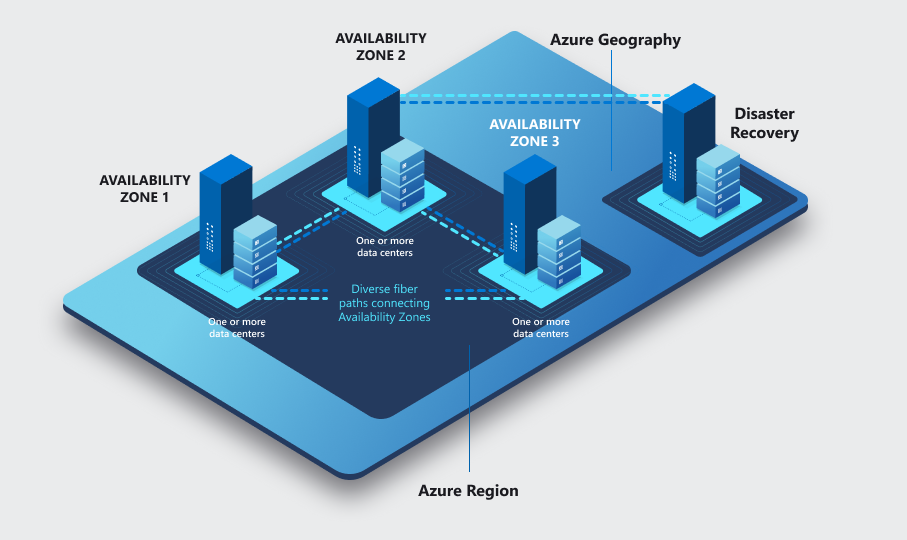
This solution provides local high availability, protection from a single availability zone failure, and protection from an entire Azure region failure. It relies on a redundant deployment in a different, or secondary, Azure region to recover the service. Using paired regions is a best practice, but Azure Virtual Desktop and the technology that supports BCDR don't require Azure regions to be paired. You can use any combination of Azure regions for primary and secondary locations as long as network latency allows it. Operating Azure Virtual Desktop host pools in multiple geographic regions provides benefits beyond BCDR.
To reduce the impact of a single availability zone failure, apply the following resiliency practices to improve high availability:
At the compute layer, spread Azure Virtual Desktop session hosts across different availability zones.
At the storage layer, use zone resiliency when possible.
At the networking layer, deploy zone-resilient Azure ExpressRoute and virtual private network (VPN) gateways.
For each dependency, review the impact of a single zone outage and plan mitigations. For example, deploy Active Directory domain controllers and other external resources that Azure Virtual Desktop users access across multiple availability zones.
Depending on the number of availability zones that you use, consider overprovisioning session hosts to account for the potential loss of a zone. This approach helps maintain user experience and performance, even if only (n-1) zones remain available.
Note
Azure availability zones are a high-availability feature that can improve resiliency. Don't treat them as a DR solution that protects against region-wide disasters.
Because of the possible combinations of storage types, replication options, service capabilities, and regional availability limits, use the FSLogix cloud cache feature instead of storage-specific replication mechanisms.
Scope limitations
This article describes cost implications, but the main focus is to provide an effective geo-disaster recovery deployment that minimizes data loss. It doesn't cover OneDrive. For more information, see SharePoint and OneDrive data resiliency in Microsoft 365.
For more information about BCDR, see the following articles:
- BC considerations for Azure Virtual Desktop workloads
- BCDR considerations for Azure Virtual Desktop
- Azure Virtual Desktop DR
Prerequisites
Before you implement multiregion BCDR, deploy the foundational landing zone infrastructure in both the primary and secondary Azure regions. For network topology, identity, and subscription structure guidance, see Azure Virtual Desktop landing zone design guide and Network topology and connectivity for Azure Virtual Desktop.
For BCDR, follow these networking prerequisites:
Deploy the primary host pool and the secondary DR environment inside separate spoke virtual networks, each connected to a hub in its own region. Set up connectivity between the two hubs.
Ensure that each hub provides hybrid connectivity to on-premises resources, firewall services, identity resources like Active Directory domain controllers, and management resources like Log Analytics.
Confirm that line-of-business (LOB) applications and dependent resources are available in the secondary location during failover.
Azure Virtual Desktop control plane BCDR
The Azure Virtual Desktop control plane includes the web, broker, gateway, resource directory, and diagnostics services. Microsoft manages the control plane and supports regional failover. When a region experiences an outage, control plane components fail over automatically and continue to function. You don't need to set up control plane redundancy. For more information about shared responsibilities and the control plane architecture, see Azure Virtual Desktop service architecture and resilience and BC considerations for Azure Virtual Desktop workloads.

Geographical vs. regional host pools
Azure Virtual Desktop supports two host pool deployment scopes that determine where and how the service stores control plane metadata:
Geographical host pools (classic model): This model stores host pool metadata in a geographical database that serves multiple Azure regions within the same Azure geography. The database replicates to a paired region for cross-region recovery. A database or infrastructure problem in the region that hosts the geographical database affects host pools across all regions in that geography, even if those regions are otherwise healthy.
Regional host pools: This model stores host pool metadata in a per-region database deployed directly into the Azure region that you select. Multiple replicas span availability zones within that region, and metadata replicates to a paired region for cross-region failover. A problem in one region affects only host pools in that region, which eliminates the cross-region dependency of the geographical model.
Geographical and regional host pools work the same way. They differ only in their database architecture, metadata location, and resiliency characteristics.
For BCDR deployments, regional host pools provide the following advantages:
Reduced scope of impact: A control plane problem in the primary region doesn't affect host pools in the secondary region because each region uses an independent database.
Data sovereignty: Host pool metadata remains in the Azure region that you select, which helps you meet data residency requirements.
Independent operation: During a regional outage, the secondary region's host pool continues to function with its own control plane infrastructure and doesn't depend on the affected region.
Regional host pools are in public preview. During preview, geographical and regional Azure Virtual Desktop objects, including host pools, workspaces, and application groups, aren't interoperable. Only objects that share the same deployment scope associate with each other. When you plan your BCDR architecture, ensure that both the primary and secondary host pools, workspaces, and application groups use the same deployment scope. For more information about supported regions, preview limitations, and migration guidance, see Regional host pools.
Important
We recommend that you create all new host pools as regional host pools for improved resiliency and data sovereignty. Plan the transition of existing geographical host pools to regional host pools. Microsoft provides migration tooling and announces deprecation timelines for geographical host pools.
Data locations for Azure Virtual Desktop are independent of session host VM locations. You can place Azure Virtual Desktop metadata in one supported region and deploy VMs in a different region.
The following Azure Virtual Desktop host pool types support different recovery solutions:
Personal: In this type of host pool, users have a permanently assigned session host, and that assignment remains fixed. Because each user has a dedicated VM, the VM can store user data. Use replication and backup techniques to preserve and protect that state.
Pooled: In this type of host pool, the system temporarily assigns users to available session host VMs from the pool, either through a desktop application group (DAG) or by using remote apps. VMs are stateless, and the system stores user data and profiles in external storage or OneDrive.
Active-active vs. active-passive
If distinct sets of users have different BCDR requirements, we recommend that you use multiple host pools that have different configurations. For example, users who have a mission-critical application might assign a fully redundant host pool that has geo-disaster recovery capabilities. Development and test users can use a separate host pool with no DR.
For each Azure Virtual Desktop host pool, you can base your BCDR strategy on an active-active or active-passive model. This scenario assumes that one host pool serves the same set of users in a single geographic location.
Active-active model characteristics
This section outlines how an active-active Azure Virtual Desktop deployment behaves across two Azure regions, including host pool design, latency considerations, and profile management.
Host pool and failover design
For each host pool in the primary region, deploy a second host pool in the secondary region. This configuration provides near-zero RTO. Near-zero RPO requires extra cost. You don't require an admin to intervene or fail over. During normal operations, the secondary host pool serves users through Azure Virtual Desktop resources.
Storage and profile considerations
Each host pool has its own storage accounts (at least one) for persistent user profiles.
If you need storage to manage FSLogix Profile and Office containers separately, use cloud cache to ensure near-zero RPO. To avoid profile conflicts, prevent users from accessing both host pools simultaneously. Because this scenario is active-active, teach your users how to use these resources.
Note
Using separate Office containers is an advanced scenario with higher complexity. Deploy this setup only in specific scenarios.
User experience and application groups
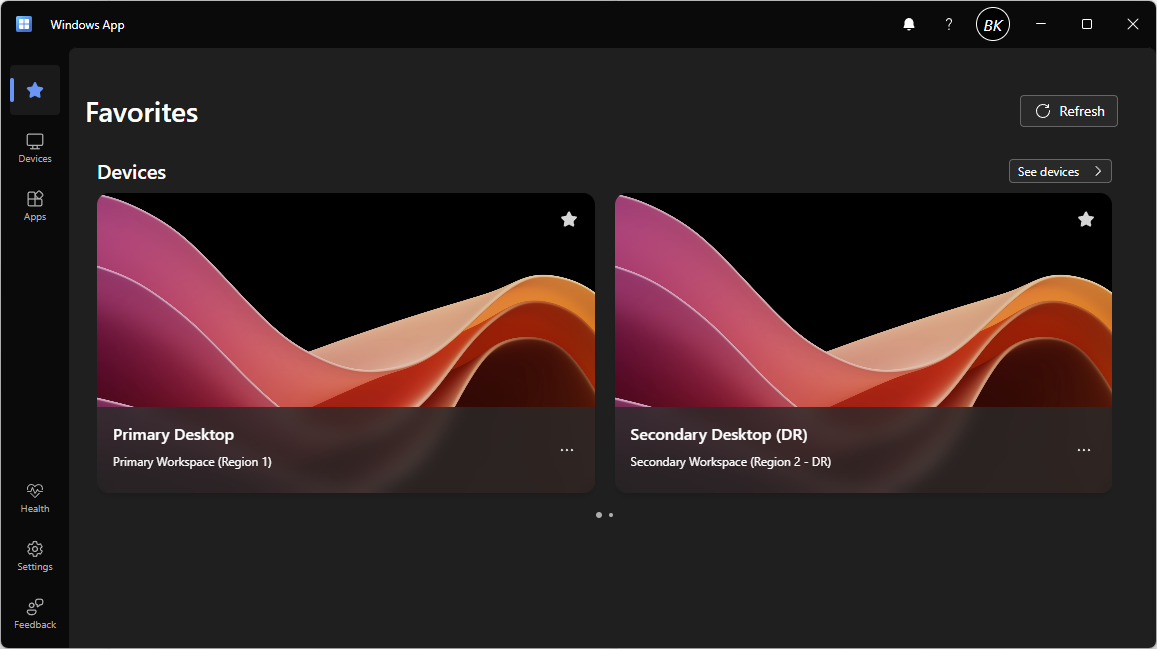
Users are assigned to different application groups, like a DAG and a RemoteApp group, in both the primary and secondary host pools. In this case, they see duplicate entries in their Azure Virtual Desktop client feed. For clarity, use separate Azure Virtual Desktop workspaces that have clear names and labels that reflect the purpose of each resource. Teach users how to use these resources.
Latency and regional proximity
Evaluate latency based on the user's physical location and available connectivity. For some Azure regions, like Western Europe and Northern Europe, the difference can be negligible when you access either the primary or secondary regions. Evaluate network latency based on each user population's physical location and the regions that host both the session hosts and back-end systems, including LOB applications, databases, and file shares. Close proximity between users, their session hosts, and the back-end systems that they access is crucial for a responsive experience. To test latency, you can deploy test VMs in your desired region and use PowerShell tools like Test-NetConnection or PsPing to send test traffic to and from your client systems.
In a DR scenario, users connect to session hosts in the secondary region, which might be farther from both the users and the back-end resources. This distance increases round-trip latency and can reduce application responsiveness, especially for latency-sensitive workloads like real-time databases, voice over IP (VoIP), or interactive design tools. For some Azure region pairs, like West Europe and North Europe, the inter-region latency is low enough that performance degradation during failover introduces little to no impact. For other region pairs separated by greater distances, the impact can be significant.
Use the Azure network round-trip latency statistics to measure expected latency between regions, and run end-to-end user acceptance testing from the secondary region before you rely on it for production failover.
Active-passive model characteristics
This section describes how an active-passive Azure Virtual Desktop deployment operates, including compute planning, failover behavior, and profile management.
Host pool and compute planning
Like the active-active model, you deploy a second host pool in the secondary region for each host pool in the primary region.
You deploy fewer active compute resources in the secondary region than in the primary region, depending on your budget. You can use automatic scaling to provide more compute capacity. Scaling requires extra time, and Azure doesn't guarantee capacity.
This configuration provides higher RTO than the active-active approach, but it costs less.
Failover behavior and user access
You need admin intervention to fail over if an Azure outage occurs. During normal operations, the secondary host pool doesn't provide user access to Azure Virtual Desktop resources. Each host pool has its own storage accounts for persistent user profiles.
Users who consume Azure Virtual Desktop services that have optimal latency and performance are affected only if an Azure outage occurs. During failover, users connect to session hosts in the secondary region, which increases the physical distance between the user, the session host, and the back-end systems that the session host accesses. This extra distance increases network round-trip latency and can reduce responsiveness for latency-sensitive applications.
Use the Azure network round-trip latency statistics to quantify the expected latency between your primary and secondary regions. Confirm that performance remains acceptable for your workloads by testing end-to-end from the secondary region.
Application group behavior
Users belong to one application group set, like desktop and remote apps. These apps run in the primary host pool during normal operations. When an outage occurs and failover completes, users are assigned to application groups in the secondary host pool. The Azure Virtual Desktop client doesn't show duplicate entries, users keep the same workspace, and the transition remains transparent.
FSLogix considerations
If you need storage to manage FSLogix Profile and Office containers, use cloud cache to ensure near-zero RPO.
Restrict users to access only one host pool at a time to prevent profile conflicts. In active-passive scenarios, admins enforce this restriction at the application group level. The user can only access each application group in the secondary host pool after failover completes. Access is revoked in the primary host pool application group and reassigned to an application group in the secondary host pool.
Carry out a failover for all application groups. Otherwise, users who access different application groups in different host pools might cause profile conflicts.
Selective failover testing
You can let a specific subset of users selectively fail over to the secondary host pool to test limited active-active behavior and validate failover capability. You can also fail over specific application groups. Ensure that users access resources from only one host pool at a time to avoid conflicts.
Single host pool across regions
For specific circumstances, you can create a single host pool that has session hosts located in different regions. A single host pool eliminates the need to duplicate definitions and assignments for desktop and remote apps. DR for shared host pools introduces several trade-offs. For pooled host pools, you can't enforce regional connection preferences for users, and users might experience higher latency and suboptimal performance when they connect to a session host in a remote region. If you require storage for user profiles, you need a complex configuration to manage assignments for session hosts in the primary and secondary regions.
You can use drain mode to temporarily turn off access to session hosts located in the secondary region, but this approach adds complexity, management overhead, and inefficient resource use. You can maintain session hosts in an offline state in the secondary regions, but this approach adds complexity and management overhead.
BCDR model comparison
The following table summarizes the key trade-offs between the BCDR models to help you select the approach that fits your requirements.
| Metric | Active-active (pooled) | Active-passive (pooled) | Personal (Site Recovery) |
|---|---|---|---|
| RTO | Near zero | 15 to 60 minutes depending on compute readiness | Site Recovery service-level agreement (SLA) (typically minutes) and reprotect |
| RPO | Cloud cache asynchronous lag (Seconds to a few minutes) | Cloud cache asynchronous lag (Seconds to a few minutes) | Site Recovery replication (typically 5 to 15 minutes) |
| Steady-state cost | High (dual compute, dual storage) | Medium (minimal secondary compute) | Medium (Site Recovery replication cost) |
| Admin intervention | None | Required (group reassignment, capacity scaling) | Required (trigger failover for each VM) |
| User experience | Duplicate feed entries (two workspaces) | Transparent (single workspace) | Transparent after failover |
| DR test complexity | High (profile lock risks) | Medium (GRP-TEST approach) | Limited (no Azure Virtual Desktop-integrated test failover) |
| Capacity guarantee | Yes (always-on capacity) | No (unless on-demand capacity reservation is in place) | No (unless on-demand capacity reservation is in place) |
Architecture diagrams
Review the following architecture diagrams before you read the component-level design guidance in the subsequent sections.
Personal host pool
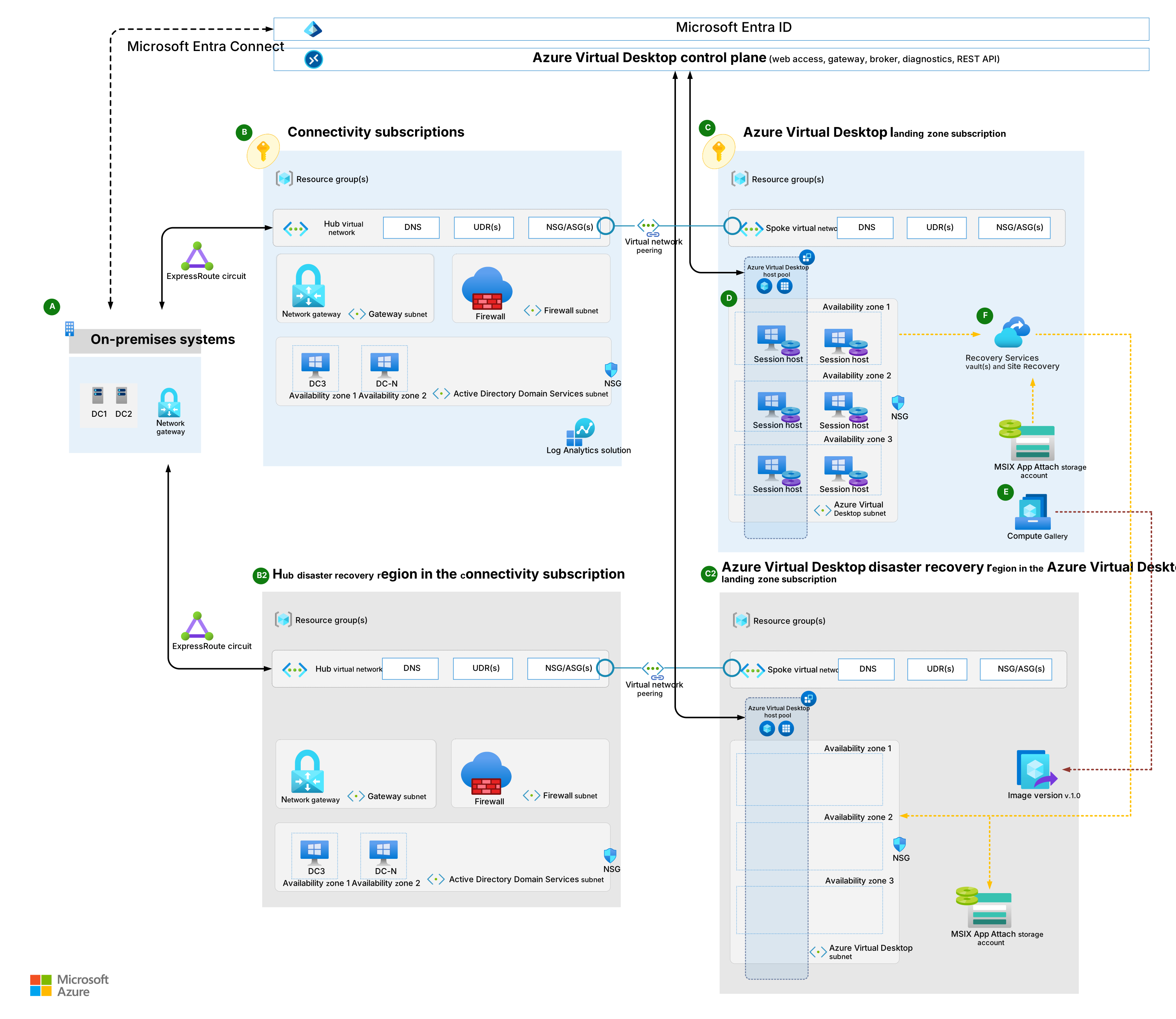
Download a Visio file of this architecture.
| Design area | Description |
|---|---|
| A | User identity must be available for Azure Virtual Desktop to function. Users must authenticate before they can access remote desktops or remote apps. Microsoft Entra ID is required and provides global resilience by design. If you use Active Directory Domain Services (AD DS) for session host domain joining, deploy domain controllers in both the primary and secondary regions, spread across availability zones, to ensure that authentication remains available during regional failover. If you use Microsoft Entra Domain Services, deploy a replica set in the secondary region. For more information, see Identity. |
| B and B2 | If session hosts need to reach on-premises resources like file servers, LOB applications, databases, or intranet sites, the network infrastructure that provides this connectivity must also be resilient. Deploy redundant hybrid connectivity like ExpressRoute circuits, VPN gateways, or both in each region. Confirm that dependent on-premises or cross-region resources, including Domain Name System (DNS), domain controllers, and application back ends, are reachable from the secondary region during failover. Without this connectivity, session hosts in the DR region start, but users can't access the applications and data that they need. |
| C and C2 | Confirm that the subscriptions in both the primary and secondary regions have sufficient VM quota for the VM families that your session hosts use, and that you assign the correct Azure role-based access control (Azure RBAC) roles. During a regional disaster, deallocated VMs or newly deployed session hosts compete for capacity in the secondary region. Quota alone doesn't guarantee that physical capacity is available. Use on-demand capacity reservations to reserve compute capacity in the secondary region in advance, which guarantees VM startup when you need it. Azure reservations (reserved instances) reduce cost but don't reserve physical capacity. Review the Azure Virtual Desktop service limits to confirm that your design remains within host pool, session host, and workspace limits in both regions. |
| D | Spread your session host VM fleet across multiple availability zones in both the primary and secondary DR regions. If your region doesn't provide availability zones, use an availability set to increase resiliency compared to a default deployment. |
| E | Use the same golden image for host pool deployment in both the primary and secondary DR regions. Store images in Azure Compute Gallery and set up multiple image replicas in both locations. |
| F | For personal host pools, use Site Recovery to maintain a backup environment. |
Pooled host pool
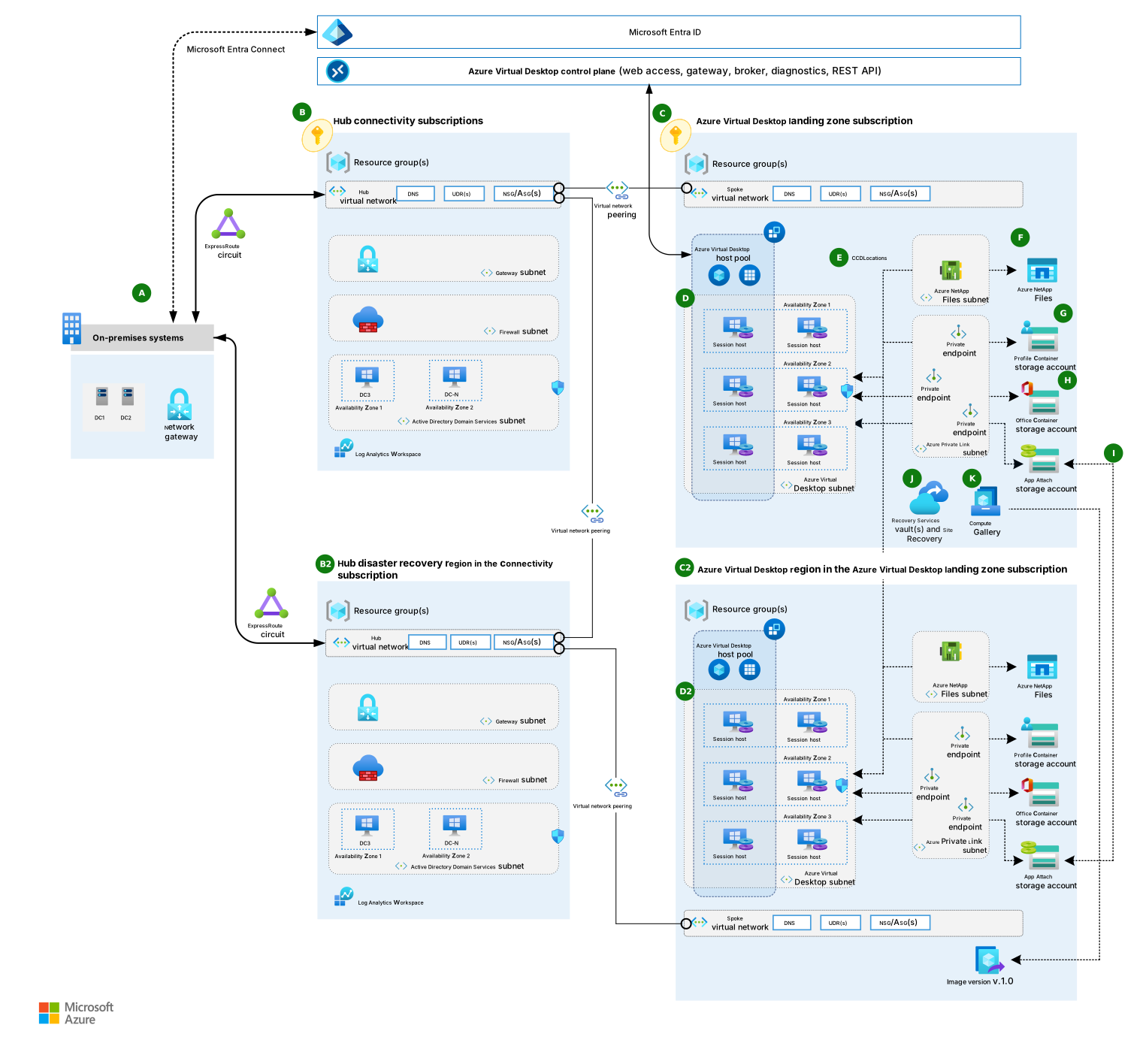
Download a Visio file of this architecture.
| Design area | Description |
|---|---|
| A | User identity must be available for Azure Virtual Desktop to function. Users must authenticate before they can access remote desktops or remote apps. Microsoft Entra ID is required and provides global resilience by design. If you use AD DS for session host domain join, deploy domain controllers in both the primary and secondary regions, spread across availability zones, to ensure that authentication remains available during regional failover. If you use Domain Services, deploy a replica set in the secondary region. For detailed configuration guidance, see Identity. |
| B | If session hosts need to reach on-premises resources like file servers, LOB applications, databases, or intranet sites, the network infrastructure that provides this connectivity must also remain resilient. Deploy redundant hybrid connectivity like ExpressRoute circuits, VPN gateways, or both in each region. Confirm that dependent on-premises or cross-region resources, including DNS, domain controllers, and application back ends, remain reachable from the secondary region during failover. Without this connectivity, session hosts in the DR region start, but users can't access the applications and data that they need. |
| C | Confirm that the subscriptions in both the primary and secondary regions have sufficient VM quota for the VM families that your session hosts use, and that you assign the correct Azure RBAC roles. During a regional disaster, deallocated VMs or newly deployed session hosts compete for capacity in the secondary region. Quota alone doesn't guarantee that physical capacity is available. Use on-demand capacity reservations to reserve compute capacity in the secondary region in advance, which guarantees VM startup when you need it. Azure reservations (reserved instances) reduce cost but don't reserve physical capacity. Review the Azure Virtual Desktop service limits to confirm that your design remains within host pool, session host, and workspace limits in both regions. |
| D | Spread your session host VM fleet across different availability zones within the same region to achieve higher resiliency and a formal 99.99% high-availability SLA. Include sufficient extra compute capacity in your capacity planning to ensure that Azure Virtual Desktop continues to operate even if a single availability zone fails. |
| E | Use FSLogix cloud cache to replicate profile data across regions for resiliency. Cloud cache can increase sign-in and sign-out times compared to traditional VHDLocations, especially when you use low-performance storage. Review the FSLogix cloud cache documentation for recommendations for local cache storage sizing and performance. |
| F | Azure NetApp Files provides higher throughput and lower latency per gibibyte (GiB) at the Premium and Ultra tiers compared to Azure Files Premium. Determine whether the performance difference justifies the management overhead and replication limitations. |
| G | Review the available FSLogix Profile container storage options in Azure Virtual Desktop to compare managed storage solutions and select the option that meets your performance and BCDR requirements. |
| H | Separate user profile and Office container disks into different storage accounts. This separation lets you apply different backup policies, retention periods, and BCDR configurations to each container type. For more information, see FSLogix. |
| I | For App Attach packages, use Azure Storage built-in replication mechanisms for BCDR. Use zone-redundant storage (ZRS) for zone-level resilience or geo-redundant storage (GRS) for Azure Files for region-level protection. |
| J | Use Azure Backup to protect user profile data from data loss or logical corruption. Apply backup policies to the storage accounts that contain critical workload data. |
| K | Use the same golden image for host pool deployment in both the primary and secondary DR regions. Store images in Compute Gallery and set up multiple image replicas in both locations. |
Considerations and recommendations
Consider the following considerations and recommendations.
General
To deploy an active-active or active-passive configuration that uses multiple host pools and an FSLogix cloud cache mechanism, create the host pool in either the same workspace or a different workspace, depending on the model. This approach requires alignment and ongoing updates to keep both host pools in sync and at the same configuration level. When you create a new host pool for the secondary DR region, you must complete the following tasks:
Create new application groups and related applications for the new host pool.
Revoke user assignments to the primary host pool and manually reassign them to the new host pool during failover.
Review BCDR options for FSLogix.
Note
This article doesn't include no profile recovery. It includes cloud cache (active-passive) and uses the same host pool for the implementation. It covers cloud cache (active-active) in a later section.
This solution has Azure Virtual Desktop resource limits that you must consider when you design an Azure Virtual Desktop architecture. Validate your design based on the Azure Virtual Desktop service limits.
For diagnostics and monitoring, use the same Log Analytics workspace for both the primary and secondary host pools. In this configuration, Azure Virtual Desktop Insights provides a unified view of deployment in both regions.
A single log destination can cause problems if the entire primary region becomes unavailable. The secondary region can't use the Log Analytics workspace in the unavailable region. If this outcome doesn't meet your resiliency requirements, consider the following solutions:
Use a separate Log Analytics workspace for each region and point the Azure Virtual Desktop components to send logs to its local workspace.
Test and review Log Analytics workspace replication and failover capabilities.
Compute
This section describes considerations for session host availability, golden image management, autoscaling, DR capacity, and cloud cache disk sizing in both primary and secondary DR regions.
Availability and resiliency of session hosts
For deployment of both host pools in the primary and secondary DR regions, spread your session host VM fleet across multiple availability zones. If availability zones are unavailable in the local region, you can use an availability set to make your solution more resilient than a default deployment.
Golden image consistency across regions
The golden image that you use for host pool deployment in the secondary DR region should match the golden image that you use for the primary region. Store images in Compute Gallery and set up multiple image replicas in both the primary and secondary locations. Each image replica supports a maximum number of VMs that can deploy in parallel, and you might need more than one replica depending on your deployment batch size. For more information, see Store and share images in Compute Gallery.
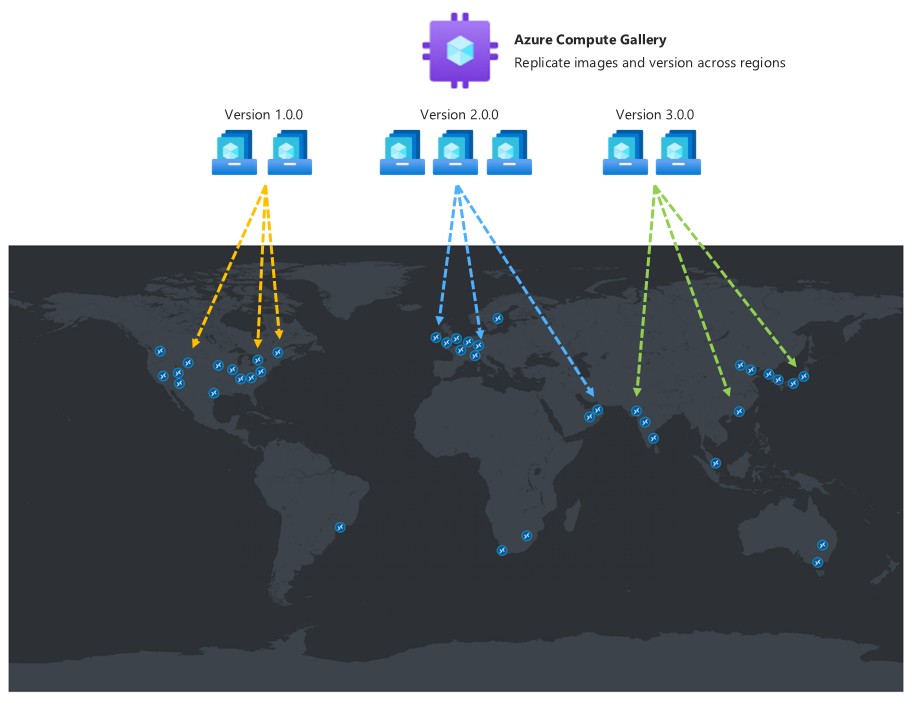
Compute Gallery replication and regional design
Compute Gallery is a regional resource. Create at least one secondary gallery in the secondary region. In your primary region, create a gallery, a VM image definition, and a VM image version. Then create the same objects in the secondary region. When you create the VM image version in the secondary region, you can copy the image version from the primary region by specifying the source gallery, VM image definition, and VM image version. Azure copies the image and creates a local VM image version. You can run this operation by using the Azure portal or the Azure CLI command.
For golden image design principles, including ZRS and replica planning, see Golden images in BC considerations.
Autoscaling and cost optimization
Not all session host VMs in the secondary DR locations must be active and run at all times. Create a sufficient number of VMs initially and use an autoscale mechanism like scaling plans. These mechanisms keep most compute resources in an offline or deallocated state to reduce costs.
You can also use automation to create session hosts in the secondary region only when needed. This approach optimizes costs, but it can require a longer RTO depending on the mechanism that you use. This approach doesn't allow failover tests without a new deployment or selective failover for specific user groups.
Note
You must start each session host VM for a few hours at least once every 90 days to refresh the authentication token needed to connect to the Azure Virtual Desktop control plane. You should also routinely apply security patches and application updates.
Capacity considerations during disasters
Session host maintenance in an offline, or deallocated, state in the secondary region doesn't guarantee capacity during a primary region-wide disaster. This capacity limit also applies if you deploy new session hosts on-demand when needed, and with Site Recovery. Compute capacity is guaranteed only if the related resources are already allocated and active.
Important
Azure reservations doesn't provide guaranteed capacity in the region.
Cloud cache disk sizing
For cloud cache use cases, we recommend the Premium tier for managed disks. Cloud cache uses a local cache disk on each session host to stage profile data before replication to the remote storage providers. Size this local cache disk to be at least as large as the largest expected user profile VHD or virtual hard disk extended (VHDX) file. An undersized cache disk causes sign-in failures. As a starting point, allocate at least 30 GB for each concurrent user, and monitor actual profile sizes to adjust. For more information, see Cloud cache documentation.
Storage
In this guide, you use at least two separate storage accounts for each Azure Virtual Desktop host pool. One account is for the FSLogix Profile container, and one account is for the Office container data. You also need one more storage account for MSIX packages.
Storage options and resiliency
You can use an Azure Files share and Azure NetApp Files as storage alternatives. To compare these options, see FSLogix container storage options. An Azure Files share can provide zone resiliency by using the ZRS resiliency option if it's available in the region.
You can't use the GRS storage feature in the following situations:
You require a region that lacks a region pair. Region pairs for GRS are fixed and can't be changed.
You use the Premium tier.
Warning
Azure Files Premium tier doesn't support GRS. If you require Premium performance for FSLogix profile storage, rely on FSLogix cloud cache for cross-region replication rather than Storage built-in geo-replication.
RPO and RTO are higher compared to cloud cache.
Failover and failback testing in a production environment isn't simple.
Azure NetApp Files considerations
Azure NetApp Files supports elastic zone-redundant volumes, which distribute data across availability zones for zone-level resilience. Determine whether elastic zone-redundant volumes meet your resiliency requirements. Azure NetApp Files can be zonal, which means that you choose the single Azure availability zone where the volume is allocated.
Cross-zone replication provides recoverability, not automatic zone-level resilience. Use it to restore service after a zone outage rather than continue serving traffic during the outage. Before you use this feature, review the requirements and considerations for cross-zone replication.
You can use Azure NetApp Files with zone-redundant VPN and ExpressRoute gateways if you use the standard networking feature, which supports networking resiliency. For more information, see Supported network topologies. Azure Virtual WAN is supported when you use it with Azure NetApp Files standard networking.
Azure NetApp Files cross-region replication
Azure NetApp Files has a cross-region replication mechanism. This mechanism isn't available in all regions, and cross-region replication of Azure NetApp Files volumes region pairs can differ from Storage region pairs. You can't use cross-region replication when cross-zone replication is active.
Warning
Azure NetApp Files cross-region replication and cross-zone replication are mutually exclusive. You must choose either zone-level recoverability or region-level recoverability for each volume. Determine which failure scope is more critical for your deployment and plan accordingly.
Failover isn't transparent and failback requires storage reconfiguration.
Storage limits and scaling
Both Azure Files shares and Azure NetApp Files storage accounts and volumes have limits in size, input/output operations per second (IOPS), and bandwidth MBps.
If necessary, you can use more than one storage location for the same host pool in Azure Virtual Desktop by using per-group settings in FSLogix. But this approach requires more planning and configuration.
MSIX storage account options
The storage account that you use for MSIX application packages should be distinct from the other accounts for Profile and Office containers. The following geo-disaster recovery options are available:
The one-storage-account option uses GRS in the primary region. The secondary region is fixed. This option doesn't suit local access when storage account failover occurs.
The recommended option uses one storage account in the primary region and one storage account in the secondary region. Use ZRS for at least the primary region. Make sure that each host pool in each region has low-latency local access to the MSIX packages. Copy each MSIX package to both regions and register the packages in both host pools. Assign users to the application groups in both host pools.
FSLogix
We recommend that you use the following FSLogix configuration and features.
If the Profile container content requires separate BCDR management with different requirements than the Office containers, split the Profile containers and Office containers into separate storage accounts. Office containers store only cached content that you can rebuild or repopulate from the source if a disaster occurs. Because Office containers contain only cached data, you might not need to keep backups, which can reduce costs. When you use different storage accounts, set up backups on the profile container only. Or you must have different settings like retention period, storage used, frequency, and RTO or RPO.
Cloud cache is an FSLogix feature that lets you specify multiple profile storage locations and replicate profile data asynchronously without relying on underlying storage replication mechanisms. When the first storage location fails or can't be reached, cloud cache automatically fails over to the secondary region, which adds a resiliency layer. Use cloud cache to replicate both Profile and Office container data between different storage accounts in the primary and secondary regions.
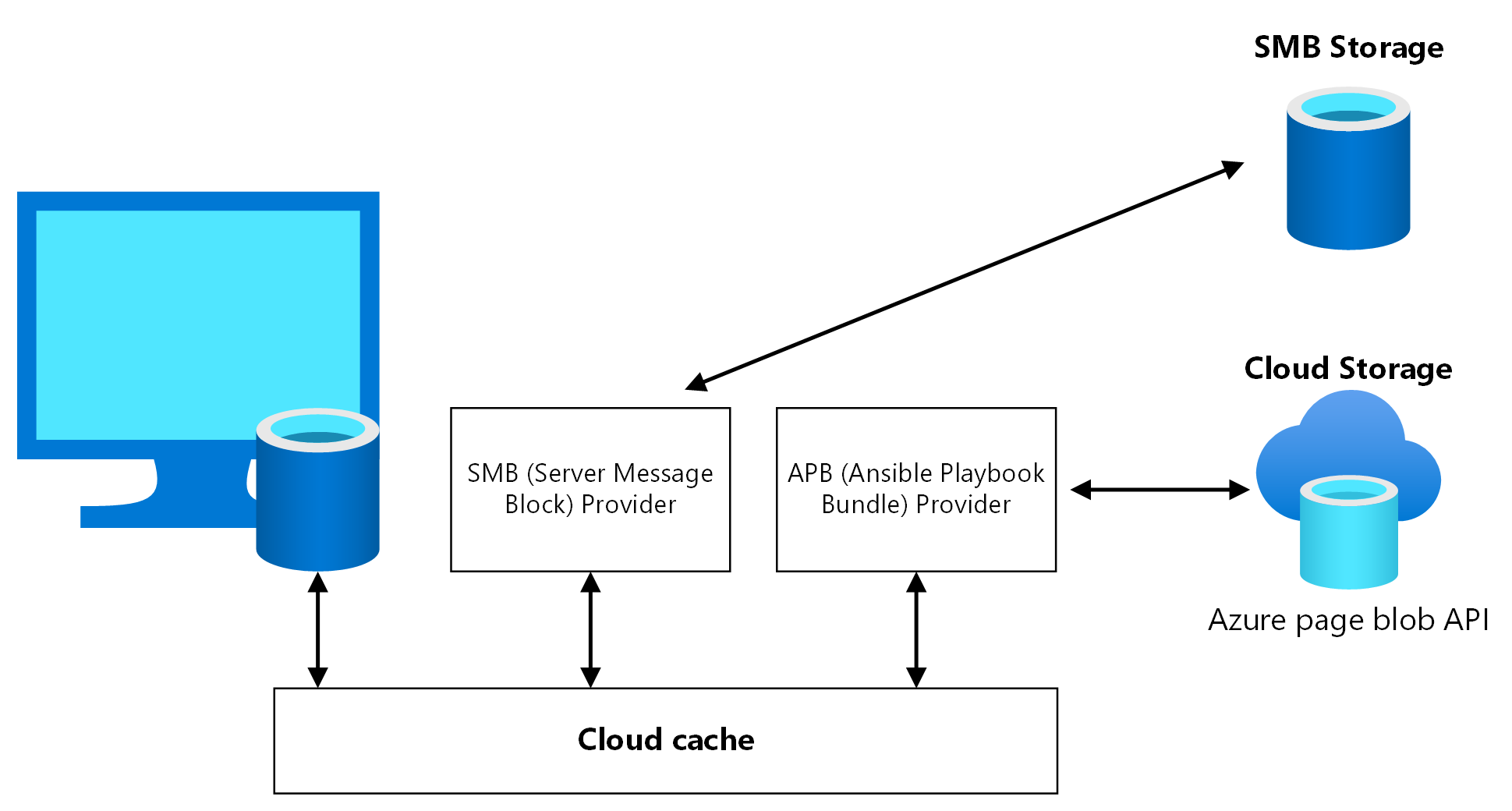
You must set up cloud cache twice in the session host VM registry. Set it up once for the Profile container and once for the Office container. You can turn off cloud cache for the Office container, but it can misalign data between the primary and secondary DR region if failover and failback occur. Test this scenario carefully before you use it in production.
Cloud cache is compatible with profile split and per-group settings. Per-group settings require careful design and planning of Active Directory groups and membership. Ensure that each user is assigned to exactly one group and that the group is used to give access to host pools.
In the secondary DR region, reverse the CCDLocations provider order so that the local (secondary) storage account is first. Cloud cache writes to the first reachable provider as the active write target and asynchronously replicates to subsequent entries. When you list the local storage account first in each region, you ensure that writes go to local storage during normal operations and that replication flows across regions. For more information, see Set up profile containers with cloud cache.
Tip
This article focuses on a specific scenario. For other scenarios, see High availability options for FSLogix and BCDR options for FSLogix.
Cloud cache configuration example
The following example shows a cloud cache configuration and related registry keys. Replace the placeholder storage account names to match the names in your environment.
| Placeholder | Description |
|---|---|
primarystgprofiles |
Storage account for Profile containers in the primary region |
primarystgodfc |
Storage account for Office containers in the primary region |
secondarystgprofiles |
Storage account for Profile containers in the secondary region |
secondarystgodfc |
Storage account for Office containers in the secondary region |
Primary region configuration
The following settings apply in the primary region:
Profile container storage account uniform resource identifier (URI) =
\\primarystgprofiles\profilesRegistry key path =
HKEY_LOCAL_MACHINE > SOFTWARE > FSLogix > ProfilesCCDLocations value =
type=smb,connectionString=\\primarystgprofiles\profiles;type=smb,connectionString=\\secondarystgprofiles\profiles
Note
If you download the FSLogix templates, you can achieve the same configurations through the Active Directory Group Policy Management Console (GPMC). For more information about how to set up the group policy object (GPO) for FSLogix, see Use FSLogix group policy template files.

Office container storage account URI =
\\primarystgodfc\odfcRegistry key path =
HKEY_LOCAL_MACHINE > SOFTWARE > Policy > FSLogix > ODFCCCDLocations value =
type=smb,connectionString=\\primarystgodfc\odfc;type=smb,connectionString=\\secondarystgodfc\odfc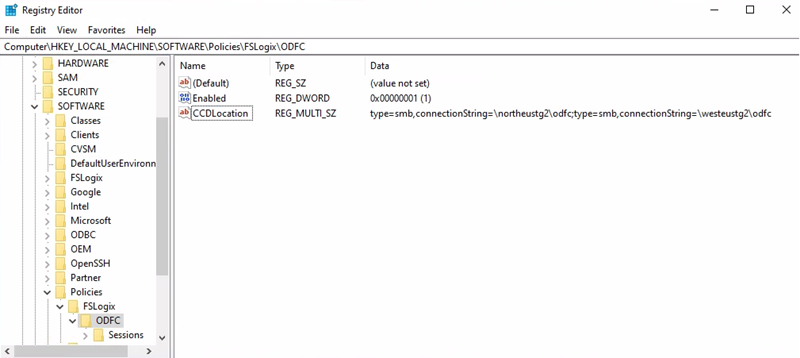

Note
The previous screenshots show only a subset of recommended registry keys for FSLogix and cloud cache. For more information, see FSLogix configuration examples.
Secondary region configuration
The following settings apply in the secondary region:
The CCDLocations provider order is reversed so that the local (secondary) storage account is first.
Profile container storage account URI =
\\secondarystgprofiles\profilesRegistry key path =
HKEY_LOCAL_MACHINE > SOFTWARE > FSLogix > ProfilesCCDLocations value =
type=smb,connectionString=\\secondarystgprofiles\profiles;type=smb,connectionString=\\primarystgprofiles\profiles
Office container storage account URI =
\\secondarystgodfc\odfcRegistry key path =
HKEY_LOCAL_MACHINE > SOFTWARE > Policy > FSLogix > ODFCCCDLocations value =
type=smb,connectionString=\\secondarystgodfc\odfc;type=smb,connectionString=\\primarystgodfc\odfc
Cloud cache replication
The cloud cache configuration and replication mechanisms replicate profile data between different regions with minimal data loss. Because only one process can open the same user profile file in ReadWrite mode, avoid concurrent access. Users shouldn't open a connection to both host pools simultaneously.
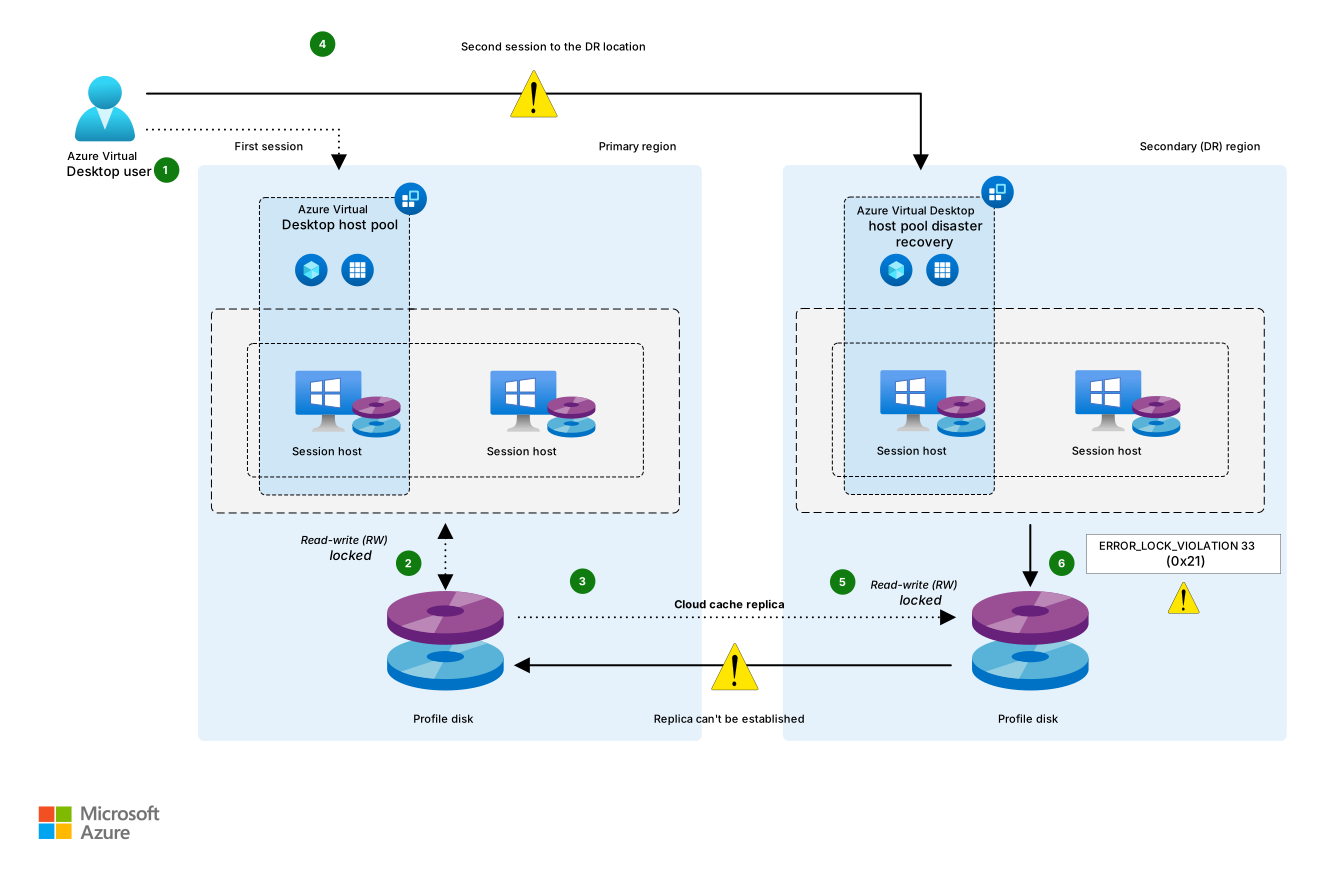
Download a Visio file of this architecture.
Data flow
An Azure Virtual Desktop user launches the Azure Virtual Desktop client and opens a published desktop or RemoteApp application assigned to the primary region host pool.
FSLogix retrieves the user Profile and Office containers, and then mounts the underlying storage VHD or VHDX from the storage account located in the primary region.
Cloud cache simultaneously initializes replication between the files in the primary region and the files in the secondary region. During this process, cloud cache in the primary region takes an exclusive read-write lock on those files.
The same Azure Virtual Desktop user wants to launch another published application assigned to the secondary region host pool.
The FSLogix component on the Azure Virtual Desktop session host in the secondary region tries to mount the user profile VHD or VHDX files from the local storage account. The mounting fails because the cloud cache component on the Azure Virtual Desktop session host in the primary region locks these files.
In the default FSLogix and cloud cache configuration, the user can't sign in, FSLogix records the error
ERROR_LOCK_VIOLATION 33 (0x21)in the diagnostic logs.
Identity
User identity is critical for Azure Virtual Desktop. To access full remote virtual desktops and remote apps from your session hosts, your users must be able to authenticate. Microsoft Entra ID provides this centralized cloud identity service. Azure Virtual Desktop uses Microsoft Entra ID to authenticate users. Session hosts can join to the same Microsoft Entra tenant or to an Active Directory domain by using AD DS or Domain Services. This flexibility provides a wide range of configuration options.
Microsoft Entra ID resiliency
Microsoft Entra ID is a global multiregion and resilient service with a high-availability SLA. No other action is required in this context as part of an Azure Virtual Desktop BCDR plan.
AD DS high-availability requirements
To make AD DS resilient and highly available, even if a region-wide disaster occurs, deploy at least two domain controllers in the primary Azure region. Place these domain controllers in different availability zones if possible and ensure proper replication across infrastructure in the secondary region and eventually on-premises. Create at least one more domain controller in the secondary region that has global catalog and DNS roles. For more information, see Deploy AD DS in an Azure virtual network.
Microsoft Entra Connect resiliency configuration
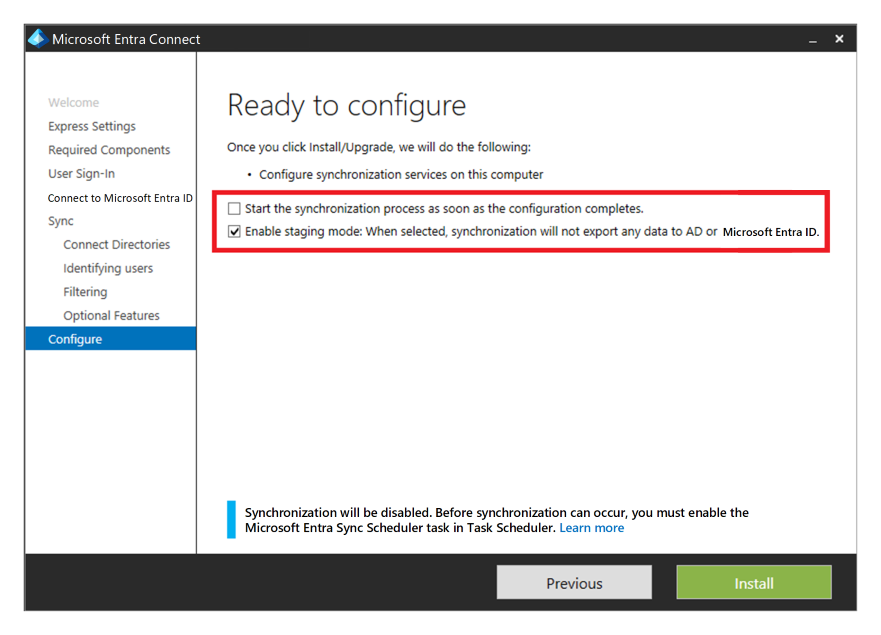
If you use Microsoft Entra ID alongside AD DS, and then Microsoft Entra Connect to sync user identity data between AD DS and Microsoft Entra ID, consider the resiliency and recovery of this service for protection from a permanent disaster.
Install a second instance of the service in the secondary region and set up staging mode to provide high availability and DR.
If recovery is needed, admins must promote the secondary instance after they remove it from staging mode. They must follow the procedure to switch the active server by using an account that has at least the Hybrid Identity admin role.
Domain Services considerations
You can use Domain Services in some scenarios as an alternative to AD DS. Domain Services provides a high-availability SLA.
If geo-disaster recovery is in scope for your scenario, deploy another replica in the secondary Azure region through a replica set. You can also use this feature to increase high availability in the primary region.
Failover and failback
Consider the following host pool scenarios.
Personal host pool scenario
Note
This section only covers the active-passive model. The active-active model doesn't require failover or admin intervention.
Failover and failback for a personal host pool work differently because you don't use cloud cache or external storage for Profile or Office containers. You can still use FSLogix to store data in a container from the session host. There's no secondary host pool in the DR region, so you don't need to create extra workspaces or Azure Virtual Desktop resources to replicate or align. You can use Site Recovery to replicate session host VMs.
You can use Site Recovery in several different scenarios. For Azure Virtual Desktop, use the Azure to Azure DR architecture in Site Recovery.
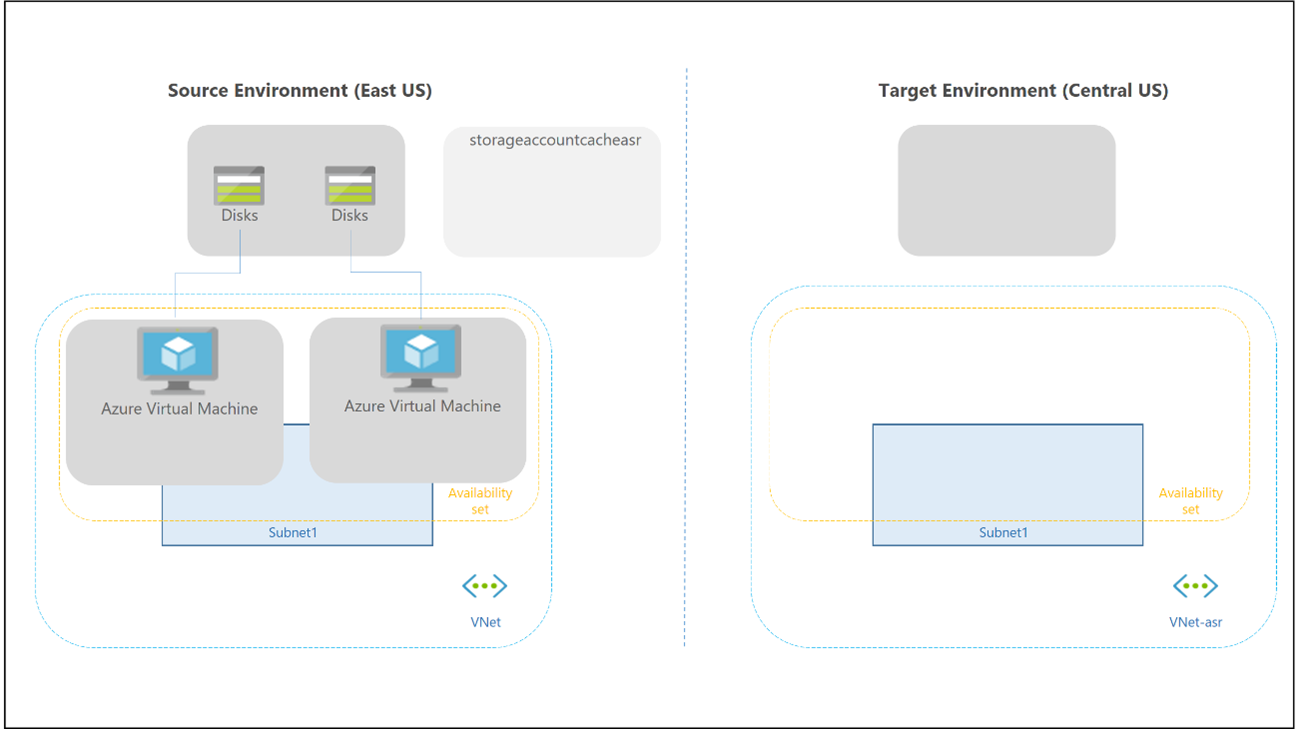
Site Recovery operational considerations
Admins must trigger Site Recovery failover manually by using the Azure portal, API, or PowerShell. You can script and automate the entire Site Recovery configuration and operations by using PowerShell. The Site Recovery SLA declares an RTO, and Site Recovery usually fails over VMs within minutes. You can use Site Recovery and Backup together. For more information, see Support for Site Recovery with Backup. You must set up Site Recovery at the VM level because there's no direct integration in Azure Virtual Desktop. You must also initiate failover and failback at the individual VM level.
Warning
Don't use the Site Recovery test failover feature for Azure Virtual Desktop session host VMs. A test failover creates a duplicate VM that registers with the Azure Virtual Desktop control plane and conflicts with the original session host. Instead, validate your DR readiness by starting secondary session hosts on a regular schedule, confirm that each VM registers with the control plane, and run the documented failover and failback procedures with a test user group.
Site Recovery doesn't maintain VM extensions during replication. If you use custom extensions for Azure Virtual Desktop session host VMs, you must set up the extensions after failover or failback. The Azure Virtual Desktop built-in extensions joindomain and Microsoft.PowerShell.DSC apply only when a session host VM is first created. You can safely disregard them after the first failover. Review the support matrix for Azure VM DR between Azure regions. Check requirements, limitations, and the compatibility matrix for the Site Recovery Azure to Azure DR scenario, especially the supported operating system versions.
When you fail over a VM to another region, the VM starts up in the target DR region in an unprotected state. Failback is possible, but you must reprotect VMs in the secondary region and turn on replication to the primary region. Run periodic tests of failover and failback procedures. Document a list of steps and recovery actions based on your specific Azure Virtual Desktop environment.
Pooled host pool scenario
Use an active-active DR model when you need service recovery without admin intervention during an outage. Use failover procedures only for an active-passive architecture. In an active-passive model, the secondary DR region remains idle and keeps minimal ready resources. Keep the secondary configuration aligned with the primary configuration. During failover, reassign all users to desktop and remote app application groups in the secondary DR host pool.
You can implement an active-active model with partial failover. If the host pool publishes only desktops and application groups, split users into nonoverlapping Active Directory groups and map each group to application groups in either the primary or secondary DR host pool. Keep each user on one host pool at a time. If you publish multiple application groups and applications, group memberships can overlap. That overlap makes the active-active model harder to operate. When a user starts a remote app in the primary host pool, FSLogix loads the user profile on a session host VM. Trying to do the same operation on the secondary host pool might cause a conflict on the underlying profile disk.
Warning
By default, FSLogix registry settings prevent concurrent access to the same user profile from multiple sessions. In this BCDR scenario, keep this behavior and set the ProfileType registry key to 0.
Conditions and configuration assumptions
The host pools in the primary region and secondary DR region use aligned configurations, including cloud cache. In both host pools, DAG1, APPG2, and APPG3 are available to users. In the primary host pool, Active Directory groups GRP1, GRP2, and GRP3 assign users to DAG1, APPG2, and APPG3. Group memberships can overlap, but this pattern remains acceptable because this scenario uses an active-passive model with full failover.
The following steps describe the failover process for either a planned or unplanned DR event:
In the primary host pool, remove user assignments by the groups GRP1, GRP2, and GRP3 for application groups DAG1, APPG2, and APPG3.
Connected users are force disconnected from the primary host pool.
In the secondary host pool, where the same application groups are set up, you must give users access to DAG1, APPG2, and APPG3 by using groups GRP1, GRP2, and GRP3.
Review and adjust host pool capacity in the secondary region. You can use an autoscale plan to start session hosts automatically, or you can start the required resources manually.
The failback steps and flow are similar, and you can run the process multiple times. Cloud cache and storage account configuration ensure replication of Profile and Office container data. Before failback, confirm that host pool configuration and compute resources are restored. If the primary region has storage data loss, cloud cache replicates Profile and Office container data from storage in the secondary region.
You can also implement a test failover plan with a few configuration changes and no effect on the production environment:
Create a few test user accounts in Active Directory.
Create a new Active Directory group named GRP-TEST and assign users.
Assign access to DAG1, APPG2, and APPG3 with the GRP-TEST group.
Instruct users in the GRP-TEST group to test applications.
Test the failover procedure with the GRP-TEST group. Remove access from the primary host pool and grant access to the secondary DR pool.
Follow these recommendations:
Automate the failover process through PowerShell, the Azure CLI, or another available API or tool.
Test the complete failover and failback procedure periodically.
Run a regular configuration alignment check to keep host pools in the primary and secondary DR regions in sync.
Backup
This guide assumes that you separate Profile containers and Office containers. FSLogix supports this configuration and separate storage accounts. After you place Profile and Office containers in separate storage accounts, you can use different backup policies.
For Office containers, if the content is only cached data that you can rebuild from an online data store like Microsoft 365, you don't need to back up the data. If you need to back up Office container data, you can use less expensive storage or choose a different backup frequency and retention period. For a personal host‑pool type, run backup at the session-host VM level. This method applies only when you store the data locally. If you use OneDrive and known-folder redirection, you might no longer need to store data inside the container.
Note
This article and scenario don't include OneDrive backup.
Storage and region considerations
Unless you have other requirements, backing up primary region storage addresses typical backup needs. In most cases, you don't need to back up the DR environment. For an Azure Files share, use Backup. For the vault resiliency type, use ZRS if you don't require off-site or region backup storage. If you need those backups, use GRS.
Azure NetApp Files provides its own built-in backup solution. Check the region feature availability, along with requirements and limitations. Back up the separate storage accounts that store MSIX packages if you can't easily rebuild the application package repositories.
Contributors
Microsoft maintains this article. The following contributors wrote this article.
Principal author:
- Ben Martin Baur | Technical Architect - Microsoft Innovation Hub
Other contributors:
- Jason Martinez | Technical Writer
- Igor Pagliai | FastTrack for Azure (FTA) Principal Engineer
- Nelson Del Villar | Cloud Solution Architect - Azure Core Infrastructure
Next steps
- Azure Virtual Desktop DR plan
- BCDR for Azure Virtual Desktop
- Cloud cache overview
- FSLogix configuration examples
- Design reliable Azure applications