Bemærk
Adgang til denne side kræver godkendelse. Du kan prøve at logge på eller ændre mapper.
Adgang til denne side kræver godkendelse. Du kan prøve at ændre mapper.
Visual Studio provides several refactorings for cleaning up and improving code quality. You can access these refactorings through the Quick Actions and Refactorings menu (Ctrl+.).
Add null checks for all parameters
Applies to: C#
This refactoring creates and adds if statements that check nullity of all the nullable, non-checked parameters in a method, making the program more robust.
Place your cursor on any parameter within the method.
Press Ctrl+. to trigger the Quick Actions and Refactorings menu.

Select the option to Add null checks for all parameters.

Remove unreachable code
Applies to: C#, Visual Basic
This refactoring removes code that will never be executed because there's no path to the code snippet, improving readability and maintainability.
- Place your cursor anywhere in the faded out code that is unreachable:

Next, do one of the following:
- Keyboard
- Press Ctrl+. to trigger the Quick Actions and Refactorings menu and select Remove unreachable code from the Preview window popup.
- Mouse
- Right-click the code, select the Quick Actions and Refactorings menu and select Remove unreachable code from the Preview window popup.
- Keyboard
When you're happy with the change, press Enter or click the fix in the menu and the changes will be committed.
Example:
// Before
private void Method()
{
    throw new Exception(nameof(Method));
    Console.WriteLine($"Exception for method {nameof(Method)}");
}

// After
private void Method()
{
    throw new Exception(nameof(Method));
}
Remove unused references
Applies to: C#, Visual Basic
For SDK style projects only, this refactoring removes unused project references and NuGet packages, helping save space and reduce startup time.
Note
You can use the .NET Upgrade Assistant right from Visual Studio to upgrade your app to the latest .NET versions.
Verify that the option is enabled.
Select Tools > Options > Text Editor > C# > Advanced, and enable Show "Removed Unused References" command in Solution Explorer.
In Solution Explorer, right click on a project name or the Dependencies node.
Select Remove Unused References.

The Remove Unused References dialog opens, displaying references that have no usage in source code. Unused references are pre-selected for removal with an option to preserve references by selecting
Keepfrom the Action drop down.
Click
Applyto remove selected references.
Unused value assignments, variables, and parameters
Applies to: C#, Visual Basic
This feature fades out unused parameters and generates a warning for unused expression values. The compiler also performs a flow analysis to find any unused value assignments. Unused value assignments fade out and a light bulb appears with a Quick Action to remove the redundant assignment. Unused variables with unknown values show a Quick Action suggestion to use discards instead.


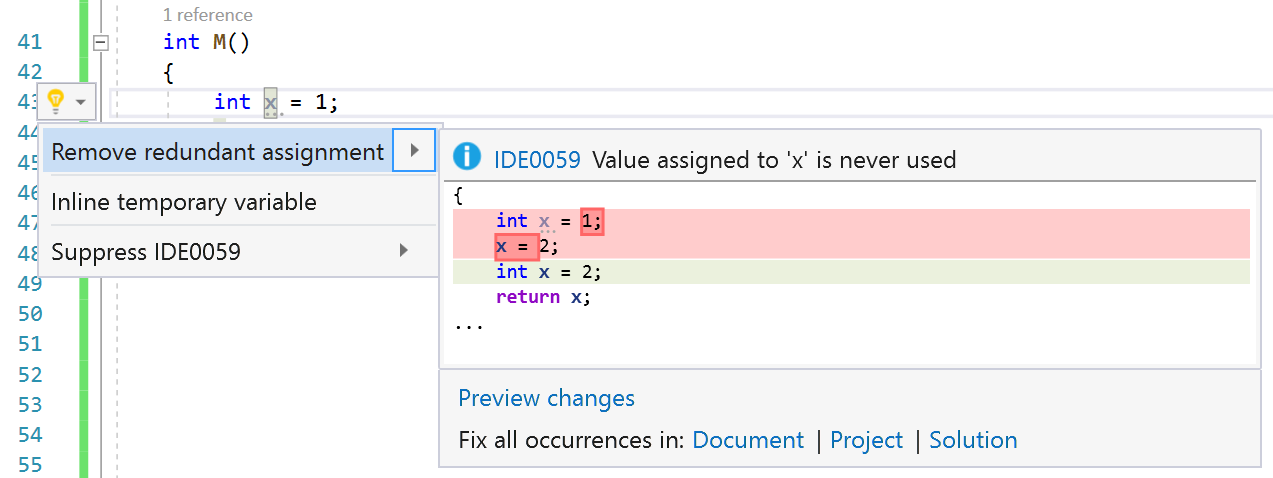

Sort usings
Applies to: C#, Visual Basic
This refactoring sorts using directives at the top of your file alphabetically, making it easier to find a specific using directive.
Select Edit from the menu bar.
Select Intellisense > Sort Usings.

You can also configure different settings for
usingdirectives in Tools > Options > Text Editor > C# > Advanced.